Updated June 25, 2026
If your iPhone or iPad was stolen, act quickly. The first priority is to lock it with Lost Mode before anyone can access your data or make changes to your Apple Account.
Apple’s latest guidance also includes an important warning: if the iPhone was stolen, do not leave personal contact details on the Lost Mode screen.

Quick Answer: What to Do If Your iPhone Is Stolen
- Mark the iPhone as lost immediately.
- Do not leave contact information in Lost Mode.
- Keep the iPhone in Find My.
- Contact your carrier and local law enforcement.
- Erase it remotely only if you cannot recover it.
5 Things to Do If Your iPhone Is Stolen
1. Mark Your iPhone as Lost Immediately
Use Find My on another Apple device or visit iCloud.com/find.
-
Select your stolen iPhone.
-
Choose Mark as Lost.
-
Follow the on-screen instructions.
You don’t need a verification code to sign in at iCloud.com/find. If Apple asks for one, select the Find Devices button instead.
Lost Mode locks the device, suspends Apple Pay cards and passes, and helps prevent unauthorized changes to your Apple Account.
If the iPhone appears at a location you do not recognize, do not try to recover it yourself. Contact local law enforcement.

2. Do Not Add Contact Information if Your iPhone Was Stolen
Lost Mode can display a phone number or message. That may help if you simply misplaced your iPhone and an honest person finds it.
However, do not add a phone number, email address, or personal message if the iPhone was stolen.
“Don't include your contact information if your device was stolen.”
— Apple Support
Apple warns that a thief may use those details in social engineering scams, including phishing messages or phony support calls. Apple will never contact you to say that your iPhone has been found.

3. Keep Your Stolen iPhone in Find My
Do not tap Remove This Device in Find My.
Removing the iPhone from Find My removes Activation Lock, which makes it easier for someone else to erase and resell the device.
Keep the iPhone in Find My even if you later erase it remotely.
4. Contact Your Carrier, Police, and Check Your Apple Account
-
Contact your wireless carrier to report the theft. Ask the carrier to suspend your account or service and check whether your plan includes theft coverage.
-
Report the theft to local law enforcement. Keep your iPhone serial number ready, as police may request it.
-
On another trusted Apple device, review the devices, email addresses, phone numbers, and recovery methods connected to your Apple Account.
-
Change your Apple Account password if you notice account changes you did not make. If Find My was not turned on before the theft, Apple says to change your password immediately.
5. Erase Your iPhone Only If You Cannot Recover It
Remote erase is the final privacy step, not the first action.
Use it only after you have tried everything else to find the iPhone and believe recovery is no longer realistic. A remote erase cannot be undone.
If the iPhone is offline, the erase begins the next time it connects to the internet.
Do not remove the iPhone from Find My after erasing it. This keeps Activation Lock active.
For iPhones running iOS 15 or later, you can still use Find My or iCloud.com/find to locate the device after it has been erased.
Ultra-Thin MagSafe Back Plate Series
ZEERA MagSkin Air Ultra-Thin Magnetic Plate
- Only 0.3mm thin
- MagSafe compatible
- Preserves Air feel
- Light back guard
- Case-free carry

ZEERA MagSkin Pro Ultra-Thin Magnetic Back Plate
- Ultra-thin Pro fit
- MagSafe compatible
- Bare-phone feeling
- Camera deco guard
- Minimal daily carry

ZEERA AirFlat Lens Cover for iPhone Air
- Makes back flat
- Stops desk wobble
- Protects camera lens
- Slim matching look
- Easy clean design

Common Lost Mode Scams After an iPhone Is Stolen
1. Fake “Your iPhone Has Been Found” Texts
A message may include a fake tracking link designed to steal your Apple Account details.
Do not open the link. Check the device status only in Find My or at iCloud.com/find.
2. Fake Apple Support Calls
A caller may claim they need your passcode, password, or verification code to unlock or return your iPhone.
Apple will not ask for these details. End the call.
3. Verification Code Requests
Your verification code is for you only. Anyone asking for it is trying to access your account.
ZEERA MagSafe Wireless Charging Series
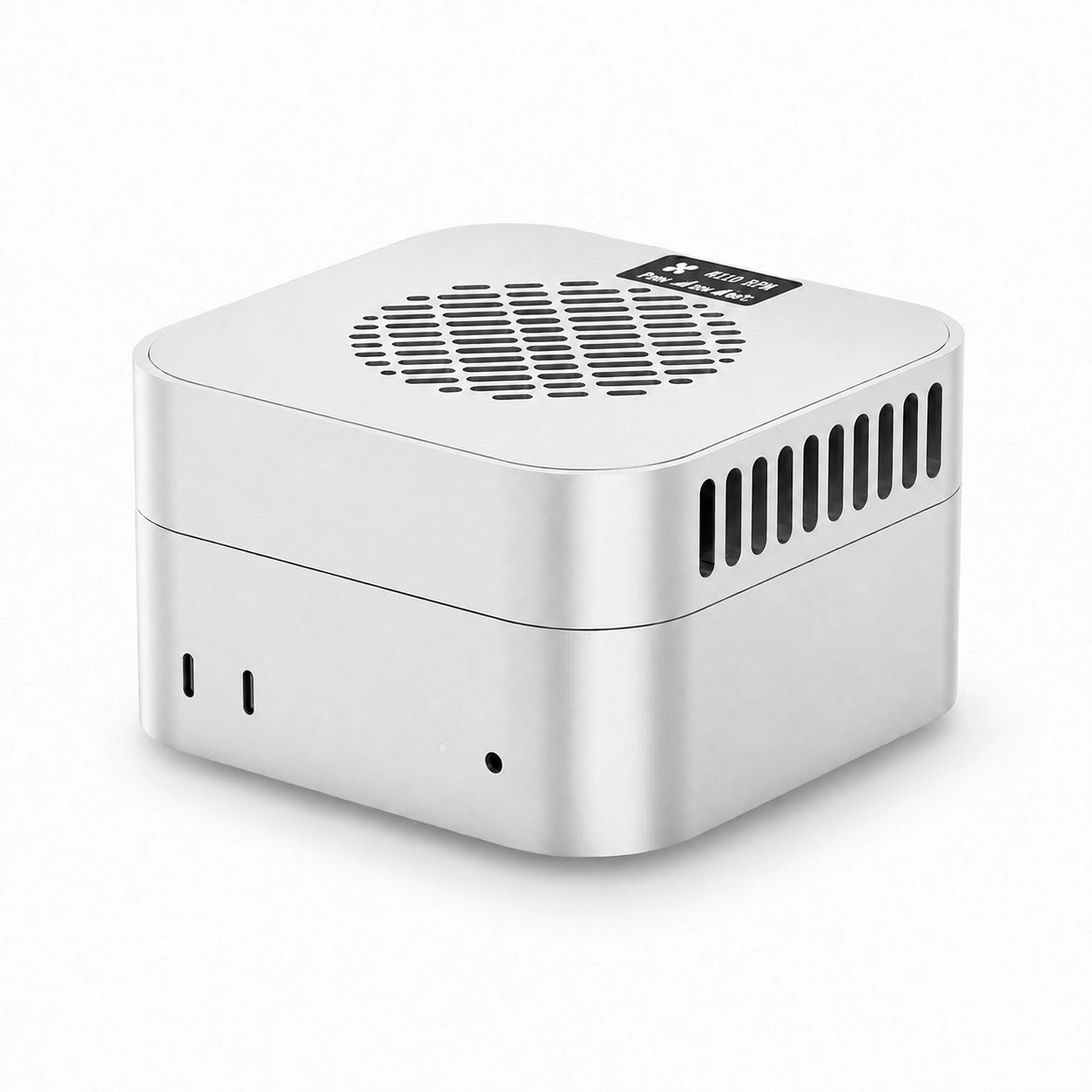
ZEERA MagTri Gen2 Qi2.2 Foldable MagSafe Charger
- 25W Qi2.2
- 3-in-1 fold
- Active cooling
- Travel size
- 3-device ready
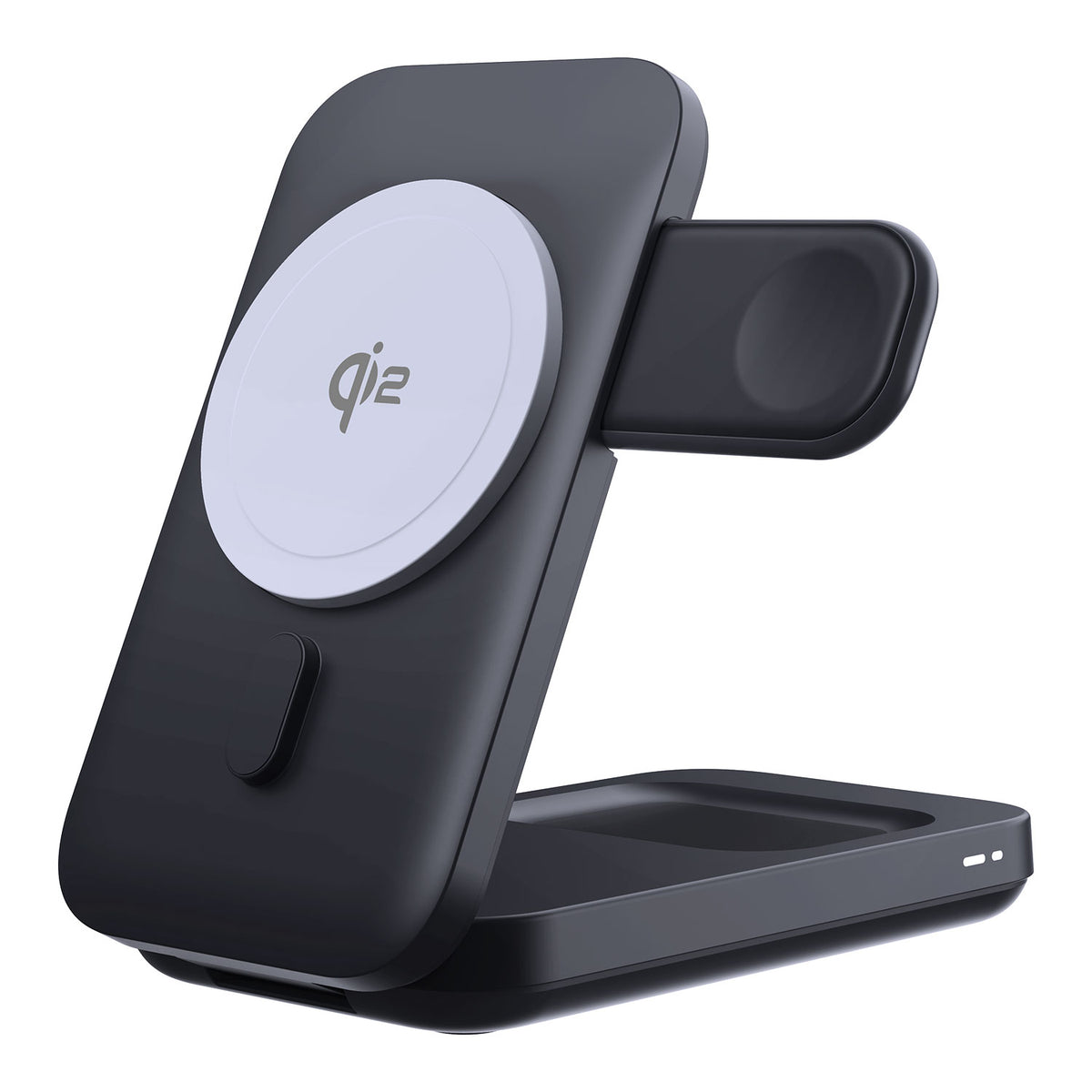
ZEERA MagSion 5-in-1 Dual MagSafe Charger Stand
- Dual MagSafe
- 5-in-1 stand
- Watch charging
- Angle adjust
- Clean setup
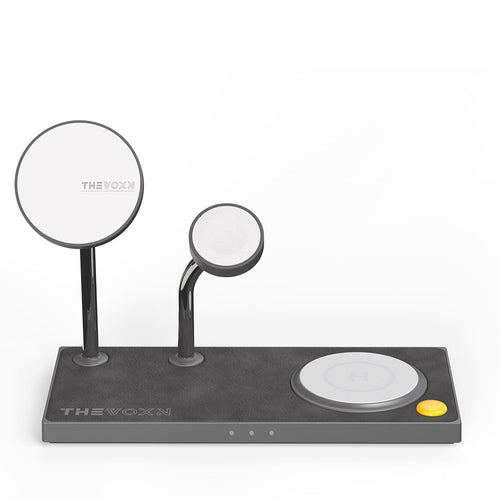
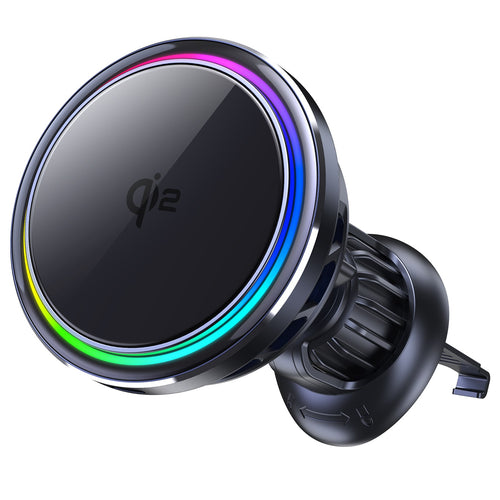
ZEERA SuVolt Gen5 Qi2.2 Active Cooling Car Charger
- 25W Qi2.2
- Active cooling
- Strong magnet
- CarPlay ready
- Heat control
What Is Stolen Device Protection?
Stolen Device Protection is an iPhone security feature designed for situations where a thief has both your iPhone and your passcode.
It can require Face ID or Touch ID for sensitive actions and add a security delay before major account or passcode changes.
To turn it on, go to Settings → Face ID & Passcode → Stolen Device Protection.
It adds protection, but it does not replace Lost Mode. If your iPhone is stolen, mark it as lost as quickly as possible.

FAQ
Should I remove my stolen iPhone from Find My?
No. Keep it in Find My to preserve Activation Lock.
Does Apple send a text when a stolen iPhone is found?
Do not trust unexpected “iPhone found” messages. Check device status directly in Find My.
Can I find my iPhone after remotely erasing it?
On iPhones running iOS 15 or later, Find My can still help locate the device after an erase.
What if Find My was turned off before my iPhone was stolen?
Change your Apple Account password immediately, contact your carrier, and report the theft to local law enforcement.


Bottom Line
Mark your stolen iPhone as lost, do not leave personal contact details on the screen, and never remove it from Find My.
Ignore messages or calls asking for your passcode, Apple Account password, or verification code. Erase the iPhone only if recovery is no longer possible.
Official Apple Resources
- What to Do If Your iPhone Was Stolen
- Activation Lock for iPhone and iPad
- About Stolen Device Protection for iPhone