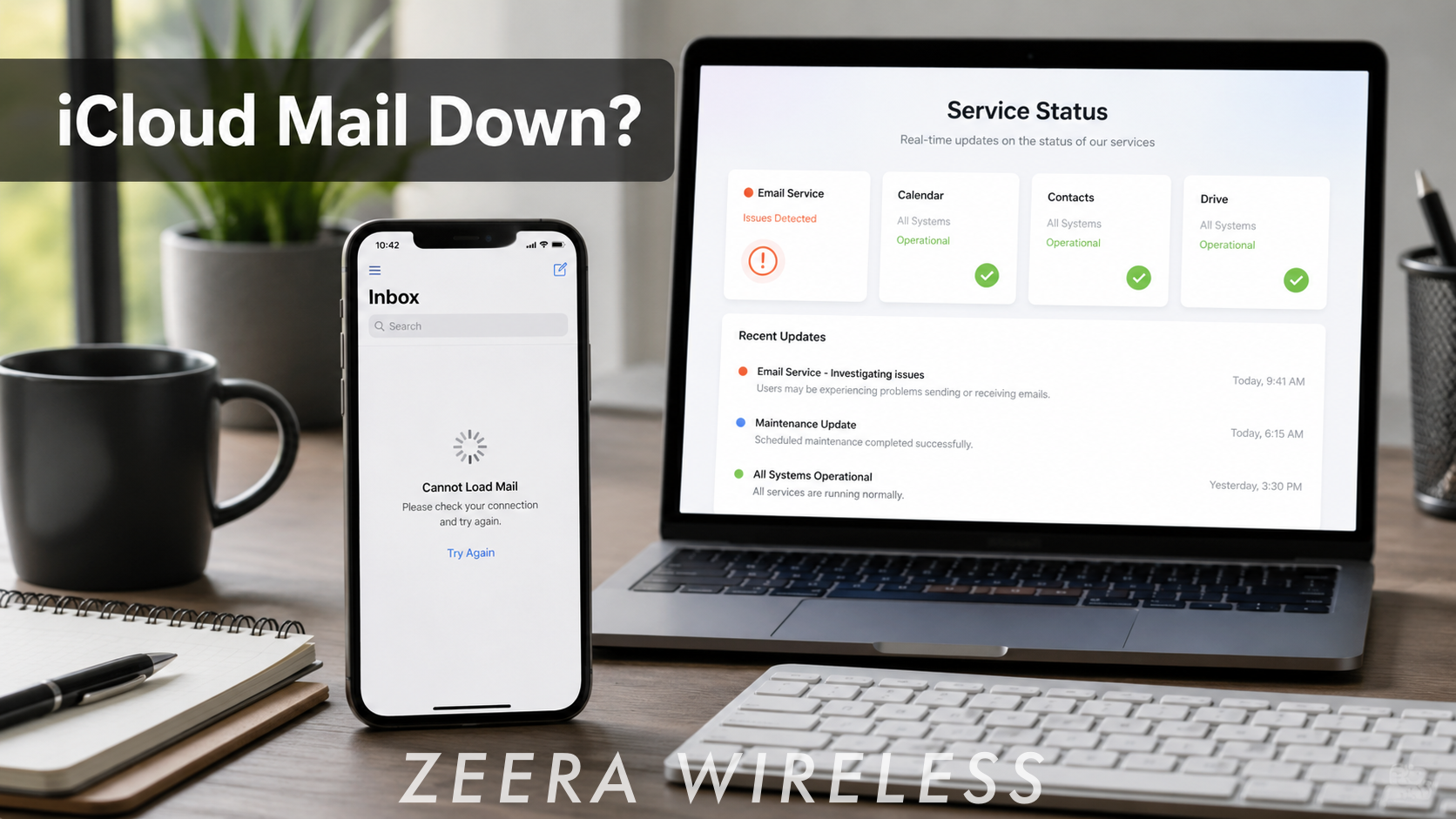
If iCloud Mail is not working on your iPhone, first check whether the issue is on Apple’s side or your own device. Recent U.S. search interest around “iCloud Mail down,” “iCloud Mail not working,” and “is iCloud down” suggests that many users are trying to confirm whether iCloud Mail is currently having problems.
If Apple’s service is normal, the issue may be related to your internet connection, Apple Account login, iCloud Mail settings, iCloud storage, or the iPhone Mail app. Follow the steps below to check the cause and fix iCloud Mail on your iPhone.

First, Check If iCloud Mail Is Down
If iCloud Mail is not working on your iPhone, do not change your settings immediately. The issue may be caused by a temporary Apple service problem. When iCloud Mail is down, your inbox may not refresh, new emails may arrive late, or sending messages may fail.
Check Apple System Status First
- Open Safari, Chrome, or any browser on your iPhone, iPad, Mac, or PC.
- Go to Apple’s official System Status page:
- Scroll through the list of Apple services.
- Find iCloud Mail.
- Check whether iCloud Mail is marked as available or shows an issue.
If iCloud Mail shows an issue, wait for Apple to restore the service. If it appears normal, follow the steps below to troubleshoot your iPhone, network, Apple Account, iCloud settings, and Mail app.

Why Is iCloud Mail Not Working on iPhone?
iCloud Mail can stop working for several different reasons. Sometimes the problem is on Apple’s side, especially if iCloud Mail is temporarily down or experiencing a service issue. Other times, the issue may come from your iPhone, Mail app, Apple Account, network connection, iCloud settings, or storage.
The most common causes include:
- iCloud Mail service issues: Apple’s iCloud Mail service may be temporarily unavailable.
- Network problems: Wi-Fi, mobile data, public Wi-Fi, or VPN settings may block Mail from syncing.
- Apple Account verification: Your iPhone may need you to confirm your Apple Account login.
- iCloud Mail settings: iCloud Mail may be turned off on your iPhone.
- iCloud storage: Full iCloud storage can affect iCloud Mail and other iCloud services.
- Mail app or iOS bugs: The Mail app or iOS may need to refresh, restart, or update.
The steps below will help you check each possibility in the right order, starting with Apple’s service status and then moving through your iPhone settings.

ZEERA AirFlat – Anti-Wobble Lens Cover
Ultra-flat lens cover designed for iPhone Air camera stability.
Reduces wobble and improves flat placement on any surface.

ZEERA MagSkin – Ultra-Thin MagSafe Back Plate
Minimalist magnetic back plate for MagSafe compatibility.
Ultra-thin design keeps iPhone Air lightweight and protected.
How to Fix iCloud Mail Not Working on iPhone
If Apple’s System Status page shows that iCloud Mail is working normally, the issue is more likely related to your iPhone, internet connection, Apple Account, iCloud settings, or Mail app. Follow the steps below in order. Start with service, network, and account checks before changing deeper settings.
Step 1: Test Your Internet Connection and Turn Off VPN
iCloud Mail needs a stable internet connection to sync correctly.
- Open Safari and test whether websites load normally
- Switch between Wi-Fi and mobile data
- Complete any public Wi-Fi login page if required
- Temporarily disable VPN apps or DNS filters
- Open the Mail app and refresh your inbox
If iCloud Mail works after changing networks or disabling VPN, the issue is likely related to your connection, router, carrier, VPN, or network settings.
Step 2: Refresh the Mail App and Restart Your iPhone
If your internet connection is working, refresh the Mail app first. If that does not help, restart your iPhone.
- Open the Mail app and pull down on the inbox to refresh.
- Close the Mail app and open it again.
- If your iPhone still does not load iCloud Mail, restart your iPhone.
- After the restart, open Mail and refresh your inbox again.
If iCloud Mail starts working after this, the issue was likely a temporary Mail app or iOS syncing problem.

Step 3: Check Your Apple Account Login
iCloud Mail depends on your Apple Account. If your account needs verification, your password was changed, or your iPhone shows an account warning, iCloud Mail may stop syncing.
- Open the Settings app.
- Look near the top of the screen for a message such as Update Apple Account Settings.
- If you see a warning, tap it.
- Enter your Apple Account password if asked.
- Complete any verification steps.
- Open Mail again and check whether iCloud Mail starts syncing.
If your Apple Account needed verification, Mail may begin working again after you confirm your login.
Step 4: Make Sure iCloud Mail Is Turned On
If iCloud Mail is disabled on your iPhone, your iCloud inbox may not appear or update correctly in the Mail app.
- Open the Settings app.
- Tap your name at the top of the screen.
- Tap iCloud.
- Tap Mail or iCloud Mail.
- Make sure Use on this iPhone is turned on.
- Go back to the Mail app and refresh your inbox.
If iCloud Mail was turned off, turning it back on may restore your iCloud inbox in the Mail app.

Step 5: Check iCloud Storage
Full iCloud storage can affect iCloud services, including backups, photos, syncing, and iCloud Mail. Apple includes 5GB of free iCloud storage with each Apple Account, so it is easy for storage to fill up if you use iCloud Photos, backups, and iCloud Drive.
- Open Settings.
- Tap your name at the top.
- Tap iCloud.
- Check how much iCloud storage is available.
- If storage is full, tap Manage Account Storage.
- Review backups, photos, iCloud Drive files, Mail, and large app data.
- Delete unnecessary data or upgrade your iCloud storage plan if needed.
After freeing up iCloud storage, wait a few minutes and refresh the Mail app again.

Step 6: Try iCloud Mail on iCloud.com
This step helps you understand whether the problem is only on your iPhone or affects your iCloud Mail account more broadly.
- Open Safari, Chrome, or another browser.
- Go to https://www.icloud.com/
- Sign in with your Apple Account.
- Open Mail.
- Check whether your iCloud emails load in the browser.
If iCloud Mail works on iCloud.com but not in the iPhone Mail app, the issue is likely related to your iPhone settings, Mail app, network, or sync. If iCloud Mail does not work on iCloud.com either, the issue may be related to Apple’s service status, your Apple Account, or iCloud storage.

Step 7: Check Mail Fetch Settings
If iCloud Mail works but new emails do not appear automatically, your Mail fetch settings may need attention.
- Open Settings.
- Scroll down and tap Apps.
- Tap Mail.
- Tap Mail Accounts.
- Tap Fetch New Data.
- Make sure Push is turned on if available.
- Check that iCloud is set to push or fetch mail properly.
If Mail is not fetching new data, your inbox may not update automatically. You can still open the Mail app and pull down on the inbox to refresh manually.
Step 8: Update iOS
If your iPhone is running an older version of iOS, software bugs may affect Mail, iCloud sync, account login, or network reliability.
- Open Settings.
- Tap General.
- Tap Software Update.
- If an update is available, tap Download and Install.
- After updating, open Mail and test iCloud Mail again.
Updating iOS may help if the issue is related to a known Mail or iCloud syncing bug.
Step 9: iCloud Mail Not Working After an iOS Update?
After major iOS updates, iCloud Mail may temporarily stop syncing while the iPhone reindexes data and reconnects iCloud services.
Try:
- Connecting to stable Wi-Fi
- Charging the iPhone
- Waiting several minutes
- Restarting the Mail app
This is especially common after large iOS updates.
If iCloud Mail Still Not Working
If basic troubleshooting steps do not fix iCloud Mail, follow the advanced checks below to determine whether the issue is related to your iPhone, Apple Account, or iCloud services.
- If iCloud Mail works on iCloud.com but not on your iPhone: focus on the Mail app, iCloud Mail settings, network, and iOS update.
- If iCloud Mail does not work on iCloud.com either: check Apple System Status, Apple Account login, and iCloud storage.
- If syncing is paused: connect to power and Wi-Fi, turn off Low Power Mode, and check iCloud storage.
- If iCloud storage is full: free up space or upgrade your iCloud plan, then test Mail again.
Keep Your iPhone Powered While Fixing iCloud Mail Issues
Checking iCloud Mail, refreshing the Mail app, using iCloud.com, or waiting for syncing to resume can drain your iPhone battery. A reliable charging setup can help keep your iPhone ready while you troubleshoot.
For Travel & Desk Use
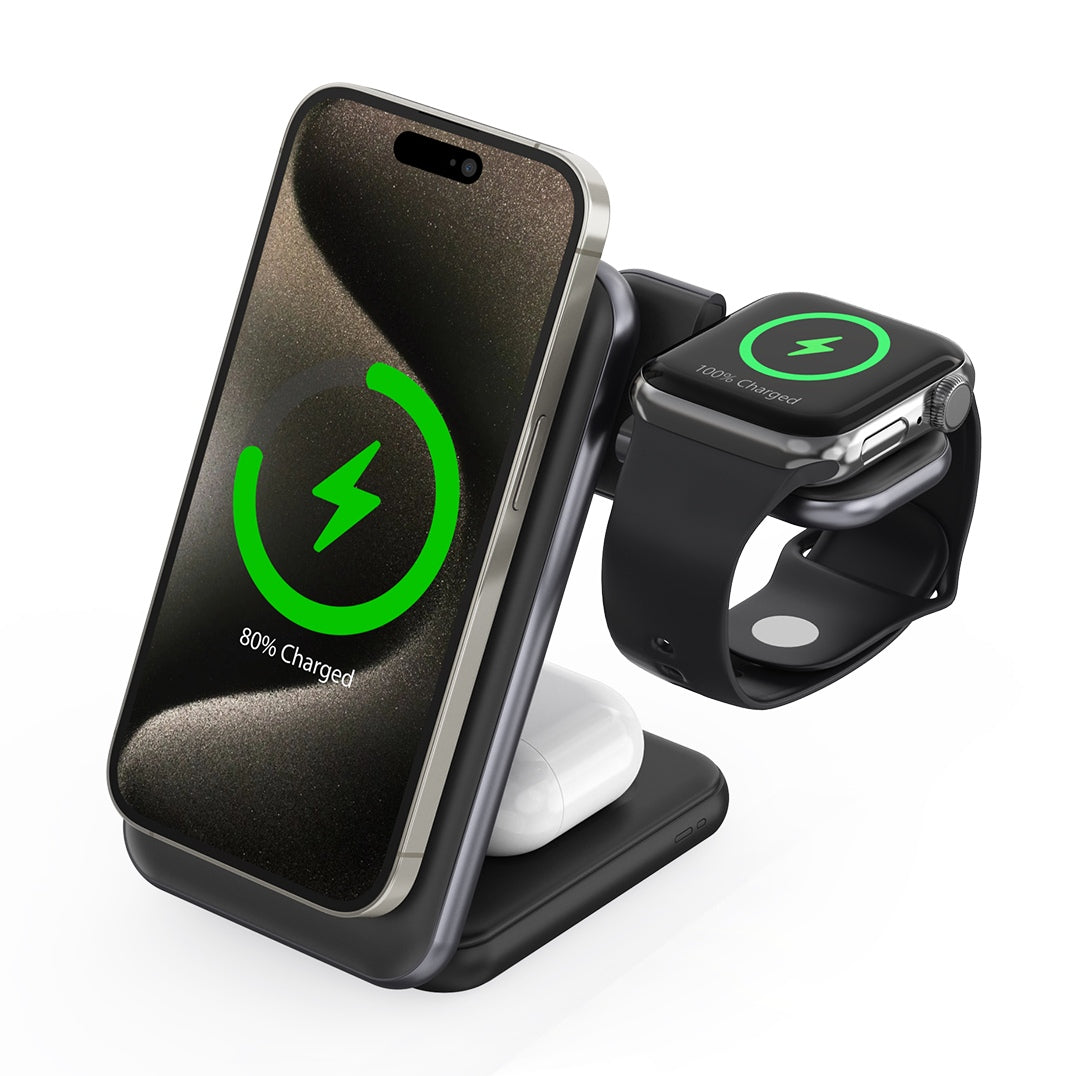
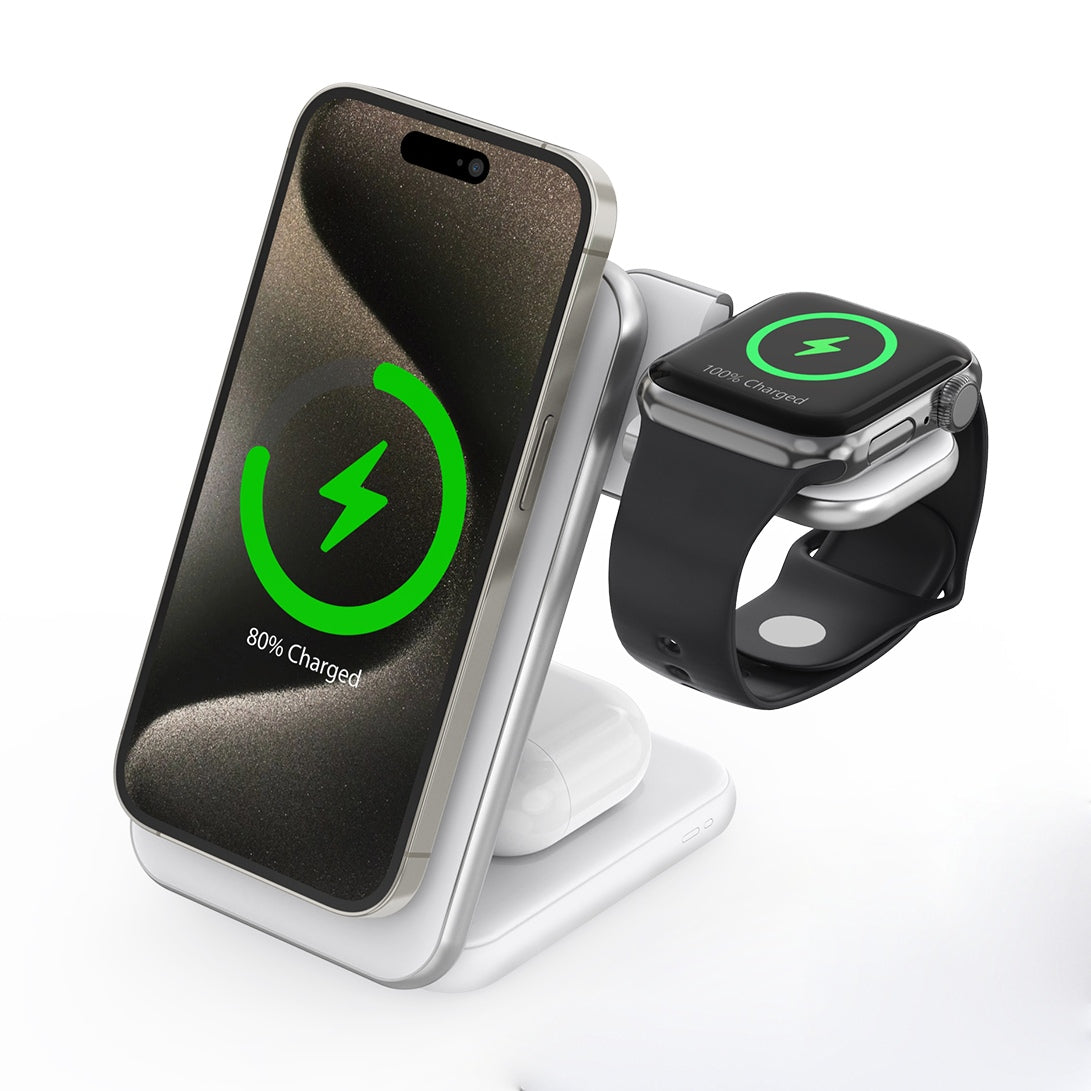
ZEERA MagTri Gen2 Qi2.2 Foldable MagSafe Charger is a compact 3-in-1 charger for iPhone, Apple Watch, and AirPods — ideal for work, travel, and everyday iCloud syncing.
For Driving & Navigation
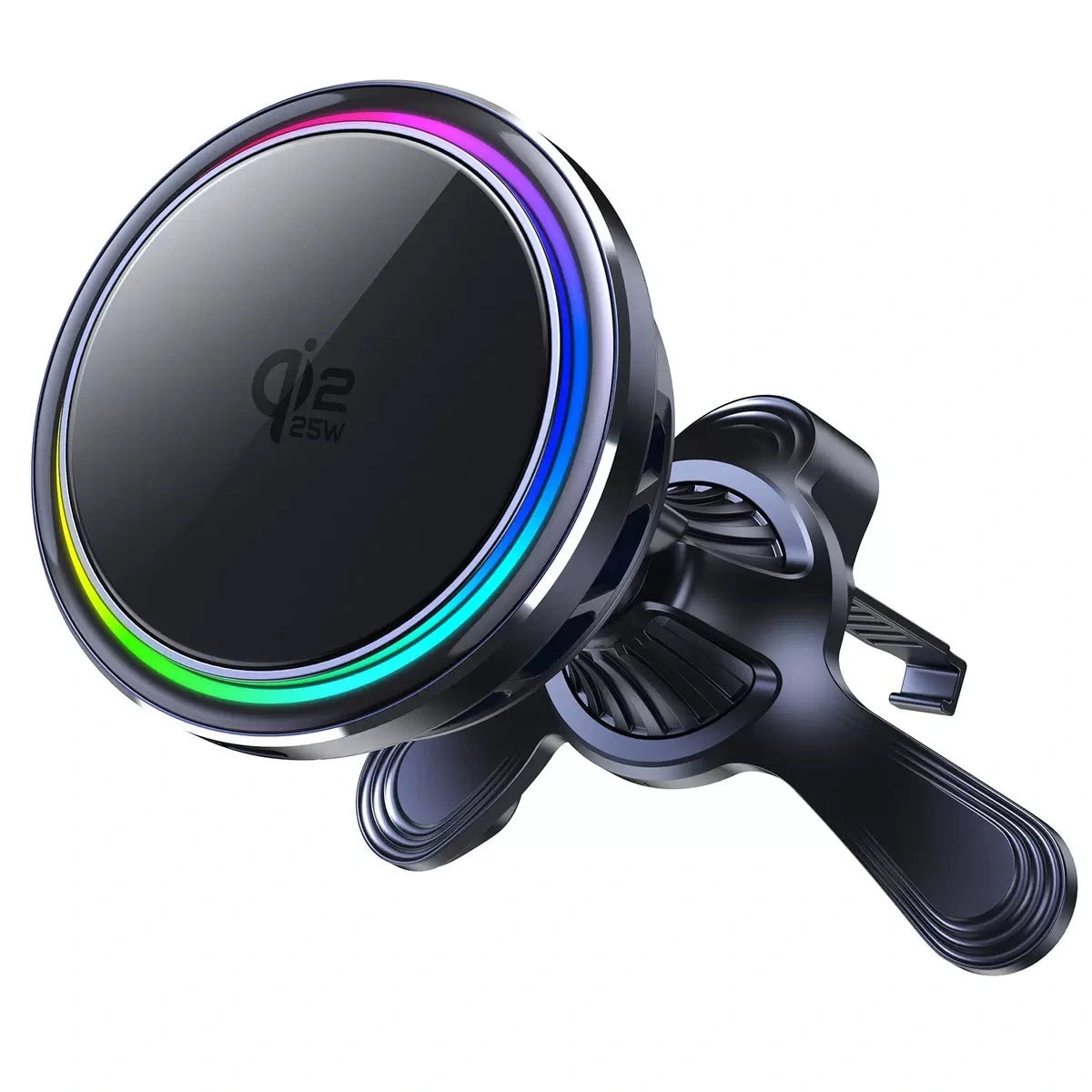
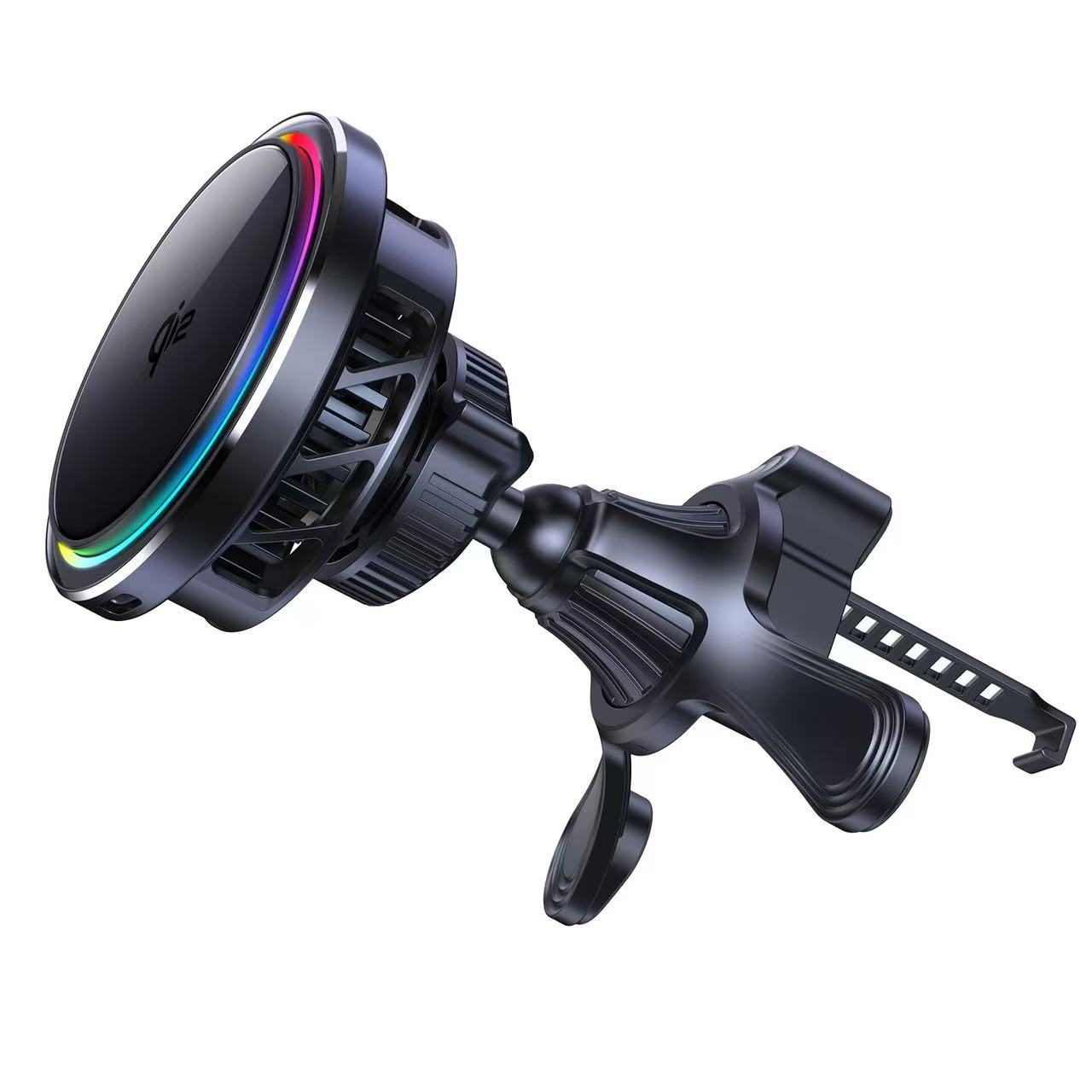
ZEERA SuVolt Gen5 Qi2.2 Active Cooling Car Charger keeps your iPhone mounted and charged in the car, with active cooling for long drives, GPS navigation, and heavy phone use.
Note: These chargers will not fix an Apple-side iCloud outage, but they can help keep your iPhone powered while you check Mail, iCloud.com, storage, and sync settings.
When Should You Contact Apple Support?
If Apple’s System Status page shows iCloud Mail is working, your internet connection is stable, iCloud Mail is enabled, your Apple Account is verified, iOS is updated, and iCloud Mail still does not work on both your iPhone and iCloud.com, it may be time to contact Apple Support.
You should also contact Apple Support if you see repeated account verification errors, cannot sign in to your Apple Account, cannot access iCloud Mail from any device, or believe important emails are missing.
Quick Checklist: iCloud Mail Not Working on iPhone
- Check Apple’s System Status page for iCloud Mail.
- Close and reopen the iPhone Mail app.
- Restart your iPhone.
- Switch between Wi-Fi and mobile data.
- Turn off VPN temporarily and test again.
- Make sure iCloud Mail is enabled in iCloud settings.
- Verify your Apple Account login.
- Update iOS to the latest available version.
- Check whether iCloud storage is full.
- Try accessing iCloud Mail from iCloud.com.

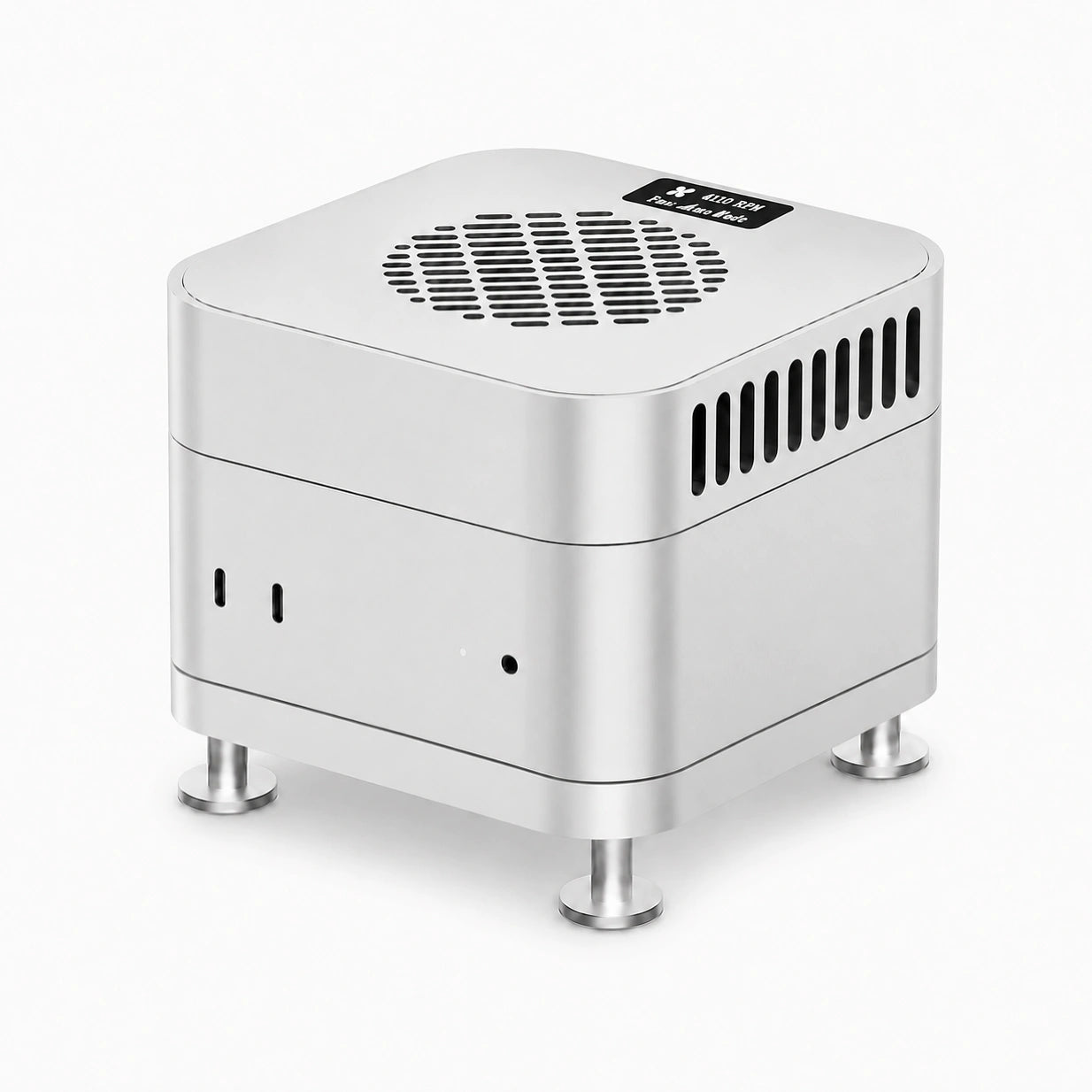
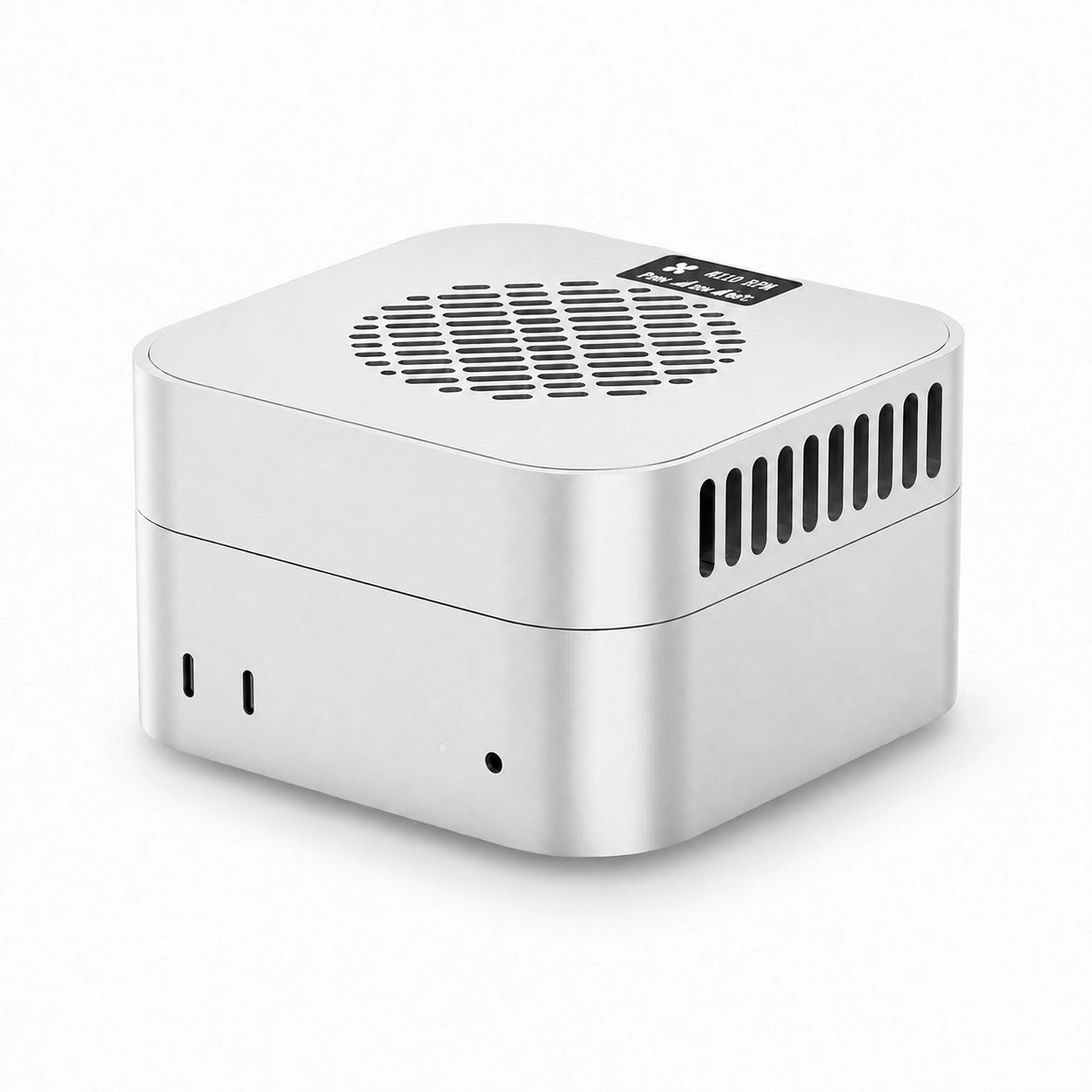
Mac Mini M4 Aluminum Cooling Case
CNC aluminum enclosure for Mac Mini M4 / Mac Mini M4 Pro, improves heat dissipation,
reduces thermal throttling, and enhances Mac Pro-style aesthetics with
premium build quality for desktop setups.
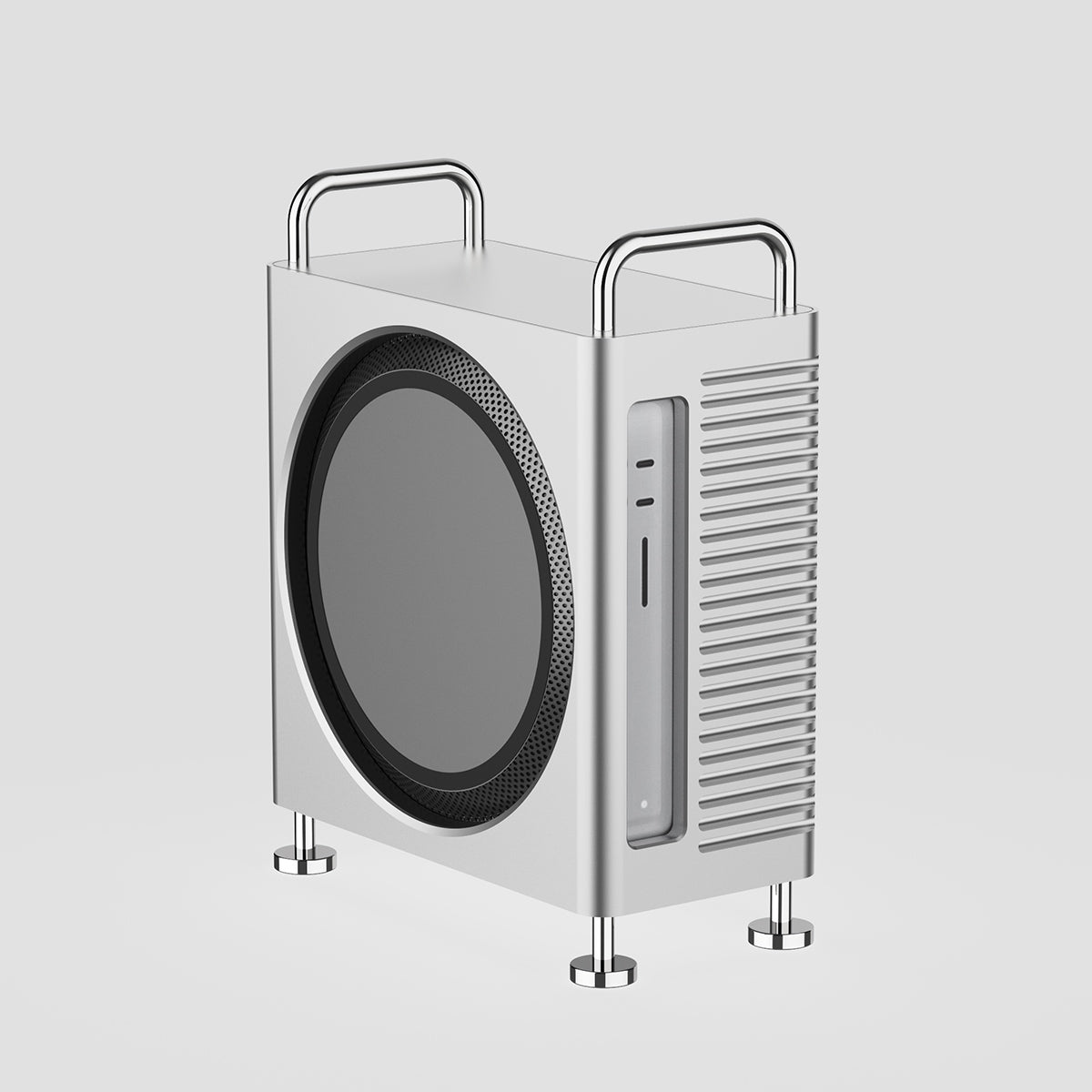
Mac Studio Aluminum Enclosure Case
CNC aluminum enclosure for Mac Studio, improves airflow and thermal performance,
designed for heavy workloads with Mac Pro-inspired structure and stable
high-performance cooling architecture.
FAQ
Is iCloud Mail down right now?
The fastest way to check is Apple’s official System Status page. Look for iCloud Mail. If Apple reports an issue, the problem is likely on Apple’s side. If iCloud Mail appears normal, check your iPhone, account, network, and storage settings.
Why is iCloud Mail not working on my iPhone?
Common reasons include a temporary iCloud Mail service issue, weak internet connection, disabled iCloud Mail settings, Apple Account verification problems, paused iCloud syncing, outdated iOS software, VPN interference, or full iCloud storage.
Why am I not receiving iCloud emails?
You may not receive iCloud emails if iCloud Mail is temporarily unavailable, your inbox is not refreshing, iCloud Mail is turned off, your account needs verification, your network is unstable, or your iCloud storage is full.
How do I access my iCloud email?
You can access iCloud email through the Mail app on your iPhone or by signing in to iCloud.com in a supported browser and opening Mail. This is useful when the iPhone Mail app is not loading correctly.
What does “syncing with iCloud paused” mean?
It usually means your iPhone is waiting for better conditions before continuing iCloud sync. This can happen because of low battery, Low Power Mode, unstable Wi-Fi, limited iCloud storage, or Apple Account verification.
How do I unpause syncing with iCloud?
Connect your iPhone to power, use stable Wi-Fi, disable Low Power Mode, check iCloud storage, and make sure your Apple Account is signed in correctly. Syncing may take some time to resume.
Can full iCloud storage stop iCloud Mail?
Yes. Apple Support says that if you run out of iCloud storage, you will not be able to send or receive emails with your iCloud email address. Freeing up storage or upgrading your iCloud plan may help restore normal Mail behavior.
Final Thoughts
If iCloud Mail is not working on your iPhone, do not assume your email account is broken immediately. Start by checking whether iCloud Mail is down, then test your Mail app, network connection, Apple Account, iCloud Mail settings, iCloud syncing, and storage. In many cases, the problem can be fixed with a simple refresh, restart, account verification, or storage cleanup.
If the issue is on Apple’s side, waiting for the service to recover is usually the only practical option. If iCloud Mail works on iCloud.com but not on your iPhone, focus on your device settings and Mail app. If it does not work anywhere, check Apple’s System Status page and contact Apple Support if the problem continues.