Updated September 21, 2026
Quick Answer
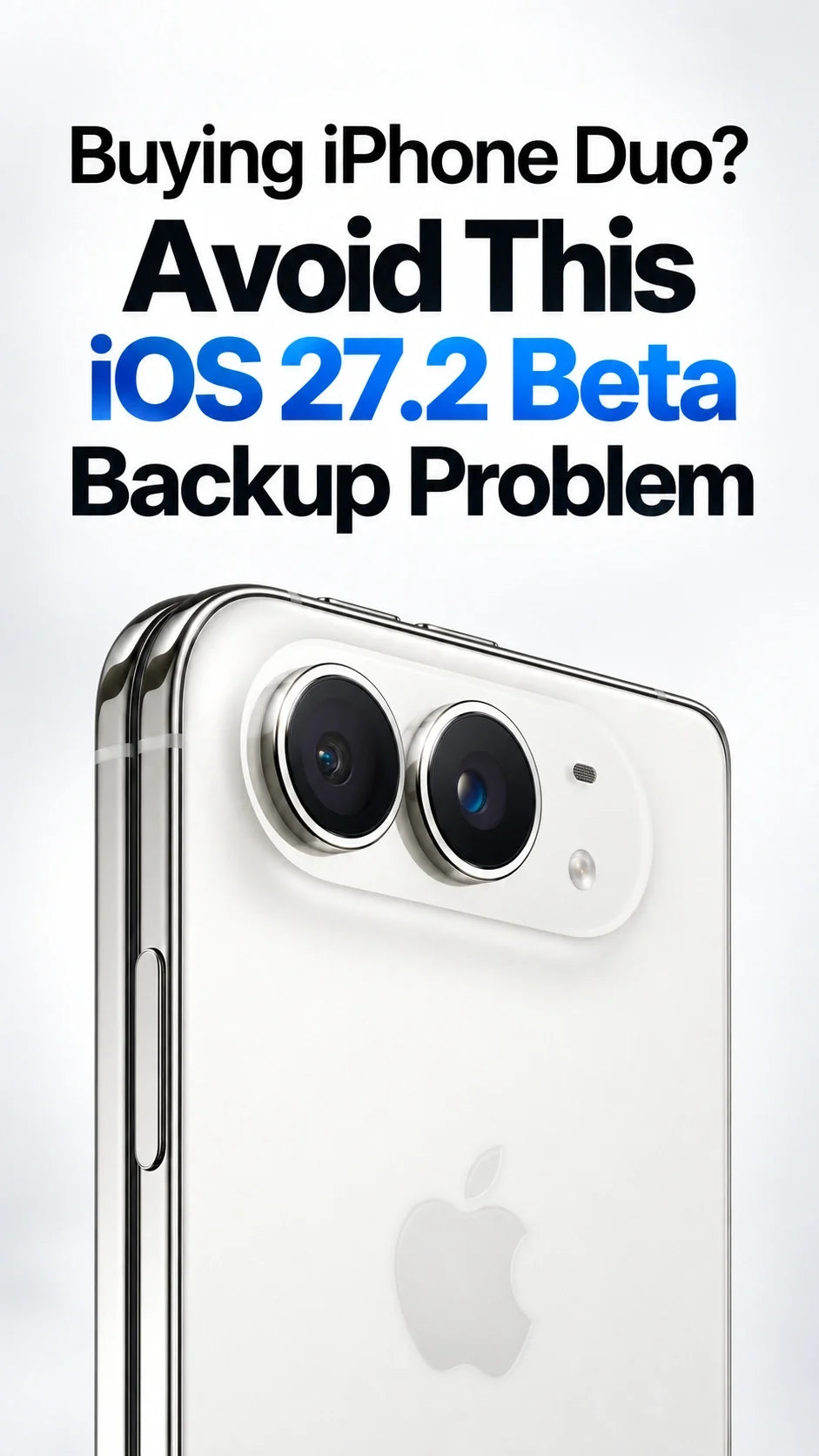
If the iPhone you use now is running iOS 27.2 beta, its newest backup may not restore to an iPhone Duo that ships with iOS 27.1.
The problem is a software-version mismatch—not proof that your photos, messages, or apps have been deleted.
If you have not installed the beta, the safest move is to stay on the public iOS release until your Duo is fully set up.
If you already installed it, keep your old iPhone, make a fresh backup, and update the Duo during setup before attempting the restore.
Do not erase or trade in your old iPhone until you have checked your photos, messages, passwords, authenticator apps, eSIM, and banking apps on the Duo.
What Is the iOS 27.2 Beta Backup Problem?
Apple says iPhone Duo preorders begin October 16, with availability starting October 23. The timing risk drew attention after Mark Gurman highlighted a possible overlap between the iOS 27.2 beta cycle and the software installed on launch-day Duo units.
An iPhone backup normally expects the destination iPhone to run the same iOS version—or a newer compatible version. That matters because an iOS 27.2 beta backup can contain system data and settings that iOS 27.1 does not understand.
The launch-day concern is simple: your current iPhone may move ahead to iOS 27.2 beta while a newly manufactured iPhone Duo could arrive with iOS 27.1. If the Duo cannot update to a compatible build during setup, the newer backup may be unavailable until Apple provides one.
The mismatch to watch
CURRENT IPHONE
iOS 27.2 Beta
Creates the newest iCloud or computer backup.
NEW IPHONE DUO
iOS 27.1
May reject a backup made by the newer system.
Important: the iPhone Duo shipping version has not been confirmed for every unit or region. Apple may also offer a compatible update during Setup Assistant. Treat this as a preventable launch-day risk, not a guaranteed failure.
Apple's own support guidance says that when a backup requires a newer version of iOS, the destination device must be updated before the backup is restored. For iCloud restores, Setup Assistant may install the required update automatically. For a computer backup, you may need to set up the phone temporarily, update it, erase it, and then restore again.
Should You Avoid iOS 27.2 Beta Before Buying iPhone Duo?
Yes, if the iPhone Duo will become your primary phone and you need a smooth day-one transfer. A beta feature is rarely worth creating uncertainty around messages, app data, authentication, work accounts, and travel access during a phone migration.
You have not installed 27.2 beta
Stay on the latest public iOS release. Set up the Duo first, verify your data, and decide about beta software later.
You installed it but have a pre-beta archive
Keep that archived backup untouched. Also make a current backup so you have both an older stable snapshot and a newer data snapshot.
You installed it without a pre-beta archive
Do not panic or erase the phone. Keep using it, back it up, and plan to update the Duo to a compatible build before restoring.
You need the beta for work
Use a secondary device for testing when possible. If your primary phone must remain on beta, delay trade-in until the Duo migration is complete.
Turning Beta Updates off does not downgrade an iPhone that already runs iOS 27.2 beta. It only prevents that device from automatically taking later beta builds. A real downgrade normally requires erasing the phone and restoring compatible public software.
The Safest Backup Plan Before iPhone Duo Arrives
- Check your exact iOS build. Open Settings > General > About > iOS Version. Do not rely on memory or the Software Update screen alone.
- Make a fresh iCloud backup. Go to Settings > [your name] > iCloud > iCloud Backup > Back Up Now. Keep the phone on Wi-Fi and power until it finishes.
- Create an encrypted computer backup. Use Finder on Mac or the Apple Devices app on Windows. Encryption matters because it can preserve saved passwords, Wi-Fi settings, Health data, and call history that an unencrypted local backup may omit.
- Archive the stable backup if you still have one. An archive stops a later backup from overwriting your pre-beta snapshot.
- Confirm what is syncing separately. Photos, Contacts, Notes, Messages, iCloud Drive, and Passwords may sync through iCloud rather than depend only on the device backup.
- Prepare account recovery. Save recovery codes for authenticator apps, confirm trusted phone numbers, and check your bank's device-transfer process.
- Keep the old iPhone. Do not trade it in, reset it, or remove its eSIM until the Duo passes your full data check.
If you are also planning to use the Duo for handwriting, read our current guide to iPhone Duo Apple Pencil compatibility and timing. Pencil support and backup compatibility are separate issues, and neither should be assumed from an accessory listing alone.
Already on iOS 27.2 Beta? Use One of These Recovery Paths
Option 1: Update the iPhone Duo during setup
This is the cleanest outcome. If Setup Assistant says the backup requires a newer iOS version, allow the Duo to install the offered update. Keep it connected to power and stable Wi-Fi. After it restarts, continue the restore.
Option 2: Set up as new, update, erase, then restore
If a computer backup refuses to restore because the Duo software is too old, Apple recommends a longer but reliable sequence: finish a temporary setup without transferring data, update the Duo to the latest compatible iOS version, erase all content and settings, and start Setup Assistant again.
- On the Transfer Your Apps & Data screen, choose not to transfer yet.
- Complete the temporary setup. You can skip optional services.
- Open Settings > General > Software Update and install the newest build offered for iPhone Duo.
- After the update, open Settings > General > Transfer or Reset iPhone.
- Tap Erase All Content and Settings.
- Return to Setup Assistant and restore the backup.
Option 3: Restore a pre-beta archived backup
If Apple has not released a compatible Duo build, a computer backup made before iOS 27.2 beta may be your fallback. Remember that it returns the device to that older snapshot. Items synced separately through iCloud may return afterward, but app-specific or local-only changes made since the archive can be missing.
Option 4: Keep the old iPhone active and wait
If none of the above works, the safest response is patience—not a risky manual workaround. Continue using the old iPhone until Apple releases a compatible update for Duo. A delayed migration is frustrating, but it is safer than corrupting a backup or surrendering the only working copy of important data.
Your Release-Day iPhone Duo Transfer Checklist
Before opening the box
- Finish one iCloud backup and one encrypted computer backup.
- Write down the iOS version and build number on the old iPhone.
- Charge both phones and connect them to reliable Wi-Fi.
- Confirm you know your Apple Account password and device passcode.
- Keep your carrier details and eSIM transfer instructions nearby.
During Setup Assistant
- Read every software-update prompt before choosing a transfer method.
- If the Duo offers an update, install it before restoring the 27.2 backup.
- Do not interrupt power or Wi-Fi during the update and restore.
- If Quick Start stalls, restart both devices once and retry before erasing anything.
Before erasing the old iPhone
- Open recent photos and videos, including items not yet downloaded locally.
- Check Messages, Contacts, Notes, Voice Memos, Health, and Files.
- Test authenticator codes, work profiles, banking apps, and password autofill.
- Make and receive a call, test cellular data, and confirm the eSIM is active.
- Wait until background app and photo restoration is complete.
What You Should Not Do
- Do not edit backup metadata to fake an older iOS version. Online guides sometimes suggest changing version strings inside backup files. That can produce an incomplete or unstable restore and is not an Apple-supported method.
- Do not assume Quick Start bypasses compatibility checks. Direct phone-to-phone transfer still depends on compatible system software.
- Do not erase the old phone after seeing the Duo Home Screen. Apps, photos, and cloud data can continue restoring for hours.
- Do not treat “Beta Updates Off” as a downgrade. The installed beta remains until a compatible public release replaces it or the device is erased and restored.
- Do not trade in the only device that still has your data. Complete the verification checklist first.
Does the Problem Affect iCloud Sync or Only the Full Backup?
The version restriction applies most directly to restoring a full iCloud or computer backup. Data that is already syncing through iCloud—such as Contacts, Notes, iCloud Photos, iCloud Drive, and Passwords—can often repopulate after you sign in on a newly configured device.
That distinction is useful, but it is not a reason to skip a full backup. App databases, Home Screen layout, device settings, Health information, account sessions, local files, and some message or media states may depend on the backup or on each app's own cloud system.
Before launch day, open Settings > [your name] > iCloud and confirm which categories are actually enabled. “Stored somewhere in iCloud” and “included in this device backup” are not always the same thing.
Use a Mac as a Second Backup Path
A local encrypted backup gives you a second recovery route if iCloud restore is slow, unavailable, or waiting for a compatible iOS build. On a Mac, connect the old iPhone, select it in Finder, choose to back up all data to the Mac, enable encryption, and protect the backup password. Apple cannot recover that encryption password for you.
If your Mac mini is also your long-term backup and media workstation, keep enough free storage for both the backup and temporary iOS update files. The backup should never live only on the same internal drive without another copy.
Will Apple Fix the iOS Version Mismatch Before Launch?
Possibly. Apple can release a Duo-specific update, make iOS 27.2 available for the device, or let Setup Assistant install a compatible bridge build before restoration. The presence of a warning now does not mean every launch-day buyer will encounter it.
But buyers should not build their only migration plan around an update that has not yet appeared on their device. The practical rule is straightforward: keep the old iPhone intact, maintain more than one backup path, and let the Duo update before restoring a backup made on newer software.
ZEERA will update this guide when the retail iPhone Duo build and launch-day update path can be verified.
Official Sources
- Apple Support: Restore a device that needs a newer version of iOS or iPadOS
- Apple Support: Restore your iPhone or iPad from a backup
- Apple Beta Software Program: Restoring shipping software
- Apple iPhone User Guide: Back up iPhone
- Apple Newsroom: Apple unveils iPhone Duo
FAQ
Can an iOS 27.2 beta backup restore to iOS 27.1?
Usually not directly. The destination iPhone generally needs the same or a newer compatible iOS build. Update the iPhone Duo first, then retry the restore.
Will turning off beta updates return my iPhone to iOS 27.1?
No. It stops future beta updates but does not remove the beta already installed. Returning to public software may require erasing and restoring the device.
Does Quick Start solve the iOS 27.2 backup problem?
Not by itself. Quick Start can simplify transfer, but the new iPhone still needs compatible system software.
Can I set up iPhone Duo as new and restore later?
Yes. You can set it up temporarily, install the required update, erase it, and restart Setup Assistant to restore your backup.
Should I delete the iOS 27.2 beta profile?
On current iOS versions, beta access is managed through Settings > General > Software Update > Beta Updates. Turning it off prevents later betas; it does not downgrade the installed system.
When is it safe to erase my old iPhone?
Only after the Duo is fully restored and you have tested cloud data, local files, messages, passwords, authenticator apps, eSIM service, banking apps, and work access.
Related ZEERA Guides & Accessories