
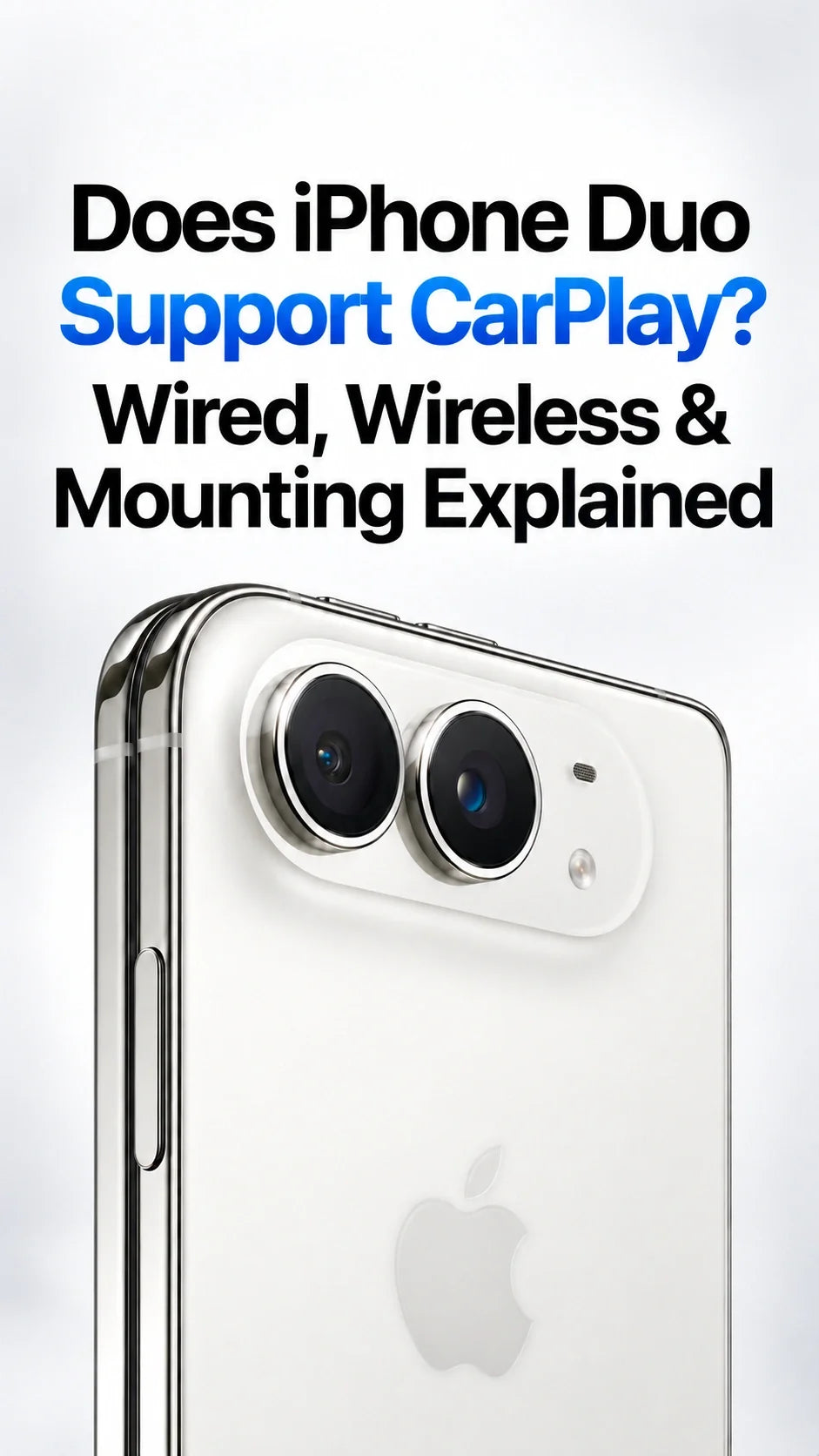
Quick Answer
Yes. Apple officially lists iPhone Duo as compatible with CarPlay.
Use a USB data connection for wired CarPlay, or pair wirelessly if your vehicle supports wireless CarPlay.
CarPlay runs on the vehicle display. Keeping Duo folded is the practical starting point, although fold-specific behavior still needs vehicle testing.
A MagSafe car charger supplies power; it does not add CarPlay to your vehicle.
Before buying a mount, check the folded phone’s size, your case, hinge clearance and your car’s mounting location.
Updated October 8, 2026 · Official compatibility and setup guidance, with ZEERA accessory recommendations.
Does Apple Officially Confirm iPhone Duo CarPlay Support?
Yes. Apple’s CarPlay compatibility page names iPhone Duo among supported iPhones. You can evaluate the foldable without treating CarPlay support as an unconfirmed rumor.
After reviewing Apple’s compatibility list and connection guidance, ZEERA observed that the buying decision has two separate parts: your car’s CarPlay capability and the physical fit of a folded iPhone Duo. This guide is based on those sources, rather than a ZEERA road test.
iPhone Duo CarPlay Compatibility at a Glance
- Phone support: officially listed by Apple.
- Wired connection: USB-C on the phone; use your vehicle’s CarPlay data port.
- Wireless connection: requires a vehicle or receiver with wireless CarPlay.
- Closed dimensions: 117.8 mm high × 84.1 mm wide × 11.3 mm deep before adding a case.
- Weight: 254 g before adding a case.
- Charging capability: Apple lists MagSafe and Qi2 wireless charging up to 25W.
Dimensions and charging capabilities: Apple’s iPhone Duo technical specifications. Maximum charging power does not establish mount fit or continuous charging speed.
Check your exact vehicle year, trim and infotainment system. A car can support wired CarPlay while lacking the wireless option; buying a newer iPhone does not change that hardware.
How to Connect iPhone Duo to Wired CarPlay
Choose the Cable for Your Car’s Port
USB-A vehicle port: use a USB-A to USB-C cable that supports data.
USB-C vehicle port: use a USB-C to USB-C data cable.
A cable or port that only charges the phone cannot carry a wired CarPlay session. There is no need to buy a high-speed SSD cable simply because Duo supports USB 3.
Wired Setup Steps
- Park, start the vehicle and make sure Siri is enabled on iPhone Duo.
- Connect directly to the USB port designated for CarPlay, often marked with a smartphone or CarPlay icon.
- Unlock the phone and approve the setup prompts on both screens.
- If CarPlay does not open automatically, select its icon on the infotainment display.
- Confirm that navigation and audio work before driving.
These steps adapt Apple’s CarPlay connection guide to Duo’s USB-C connector. Exact vehicle prompts vary. If you are replacing a Lightning iPhone, a direct USB-C cable is a simpler starting point than an adapter chain.
How to Set Up Wireless CarPlay on iPhone Duo
Pair With a Wireless-CarPlay Vehicle
- Turn on Bluetooth, Wi-Fi and Siri on the phone.
- Put the vehicle into its smartphone-pairing or wireless-CarPlay mode. Some vehicles use a long press of the steering-wheel voice button.
- Open Settings > General > CarPlay and select your vehicle when it appears.
- Accept the pairing and CarPlay prompts. Follow the vehicle manual if setup starts from its touchscreen instead.
- Once the CarPlay Wi-Fi network is available, check that Auto-Join is enabled.
Some cars supporting both connection methods offer wireless setup after an initial USB connection. Apple describes this option in its CarPlay setup instructions.
Bluetooth audio alone is not wireless CarPlay. If music plays but the CarPlay dashboard never appears, confirm that the vehicle supports CarPlay rather than only hands-free calling and audio streaming.
A USB wireless adapter is another accessory with its own compatibility requirements. Do not assume an adapter will add CarPlay to a car that lacks a supported CarPlay system.
Can iPhone Duo Use CarPlay While Folded or Locked?
Keep It Folded as Your Starting Setup
CarPlay presents its driving interface on the vehicle display, so opening Duo’s large inner screen should not be necessary for normal CarPlay use. This is an inference from how CarPlay works, not a confirmed test of every Duo folding transition.
Start with Duo closed and securely supported. Opening it introduces extra width and changes how the phone loads a mount, without making the car’s CarPlay display larger.
Folding and Locking Are Different
Closing the hinge changes the phone’s physical position; locking controls access. Complete initial setup while unlocked, and approve CarPlay use while locked if the phone asks and you want that behavior.
Check reconnection after locking and after restarting the phone while parked. Apple’s general support listing does not document every fold-related behavior or vehicle-specific prompt.
The inner display can be useful for reviewing a journey before departure or for passenger use. It is not a reason to clamp an unfolded phone into a holder designed for a conventional slab-shaped iPhone.
Which Car Mount Should You Choose for iPhone Duo?
The best iPhone Duo car mount is one that fits the closed phone with your chosen case and attaches securely to your actual car. Magnetic charging support is only one part of that decision.
For a Magnetic or MagSafe Mount
Check that the case provides suitable magnetic attachment and allows the phone to sit flat against the mount. Camera surrounds, raised stands, wallet compartments and hinge covers can interfere with contact.
Do not infer wireless charging support from a magnetic wallet flap. A wallet integrated into a case can occupy the charging area even when its closure uses magnets.
For a Clamp-Style Holder
Check the supported width, jaw depth and load rating against Duo’s closed measurements plus the case. Make sure the jaws avoid pressing the hinge, side button or screen edges.
A holder that fitted your previous Pro Max may need a different adjustment for Duo’s shorter, wider closed shape.
For the Mounting Base
Match a vent mount to the vent’s shape and structure. If it cannot attach as instructed, choose another supported mounting method.
A suction base needs a surface approved by its maker; a textured or curved dashboard may not hold it reliably. Position the mount clear of your view, controls and airbag deployment areas.
For a closer comparison of magnetic charging mounts and placement, see our iPhone Duo and iPhone 18 Pro car mount guide. Select a Duo case by its mounting and charging features, rather than assuming every case in a collection serves the same purpose.
Can You Use Wireless CarPlay and MagSafe Charging Together?
Yes, on a suitable setup: the vehicle handles wireless CarPlay, while a compatible charger powers the phone. Connecting a charging mount to power does not create a CarPlay connection.
Choose the Setup Around Your Drive
Wired-CarPlay vehicle: keep the phone’s USB cable connected to the CarPlay data port. The vehicle port determines the power it supplies.
Wireless-CarPlay vehicle: pair with the car, then use compatible wired or wireless charging if needed.
Magnetic charging mount: supply the charger with the power source specified by its manufacturer. An underpowered infotainment USB port may be unsuitable.
Apple warns that prolonged navigation in heat or direct sunlight can affect iPhone performance, and that charging can slow or stop when the phone becomes too warm. See Apple’s temperature guidance.
SuVolt Gen5 combines a magnetic car mount with active cooling and a choice of 15W or upgraded 25W wireless charging. Check the selected version, case contact and mounting base. Cooling can help manage charging heat, but it cannot guarantee a particular speed or fix a vehicle pairing fault.
For charging at your destination, a desk or travel station serves a different purpose. MagTri Gen2 supports a compatible iPhone, Apple Watch and AirPods; use the recommended power adapter for the full setup.
What Should You Check if iPhone Duo CarPlay Does Not Connect?
- The phone charges but CarPlay is missing: check the data cable and designated USB port.
- Bluetooth audio works but wireless CarPlay does not: confirm wireless-CarPlay support, Wi-Fi and Auto-Join.
- The car keeps selecting your old iPhone: review the vehicle’s device list and selected phone.
- Pairing remains unsuccessful: restart the phone and vehicle, then use Settings > General > CarPlay > your car > Forget This Car and pair again.
- CarPlay is unavailable in settings: check Siri and any Screen Time restrictions on CarPlay.
- Problems continue: check current iOS and vehicle firmware, and contact the vehicle or receiver maker with your exact model.
These checks follow Apple’s CarPlay troubleshooting guidance. A failed connection by itself does not establish a Duo hardware defect. Describe whether the problem happens over USB, wirelessly or both.
What Should You Prepare Before Buying iPhone Duo for CarPlay?
- Confirm wired or wireless CarPlay support for your exact car.
- Prepare the correct USB-C data cable if your car uses wired CarPlay.
- Check mount clearance using the closed phone’s dimensions and case thickness.
- Choose a case whose back works with your intended holder or charger.
- Check accessory dispatch dates separately from the phone’s delivery estimate.
If you plan to order on October 16, use our iPhone Duo preorder guide for timing and delivery preparation. The useful pre-purchase question is whether your existing car setup accommodates Duo, rather than whether its inner screen improves CarPlay.
Still comparing Duo with iPhone 18 Pro or Pro Max? Both phone families appear on Apple’s support list. Choose the phone for your wider daily workflow and buy a case for the exact model you select.
For the rest of your Apple setup, the following Mac accessories are separate desk products.
iPhone Duo CarPlay FAQ
Do I need a new car stereo for iPhone Duo?
Not simply because the phone folds. Start by checking your existing stereo’s CarPlay support, connection method and firmware. Upgrade only if your current system lacks the functionality you need.
Will opening Duo make the CarPlay map bigger?
CarPlay’s map appears on the vehicle screen. Unfolding the phone does not enlarge that physical display; the phone’s own Maps view is a separate interface.
Does Duo’s Touch ID change CarPlay compatibility?
Apple lists Duo as supported despite its different unlock method. Unlock the phone as prompted during setup; Face ID is not a condition stated on Apple’s compatibility list.
Can I reuse my iPhone 18 Pro Max mount?
Possibly. Check Duo’s closed shape, case clearance and holder limits. Magnetic compatibility alone does not confirm secure physical fit.
Can a wallet case use CarPlay?
CarPlay does not depend on the case being MagSafe-compatible. Keep access to the USB port for wired use. Separately confirm whether the wallet case supports your chosen mount or wireless charging.
Does a 25W charger make wireless CarPlay more reliable?
A charger addresses power needs. Its wattage does not guarantee pairing, remove wireless interference or fix vehicle firmware problems.
Related ZEERA Guides
- How to Connect iPhone 18 Pro & Pro Max to CarPlay
- iPhone 18 Pro Max CarPlay Not Working or Crashing? 9 Fixes
- Best MagSafe Car Mount for iPhone Duo & iPhone 18 Pro
- iPhone Duo Preorder Guide for October 16
- MagSafe Charger Stands for iPhone Duo & iPhone 18 Pro Max
- iPhone Duo MagSafe Wallet Problems & Solutions
- Foldable iPhone Drawbacks and Buying Considerations
Sources and scope: Apple’s CarPlay compatibility page, iPhone Duo specifications, CarPlay setup and troubleshooting guides, and temperature guidance, linked above and checked October 8, 2026. Folded-use and mounting recommendations are editorial guidance; this article does not claim hands-on testing with retail Duo units. Vehicle features and prompts vary by model and region.









