
Updated: August 26, 2026
Quick Answer: The Mac mini with M6 natively supports up to three external displays. With three displays connected, two can run at up to 6K 60Hz or 4K 165Hz, while the third can reach up to 5K 60Hz over Thunderbolt or 4K 60Hz over HDMI.
With up to two displays connected, one display can reach 8K 60Hz, 5K 120Hz, or 4K 240Hz, while the second can still run at up to 5K 60Hz over Thunderbolt or 4K 60Hz over HDMI. If you need dual 5K 120Hz or three 4K 165Hz displays, the M5 Pro Mac mini offers significantly stronger multi-display support.
Status: Display specifications in this guide are based on Apple's official 2026 Mac mini technical specifications.
How Many Monitors Can the Mac mini M6 Support?
The Mac mini M6 supports up to three external monitors at the same time through its Thunderbolt and HDMI connections.
This is native display support. You do not need DisplayLink simply to connect one, two, or three monitors.
| Setup | M6 Support |
|---|---|
| 1 external monitor | Yes |
| 2 external monitors | Yes |
| 3 external monitors | Yes |
| 4 external monitors | Not natively |
The important part is not just the number of monitors. It is how much resolution and refresh-rate bandwidth is available to each display when several are connected at once.
For example, the M6 can output 4K at 240Hz, but that does not mean three 4K displays can all run at 240Hz simultaneously. Apple defines different supported combinations depending on how many displays are connected.
Three-display configuration
Two displays up to 6K 60Hz or 4K 165Hz, plus a third display up to 5K 60Hz over Thunderbolt or 4K 60Hz over HDMI.
Up-to-two-display configuration
One display up to 8K 60Hz, 5K 120Hz, or 4K 240Hz, plus a second display up to 5K 60Hz over Thunderbolt or 4K 60Hz over HDMI.
Those two configurations explain most of the real-world differences between a normal dual-monitor desk, a high-refresh setup, and a three-monitor workstation.

Mac mini M6 Dual & Triple Monitor Setup
The M6 is capable of much more than a basic pair of 4K office monitors. It can run dual high-refresh displays, high-resolution 5K or 6K screens, or a full three-monitor workstation.
The key is choosing a display combination that stays within Apple's simultaneous resolution and refresh-rate limits.
1. Dual Monitor Setup
For normal productivity, a two-monitor setup is straightforward.
Two 4K 60Hz monitors are comfortably within the M6's capabilities and are well suited to office work, coding, research, photo editing, dashboards, and everyday multitasking.
The M6 can also run significantly faster dual-monitor configurations.
Can the M6 run two 4K 165Hz monitors? Yes.
Apple confirms that even with three displays connected, two of them can each operate at up to 4K 165Hz. A dual 4K 165Hz setup is therefore within the M6's stated display capability.
Dual 4K high-refresh setup
Display 1: 4K up to 165Hz
Display 2: 4K up to 165Hz
This is likely one of the most attractive configurations for M6 buyers who want a smooth two-monitor workspace without paying more for M5 Pro purely for display support.
The same Apple specification also confirms that two displays can operate at up to 6K 60Hz, making the M6 equally suitable for users who prioritize resolution and workspace over refresh rate.
What About 5K 120Hz or 4K 240Hz?
The M6 can drive one display at up to 5K 120Hz or 4K 240Hz and still support a second monitor.
In this higher-bandwidth configuration, the second display can reach up to 5K 60Hz over Thunderbolt or 4K 60Hz over HDMI.
Examples supported by the M6
5K 120Hz + up to 5K 60Hz
4K 240Hz + up to 5K 60Hz
What the M6 cannot do is run two 5K displays at 120Hz simultaneously.
If dual 5K 120Hz is part of your setup, that is one of the clearest reasons to choose the M5 Pro instead.

2. Triple Monitor Setup
The M6 can drive three external displays natively.
Apple's official three-display configuration allows:
Display 1
Up to 6K 60Hz or 4K 165Hz
Display 2
Up to 6K 60Hz or 4K 165Hz
Display 3
Up to 5K 60Hz over Thunderbolt or 4K 60Hz over HDMI
For many users, a practical high-refresh three-monitor configuration will therefore look like:
4K 165Hz
+ 4K 165Hz
+ 4K 60Hz
That is already a strong setup for developers, editors, researchers, traders, and other users who keep several applications visible at once.
Can all three M6 monitors run at 4K 165Hz? No. The first two can reach 4K 165Hz, but the third display has a lower maximum in Apple's stated M6 configuration.
If you specifically need three 4K 165Hz monitors, the M5 Pro is the better choice.
3. M6 Display Limits at a Glance
| Configuration | Maximum Listed Support |
|---|---|
| High-bandwidth first display | 8K60 / 5K120 / 4K240 |
| Second display with the above | Up to 5K60 TB / 4K60 HDMI |
| Three-display mode | 2 × up to 6K60 + third display |
| Three-display high refresh | 2 × up to 4K165 + third display |
| Third display | Up to 5K60 TB / 4K60 HDMI |
The M6 also supports VRR, HDR, and multichannel audio. Actual available modes still depend on the monitor, cable, adapter or dock, and the other displays connected to the Mac.
Mac Mini M4 & Mac Studio Aluminum Cases
ZEERA MacForge CNC Mac Studio Aluminum Case
- CNC aluminum
- Mac Pro style
- Cooling grille
- Tool-free fit
- Studio guard

ZEERA MacForge Gen3 CNC Aluminum Mac Mini Case
- Mac Pro grille
- CNC chassis
- Better airflow
- SSD expansion
- Front ports

HDMI vs USB-C vs DisplayPort
The best way to connect a monitor depends on the resolution and refresh rate you want, not simply which connector is easiest to reach.
The M6 Mac mini has three rear Thunderbolt 4 / USB-C ports and one HDMI port. Its Thunderbolt connections support native DisplayPort 1.4 speeds.
HDMI
HDMI is a simple choice for a standard 4K monitor, television, or third display that does not need a particularly high refresh rate.
In Apple's M6 three-display configuration, the third display can run at up to 4K 60Hz over HDMI.
USB-C to DisplayPort
A direct USB-C-to-DisplayPort connection is often useful for desktop monitors that use DisplayPort as their main high-refresh input.
However, having USB-C on one end of the cable does not guarantee that the cable can carry every mode supported by the Mac.
The complete connection matters:
If one part of that chain cannot handle the required bandwidth, a 120Hz or 165Hz monitor may fall back to 60Hz, a resolution option may disappear, or the display may not work reliably.
Thunderbolt
Thunderbolt becomes more useful when you want to connect a Thunderbolt display, use a dock, route multiple displays through one Mac port, or combine displays with high-speed storage and other peripherals.
For a simple one- or two-monitor desk, however, a direct connection is often the easiest setup to troubleshoot and maintain.
Simple rule: Use the shortest and simplest connection that supports the resolution and refresh rate you actually need.

Using a Dock for Multiple Monitors
A dock can make a Mac mini multi-monitor setup much cleaner, but the number of HDMI or DisplayPort connectors on the dock does not tell you whether all of them will work as independent displays on macOS.
The most important thing to check is how the dock handles multiple displays on a Mac.
Can One Thunderbolt Port Run Two Monitors?
Yes. Apple states that the M6 can support up to two external displays over a single Thunderbolt port when used with a compatible configuration.
However, this does not mean every USB-C hub with two HDMI ports can provide two independent extended displays.
Before buying a dock, check its Mac-specific specifications for both the number of extended displays and the maximum resolution and refresh rate per display.
Why Do Two Monitors Connected to a Dock Mirror Each Other?
This commonly happens with USB-C docks that use DisplayPort MST to drive multiple HDMI or DisplayPort outputs.
MST can provide multiple independent extended displays on Windows, while macOS does not support standard MST-based extended displays in the same way. As a result, two monitors connected to the same hub may mirror each other or appear to macOS as only one usable extended display.
If this happens, a practical solution is often to connect one monitor through the dock and another directly to the Mac mini, or use a Thunderbolt dock that specifically supports multiple independent displays on macOS.
Do You Need DisplayLink?
Not for a normal M6 dual- or triple-monitor setup.
The M6 already provides native multi-display support. DisplayLink is mainly relevant when a particular dock uses it to create additional display outputs or when you intentionally need a configuration outside a straightforward native setup.
Before buying a dock: Look for its Mac-specific display support, not just labels such as “dual monitor” or “2 × HDMI.” A dock that supports two extended displays on Windows may behave differently on macOS.

Mac mini M6 vs M5 Pro for Multiple Monitors
Both models support up to three external displays, so the headline monitor count is the same.
The difference is how much resolution and refresh-rate bandwidth remains available when several demanding monitors are running at the same time.
| Display Capability | M6 | M5 Pro |
|---|---|---|
| Maximum external displays | 3 | 3 |
| High-bandwidth first display | 8K60 / 5K120 / 4K240 | 8K60 / 5K120 / 4K240 |
| Second display in that mode | Up to 5K60 TB / 4K60 HDMI | Up to 5K120 / 4K200 |
| Three-display maximum | 2 × up to 6K60 + third | 3 × up to 6K60 |
| Triple 4K high refresh | 2 × 165Hz + slower third | 3 × up to 4K165 |
| Displays over one TB port | Up to 2 | Up to 3 |
| Thunderbolt | Thunderbolt 4 | Thunderbolt 5 |
| Native DisplayPort speed | DisplayPort 1.4 | DisplayPort 2.1 |
The biggest difference appears in demanding dual-display setups.
M5 Pro can run one display at up to 8K 60Hz, 5K 120Hz, or 4K 240Hz while the second can still reach up to 5K 120Hz or 4K 200Hz.
It can also drive three displays at up to 6K 60Hz or 4K 165Hz.
Choose the M6 If...
- You use one or two standard 4K monitors
- You want two 4K 165Hz displays
- You want one 4K 240Hz monitor plus a secondary screen
- You want one 5K 120Hz monitor plus a secondary 60Hz display
- You use three 4K monitors but do not need all three at 165Hz
Choose the M5 Pro If...
- You need 2 × 5K 120Hz
- You want 4K 240Hz + 4K 200Hz
- You need 3 × 4K 165Hz
- You need 3 × 6K 60Hz
- You are building a higher-bandwidth Thunderbolt 5 workstation
Buying rule: Do not choose the M5 Pro simply because you want three monitors. The M6 already supports three. Choose M5 Pro when you need more resolution and refresh-rate bandwidth across those displays at the same time.
iPhone 18 Pro Max MagSafe Charger & Stand
ZEERA MagTri Gen2 Qi2.2 Foldable MagSafe Charger
- 25W Qi2.2
- 3-in-1 fold
- Active cooling
- Travel size
- 3-device ready
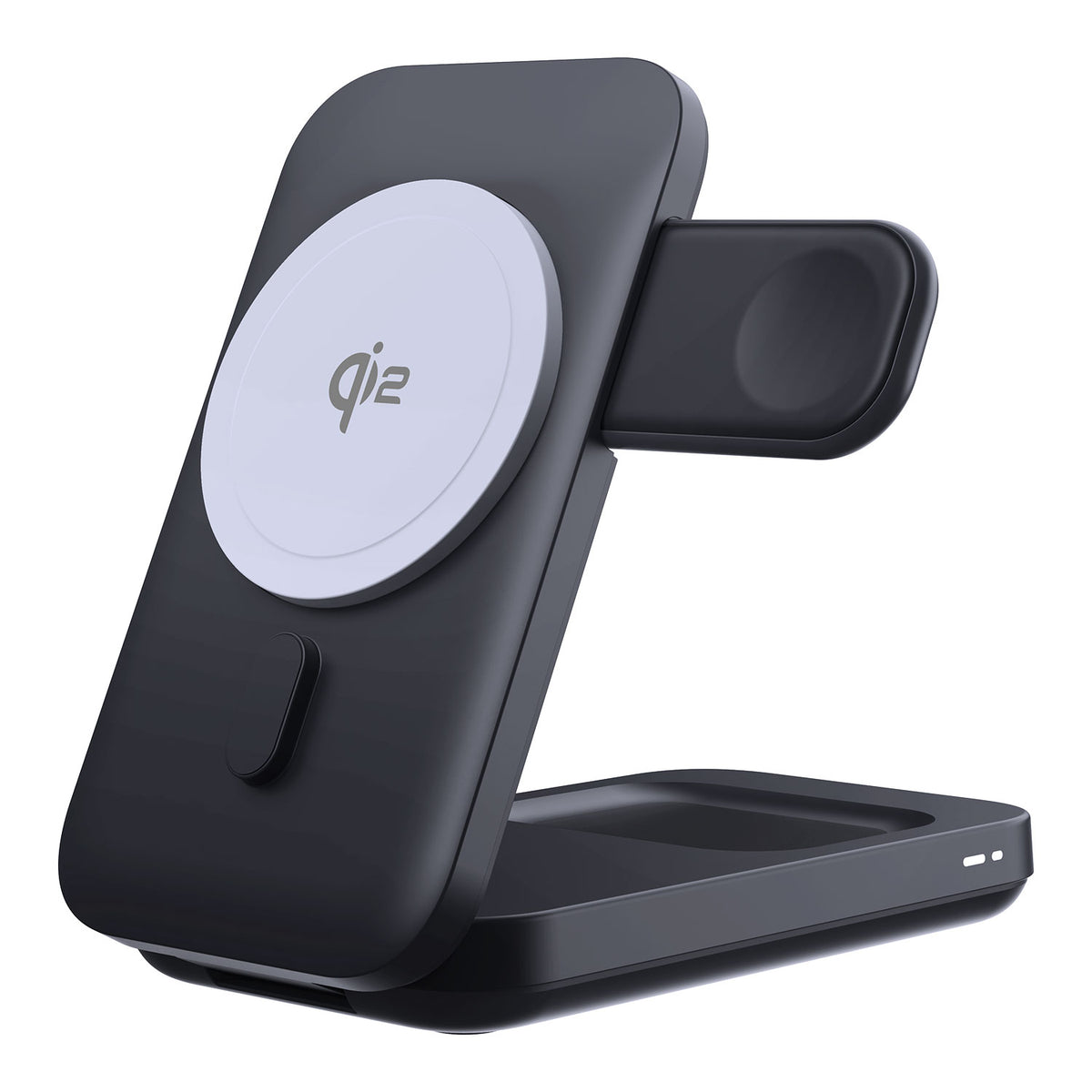
ZEERA MagSion 5-in-1 Dual MagSafe Charger Stand
- Dual MagSafe
- 5-in-1 stand
- Watch charging
- Angle adjust
- Clean setup
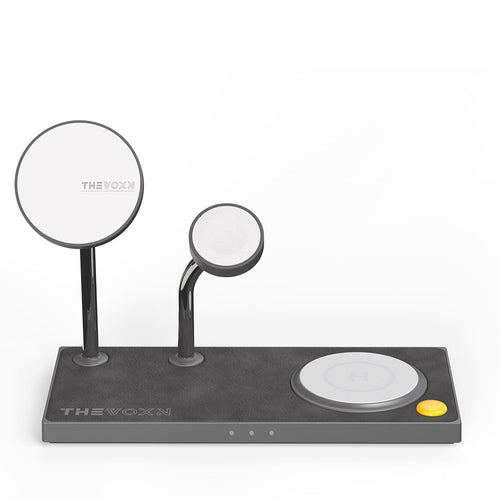
ZEERA SuVolt Gen5 Qi2.2 Active Cooling Car Charger
- 25W Qi2.2
- Active cooling
- Strong magnet
- CarPlay ready
- Heat control
Common Mac mini Monitor Problems & Fixes
Even when your setup is within the M6's official display limits, a cable, adapter, dock, or monitor setting can still prevent it from working correctly.
If something goes wrong, the best first test is usually to connect the affected monitor directly to the Mac mini.
Second or Third Monitor Not Detected
If one display stays black or does not appear in macOS, first confirm that the complete setup is within the M6's supported resolution and refresh-rate limits.
Then try:
- Connect the monitor directly to the Mac instead of through a dock.
- Check that the correct HDMI or DisplayPort input is selected.
- Try another Thunderbolt port or cable.
- Open System Settings → Displays.
- Hold the Option key until Detect Displays appears, then click it.
Apple specifically provides the Detect Displays option for external displays that are not recognized. If the monitor works directly but not through the dock, investigate the dock or connection path first.
Why Is My 120Hz or 165Hz Monitor Stuck at 60Hz?
A high-refresh monitor may fall back to 60Hz if the cable, adapter, dock, KVM, or selected monitor input cannot carry the required mode.
Check:
- The cable's supported resolution and refresh rate
- Any USB-C or DisplayPort adapter
- The dock or KVM's Mac-specific display limits
- The monitor's HDMI or DisplayPort mode
- System Settings → Displays → Refresh Rate
The fastest test is to remove the dock or adapter and connect the monitor directly to the Mac mini.
If 120Hz or 165Hz becomes available, that intermediate accessory is likely limiting the connection.
Flickering, Black Screen, or Wake Issues
Start by simplifying the signal path and testing another cable or Mac mini display port.
If the problem occurs specifically with Adaptive Sync or variable refresh rate, switch temporarily to a fixed refresh rate in:
System Settings → Displays → Refresh Rate
Apple recommends turning off variable refresh rate when an Adaptive Sync display flickers or stutters.
Quick troubleshooting rule: If a monitor works correctly when connected directly to the Mac mini but fails through a dock, adapter, or KVM, investigate that accessory before assuming the Mac or monitor is faulty.
Build a Cleaner Multi-Monitor Mac mini Desk
The Mac mini itself is compact, but a serious dual- or triple-monitor workstation can become crowded quickly.
Multiple displays often bring a Thunderbolt dock, external SSD enclosure, display cables, charging cables, Ethernet, USB peripherals, and power adapters onto the same desk.
That is where physical organization becomes part of the setup.
ZEERA MacForge Gen3
A More Organized Mac mini Workstation
The ZEERA MacForge Gen3 Mac mini aluminum case is designed for the new Mac mini M6, M5 Pro, and M4 generation, giving the computer a more structured place in a desktop workstation.
Its CNC aluminum design creates a Mac Pro-inspired appearance while keeping the Mac mini's connections accessible.
The Top SSD Expansion Module also provides a dedicated space for a compatible external SSD enclosure measuring up to approximately 120 × 60 × 19 mm, helping keep external storage from sitting loose among display and dock cables.
MacForge Gen3 does not increase the number of monitors your Mac mini supports. Its role is to help organize the hardware that tends to accumulate around a more advanced Mac mini workstation.
FAQ
How many monitors can the Mac mini M6 support?
Up to three external monitors natively. DisplayLink is not required for a standard dual- or triple-monitor setup.
Can the Mac mini M6 run two 4K 165Hz monitors?
Yes. Apple's three-display specification confirms that two M6-connected displays can each run at up to 4K 165Hz.
Can the Mac mini M6 run three 4K monitors?
Yes. A practical high-refresh configuration is two displays at up to 4K 165Hz plus a third display at up to 4K 60Hz over HDMI.
Can the Mac mini M6 run a 4K 240Hz monitor?
Yes. One display can run at up to 4K 240Hz while a second display can still run at up to 5K 60Hz over Thunderbolt or 4K 60Hz over HDMI.
Can the Mac mini M6 run two 5K 120Hz monitors?
No. The M6 can run one display at 5K 120Hz, but the second display in that configuration is limited to up to 5K 60Hz over Thunderbolt. M5 Pro supports two displays at up to 5K 120Hz.
Do I need DisplayLink for three monitors?
No. The M6 supports three external displays natively. DisplayLink is only relevant when a particular dock or expanded display setup relies on it.
Why do two monitors connected to my USB-C dock mirror each other?
The dock may rely on DisplayPort MST. A dock that provides two independent extended displays on Windows may mirror those outputs on macOS instead. Check the dock's Mac-specific multi-display support before buying.
Is the M5 Pro better for multiple monitors?
Yes, if the displays are especially demanding. M5 Pro is the better choice for configurations such as dual 5K 120Hz, triple 4K 165Hz, or triple 6K 60Hz. For most normal dual- and triple-monitor setups, the M6 is already sufficient.
Bottom line: The Mac mini M6 is already a highly capable multi-monitor desktop. It supports three external displays natively, two 4K displays at up to 165Hz, and one very high-bandwidth display at up to 8K 60Hz, 5K 120Hz, or 4K 240Hz while still supporting a second screen.
The M5 Pro becomes valuable when you need more bandwidth across several displays at once, rather than simply because you want more than one monitor.
Before buying a monitor, cable, dock, adapter, or KVM, decide what resolution and refresh rate you want on each individual display. Then make sure every part of the connection supports that target.









