
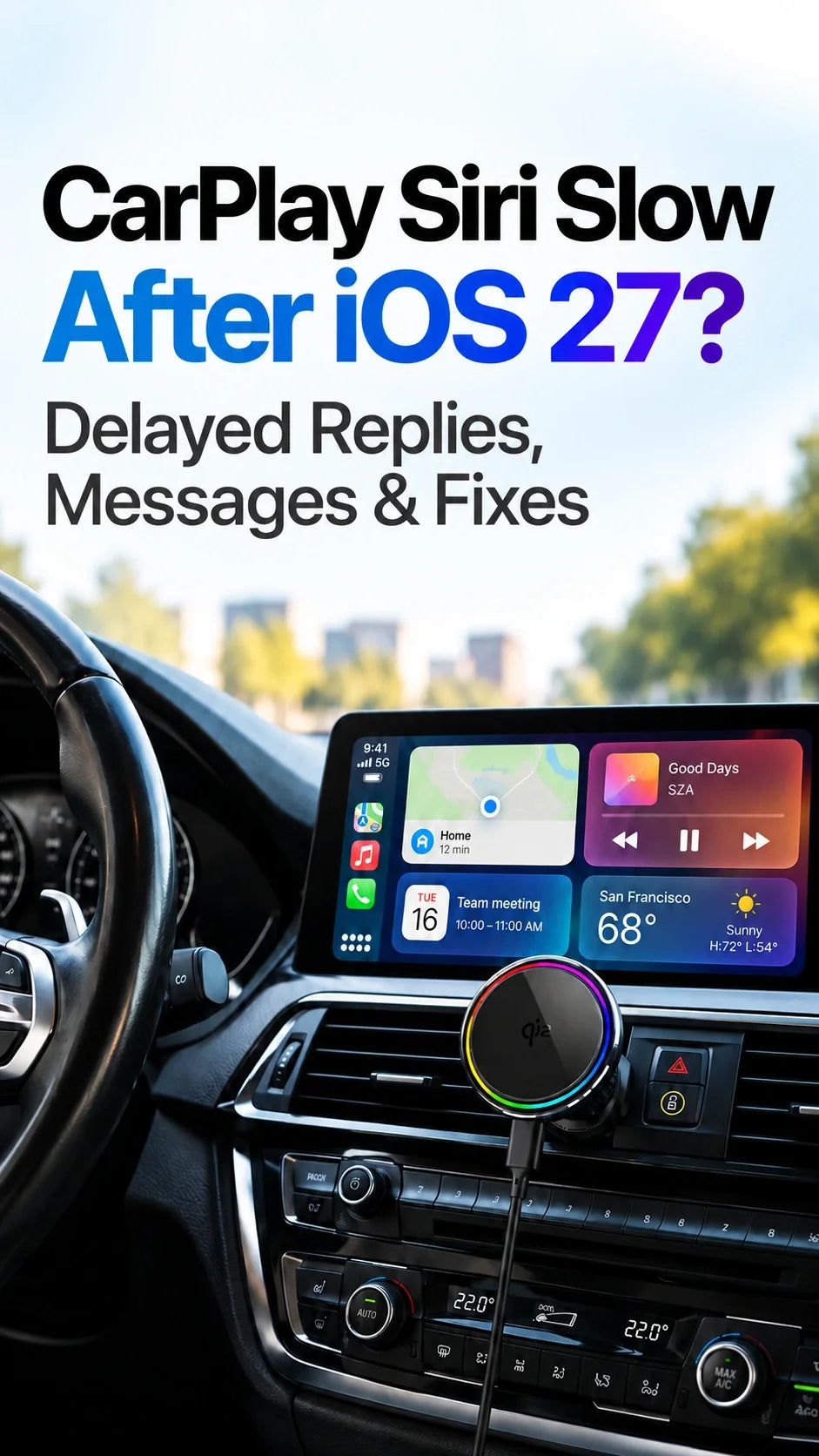
CarPlay troubleshooting · Updated October 11, 2026 · iOS 27 and iOS 27.0.1
Quick Answer
CarPlay Siri can feel slower after iOS 27, but first check whether it hears your voice at all.
If Siri mishears or ignores commands, identify whether the CarPlay session uses your vehicle's built-in microphone, an aftermarket microphone or another audio route.
If Siri recognizes the request but waits before answering, compare the same command on your iPhone without CarPlay.
Then check cellular signal, the affected app, phone temperature and whether you use Siri AI (Beta) or Siri Classic.
Apple has documented slow CarPlay Siri responses; its iOS 27.0.1 public fix notes do not confirm a general fix for this delay.
Is Siri Not Hearing You, or Does It Hear You but Reply Slowly?
These problems can look identical from the driver's seat. They call for different fixes. A Siri animation that stays on screen is not proof that the microphone failed; Siri may already have captured the request and be waiting to finish it.
1. Siri cannot hear or understand you
No response to speech, incomplete words, repeated “I didn't get that,” or wrong names. Start with microphone input, activation and cabin noise.
2. Siri understands but is slow
Your words or intended action are recognized, but sending a text, starting Maps or giving an answer stalls. Start with Siri processing, network, app and temperature.
There is also a third case: Siri completes the task but its spoken response is long or unusually slow. That is a speaking pace and response-style issue, not necessarily a processing delay.
ZEERA's assessment after reviewing Apple's documentation and user reports: test the voice input path first, then time a simple request. This avoids treating a disconnected microphone, a server-side delay and a slow-speaking voice as one bug. These are recommended comparisons, not claims of ZEERA reproducing every issue.
CarPlay Siri Can't Hear You? Check the Active Microphone First
Before changing Siri settings, establish which microphone is actually handling your voice. In a factory CarPlay system, that is commonly the car's hands-free microphone. An aftermarket head unit may use its supplied external microphone or a vehicle-specific adapter. The active path can depend on the stereo and accessory configuration.
Do not assume the iPhone microphone is the active input simply because the phone is mounted near you. Also, there is no universal iPhone Settings switch that lets you manually select “iPhone mic” or “car mic” for every CarPlay Siri session.
Test the car microphone versus the iPhone microphone
- While safely parked, connect CarPlay. Hold the steering-wheel voice button, or hold the CarPlay Home/Dashboard control if supported, until Siri starts listening. Say a simple command such as “What time is it?” This checks that the car is invoking Siri.
- Check the vehicle microphone path. Use the vehicle's own hands-free calling or voice-assistant function, where available. If other people cannot hear your voice on a hands-free call, inspect the cabin microphone, mute state, microphone wiring and head-unit settings before blaming Siri.
- Disconnect CarPlay completely. In the same parked location, ask Siri the same question directly on the iPhone. You can also make an ordinary phone recording with Voice Memos to check the phone's own mic. A working iPhone recording does not prove that the car microphone is working.
- Compare the results. Siri works directly on the iPhone but misses commands through CarPlay: focus on the car/adapter microphone route or CarPlay voice session. Both fail: investigate iPhone Siri settings, the device microphone or connectivity.
If pressing the steering-wheel button works but saying “Hey Siri” does not, that points first to the wake-word/activation route rather than a slow Siri response. Apple notes that hands-free voice activation depends on vehicle support. See Apple's guide to Siri in CarPlay.
For muffled or silent input, also check the microphone grille and any aftermarket mic connector. Our separate CarPlay microphone troubleshooting guide covers calls, echoes, Siri and voice messages in more detail.
Why Is CarPlay Siri So Slow After iOS 27?
There is an identifiable software concern, but it is not possible to attribute every slow response to the same fault. Apple's iOS 27 developer release notes list Siri responding more slowly than expected in CarPlay, especially with higher device temperature or poor network conditions. Apple's suggested workaround is to retry once the device cools or mobile reception improves.
Recent community reports describe pauses of roughly 5–15 seconds, a Siri orb that remains visible after sending messages, and requests that never complete. These are user observations, not benchmarked average response times or an Apple-confirmed failure rate.
Three quick comparison commands
- “What time is it?” — baseline response without a messaging app.
- “Navigate home” — checks the Maps/location action; only use it if your home is configured.
- “Read my last message from [contact's full name]” — checks recipient lookup and Messages. Do not send a test message while driving.
Run the same commands on the disconnected iPhone and on CarPlay while parked. Note whether the delay occurs before speech is recognized, while the request is processed, or during spoken playback.
If everything is instant on the phone but slow only in CarPlay, investigate the in-car Siri session and vehicle software first. If both are slow, network conditions, Siri AI or broader iOS behavior becomes more plausible.
CarPlay Messages Delayed or Stuck Sending? Check the Exact Stage
Messaging adds a contact lookup, app selection, message read-back, confirmation and send action to the Siri request. If one stage becomes slower, a routine reply can feel far longer than it did before iOS 27.
Siri takes too long to identify a contact
Try the contact's full first and last name. For households with similar names, relationship labels or contacts that use emoji, giving the exact name can reduce ambiguity. Apple's developer notes have documented Siri contact-resolution problems during iOS 27 testing.
Siri reads a message, then hangs on the reply
First determine whether the delay occurs before confirmation or after you tell Siri to send. Then repeat with Apple Messages and, if supported by your setup, the affected third-party messaging app. If Apple Messages is responsive but another app repeatedly stalls, investigate that app's updates, account state and Siri integration.
If your iPhone offers an Automatically Send Messages option under Siri settings, compare it with the setting turned off and on while parked. One user reported that changing this resolved their particular spinning-send behavior; this is an anecdotal workaround, not a universal fix. Keep spoken message confirmation if you prefer to verify the recipient and content before sending.
Siri confirms everything with more words
Some iOS 27 users report longer recipient names and verbose confirmations. More speech can be perceived as slowness even when the message sends quickly. Avoid judging performance only by the time until Siri stops talking; check when the actual send action completes.
Check Cellular Internet, App Differences and Phone Temperature
A connected wireless CarPlay display does not guarantee reliable internet. Wi-Fi normally carries the connection between your iPhone and the vehicle, while Siri's online requests and streaming apps can still depend on the phone's mobile connection.
Network comparison
While parked, test an uncached web search on cellular data, with CarPlay disconnected. Then reconnect and repeat in the same location. Check low-signal garages, tunnels, VPN behavior and the selected SIM.
App comparison
Test a basic Siri question, Messages and Maps separately. If one fails while the others work, check that app before resetting the entire CarPlay pairing.
If you use wireless CarPlay, do not permanently disable Wi-Fi to “fix Siri latency”: the wireless CarPlay session itself generally needs Wi-Fi. For detailed cellular-vs-CarPlay diagnosis, see ZEERA's wireless CarPlay no-internet guide.
Also consider thermal conditions. Navigation, a bright dashboard-facing screen, cellular activity and wireless charging can happen together during a sunny drive. Move the iPhone out of direct sun, stop charging temporarily and compare after it cools. If the device displays a temperature warning, follow Apple's safety guidance rather than continuing the test.
The ZEERA SuVolt Gen5 combines a magnetic car mount, wireless charging and active cooling for supported iPhones. That can be relevant to mounting, power and charging-related heat on longer drives. It does not fix Siri recognition, iOS bugs, the car microphone, cellular coverage or delayed server responses.
7 CarPlay Siri Fixes to Try in Order
Work through these in a parked vehicle. Change one variable at a time so you can tell what actually helped.
- Verify the input source. Separate vehicle microphone failures from a Siri that understands commands but replies late.
- Compare Siri without CarPlay. Use the same command, location and mobile network. Record whether the issue follows the iPhone or appears only when connected to the car.
- Check mobile data and the affected app. Try a fresh online request, then isolate Messages or Maps. Avoid relying on downloaded content as an internet test.
- Reduce heat. Retest away from direct sunlight and, if practical, with wireless charging paused. Do not cover vents or obstruct the car's controls.
- Restart the iPhone and infotainment system. Confirm Siri is enabled and check for the latest public iOS update and manufacturer-approved head-unit firmware.
- Compare a direct wired connection. If the car supports it, bypass an aftermarket wireless adapter with the designated CarPlay USB port and a data-capable cable. The same delay on both paths makes the dongle a less likely culprit.
- Rebuild the pairing only if needed. On iPhone, open Settings > General > CarPlay > [your car] > Forget This Car, then pair again. Do this after documenting the original settings, not as the first response to one slow Siri command.
Apple's CarPlay troubleshooting instructions support checking connections, restarting devices, Siri activation, firmware and re-pairing. A factory reset or erasing the iPhone is not a reasonable first diagnostic step for a delayed voice request.
Can Switching from Siri AI to Siri Classic Help?
Yes, it is a useful comparison for supported iOS 27 iPhones that have Siri AI (Beta) enabled. Several users say Siri Classic handles basic CarPlay commands faster in their vehicles. This does not prove Siri Classic is faster in every car or that the newer Siri is the only possible cause.
Apple's Siri Classic switch
- On iPhone, open Settings > Siri.
- Scroll down and choose Turn Off Siri, then confirm.
- Tap Turn On Siri again.
- Select Use Siri Classic if your device offers it, and complete any prompts.
Test the same short CarPlay request again. Switching away from Siri AI removes the new AI experience and some of its features. The choice may not appear if Siri AI isn't available on your device or in your region. Source: Apple's Siri setup guide.
Another comparison is speaking speed. Under Settings > Accessibility > Siri, Apple offers a Speaking Rate control that also affects CarPlay. This can shorten spoken playback, but it does not make a stalled network request complete faster. Siri AI also has voice pace/expressiveness controls on supported devices.
Has Apple Fixed CarPlay Siri Lag in iOS 27.0.1?
Not as a confirmed, general fix as of October 11, 2026. Apple's public iOS 27.0.1 release notes list other corrections, including a Face ID-related restart issue, a camera artifact and a touch responsiveness problem. They do not announce a blanket fix for CarPlay Siri delays.
Apple's iOS 27 developer notes document slow CarPlay Siri replies under high temperatures or poor network conditions. Those notes are evidence of a recognized development issue, not a guarantee that every shipping iOS build or vehicle is affected in the same way.
Some individual Siri/CarPlay problems were marked resolved during beta testing, including certain voice-response and navigation cases. That is not the same as a confirmed fix for all slow replies, delayed messages or microphone failures. Check the specific public update's release notes when a newer build arrives rather than relying on a generic “CarPlay fixed” headline.
Frequently Asked Questions
Why does Siri work on my iPhone but not through CarPlay?
The car's hands-free microphone, aftermarket mic, audio route or CarPlay voice session may differ from the iPhone's microphone path. Compare both while parked, then check the stereo's microphone setup.
Does wireless CarPlay use the car microphone or the iPhone microphone?
Many factory systems use the vehicle microphone; aftermarket setups vary. Confirm the microphone and routing defined by your exact head unit. There is no universal iPhone CarPlay microphone selector for all vehicles.
Why does Siri take 10 or 15 seconds to send a text after iOS 27?
Some users report pauses of that length, especially with Siri AI and Messages. Check recognition, recipient lookup, message confirmation, connectivity and whether the same task is slow without CarPlay. An individual report is not a universal timing expectation.
Can I make Siri talk faster in CarPlay?
Yes. Apple's Siri Speaking Rate setting on iPhone also affects CarPlay. It changes the playback pace, not the time required for Siri to understand or execute an online request.
Will switching to Siri Classic restore the old CarPlay experience?
It may improve responsiveness for some basic requests and is a worthwhile comparison if Siri AI is enabled. It also gives up the new Siri AI features, and it cannot repair a broken car microphone or cellular network.
Will a MagSafe car charger fix slow Siri replies?
No. A charger addresses power and, with active cooling, may help manage charging heat. It cannot repair voice recognition, Messages integration, iOS software defects or an unreliable mobile data connection.
Related ZEERA Guides
Sources reviewed: Apple Developer release notes, Apple's public iOS 27 update history, Apple Siri speaking-rate guide, Apple's Siri activation guide, and recent CarPlay and Messages reports. Online user experiences are illustrative, not verified failure rates.









