

Product Features
Açıklama
Active Cooling, Made Visible
Beyond Airflow
ZEERA MacFrost Pro combines 30W thermoelectric cooling, a CNC aluminum body and intelligent temperature control to give Mac mini additional thermal headroom during sustained workloads. The system consists of two parts: an Active Cooler + Aluminum Stand. The cooler draws heat from the top of the aluminum enclosure, while the stand raises the Mac mini to help preserve clear access to its original bottom airflow.

Built for Performance
The Mac mini’s original cooling system is more than capable of everyday office work. MacFrost Pro is built for long 4K/8K video exports, local AI generation, 3D rendering and large code compilations that keep the CPU and GPU under continuous load.
By lowering the enclosure’s surface temperature, it adds external cooling capacity that help delay or reduce thermal throttling during demanding workflows.

More Than a Fan
30W TEC Cooling
Typical cooling stands only raise the computer or direct a small fan toward its vents, which can disturb airflow and move more dust toward the chassis.
MacFrost Pro uses direct-contact thermoelectric cooling to draw heat from the Mac mini’s aluminum enclosure. An included 100 × 100 × 3 mm thermal silicone pad sits between the cooler base and the top of the Mac mini, improving surface contact and helping transfer heat efficiently into the cooling system.
The large contact area allows cooling to spread across more of the aluminum chassis without blowing air into the Mac mini or interfering with its original bottom ventilation.

Real-Time Monitoring
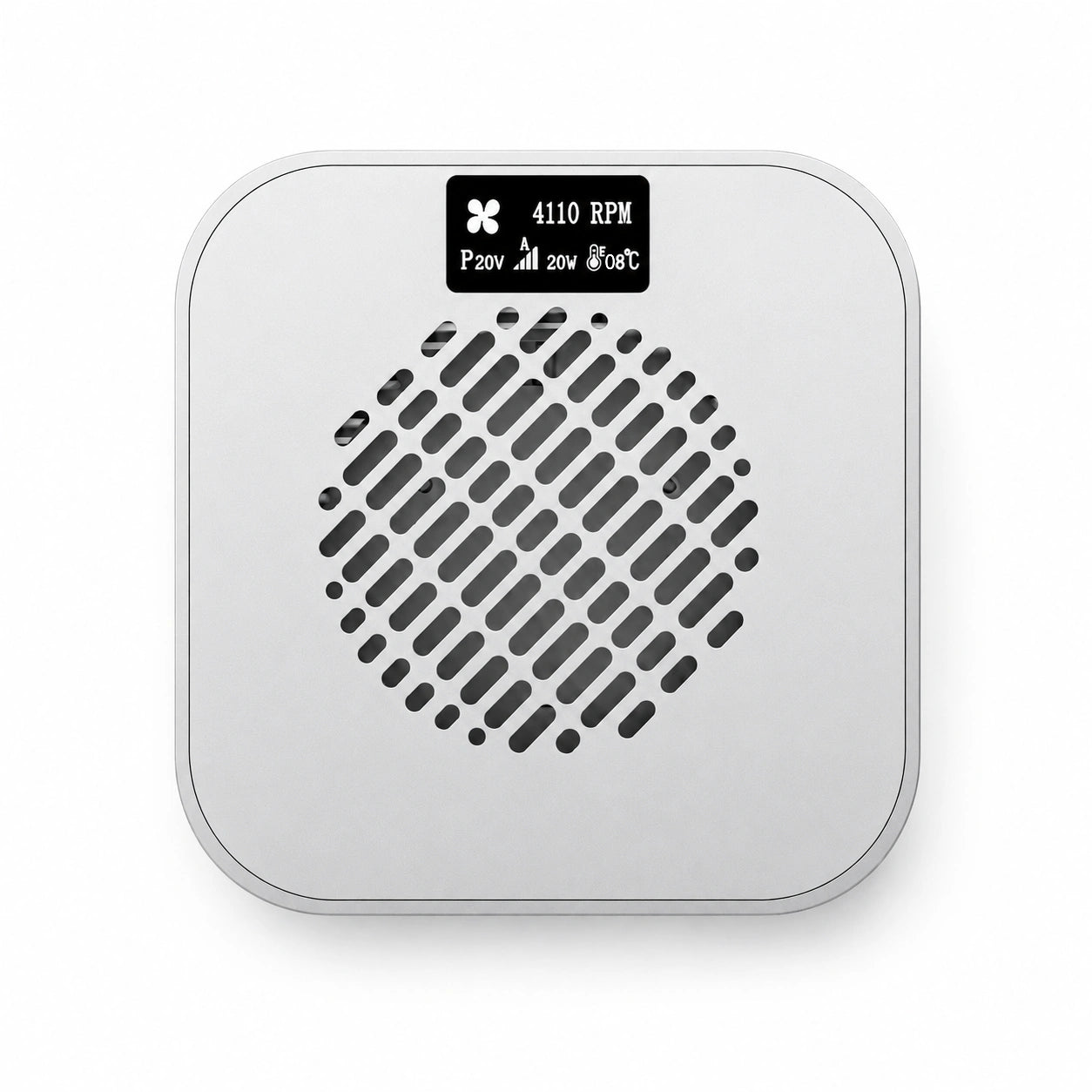
The integrated 0.96-inch OLED display shows MacFrost Pro’s sensor temperature, fan speed, operating voltage and power information in real time. No app or additional software is required.
Displayed temperature comes from the MacFrost Pro sensor, not the Mac’s internal CPU or GPU sensor.

Multiple Cooling Modes
Switch between preset cooling levels with the rear button, or choose Auto mode and let the digital temperature-control system adjust cooling automatically.
For long-term everyday use, we recommend the 7W mode. It already provides effective active cooling while keeping fan noise relatively low. Higher modes deliver stronger cooling, but fan noise becomes noticeably louder.
5V Standard / 12V Level 1
12V Level 2
12V Level 3
Auto
*Noise levels were measured approximately 50 cm (19.7 in) from MacFrost Pro in our test environment. Actual perceived noise may vary depending on room acoustics, placement and ambient noise.
For stable full 30W cooling output, we recommend using a 45W USB-C PD power adapter.
For quieter long-term use, we recommend the 7W mode. Level 2 and especially Level 3 are designed for workloads where maximum cooling performance is more important than acoustic comfort.

CNC Aluminum Cooler + Stand
The MacFrost Pro system includes two CNC-machined aluminum components: the Active Cooler and the matching Aluminum Stand. Both share the Mac mini’s 127 × 127 mm footprint to create a clean, unified desktop profile.
The Active Cooler measures 127 × 127 × 29.4 mm. Its aluminum chassis helps spread heat across the cooling structure, while the rear panel keeps the cooler’s power button and USB-C input discreetly positioned.
The Aluminum Stand measures 127 × 127 × 18 mm, including an 8.9 mm-thick base plate and 9.1 mm-high support feet. It lifts the Mac mini to provide additional clearance beneath the computer without blocking its original bottom ventilation.
A dedicated opening keeps the Mac mini’s power button accessible while it remains on the stand. A silicone contact ring cushions the area where the stand meets the Mac mini, helping prevent scratches and reduce unwanted sliding.
The Active Cooler can also be used with Mac Studio and compatible mini PCs that have a stable, flat aluminum top surface.

Technical Specifications
| Product Name | ZEERA MacFrost Pro |
|---|---|
| Product Type | Thermoelectric active cooler with aluminum stand |
| Material | CNC-machined aluminum |
| Active Cooler Dimensions | 127 × 127 × 29.4 mm |
| Aluminum Stand Dimensions | 127 × 127 × 18 mm |
| Stand Structure | 8.9 mm base plate + 9.1 mm support feet |
| Stand Protection | Silicone contact ring for scratch and slip resistance |
| Power Button Access | Dedicated opening for the Mac mini power button |
| Maximum Cooling Power | 30W at 12V |
| Power Modes | 5V: 7W / 12V: 7W, 20W or 30W |
| Automatic Mode | Temperature-based fan adjustment |
| Display | 0.96-inch OLED |
| Displayed Data | Sensor temperature, fan RPM, voltage and power |
| Power Input | USB-C |
| Primary Compatibility | Mac mini M6, M5 Pro and M4 |
| Additional Compatibility | Mac Studio and mini PCs with a flat aluminum top surface |

How to Use MacFrost Pro
Install the Thermal Pad Before First Use
Before placing MacFrost Pro on your Mac mini, attach the included 100 × 100 × 3 mm thermal silicone pad to the thermoelectric cooling surface on the bottom of MacFrost Pro. Then place MacFrost Pro directly on top of your Mac mini.
The thermal pad improves surface contact and helps transfer heat efficiently between the Mac mini’s aluminum enclosure and the cooling plate.
Connect a USB-C PD Power Adapter
Connect MacFrost Pro to a USB-C PD charger rated at 20W or higher.
For stable operation at the full 30W cooling output, we recommend using a 45W USB-C PD charger.
Power On & Switch Cooling Modes
After connecting the power supply, press and hold the Power Button for 3 seconds to turn MacFrost Pro on or off.
Short press the Power Button to cycle through the available cooling modes.
Choose the Right Cooling Mode
The built-in fan will produce audible airflow noise while operating, especially at the highest cooling setting.
For long working sessions, we recommend keeping MacFrost Pro in the lowest cooling mode. This mode already provides effective active cooling while keeping fan noise significantly lower.
Higher cooling modes can be used when additional cooling performance is required during sustained workloads such as video rendering, local AI processing, 3D work or large code compilations.

FAQs
Does every Mac mini need MacFrost Pro?
No. It is intended mainly for sustained professional workloads that keep the CPU and GPU under continuous load.
Can it prevent thermal throttling?
It may help delay or reduce thermal throttling by lowering enclosure surface temperature. Results vary with workload, ambient temperature, Mac model and selected power mode.
Does it blow air into the Mac mini?
No. It cools through direct contact with the top surface and leaves the original bottom ventilation unobstructed.
Does the OLED display require software?
No. It displays operating data directly from MacFrost Pro.
Can it cool Mac Studio or a Windows mini PC?
Yes, if the computer has a stable, flat aluminum top surface and its original ventilation remains unobstructed.
Payment Method

Payment Security
Your payment information is processed securely. We do not store credit card details nor have access to your credit card information.