
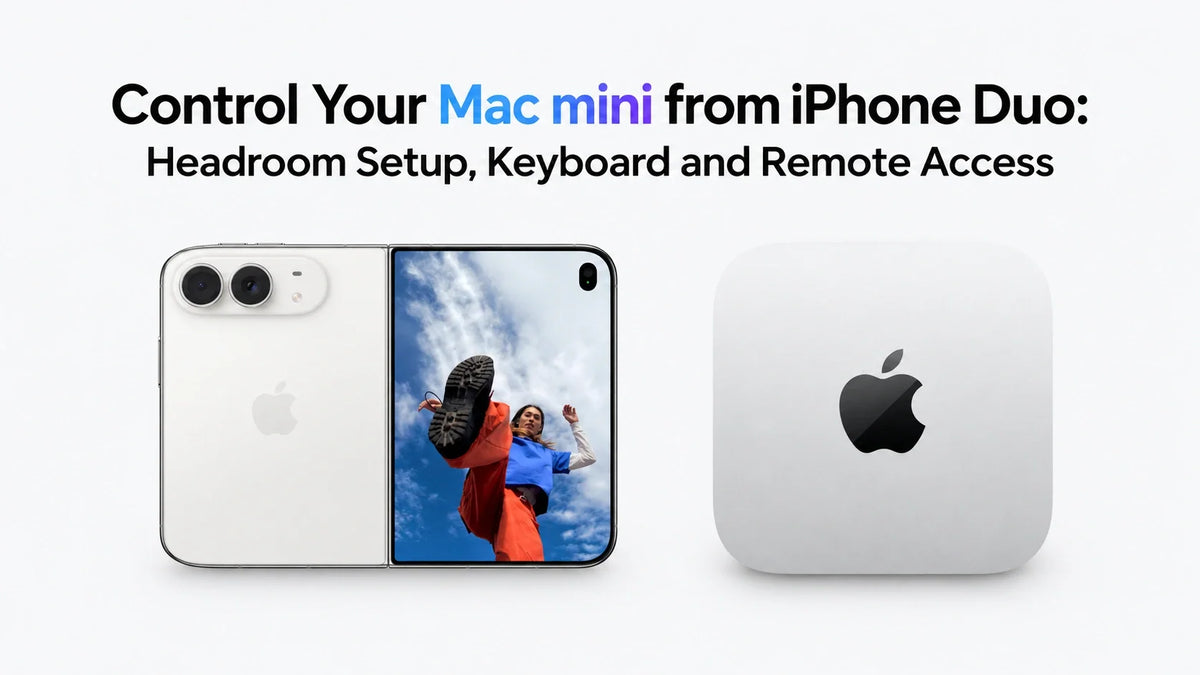
Quick Answer
Headroom lets you view and control a Mac mini from iPhone Duo through macOS Screen Sharing.
Connect on your home network first; half-fold the Duo for a desktop above and keyboard below.
The Mac must stay powered on, online and available for remote connections.
For access away from home, configure a private connection such as Tailscale separately.
What Headroom actually does with your Mac mini
Your apps, files and processing stay on the Mac mini. The Duo becomes its remote screen and input device, so you can check an export, adjust a document or use a desktop app from another room.
Headroom connects to the Screen Sharing service already built into macOS. You do not install a Headroom host app on the Mac. Start with MusicFlow's official Headroom overview and the current App Store listing.
How to connect iPhone Duo to Mac mini on the same network
- Prepare the Mac. Complete its initial setup, connect it to your home network and keep it awake. The Mac can use Ethernet while the Duo uses Wi-Fi, provided both can reach each other on the same LAN.
- Enable Screen Sharing. Open System Settings > General > Sharing. Open the information button beside Screen Sharing and enable it. If Remote Management is enabled, turn that off first; macOS does not allow both services at once.
- Authorize your account. Under Allow access for, choose the macOS user you will sign in with. Use that Mac account's username and password, rather than your Apple Account credentials.
- Connect from the Duo. Install Headroom, join the same home network and allow Local Network access when prompted. Select the discovered Mac and sign in.
- Add it manually if necessary. Use + to add a connection. Enter the Mac's local host name or LAN IP address, port 5900 and your macOS username. Save, then connect.
These steps follow Apple's Screen Sharing instructions and MusicFlow's Duo setup guide. Before trying mobile data, open a document and type a short sentence to confirm that local viewing and input work.
Use the half-fold keyboard, full inner screen or outer display
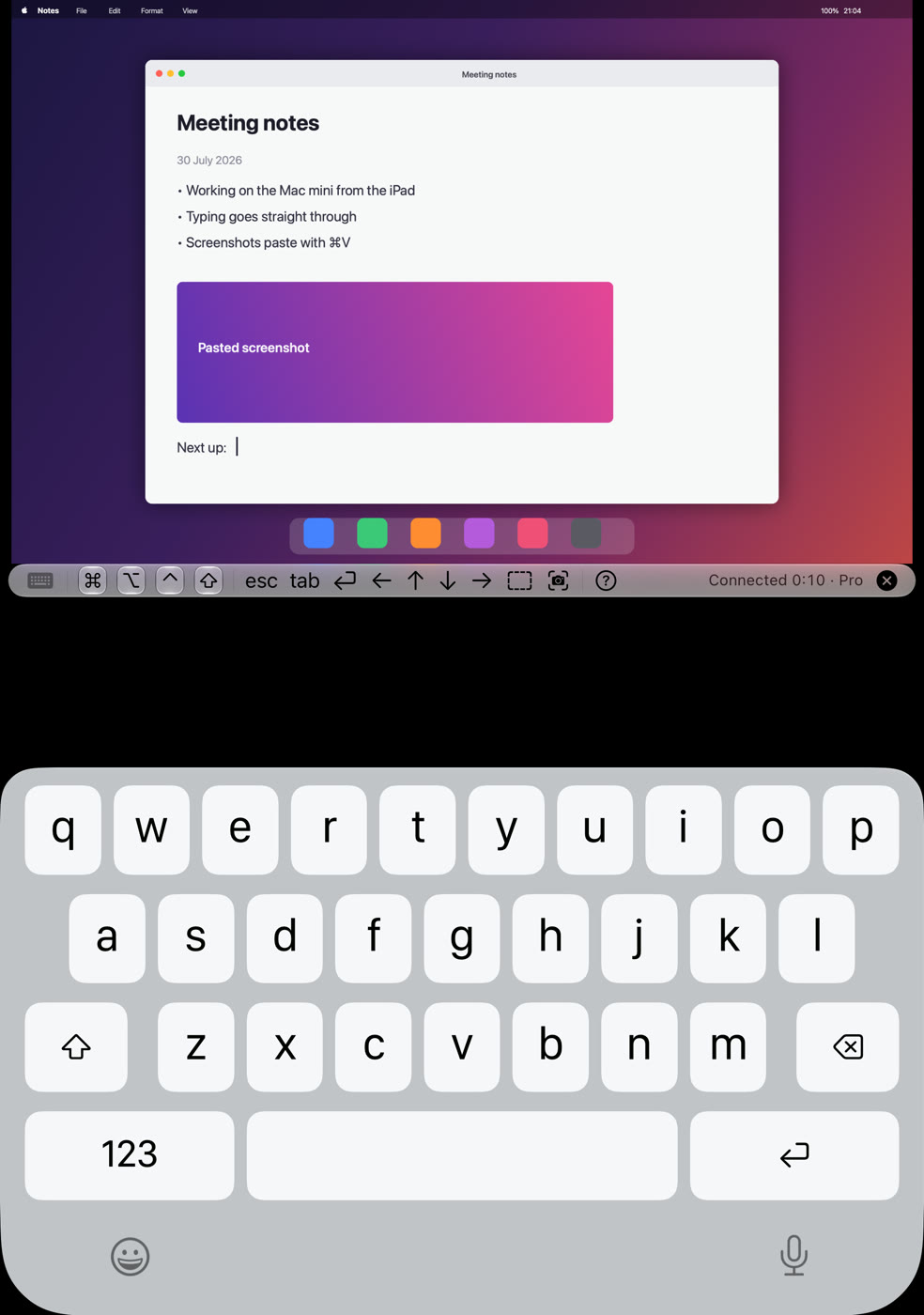
Half-fold for short edits. After connecting, place the Duo half open on a stable surface. Headroom brings up the keyboard below the fold and positions the Mac desktop above it, with the control bar near the hinge.
Open flat for more viewing space. Use the larger inner display when inspecting a document or navigating several windows. Book orientation moves the controls to the side; the outer display also supports a session when the phone is closed.
Use touch and Mac shortcuts. Tap to click, long-press before dragging, and pinch to zoom. Software and hardware keyboards support Command, Option, Control and Shift. Try Command-S after an edit.
The App Store's version 1.4.1 notes add a lower-screen trackpad option in the laptop pose, including trackpad use with an external keyboard. Pair a Bluetooth keyboard with the Duo for longer typing sessions; update Headroom if your lower-screen controls differ from an older demonstration.
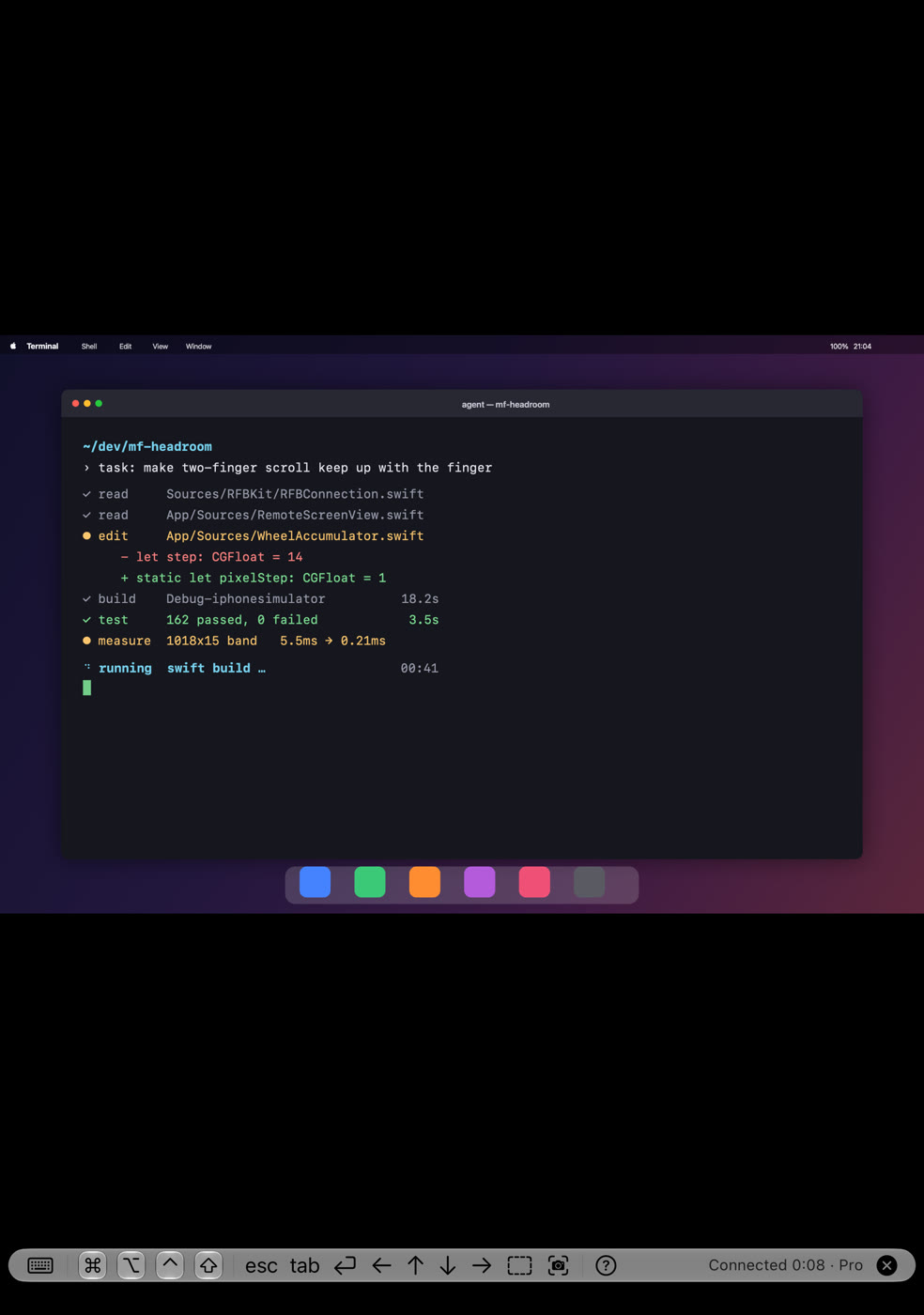
For hands-free viewing, compare the portrait and landscape stand options on ZEERA FoldTex Pro. Choose a case or stand that supports the pose you intend to use and leaves the keyboard area accessible.
How to use Headroom outside your home Wi-Fi
A successful home connection does not automatically enable access over 5G or hotel Wi-Fi. Headroom supplies the remote desktop client; a separate network path must make the Mac reachable. MusicFlow documents Headroom with Tailscale for this purpose.
- Install Tailscale on both devices. Add the Mac mini and iPhone Duo to the same Tailscale account and approve the VPN configuration on the phone.
- Check that both are online. Follow the Tailscale quickstart and confirm that both devices belong to your private network, called a tailnet.
- Copy the Mac's Tailscale address. Use its assigned 100.x.y.z address or MagicDNS name. Your home-only LAN address is a different destination.
- Create a saved Headroom connection. Tap +; enter that Tailscale address as the host, 5900 as the port and the Mac account credentials. Bonjour discovery does not cross Tailscale, so add this connection manually.
- Test on mobile data before leaving. Turn Wi-Fi off on the Duo, keep Tailscale connected and open the saved connection. Confirm both desktop updates and keyboard input.
If you use custom Tailscale access rules, permit the Duo to reach the Mac's Screen Sharing service on TCP 5900. Keep the router's public VNC port closed; the documented Tailscale route carries the connection through a private tunnel.
As a practical expectation, text editing and checking progress are more forgiving than fast animation or precision dragging. Responsiveness depends on the Mac's upload connection, the phone's network and round-trip delay. More cellular download speed alone cannot guarantee a smooth session.
Keep the Mac mini available while you are away
Let the display sleep without putting the Mac to sleep. In current macOS versions, open System Settings > Energy and enable Prevent automatic sleeping when the display is off. Older versions may use the name Energy Saver.
Keep power, networking and Screen Sharing active. Tailscale must also stay connected for the internet route. A shut-down Mac cannot serve a remote desktop. Test the setup after the Mac has been idle, rather than only just after configuring it.
Plan for wake-up limits. MusicFlow explains that Headroom's ordinary Wake-on-LAN broadcast does not travel through Tailscale. Do not rely on the Duo to wake a sleeping Mac from outside; keep the host awake or arrange a separate wake method on its local network.
Apple explains the desktop sleep controls in its sleep and wake settings guide. For a Mac that also handles overnight jobs, see our Mac mini 24/7 setup guide.
Keep the Mac's ventilation clear and size cooling around the work it performs. An export or build still runs on the Mac even when you control it from the Duo. Our guide to Mac mini heat and airflow covers that side of the setup.
Headroom will not connect? Check the failed step
- No Mac in the local list: check Headroom's Local Network permission and avoid guest Wi-Fi that isolates devices. Try a manual LAN address to separate discovery problems from reachability problems.
- Mac found, login rejected: check the permitted-user list and the Mac account credentials. A separately configured VNC password is a different authentication choice.
- Works at home, fails on cellular: check Tailscale on both devices, the saved Tailscale host address and any access rules. Reusing the Bonjour entry will not create an internet route.
- Connection drops after inactivity: check the Mac's sleep state and network connection before changing keyboard settings.
- Picture responds slowly: try a simple document window and compare local Wi-Fi with cellular. This helps distinguish a slow network path from a busy Mac.
FAQ
Is Headroom free for unlimited remote access?
MusicFlow's guide currently lists three minutes of free connection time per day. Headroom Pro removes the time limit through a one-time purchase. Check your local App Store for the current price.
Do I need a Tailscale exit node?
No, not for a direct connection between two devices already running Tailscale. An exit node routes broader internet traffic through another device; it is separate from reaching your Mac's Tailscale address. See Tailscale's exit-node explanation.
Related guides and accessories
- Can Mac mini run 24/7? Home server setup guide
- Why does my Mac mini get so hot?
- Compare ZEERA iPhone Duo cases
- FoldStand Pro: iPhone Duo case with a two-way hinge stand
- FoldTex Pro: tech-woven folio with portrait and landscape stand
- Mac mini enclosures and cooling accessories
Setup references: MusicFlow's Headroom guides, the developer's App Store release notes, Apple Support and Tailscale documentation linked above. Reviewed October 26, 2026.






