Last updated: June 11, 2026
If your iPhone says “Unable to Check for Update” while checking for iOS 27, you are not the only one seeing it.
This error usually appears when you go to Settings > General > Software Update and your iPhone fails to reach Apple’s update server. The full message may say:
Unable to Check for Update
An error occurred while checking for a software update.
For many users, the confusing part is that Wi-Fi still works. Safari loads websites. Apps open normally. But the iPhone still cannot check for a software update.
That is why searches like “iPhone says unable to check for update,” “why does my iPhone say unable to check for update,” “an error occurred while checking for a software update,” and “unable to check for update iOS 27” are rising around the iOS 27 update period.

Quick Answer
“Unable to Check for Update” usually means your iPhone cannot connect to Apple’s software update server, cannot verify the update, or does not currently meet the conditions required to check for iOS 27 or another iOS update.
The most common causes are unstable Wi-Fi, VPN or DNS interference, Apple server congestion, low storage, a stuck update file, beta update settings, or an iPhone model that is not eligible for the update you are trying to install.
Start with the simple fixes first: check Apple System Status, retry, switch Wi-Fi, turn off VPN, restart your iPhone, check storage, delete any old update file, and then try Software Update again.
Error message: Unable to Check for Update
Most likely causes: Apple server issues, Wi-Fi problems, VPN interference, low storage, beta settings, or a corrupted update file.
What to try first: Check Apple System Status, switch Wi-Fi networks, disable VPN, restart your iPhone, and delete any old iOS update file.
Why Does My iPhone Say Unable to Check for Update?
This error does not usually mean your iPhone is broken.
It means your iPhone cannot complete its request to Apple's update servers, so iOS cannot verify whether an update is available.
Common causes include:
- Apple's update servers are temporarily busy.
- Wi-Fi works normally but blocks update traffic.
- A VPN, proxy, DNS profile, or security filter is interfering.
- Your iPhone does not have enough free storage.
- An old iOS update file is corrupted.
- Your beta settings, Apple Account, or device eligibility are not configured correctly.
Ultra-Thin MagSafe Back Plate Series
ZEERA MagSkin Air Ultra-Thin Magnetic Plate
- Only 0.3mm thin
- MagSafe compatible
- Preserves Air feel
- Light back guard
- Case-free carry

ZEERA MagSkin Pro Ultra-Thin Magnetic Back Plate
- Ultra-thin Pro fit
- MagSafe compatible
- Bare-phone feeling
- Camera deco guard
- Minimal daily carry

ZEERA AirFlat Lens Cover for iPhone Air
- Makes back flat
- Stops desk wobble
- Protects camera lens
- Slim matching look
- Easy clean design

Why This Error Is More Common During the iOS 27 Rollout
Major iOS releases often bring a temporary increase in update-related errors.
During the iOS 27 rollout, Apple's update servers may experience heavier traffic, while some users may also encounter beta enrollment, eligibility, or account-related issues.
As a result, the "Unable to Check for Update" message may appear even on fully supported iPhone models.

Why It Can Happen Even When Wi-Fi Works
One common question is: “Why does my iPhone say unable to check for update even though Wi-Fi is working?”
The reason is that normal internet access and Apple update access are not always the same thing. Your iPhone may open websites, stream videos, and use apps, but still fail to connect properly to Apple’s software update server.
This often happens on public Wi-Fi, hotel Wi-Fi, school or office networks, VPN connections, proxy settings, custom DNS profiles, or networks with login pages.
If this happens, switch to a private Wi-Fi network first. If you are already at home, restart your router or try another trusted network before checking Software Update again.
How to Fix "Unable to Check for Update" on iPhone
Try the following fixes in order. In most cases, the problem is caused by a temporary connection issue, a network setting, or a corrupted update file rather than a hardware problem.
1. Check Apple System Status
Before changing anything on your iPhone, make sure Apple's update services are working normally.
Visit Apple's System Status page and look for any reported issues related to Software Update services.
If Apple is experiencing an outage or server issue, the best solution is simply to wait and try again later.
2. Wait a Few Minutes and Check Again
If the error appeared only once, close the message and wait a few minutes before checking again.
Major releases such as iOS 27 can generate heavy traffic on Apple's update servers, especially during the first few hours after launch.
After waiting 10–30 minutes, go to:
Settings > General > Software Update and check for updates again.
3. Switch to Another Wi-Fi Network
Even if Wi-Fi appears to be working normally, your current network may be blocking or interrupting connections to Apple's update servers.
Go to:
Settings > Wi-Fi
and connect to a different trusted network if possible.
Testing another Wi-Fi connection is one of the fastest ways to determine whether the issue is network-related.
4. Turn Off VPN, Proxy, or Custom DNS Settings
VPN apps, proxy configurations, and custom DNS services can occasionally interfere with software update requests.
Temporarily disable any VPN connection and remove custom network configurations if you use them.
Then return to:
Settings > General > Software Update
and check for updates again.
5. Restart Your iPhone
A simple restart can clear temporary software glitches that prevent Software Update from communicating properly with Apple's servers.
After your iPhone restarts, wait for Wi-Fi to reconnect fully before checking for updates again.
6. Check Available Storage Space
iOS updates require free storage not only for the download itself but also for preparing and verifying the installation.
Go to:
Settings > General > iPhone Storage
If available space is low, remove unused apps, large videos, downloads, or other unnecessary files before trying again.
7. Delete Any Existing iOS Update File
A partially downloaded or corrupted update file can prevent your iPhone from checking for new updates correctly.
Go to:
Settings > General > iPhone Storage
If you see an existing iOS update file, tap it and select Delete Update.
Restart your iPhone and then return to Software Update.
8. Update Your iPhone Using a Computer
If your iPhone still shows "Unable to Check for Update" after trying the fixes above, updating through a computer is often the most reliable solution.
This method can bypass some network, software, or update verification issues that prevent over-the-air updates from working correctly.
On a Mac
Connect your iPhone using a USB-C or Lightning cable.
Open Finder, select your iPhone from the sidebar, then click:
General > Check for Update > Download and Update
On Windows
Connect your iPhone to your PC.
Open Apple Devices (or iTunes on older systems), select your iPhone, and check for available updates.
If a newer version of iOS is available, follow the on-screen instructions to download and install it.
Many users successfully update their iPhone this way when Software Update on the device cannot connect properly to Apple's update servers.
ZEERA MagSafe Wireless Charging Series
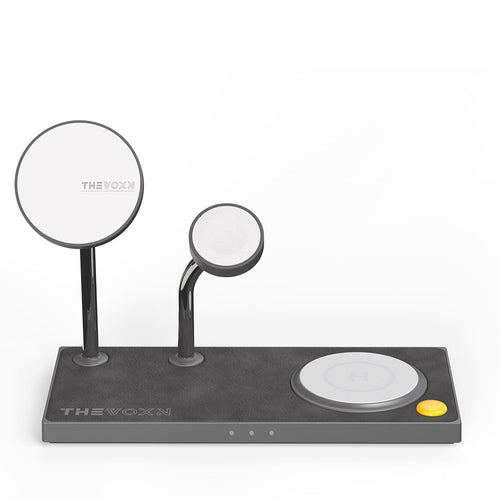
ZEERA MagTri Gen2 Qi2.2 Foldable MagSafe Charger
- 25W Qi2.2
- 3-in-1 fold
- Active cooling
- Travel size
- 3-device ready
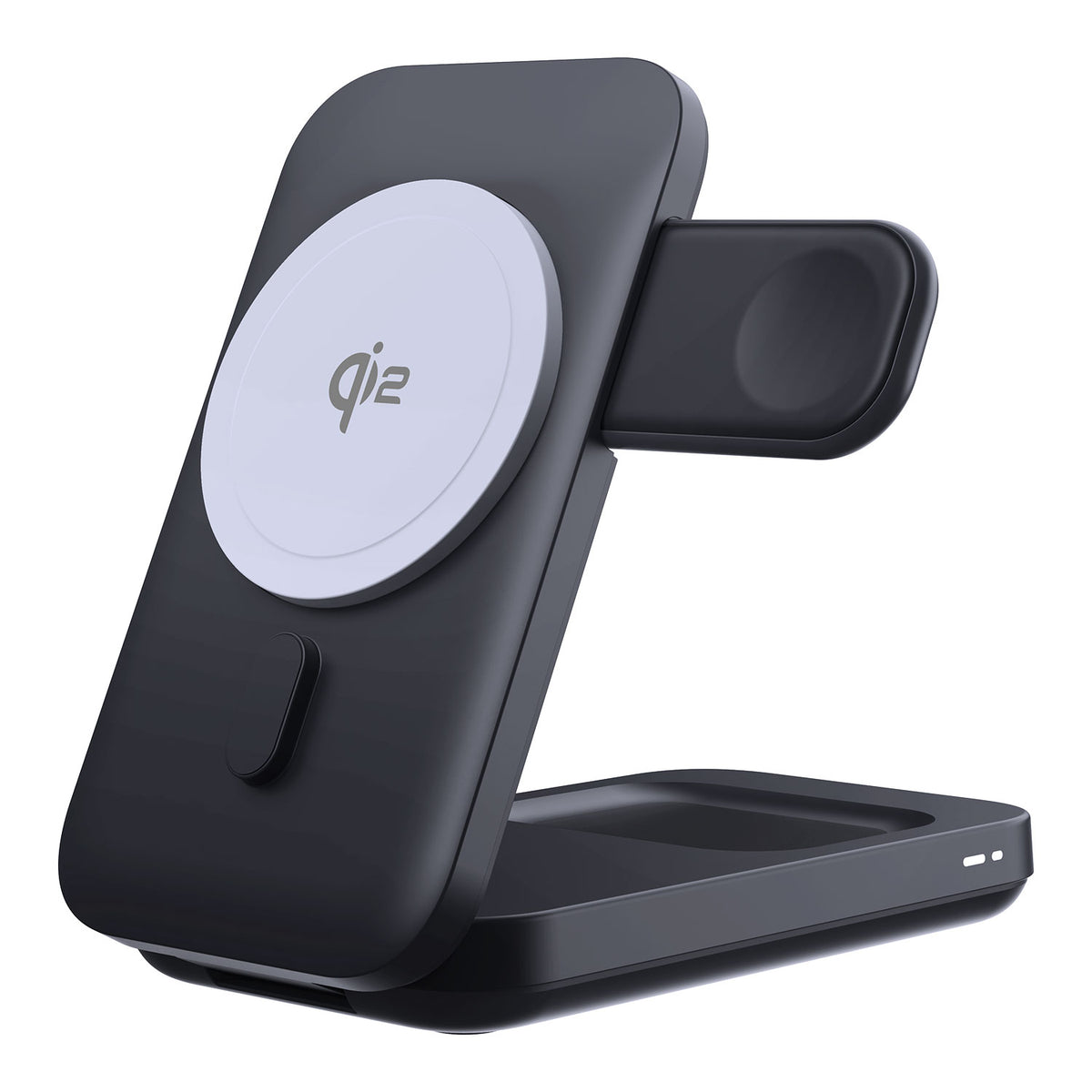
ZEERA MagSion 5-in-1 Dual MagSafe Charger Stand
- Dual MagSafe
- 5-in-1 stand
- Watch charging
- Angle adjust
- Clean setup
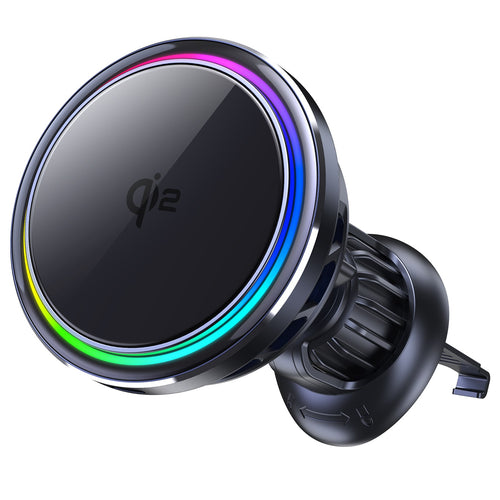
ZEERA SuVolt Gen5 Qi2.2 Active Cooling Car Charger
- 25W Qi2.2
- Active cooling
- Strong magnet
- CarPlay ready
- Heat control
What If You're Trying to Install iOS 27?
If you're trying to install iOS 27, first make sure you are dealing with the right issue.
“Unable to Check for Update” means your iPhone failed to complete the update request. “iOS 27 not showing” usually means the update is not available for your device, Apple Account, or beta settings.
To check your beta settings, go to:
Settings > General > Software Update > Beta Updates
Make sure the correct beta option is selected and that your iPhone is signed in with the Apple Account you use for Apple beta or developer access.
If the public beta has not opened yet, or if your iPhone is not eligible for iOS 27, the update may not appear even when your iPhone is working normally.
Does This Error Affect iPhone 11, 12, 13, 14 and 15?
Yes. The “Unable to Check for Update” error can appear on iPhone 11, iPhone 12, iPhone 13, iPhone 14, and iPhone 15 models when the device cannot complete the software update request.
That does not always mean the iPhone is too old. The same error can also happen because of Wi-Fi problems, VPN settings, Apple server issues, low storage, or an old iOS update file.
However, compatibility still matters. If your iPhone does not support the iOS version you are trying to install, the update may not appear normally. Before assuming the device has a problem, check whether your iPhone model supports that specific iOS release.
Before You Try Again: Prepare Your iPhone for an iOS Update
Before installing iOS 27, it is also worth taking a few minutes to back up your iPhone, so your data is protected if the update fails, gets stuck, or needs to be restored.
- Keep your iPhone connected to power.
- Use a stable private Wi-Fi network.
- Back up your iPhone with iCloud, Finder, or iTunes.
- Free up storage before downloading a major update.
- Turn off VPN or proxy settings temporarily.

✔️ Keep Your iPhone Powered During the Update
Once the update becomes available, installing iOS can take time, especially during major releases like iOS 27. Your iPhone needs stable power throughout the download and installation process.
If you usually update your device at your desk or overnight, a stable MagSafe charger helps keep it powered during the entire update process.

Quick Troubleshooting Table
| What You See | Most Likely Cause | What to Try First |
|---|---|---|
| Unable to Check for Update | Network, server, or verification issue | Check Apple System Status, then switch Wi-Fi |
| An error occurred while checking for a software update | Apple update server request failed | Restart your iPhone and try again |
| iOS 27 not showing | Beta access, Apple Account, or device eligibility issue | Check Beta Updates settings |
| Unable to Verify Update | Downloaded update cannot be verified | Switch Wi-Fi or delete and redownload the update |
| Update keeps failing after download | Old or corrupted update file | Delete the update file in iPhone Storage |
| Wi-Fi works but update fails | VPN, DNS, firewall, or restricted Wi-Fi | Turn off VPN or use another network |
| OTA update still fails | Wireless update path is blocked | Update with Finder, Apple Devices, or iTunes |


What Not to Do
Do not factory reset your iPhone as the first step.
Do not install random “iOS repair” tools before trying Apple’s basic update steps.
Do not assume your iPhone is broken just because the Software Update page fails once.
And if you are using your main iPhone for work, travel, banking, or daily communication, be careful with early iOS 27 developer beta builds. A public update or later beta is usually safer for most users.
Final Advice
If your iPhone says “Unable to Check for Update” in iOS 27, start with the most likely causes first.
Check Apple System Status. Switch Wi-Fi. Turn off VPN. Restart your iPhone. Check storage. Delete any old update file. Then try Software Update again.
If the problem continues, update using a Mac, Apple Devices, or iTunes.
For iOS 27 beta, also check your Beta Updates setting and make sure your Apple Account has the correct beta access.
In most cases, this is not a hardware problem. It is usually a network, server, storage, update file, or beta eligibility issue that can be fixed without resetting your iPhone.
Related Reading
- iOS Update Guide: iPhone Air, iPhone 17 and Charging Fixes
- iOS 27 Device Compatibility: Supported iPhones, iPhone 11 Status and Beta Release Date
- ZEERA MagSafe Wireless Charging Series
Unable to Verify Update vs Unable to Check for Update
Many users confuse the “Unable to Verify Update” message with “Unable to Check for Update.” While both errors are related to iOS updates, they happen at different stages.
Unable to Check for Update happens before your iPhone can find or verify an available update.
Unable to Verify Update appears after the update has been downloaded but cannot be verified with Apple's servers.
Both issues can be caused by Wi-Fi problems, VPN settings, Apple server issues, or corrupted update files.
If you see “Unable to Verify Update” in iOS 27, try switching Wi-Fi, turning off VPN, restarting your iPhone, deleting the downloaded update file, and downloading the update again.
FAQ
Why does my iPhone say Unable to Check for Update?
Your iPhone usually shows this message when it cannot reach Apple’s software update server, cannot verify the update, or cannot complete the update check because of network, storage, server, or beta settings.
Why does my iPhone say Unable to Check for Update even though Wi-Fi works?
Wi-Fi may work for websites but still fail for Apple update traffic. VPNs, proxy settings, DNS profiles, public Wi-Fi, office networks, school networks, or temporary Apple server congestion can all cause this problem.
How do I fix Unable to Check for Update on iPhone?
Try again, switch Wi-Fi, turn off VPN, restart your iPhone, check storage, delete the old iOS update file, and then check Software Update again. If it still fails, update with Finder, Apple Devices, or iTunes.
Why is iOS 27 not showing on my iPhone?
iOS 27 may not show if your iPhone is not eligible, your Apple Account does not have beta access, the correct Beta Updates option is not selected, or the public beta is not available yet.
Does Unable to Check for Update mean my iPhone is too old?
Not necessarily. Older unsupported iPhones may not receive newer iOS versions, but this error can also happen on newer iPhones because of Wi-Fi, VPN, server, storage, or beta access issues.
Can I update my iPhone with iTunes or a computer?
Yes. If over-the-air updates keep failing, connect your iPhone to a Mac and update through Finder, or use Apple Devices / iTunes on Windows or older Macs.
Should I reset my iPhone to fix this update error?
No. Resetting should not be the first step. Try network, storage, update file, beta setting, and computer update fixes first.
Can this error also happen on iPad?
Yes. Similar update checking errors can appear on iPad, especially when checking for iPadOS updates. The general fixes are similar: check Wi-Fi, storage, VPN settings, Apple servers, and update files.