
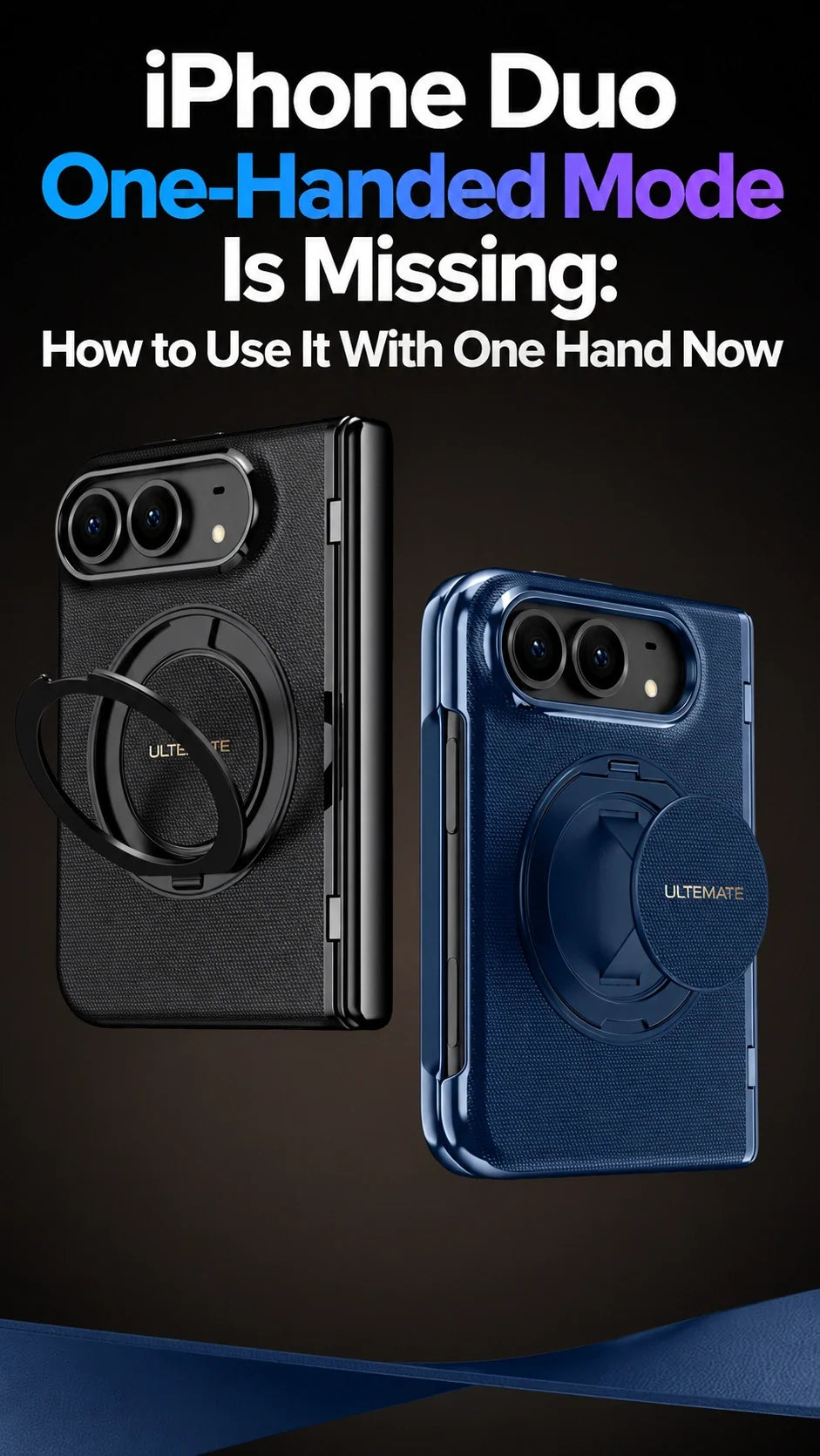
Quick Answer
iPhone Duo’s dedicated Reachability feature is missing from its launch software.
For now, start with the outer screen, a comfortable grip and AssistiveTouch shortcuts.
Voice Control and Dictation can reduce how often you need to stretch across the display.
A finger strap, slim case or supported stand setup can make everyday operation easier.
These options help with specific tasks; they do not move the entire interface within thumb reach.
Why Is iPhone Duo Reachability Missing at Launch?
Apple has not publicly explained the reason for the launch omission. In his October 21 review, WIRED’s Julian Chokkattu reports that Apple plans to add Reachability later in 2026 to help users reach the screen’s left and right edges.
No specific iOS version or release date is confirmed in that report. In particular, it does not establish an iOS 27.2 release. The useful question today is which tasks you can make easier with the controls already available.
Why Moving the Screen Down Does Not Solve Side-to-Side Reach
On supported conventional iPhones, Apple’s existing Reachability feature lowers the upper portion of the display in portrait orientation. That helps your thumb reach a button near the top.
Height and width create different problems
Vertical reach: a search field or back button sits above your thumb.
Horizontal reach: a navigation rail, send button or opposite pane sits across the display from your holding hand.
Lowering a wide interface leaves that horizontal distance largely unchanged. The reported Duo plan targets the edges; its final gesture and screen behavior remain unspecified.
This is one reason iPhone Duo app layout and optimization matter: the position of a frequently used control can affect comfort as much as the amount of content on screen.
How to Use iPhone Duo With One Hand Right Now
Start by matching the workaround to the task. Holding the phone securely, reaching system controls and entering text are three separate jobs. The settings below are documented iPhone features; where an option depends on the active keyboard or display layout, check for it on the screen you are using.
1. Use the outer screen for quick actions
Keep short replies, a quick search and brief scrolling sessions on the outer display when the app supports the task there. Opening the phone adds more room to read, but also increases the distance your thumb may need to travel.
Support the lower edge with your fingers and keep your wrist relaxed. If reaching a control makes the phone rotate out of your palm, change your grip or rest it on a surface before continuing.
2. Put AssistiveTouch beside your thumb
- Open Settings → Accessibility → Touch → AssistiveTouch and turn it on.
- Drag the floating button to a comfortable position near your holding hand.
- Open Customize Top Level Menu and choose useful actions such as Control Center, Notification Center or Home.
- Optionally assign a frequently used action to Single-Tap, Double-Tap or Long Press.
AssistiveTouch replaces several awkward gestures with reachable taps. It does not bring every button inside an app to that floating menu.
3. Check for a left- or right-aligned keyboard
In a text field, touch and hold the emoji or globe key. If the menu offers one-handed layouts, select the left-aligned keyboard for your left hand or the right-aligned keyboard for your right hand.
Apple documents this in its onscreen keyboard guide. Use it where the option appears; that general guide does not establish identical availability on both Duo displays or every keyboard. It changes the keys, rather than the rest of the app.
4. Dictate longer replies
Go to Settings → General → Keyboard → Enable Dictation. Tap a text field, then the keyboard’s microphone button and speak your message.
Dictation reduces repeated thumb movement across the keys. You can still tap to correct the text before sending it.
5. Use Voice Control for a control you cannot comfortably reach
Open Settings → Accessibility → Voice Control and complete setup. You can then speak navigation commands or say “Show numbers” to label controls and select one by number.
Voice Control helps with navigation as well as text entry. It is especially useful when the difficult part is tapping a distant button rather than holding the phone.
What Is Harder for Left-Handed and Small-Handed Users?
The important question for an iPhone Duo left-handed setup is where each app puts its controls. A right-edge toolbar may be comfortable for a right thumb but require a left thumb to cross the content. An app with important controls on the left can reverse that disadvantage.
Try the tasks you actually repeat
- Messaging: type a short reply, then reach the send and attachment buttons without loosening your hold.
- Browsing: try the address field, tabs and back navigation in your chosen browser.
- Two-pane apps: switch between a list and its open item; note whether the next action sits on the far side.
- System controls: use the AssistiveTouch shortcut for an edge gesture that feels awkward.
Small hands can encounter the same limits on either side. A grip accessory may steady the phone, but a distant control can still require supported use or another input method.
Which Case Setup Helps With One-Handed Operation?
For handheld use, prioritize a holding point that fits your hand. For reading or calls at a desk, prioritize a stand that takes the phone’s weight. For small hands already comfortable with the bare phone’s shape, minimizing added thickness may be the better starting point.
The four recommendations in this guide serve those different needs. Compare the mechanisms in our iPhone Duo finger strap, ring and stand guide before choosing: a circular MagSafe design alone does not tell you whether a product includes a finger grip.
For desk use: a stable case stand or compatible charging stand lets you operate the phone with one hand while the surface supports it.
FAQ
Will larger text make the far-side buttons easier to reach?
Larger text may improve readability, but it does not reliably move a toolbar or send button toward your thumb. Choose an input shortcut or supported position when the problem is distance across the screen.
Can I charge with these ring accessories still attached?
For compatible MagSafe charging, retract FoldFlex Pro’s strap and fold its ring flat; fold FoldPivot Pro’s integrated ring flat too. Remove FoldAero Pro’s optional detachable ring stand. See the ring-stand charging guide for the differences.
Explore the ZEERA iPhone Duo Case Collection
Compare the four options above with other grip, slim-shell and stand designs in the ZEERA iPhone Duo case collection.
Related iPhone Duo Guides
- Why iPhone Duo app layouts still need work
- Finger straps, rotating rings and stands compared
- Choose an iPhone Duo case by the problem it solves
- Aramid fiber, PC and vegan leather case materials
- MagSafe charging with a ring-stand case
- iPhone Duo case hub: materials, protection and fit
Updated October 22, 2026. Reporting: WIRED, October 21. Setup instructions: Apple Support guides linked above. Product features: the linked ZEERA product pages.






