Récemment, certains utilisateurs ont signalé que certains modèles d'iPhone 17 , Pro et Air pouvaient ne pas se rallumer après que la batterie soit complètement déchargée, en particulier lors de l'utilisation de la charge USB-C.
Dans ces cas-là, l'appareil peut rester inactif, sans afficher d'indicateur de charge ni de logo Apple, même après avoir été branché.
Ce problème ne se limite toutefois pas aux derniers modèles d'iPhone. Des situations similaires peuvent survenir sur de nombreux iPhone lorsque la batterie est profondément déchargée ou lorsque les conditions de charge ne sont pas optimales.
Si votre iPhone ne s'allume plus après que sa batterie soit déchargée, pas de panique. Ce guide vous explique pourquoi cela se produit et comment résoudre le problème étape par étape .

Pourquoi votre iPhone ne s'allume-t-il pas lorsque sa batterie est déchargée ?
🔸 1. Protection contre la décharge profonde de la batterie
Lorsque la batterie de votre iPhone atteint 0 %, il passe en mode de décharge profonde .
Il peut lui falloir un certain temps pour se recharger avant de pouvoir redémarrer.
🔸 2. Le chargement USB-C peut ne pas déclencher un démarrage immédiat
La charge USB-C ne réveille pas toujours instantanément l'appareil si :
- L'alimentation électrique est instable.
- La tension est trop faible au démarrage
- La batterie est complètement déchargée.
🔸 3. Les accessoires de charge affectent la stabilité
L'utilisation de câbles ou d'adaptateurs de mauvaise qualité peut :
- Retarder la charge
- Empêcher une distribution d'énergie correcte
- Faire en sorte que l'appareil ne réponde plus
🔸 4. Comportement du logiciel ou de la gestion de l'alimentation
Il arrive parfois qu'iOS mette plus de temps à réinitialiser le système de charge après une décharge complète de la batterie.
Comment réparer un iPhone qui ne s'allume pas
1. Laissez-le branché pendant 10 à 20 minutes.
Même si rien ne se passe immédiatement :
👉 Restez connectés
Votre iPhone peut progressivement récupérer suffisamment de batterie pour redémarrer.
2. Essayez un autre câble et un autre adaptateur secteur.
Passer à :
- Un câble USB-C fiable
- Un adaptateur secteur stable
👉 Évitez les systèmes de charge bon marché ou peu fiables.
3. Utilisez un chargeur MagSafe (solution de secours)
Dans de nombreux cas, les utilisateurs ont constaté que le passage à la charge MagSafe permet de rétablir l'alimentation lorsque l'USB-C ne répond pas.
Cela est probablement dû au fait que la recharge sans fil initialise l'alimentation différemment et peut contribuer à réactiver le système de batterie.
⭐ Solution de charge stable recommandée
Si vous rencontrez fréquemment des problèmes de charge instable ou d'alimentation, l'utilisation d'un système de charge bien conçu peut faire toute la différence.
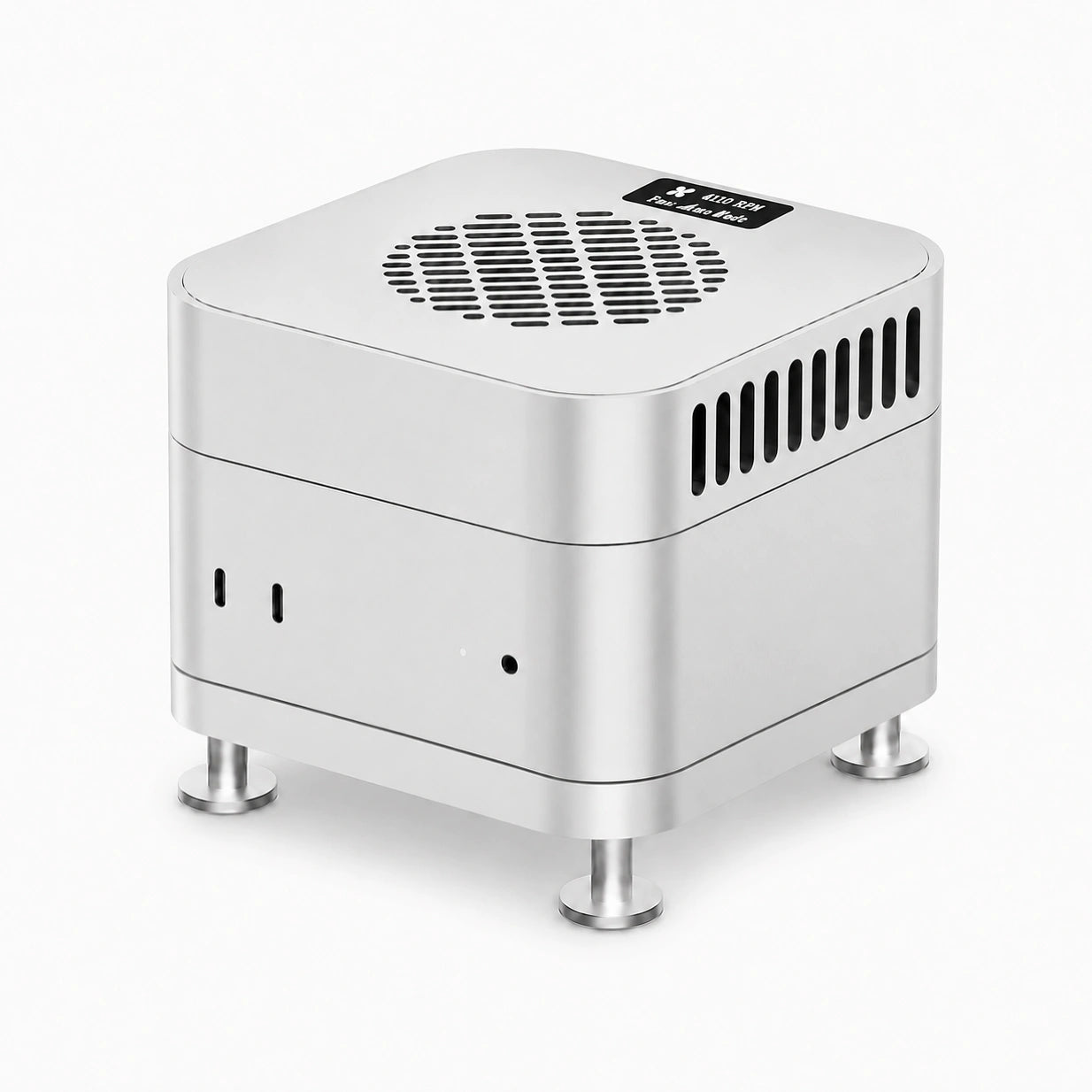
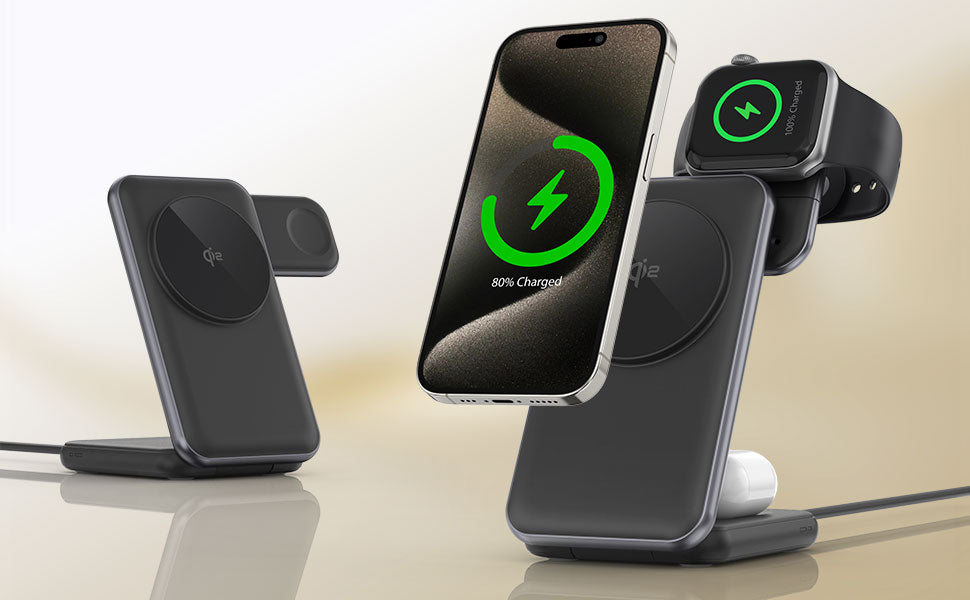
Par exemple, un chargeur magnétique compact comme le ZEERA MagTri Gen2 , conçu pour fournir :
- Alignement magnétique stable
- Recharge sans fil rapide jusqu'à 25 W
- Refroidissement actif pour un meilleur contrôle de la température
- Conception pliable et adaptée aux voyages
👉 Cela permet de maintenir des performances de charge constantes, notamment lorsque la batterie de votre iPhone est complètement déchargée ou instable.

4. Forcez le redémarrage de votre iPhone
Essayer:
- Appuyez sur Volume +
- Appuyez sur Volume Bas
- Maintenez le bouton d'alimentation enfoncé.
👉 Maintenez la pression jusqu'à ce que le logo Apple apparaisse.
5. Vérifiez et nettoyez le port de chargement
La poussière ou les débris présents dans le port USB-C peuvent empêcher un bon contact.
Pourquoi la recharge MagSafe fonctionne-t-elle lorsque l'USB-C est défaillant ?
La recharge MagSafe utilise un circuit d'alimentation différent de celui de la recharge filaire.
Dans certaines situations :
- La charge peut démarrer plus progressivement.
- Cela évite les problèmes de connexion dus aux câbles mal branchés.
- Cela peut aider à récupérer des batteries profondément déchargées.
👉 C’est pourquoi changer de méthode de charge peut parfois résoudre le problème.
Quand contacter l'assistance Apple
Si votre iPhone ne s'allume toujours pas :
- La batterie peut être endommagée.
- Des problèmes matériels peuvent exister.
👉 Rendez-vous dans l’assistance Apple ou dans un Apple Store pour obtenir un diagnostic plus approfondi.

Comment prévenir ce problème à l'avenir
✔ Évitez de laisser fréquemment votre batterie atteindre 0 %.
✔ Utilisez des accessoires de charge stables et de haute qualité
✔ Gardez votre iPhone au frais pendant la charge
Si votre appareil chauffe également pendant la charge, consultez ce guide complet pour résoudre les problèmes de surchauffe de l'iPhone pendant la charge .
✔ Maintenir une configuration de charge cohérente
Évitez d'utiliser alternativement des câbles ou des adaptateurs non fiables.
FAQ
❓ Pourquoi mon iPhone ne se rallume-t-il pas après s'être éteint ?
Il se peut qu'il soit en mode de décharge profonde et qu'il ait besoin de temps ou d'une alimentation électrique stable pour redémarrer.
❓ Combien de temps dois-je recharger un iPhone déchargé ?
Au moins 10 à 20 minutes avant d'essayer de l'allumer.
❓ Pourquoi MagSafe fonctionne-t-il mais pas l'USB-C ?
MagSafe utilise un mécanisme de charge différent, susceptible de mieux gérer les niveaux de batterie faibles.
❓ Ce problème peut-il survenir sur les anciens iPhones ?
Oui. Ce problème ne se limite pas à l'iPhone 17 ; il peut survenir sur de nombreux modèles dans certaines conditions.