
Quick Answer
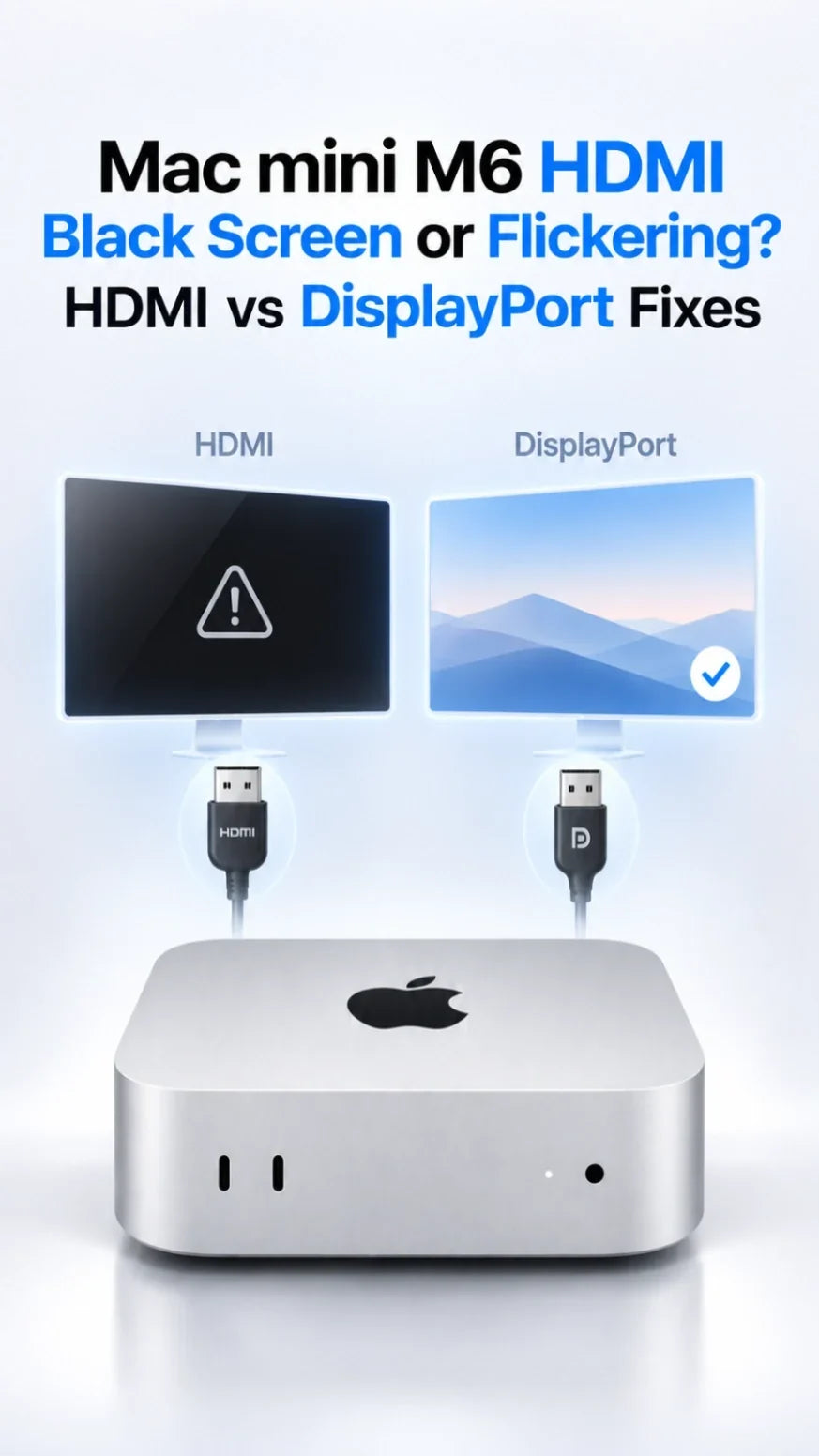
If your Mac mini M6 shows a black screen or flickers over HDMI, test one monitor directly with a known-good cable and the correct input selected.
Set a fixed 60Hz refresh rate, then temporarily disable VRR/Adaptive Sync and HDR.
If the problem persists, compare the rear Thunderbolt 4 port using a direct USB-C-to-DisplayPort cable on a monitor with DisplayPort input.
Stable DisplayPort but unstable HDMI points to the HDMI cable, input mode or handshake; the reverse points to the DisplayPort path.
Add your dock, other displays and higher refresh rates back one at a time.
First, identify what “black screen” means
A monitor that says No Signal is different from a screen that has a backlight but shows a black desktop. Open the monitor's on-screen menu: if the menu appears, its panel has power. Check the selected input and video path first.
One-minute isolation test
- Disconnect docks, KVM switches and the other monitors.
- Connect one display directly to the rear HDMI port.
- Choose that HDMI input manually in the monitor menu and reseat both ends.
- Try a second known-good cable and another HDMI input, if available.
- If another display works, use System Settings → Displays, hold Option and click Detect Displays.
Apple recommends a direct connection, cable checks and Detect Displays for a dark external display. If the Mac itself is unresponsive on every output, investigate startup or system problems instead of treating it as an HDMI-only failure. Apple's dark-display troubleshooting explains these first checks.
HDMI vs DisplayPort: which connection should you try?
HDMI: simplest direct test
Use the Mac mini M6's rear HDMI port and the monitor's HDMI input. For an 8K setup, Apple specifies an Ultra High Speed 48Gbps HDMI cable. For any resolution, make sure the cable and the display input can actually carry the chosen refresh rate.
DisplayPort: an independent signal path
If the monitor has a DisplayPort input, use a USB-C-to-DisplayPort cable from a rear Thunderbolt 4 port. Apple's M6 specifications list native DisplayPort 1.4 speeds on those ports. Check the cable's advertised mode against your monitor's resolution and refresh rate. Do not assume a USB-C charging cable carries video.
The front USB-C ports are listed for USB 3, while the three rear Thunderbolt 4 ports explicitly support DisplayPort video. A simple HDMI-to-DisplayPort cable is not a substitute for a USB-C-to-DisplayPort connection; HDMI-output-to-DisplayPort-input conversion may require a powered active converter. Test the two native routes first. Apple's M6 Mac mini specifications list the ports.
Which is better? Choose the path that remains stable at your desired display mode. Neither connector is inherently a cure. A reliable direct HDMI connection is fine; direct USB-C-to-DisplayPort is a useful comparison when HDMI blackouts or flicker continue.
Fix intermittent flickering or brief blackouts at 120Hz, 144Hz or higher
Keep the direct connection and change one setting at a time. These are diagnostic tests, not permanent recommendations for every display.
1. Start with fixed 60Hz
In System Settings → Displays, select the affected monitor and choose a fixed 60Hz refresh rate. If the image becomes stable, increase the rate in steps until the failure returns. Check the cable, monitor input specification and other attached displays before blaming the M6.
2. Test VRR and HDR separately
Turn off Variable/Adaptive refresh rate temporarily, then test HDR off if needed. If flicker appears only with one feature enabled, check the monitor's firmware and input settings. Do not conclude that macOS has a universal M6 VRR or HDR defect from one monitor and cable combination.
3. Check the monitor's input mode
Some displays offer distinct HDMI or DisplayPort compatibility modes in the on-screen menu. Check its manual for the mode required by your refresh rate. Disable automatic input switching for a test, then restore it if stable. Replace a suspect cable before buying a dock or adapter.
Apple says resolution and refresh-rate limits depend on the complete setup, including cable, adapter and other displays. The M6 can run up to three external displays, but allowed modes differ by configuration. For example, Apple's three-display configurations place limits on the third screen; 4K at 240Hz is available only in specified one- or two-display configurations, not as a blanket promise for every port and monitor combination. See Apple's M6 display combinations and our Mac mini M6 multi-monitor guide.
What your HDMI vs DisplayPort result tells you
Both paths work at 60Hz; one flickers at high refresh
Investigate that path's cable, display input mode and bandwidth support. Reintroduce HDR or VRR one at a time.
HDMI fails; direct DisplayPort works
Try another HDMI cable and input, confirm the monitor's HDMI mode, and test a second HDMI display. If the rear HDMI output alone fails across known-good cables and displays, contact Apple Support.
DisplayPort fails; HDMI works
Check that the cable supports video and connects to a rear Thunderbolt port. Try another rear port and a known-good direct USB-C-to-DisplayPort cable. A USB-C hub or generic adapter adds another variable.
Both fail on one monitor; another monitor works
Check that display's power, firmware and input settings. Test the affected monitor with another computer if available. If both monitors fail and the Mac is not booting, move to Apple startup diagnostics.
Black screen only after sleep? Use the wake-specific fixes
If the display works normally until the Mac sleeps, the timing is the strongest clue. Power-cycle the monitor, reconnect it directly, check wake-related monitor settings and update the display's firmware. Our separate Mac mini M6 monitor-not-waking guide covers that specific scenario in detail.
If a screen goes black only during protected streaming video, test the streaming app and the display's HDCP compatibility. That symptom differs from a monitor losing all video on the desktop. Apple notes HDCP requirements for encrypted playback over HDMI.
When to update software or seek hardware help
After the one-monitor direct test, install current compatible macOS updates and check the monitor manufacturer's firmware instructions. If a dock or KVM is involved, update its firmware, then test it only after the direct connection is stable.
Record the monitor model, macOS version, resolution, refresh rate, cable, port, and whether the failure occurs at startup, during ordinary use or after sleep. If multiple known-good monitors and cables fail on the same Mac port, that evidence is more useful to Apple Support than a vague “black screen” report.
ZEERA's practical assessment
A cooling stand or aluminum Mac mini case can organize or cool a desktop setup, but it cannot repair a faulty HDMI cable, a display handshake or an unsupported video mode. Solve the signal path first; consider workspace accessories separately.
FAQ
Does Mac mini M6 support DisplayPort without an HDMI adapter?
Yes. Its rear Thunderbolt 4 ports support DisplayPort video. Use a suitable direct USB-C-to-DisplayPort cable for a monitor with DisplayPort input.
Should I buy an HDMI 2.1 cable for a 4K high-refresh monitor?
Check the monitor's HDMI input, the exact mode you want and the cable's certified capabilities. An Ultra High Speed cable is a sensible choice for demanding HDMI modes, but a new cable cannot give the monitor an unsupported refresh rate.
Why does the Mac mini M6 work at 60Hz but flicker at 144Hz?
A higher rate places more demands on the cable and display input; VRR, HDR, docks and additional monitors can change the negotiation. Compare direct HDMI and DisplayPort, then enable the higher-rate features one by one.
Can the front USB-C ports connect a display?
For this troubleshooting route, use the rear Thunderbolt 4 ports. Apple's M6 specification explicitly lists DisplayPort on the rear ports and lists the front pair as USB 3.
Related ZEERA guides
- Mac mini M6 Monitor Not Waking After Sleep? 9 Fixes
- Mac mini M6 Monitor Support: Dual, Triple & High Refresh
- Mac mini M6 4K Monitor Scaling: Best Resolution & Settings
- Why Does Text Look Blurry on Mac mini M6?
- Mac mini M6 Mouse or Keyboard Lagging?
- Mac mini M6 External SSD Keeps Disconnecting?
- Mac mini Case Guide: M6, M4, M2 & SSD Options
Technical sources: Apple dark-display troubleshooting, M6 display support, M6 tech specs, and Apple HDMI guidance. Connection tests above are a diagnostic workflow, not a claim of ZEERA lab testing or a confirmed M6-wide hardware defect.









