
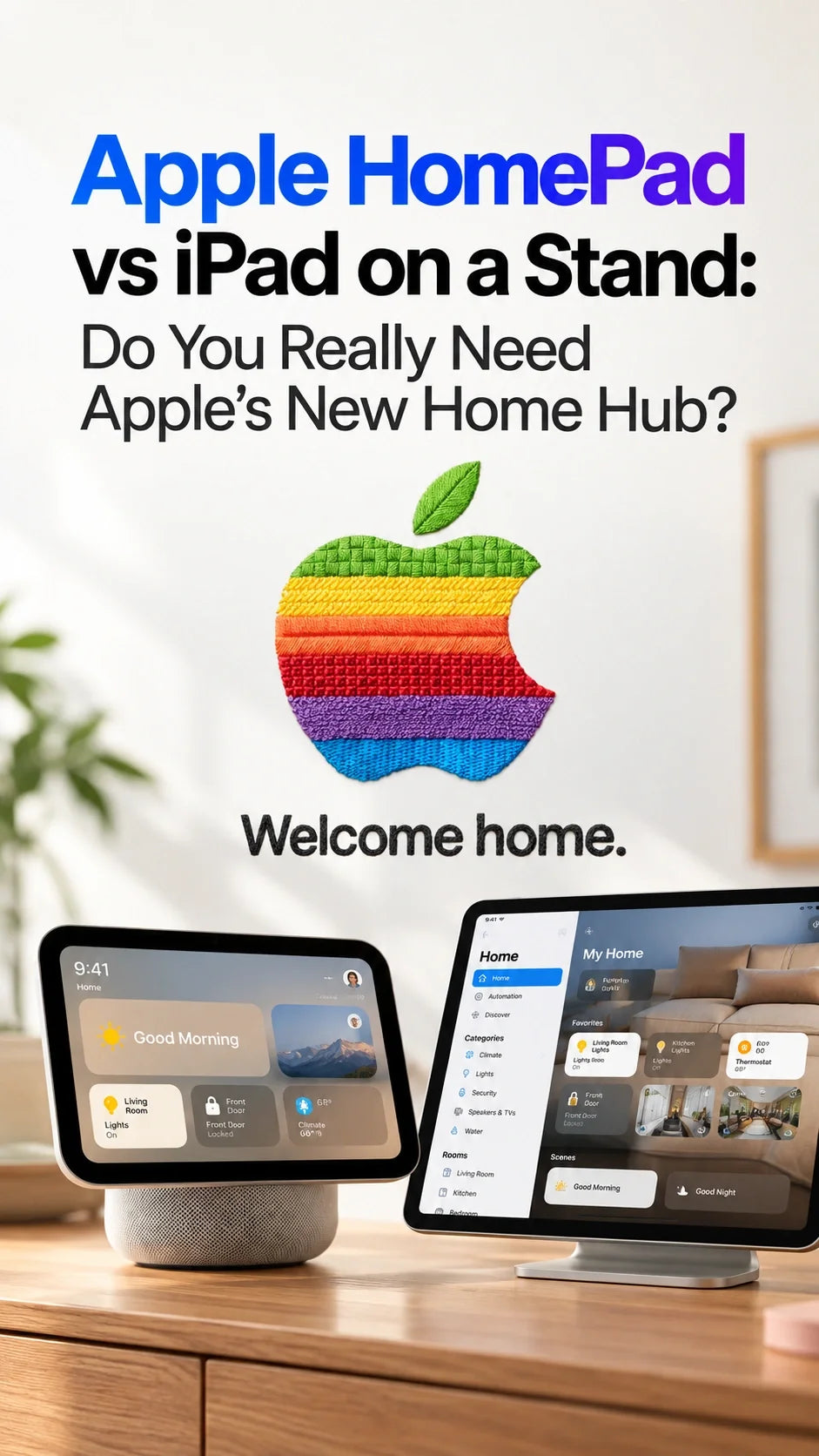
Quick Answer
An old iPad on a stand can handle touch controls, recipes and video calls, so many households may not need Apple's rumored HomePad.
However, an iPad cannot serve as a home hub on the latest Apple Home architecture. A control screen and a home hub perform different jobs.
HomePad's potential advantage is a shared household interface; automatic family recognition remains a reported feature.
The roughly $350 price and 6-inch display are unconfirmed. HomePad is also not a confirmed retail name.
Try the iPad you already own first; consider HomePad if a dedicated family control screen would solve a daily problem.
Apple HomePad vs iPad: What Is Confirmed?
Apple HomePad / smart home hub: An unannounced product discussed in current reporting. Recent reports describe a roughly 6-inch screen and tabletop or wall-mounted versions. The approximately $350 figure comes from earlier price reporting, not an Apple price list.
iPad on a stand: A tablet used as a visible Home app controller. Screen size, Siri support, app compatibility and charging connection depend on the model.
Confirmed limitation: Apple says iPad is unsupported as a home hub on the latest Apple Home architecture.
Still unknown for HomePad: Final name, price, shipping date, chip, display specifications, app support and connectivity. Battery-life and water-resistance ratings have not been announced.
Updated October 9, 2026. Apple's October 13 “Welcome home” event is confirmed, but the HomePad product details remain unannounced. Follow our October 13 event guide for the distinction between the invitation and the expected products.
MacRumors' September 30 report summarizes the current design rumors. Its earlier pricing report supplies the $350 estimate.
Can an Old iPad Replace an Apple Home Hub?
It can replace the touch screen, but not the hub role
Opening Home on an iPad gives you a place to tap lights, scenes and compatible accessories. Leaving that iPad on a stand makes those controls easier to reach.
The hub handles a different layer: remote access, sharing and automations. Apple's current Home guidance explicitly excludes iPad from that role.
If you already have a supported HomePod or Apple TV acting as your hub, an iPad may supply the visible controls you are missing. Check Home → Home Settings → Home Hubs & Bridges to see your active hub.
Do not follow an old tutorial that promises to turn a permanently plugged-in iPad into a current Apple Home hub. A stand, charger or always-open Home app cannot change Apple's supported-device list.
For Matter and Thread accessories, follow Apple's home hub requirements. In particular, Thread accessories need an appropriate Thread-enabled hub or supported border router; the iPad display does not supply that function.
HomePad vs iPad on a Stand: The Everyday Differences
Shared controls
HomePad: Reportedly designed around household use, with recognition that personalizes what appears.
iPad: You choose the Home app or another dashboard and manage access to the tablet yourself.
Buying implication: Test whether everyone can reach the controls easily. A larger screen alone does not solve account access.
Screen and apps
HomePad: A compact display with reported built-in apps; a full iPad-style App Store has not been promised.
iPad: A general-purpose tablet with App Store access, subject to model and software requirements.
Buying implication: List the exact recipe, streaming, camera and dashboard apps you use before choosing a dedicated device.
Power and placement
HomePad: Recent reporting says it requires continuous USB-C power and has no internal battery.
iPad: Its battery lets you take it off the stand and use it elsewhere.
Buying implication: A fixed home screen needs a convenient outlet. A tablet is better when you want to carry a recipe or video call between rooms.
Cost
HomePad: Around $350 has been reported, but final pricing and included mounting hardware are unknown.
iPad: Reusing a tablet may cost only the stand and power accessories you still need.
Buying implication: Compare the additional cost of each complete setup, including any separate hub, rather than comparing display prices alone.
Will HomePad Recognize Different Family Members?
That is a reported differentiator. Coverage describes voice and facial recognition, personalized information and a visitor mode that hides personal content. It also describes an iPhone fallback for authentication. These are rumors, not tested retail behavior.
Recognition needs to be useful and predictable
Our buying assessment: a family screen earns its place when the right person sees the right controls without exposing someone else's messages or calendar.
Before buying, look for demonstrations with several people nearby, visitors, a dim room and a failed identification attempt. Check which actions need a second authentication step.
On an iPad, plan explicitly who can unlock it and what they can access afterward. Biometrics on a personal tablet should not be assumed to provide a shared household dashboard.
Is a 6-Inch HomePad Too Small Compared With an iPad?
It depends on what you expect to read. A few large light controls may suit a compact panel. A detailed recipe, several camera feeds or a long video call benefits from more screen space.
ZEERA's assessment after reviewing Apple's Home documentation and current reporting: judge the device by the number of steps needed to complete a household task. Screen size is only useful when the information remains readable from where you normally stand.
Try a placement test before spending money
Put your existing tablet where the new screen would go. Ask another household member to turn on a scene, view a camera and read the next calendar event.
Note whether they need to move closer, unlock the device, find an app or adjust the stand. Those frustrations give you a concrete list to compare against HomePad reviews.
If you actually need a portable compact tablet, the iPad mini 8 display comparison addresses that separate buying decision. A smart display should be chosen for its household workflow.
Can HomePad Run iPad Apps or Replace Your Kitchen iPad?
Do not assume so. MacRumors' home hub guide describes preinstalled Apple apps and says a dedicated App Store is not planned. An interface that resembles iPad apps does not establish compatibility with every iPad app.
Choose iPad when app flexibility matters
If you switch between a specific recipe app, streaming service, browser, shopping list and third-party security app, keep the tablet until the hub's actual app list covers your routine.
Check the old iPad's supported software and whether each app still works. An unused tablet that cannot run your essential apps is less useful than its larger screen suggests.
Consider HomePad when the same few tasks repeat
If your family mainly taps a lighting scene, checks the next appointment or answers a household call, a focused interface could be worthwhile.
That is a use-case recommendation, not a claim that the unreleased device already performs those tasks better. Wait for the shipping software and independent comparisons.
How to Use an Old iPad as a Smart Home Control Panel
- Check support: Install the newest iPadOS version your model supports and verify that Home and your essential apps work.
- Check your hub: Confirm that a supported HomePod or Apple TV handles the hub functions you need.
- Prepare the dashboard: Put the accessories and scenes you use most where the family can find them.
- Place the screen: Use a stable stand, an accessible charging connection and a viewing angle suited to the room.
- Choose access rules: Decide whether it is a Home-only panel or a general-purpose shared tablet. Review visible notifications and personal content.
- Try it for several days: Watch whether the family actually uses it before buying another screen.
For a Home-only panel, Guided Access can temporarily keep the iPad in one app. Its settings also let you adjust display locking during the session. It does not add hub capabilities or create separate family profiles.
Keep touch enabled if people need to control accessories. If you want recipes and video calls as well, a one-app session may be inconvenient; choose the setup that fits the room.
At a work desk, also check whether cables and other devices leave enough room to tap the panel comfortably. The Mac accessories below are for organizing a separate Mac setup.
Is the Rumored $350 HomePad Worth Buying?
Reuse the iPad if the main need is a visible screen
This is the strongest starting point when you already own a working tablet and supported home hub, need a larger view, or rely on third-party apps. Spend on a stand only after checking the tablet's usefulness.
Consider HomePad if sharing is the daily problem
The purchase becomes more compelling if a fixed interface helps several people use the home independently. Confirm account handling, privacy, voice behavior and installation costs before deciding.
Wait if the price is justified only by promised Siri features
Buy based on what ships in your region and language. Check whether the tasks you care about work at launch, how they behave without internet, and whether any required services cost extra.
The October 13 announcement can establish specifications; reviews must establish whether the convenience lasts beyond the demo.
A personal clock or calendar may also be enough for a bedside table. Our iPhone Duo StandBy guide explores that option. A phone on a case stand or MagSafe charger remains a personal device; match the case, stand and charging method to the exact model.
FAQ
Do I need HomePad if I already have an Apple TV 4K?
You may already have the hub functions you need. Check the exact Apple TV model and your accessories. HomePad would need to justify its additional screen and household interface.
Will HomePad work with every smart bulb or security camera?
No universal compatibility list has been announced. Check each accessory's Apple Home support and the hub's final specifications; a screen cannot make an unsupported accessory compatible.
Will HomePad control my home during a power outage?
Do not plan on it. Current reporting describes continuous external power. Network equipment and the accessories themselves also need power; Apple's final documentation should define outage behavior.
Should I buy an old iPad specifically instead of HomePad?
First add up the tablet, stand, charger and any separate home hub you need. Check software support and app performance before paying for an older device.
Is HomePad the same as HomePod?
HomePad is an unconfirmed name used for the rumored display device. HomePod is Apple's existing speaker family. Wait for Apple's official naming before matching products or accessories.
Related ZEERA Guides
- Apple October 13 Event Confirmed: Welcome Home & Products to Watch
- Home Hub, Apple TV 4K & HomePod mini 2: Earlier Rumor Guide
- Apple October 2026: iPad & Smart Home Rumors
- iPad mini 8 at 60Hz: What OLED Would Improve
- iPhone Duo StandBy Mode & Desk Setup
- iPhone 18 Pro Max MagSafe Charging Slowly: Why Not 25W?
- Mac mini M6 Desk Setup
Editorial basis: Apple's published Home requirements and dated product reporting linked above. Recommendations are ZEERA's editorial assessment. We have not tested a retail HomePad.









