
Updated July 30, 2026
Old iPhone and iPad backups can continue using iCloud storage after you replace or stop using a device. Removing an unneeded backup can free up space, but you should first confirm that it is not your only way to recover important information.
This guide explains how to delete old backups from iCloud on an iPhone, iPad, Mac or Windows PC. It also explains what happens to your photos, whether deleting an old backup affects your new iPhone and what to check before confirming the deletion.

Quick Answer
On an iPhone or iPad, go to Settings > [Your Name] > iCloud > Storage or Manage Account Storage > Backups. Select the old device, tap Turn Off and Delete from iCloud, then confirm.
Deleting an old backup does not erase data already stored on your current iPhone. However, anything that existed only inside the deleted backup can no longer be restored from that backup.
What Happens When You Delete an iCloud Backup?
An iCloud backup is a recovery copy of device settings and information that is not already syncing separately through iCloud.
When you delete a device backup:
- The selected backup is removed from your iCloud storage.
- You can no longer use that backup to restore an iPhone or iPad.
- Data already stored on your current iPhone remains unchanged.
- Backups belonging to other devices are not deleted.
- iCloud Backup is turned off for the selected device.
If you delete the backup belonging to the iPhone you currently use, you will need to turn iCloud Backup on again before the device can create new automatic backups.
Will Deleting an iCloud Backup Delete My Photos?
Usually, no. Photos already stored on your iPhone or synced with iCloud Photos will not be deleted when you remove an old device backup.
If Sync this iPhone is enabled under Settings > [Your Name] > iCloud > Photos, your photo library is stored separately from the device backup.
Be more careful if iCloud Photos was turned off on the old device. Photos stored only inside that backup will no longer be recoverable after the backup is deleted.
Deleting an iCloud backup is different from deleting a photo in the Photos app, which can remove the image from all synced devices.
ZEERA MagSafe Wireless Charging Series
ZEERA MagTri Gen2 Qi2.2 Foldable MagSafe Charger
- 25W Qi2.2
- 3-in-1 fold
- Active cooling
- Travel size
- 3-device ready
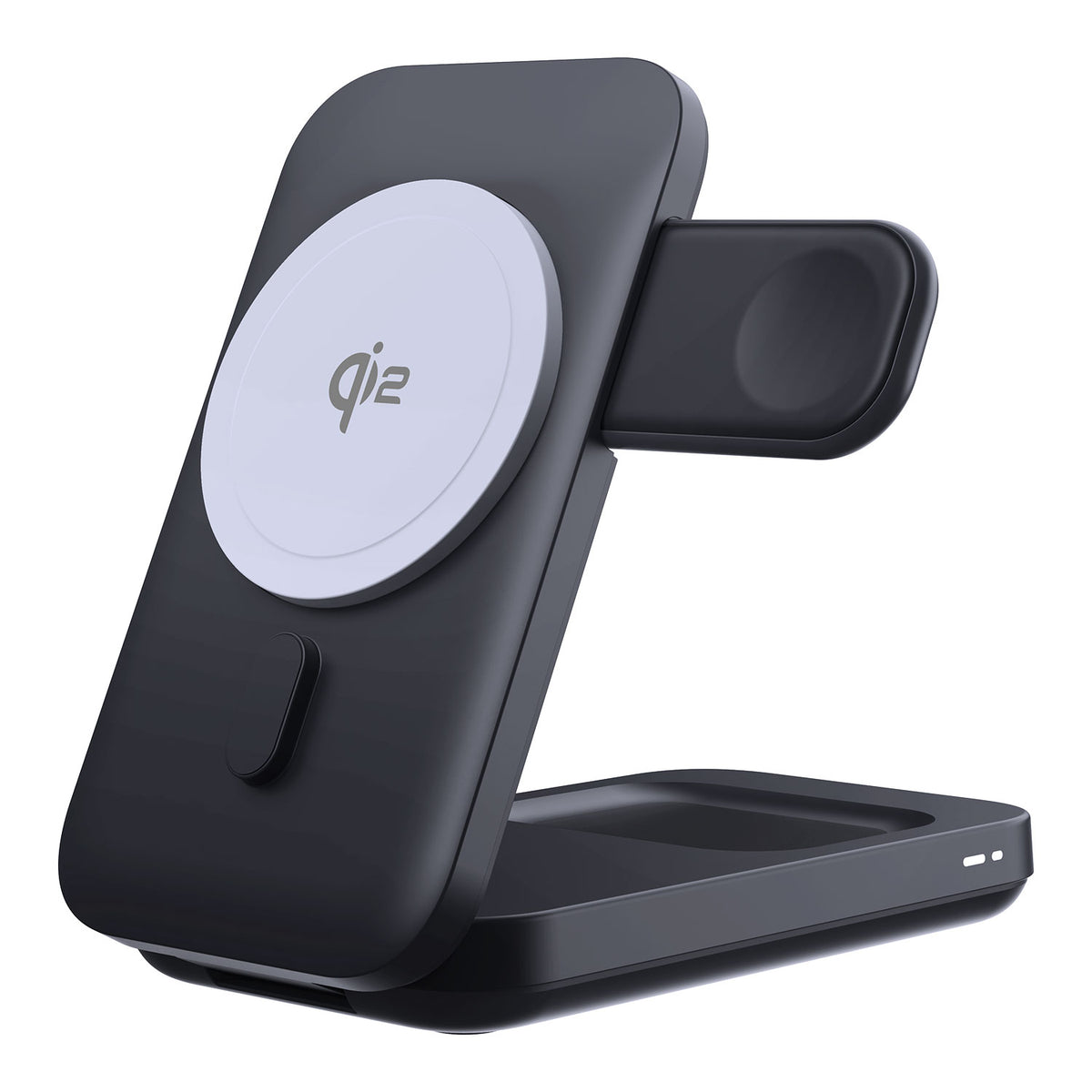
ZEERA MagSion 5-in-1 Dual MagSafe Charger Stand
- Dual MagSafe
- 5-in-1 stand
- Watch charging
- Angle adjust
- Clean setup
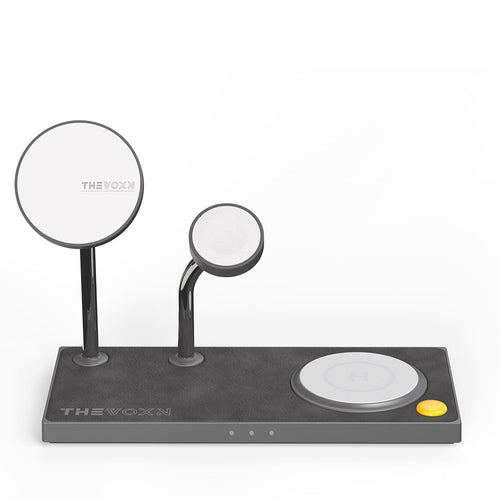
ZEERA SuVolt Gen5 Qi2.2 Active Cooling Car Charger
- 25W Qi2.2
- Active cooling
- Strong magnet
- CarPlay ready
- Heat control

Before You Delete an Old iCloud Backup
Complete these checks before removing a backup:
- Confirm that the backup belongs to an old device you no longer need.
- Check the device name and last backup date carefully.
- Make sure your current iPhone has completed a recent backup.
- Confirm that photos, contacts, notes and messages transferred correctly.
- Open important apps and check that their data is available.
- Keep the old backup if you may still need to restore the old device.
To check your current iPhone backup, open Settings > [Your Name] > iCloud > iCloud Backup. Confirm that the most recent backup completed successfully.
Two devices can have similar names after an upgrade. Use the model name, backup size and date to avoid selecting the wrong backup.
How to Delete Old iCloud Backups on iPhone or iPad
- Open the Settings app.
- Tap your name at the top.
- Tap iCloud.
- Tap Storage or Manage Account Storage.
- Tap Backups.
- Select the old iPhone or iPad.
- Tap Turn Off and Delete from iCloud.
- Tap Turn Off and Delete to confirm.
Depending on the software version, the final option may appear as Delete & Turn Off Backup. Both versions remove the backup and disable iCloud Backup for the selected device.
If the available iCloud storage does not update immediately, close Settings and check the storage page again later.
How to Delete an iCloud Backup on a Mac
- Open the Apple menu.
- Select System Settings.
- Click your name at the top of the sidebar.
- Click iCloud.
- Click Manage.
- Select Backups.
- Select the device backup you want to remove.
- Click the remove button.
- Choose Delete to confirm.
On older versions of macOS, the menu may be called System Preferences instead of System Settings.
How to Delete an iCloud Backup on Windows
- Open iCloud for Windows.
- Click Storage.
- Select Backup from the list.
- Select the device backup you want to remove.
- Click Delete.
- Confirm the deletion when prompted.
The exact layout may look slightly different depending on your version of iCloud for Windows, but the backup controls remain inside the iCloud storage section.
Deleting the backup from a Windows PC also turns off iCloud Backup for the selected device.
ZEERA MagSafe Wireless Charging Series
ZEERA MagTri Gen2 Qi2.2 Foldable MagSafe Charger
- 25W Qi2.2
- 3-in-1 fold
- Active cooling
- Travel size
- 3-device ready
ZEERA MagSion 5-in-1 Dual MagSafe Charger Stand
- Dual MagSafe
- 5-in-1 stand
- Watch charging
- Angle adjust
- Clean setup
ZEERA SuVolt Gen5 Qi2.2 Active Cooling Car Charger
- 25W Qi2.2
- Active cooling
- Strong magnet
- CarPlay ready
- Heat control
Why Can’t I Delete or Find an iCloud Backup?
The backup is currently restoring a device
A backup cannot be deleted while it is being used to restore an iPhone or iPad. Wait until the restoration process finishes, then return to the Backups page and try again.
The old backup does not appear
Confirm that you are signed in with the Apple Account that created the backup. A backup stored under a different account will not appear in the current account’s backup list.
Also make sure you are viewing Backups, not iCloud Drive, Photos or the general list of devices connected to your Apple Account.
The storage amount has not updated
If the backup was successfully deleted but the available storage has not changed, allow time for the storage information to refresh. Close Settings, reopen the iCloud storage page and check again.
How to Reduce an iCloud Backup Without Deleting It
You do not always need to remove the entire backup. If the backup belongs to your current device, you can reduce its size by excluding apps that do not need to store data in iCloud Backup.
- Open Settings.
- Tap your name.
- Tap iCloud.
- Tap Storage or Manage Account Storage.
- Tap Backups.
- Select the device you currently use.
- Turn off apps that do not need to be backed up.
- Tap Turn Off to confirm.
Turning off backup for an app also removes that app’s existing backup data from iCloud. Do not disable an app unless its important information is synced, exported or saved somewhere else.
Does Deleting an iCloud Backup Free iPhone Storage?
No. Deleting an old backup frees iCloud storage, not the physical storage inside your iPhone.
The two storage types serve different purposes:
- iCloud storage holds backups, synced photos, iCloud Drive files and other cloud data.
- iPhone storage holds apps, local photos, downloads, videos, cached data and system files.
If you see an “iCloud Storage Full” warning, deleting an old backup may help. If you see an “iPhone Storage Full” warning, open Settings > General > iPhone Storage instead.
Ultra-Thin MagSafe Back Plate Series
ZEERA MagSkin Air Ultra-Thin Magnetic Plate
- Only 0.3mm thin
- MagSafe compatible
- Preserves Air feel
- Light back guard
- Case-free carry

ZEERA MagSkin Pro Ultra-Thin Magnetic Back Plate
- Ultra-thin Pro fit
- MagSafe compatible
- Bare-phone feeling
- Camera deco guard
- Minimal daily carry
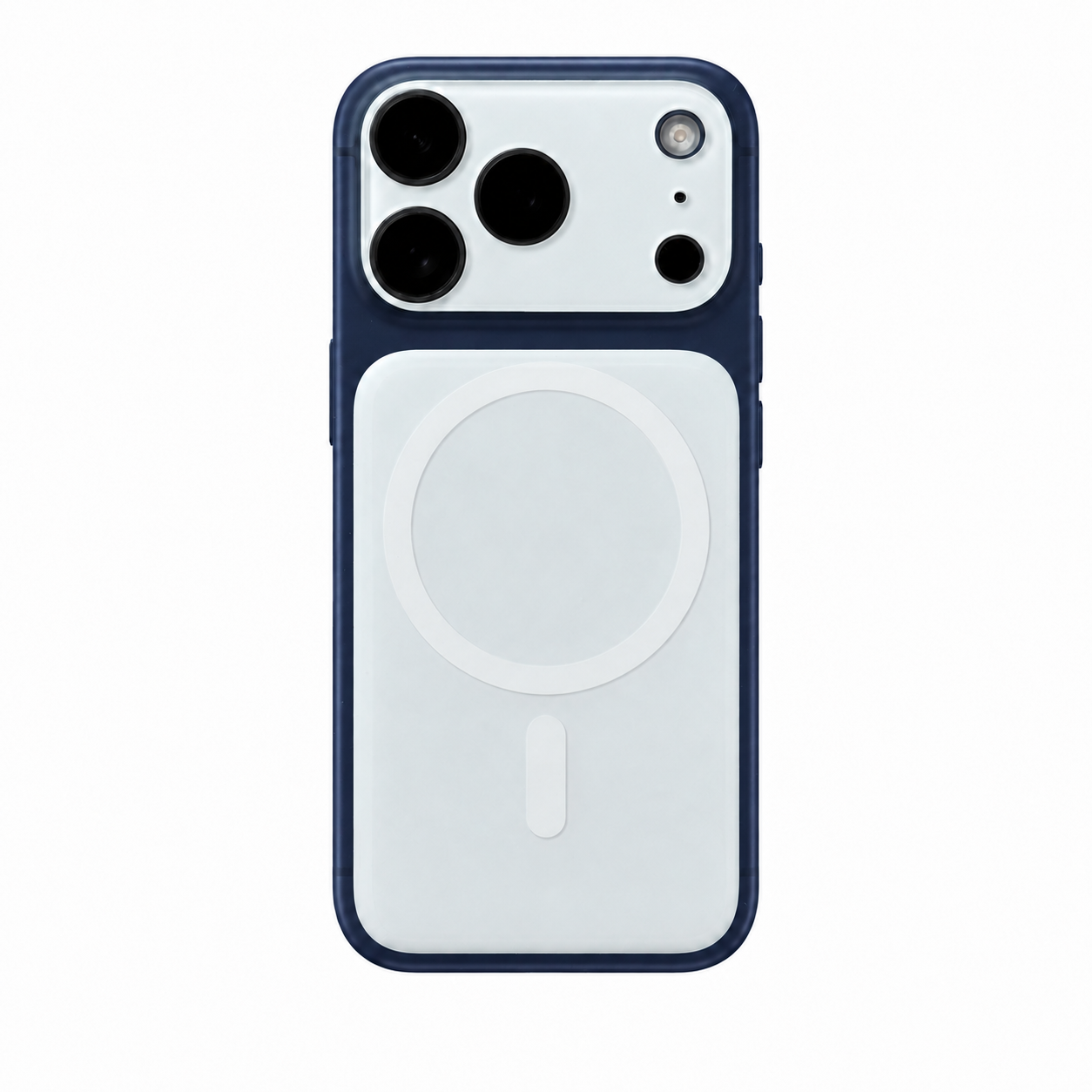
ZEERA AirFlat Lens Cover for iPhone Air
- Makes back flat
- Stops desk wobble
- Protects camera lens
- Slim matching look
- Easy clean design

How Long Does Apple Keep Old iCloud Backups?
If you turn off or stop using iCloud Backup without manually deleting the backup, Apple keeps the existing backup for 180 days before deleting it.
This does not apply when you manually select Turn Off and Delete from iCloud. After confirming that option, you should assume that the selected backup is no longer available for restoring a device.
FAQ
Will deleting an old backup affect my new iPhone?
No, provided that the old backup belongs to a different device. Each device backup is managed separately. Confirm that your new iPhone has completed its own recent backup before removing the old one.
Can I delete the backup of the iPhone I currently use?
Yes, but deleting it removes the current recovery copy and turns off iCloud Backup for that iPhone. Turn iCloud Backup on again and create a new backup if you deleted it accidentally.
Can I recover an iCloud backup after deleting it?
Apple does not provide an undo option during the backup deletion process. Before confirming, assume that the selected backup will no longer be available for restoring your device.
Will deleting a backup remove contacts and notes?
Contacts and notes that are already syncing with iCloud remain in iCloud and are not removed when you delete a device backup.
However, notes stored only on the device may have been included in its backup. If that information existed only inside the deleted backup, you will lose the backup as a way to restore it.
Why is my old iPhone still listed in iCloud Backups?
A previous device backup can remain stored after you stop using the iPhone. Check the device name and backup date, then delete it manually if you are certain that it is no longer needed.
Should I delete an old backup after transferring to a new iPhone?
Wait until the transfer has finished, confirm that important photos, messages and apps are available, and make sure the new iPhone has completed a recent backup. You can then delete the old backup if you no longer need it.
Bottom Line
Deleting an old iCloud backup can quickly free cloud storage after replacing an iPhone or iPad.
Before deleting anything, confirm that you selected the correct device and that your current iPhone has a recent backup. Check that photos, contacts, messages and important app data transferred successfully.
Remember that deleting a backup removes it as a recovery option and turns off iCloud Backup for the selected device. It frees iCloud storage, but it does not free the physical storage inside your iPhone.
Related Reading
- Is iCloud Mail Down? How to Fix iCloud Mail Not Working on iPhone
- iOS 26 Beta Is Here: How to Back Up Your iPhone Before Updating






