Quick Answer
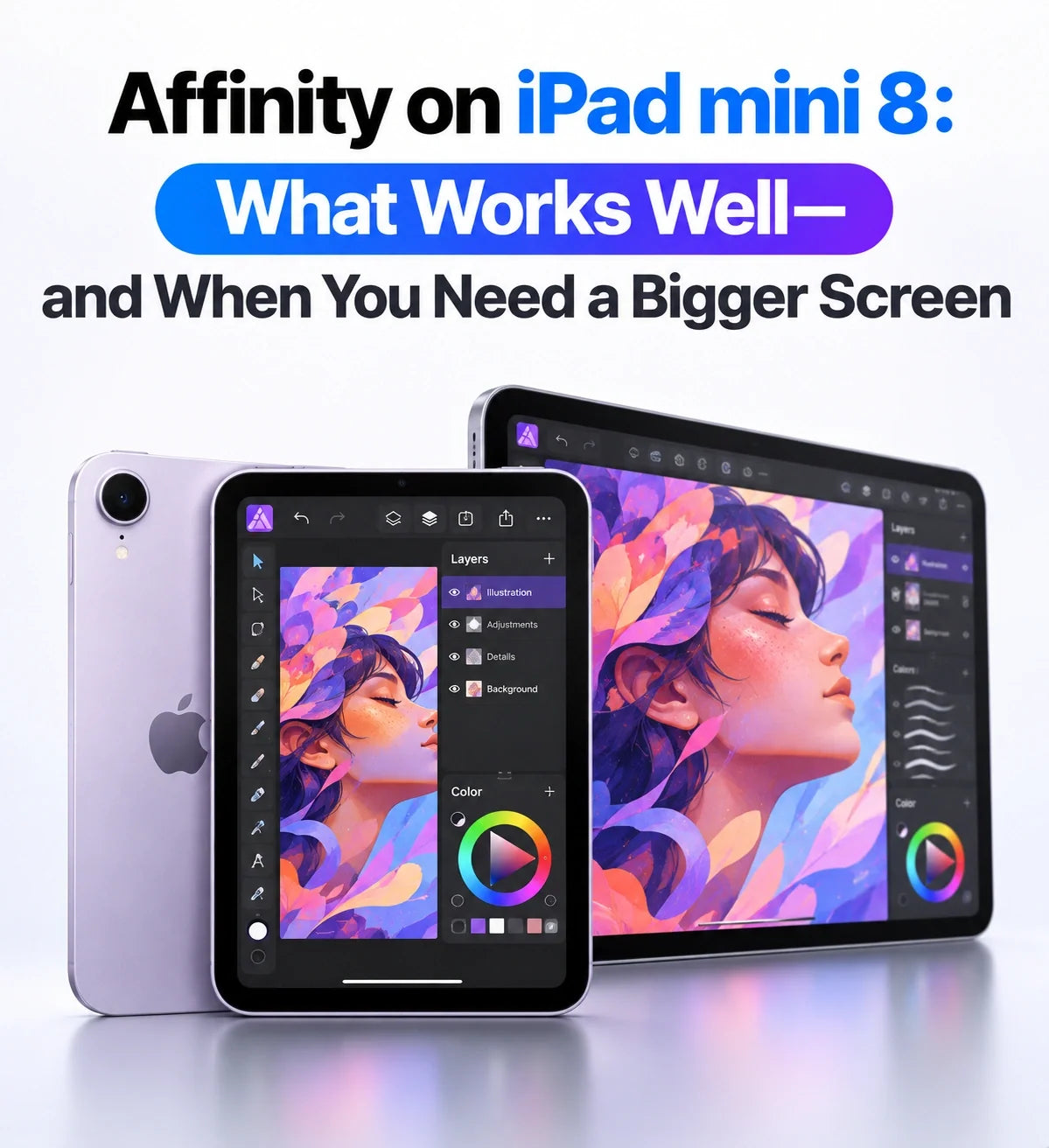
Affinity on iPad mini 8 is a promising fit for individual photo edits, sketching, simple vector graphics and compact one-page layouts. The practical compromise is space for your canvas, tools and reference material.
The new all-in-one Affinity app is free for individuals. Canva AI Studio requires a Canva premium plan.
Choose the mini when portability matters and you usually work on one image, illustration or page at a time.
Larger screens are easier to recommend for complex compositions and detailed spreads. Workflows dependent on missing desktop features still need desktop Affinity, regardless of iPad size.
What changes with the new Affinity for iPad?
Affinity’s new iPad app combines sketching, vector design, photo editing and page layout in one application and one .af project. A free Canva account gets individuals started; a premium plan unlocks Canva AI Studio.
For iPad mini 8 buyers, the question is how comfortably those tools fit into a portable workspace. Apple lists availability from November 6, 2026, so the recommendations here concern workflow suitability rather than measured Affinity performance on the new mini.
Is iPad mini 8 big enough for photo editing?
For working through selected photos individually, the mini makes sense. Affinity supports RAW development, retouching, masks and layered compositions. The small screen changes how much of the image you can inspect while keeping controls visible.
Good fit: one photo with a clear destination
Think of a travel photo, a product image for a listing, or a portrait prepared for a social post. You can concentrate on the crop, exposure, color and a few local corrections without needing a large collection of reference windows.
For example, a small-business owner preparing one promotional image could edit the photograph, add a headline and check the finished composition in a single project.
Better on a larger screen: complex masks and composites
Hair selections, several source photographs and many adjustment layers create more navigation. Zooming reveals detail, but it also hides the wider composition. A larger display lets you keep more context visible while inspecting edges and comparing elements.
Apple’s iPad mini specifications list an 8.5-inch OLED display with P3 wide color. That is useful hardware for viewing images, but display quality and workspace size solve different problems. For final color decisions, use consistent lighting and brightness rather than judging the same image under changing conditions.
Is the mini a good choice for drawing and vector design?
The mini is especially appealing as a device you carry when a larger tablet would stay at home. Affinity’s Sketch and Vector studios let a rough drawing develop into editable vector artwork within the same project.
Good fit: sketches, icons and focused illustrations
Logo ideas, small illustrations, badges and individual icons suit short, focused sessions. You can work on one object, zoom into a curve and return to the full design without needing to compare an entire brand system at once.
Choose your Apple Pencil for the work you do
iPad mini 8 supports Apple Pencil Pro and Apple Pencil (USB-C). Apple’s Pencil comparison shows an important distinction: Pencil Pro supports pressure sensitivity; the USB-C model does not.
For pressure-controlled brushwork, Pencil Pro is the more suitable choice. For placing objects, tracing simple shapes and occasional markup, the USB-C model may cover your needs. See our iPad mini 8 Apple Pencil compatibility guide before buying.
A larger iPad becomes more attractive when you draw with broad arm movements, keep reference images beside the canvas, or compare several artboards. Zoom helps you reach a point precisely; more physical screen space helps you understand the whole piece.
Can you do useful page layout on an 8.5-inch screen?
Yes—especially when the document is short and visually simple. A one-page flyer, event invitation, menu or promotional sheet gives the mini a manageable task with a clear finished result.
Good fit: one page, a few elements
Use the mini to replace a photograph, revise a headline, adjust spacing or assemble a straightforward page from prepared assets. Keeping the layout restrained also reduces how often you need to open panels and move around the document.
Better on a larger screen: spreads and dense typography
Magazine spreads, detailed brochures and long editorial pages benefit from seeing more of the layout while keeping text readable. If you constantly alternate between checking a small caption and reviewing the whole spread, an 11-inch or 13-inch workspace is easier to recommend.
Document size and screen size are separate decisions. A small tablet can edit a large page, but fitting that page on screen makes its text and controls smaller. Judge the experience by your normal working zoom, not simply by whether the file opens.
Which limitations need a bigger screen—and which need a desktop?
This distinction matters more than a processor comparison. Buying a larger iPad can improve working comfort, but it does not add features absent from the iPad application.
A larger iPad helps with visual space
Choose more screen area when your frustration is frequent zooming, small text, crowded panels or comparing several elements. These are workspace problems, and the benefits apply even to relatively simple documents.
Desktop Affinity is needed for certain production tools
Affinity’s official launch FAQ lists these desktop features as absent from iPad at launch: Books, Batch, Data Merge, Quick Adjustments, Info and Scope panels, macro recording, and Astrophotography Studio.
For a photographer who depends on batch processing, or a designer producing personalized documents through data merge, that is a workflow requirement. A larger iPad does not resolve it. The missing Books feature also should not be confused with a blanket ban on multipage documents.
An external monitor is another option—with conditions
Apple specifies one external display at up to 4K and 60Hz, and says extended display mode requires iPadOS 27.2. See our iPad mini 8 external-monitor guide for the distinction between extending and mirroring.
An external display may help at a desk, but Affinity’s behavior with your monitor and input setup still needs checking. It also leaves the mini’s physical Pencil drawing surface unchanged.
Should you choose iPad mini 8 or a larger iPad for Affinity?
Choose the mini for portable, focused work
It is the stronger fit when you want a compact creative notebook, edit selected images on location, or make small revisions away from your main computer. Its value increases when carrying it means you actually create more often.
Choose a larger iPad for long drawing and layout sessions
An 11-inch model is a sensible starting point if this will be your main creative tablet. A 13-inch model deserves consideration when you spend hours with illustrations, spreads or reference material visible beside your work.
Keep a desktop workflow when production depends on it
Before replacing a computer, list the steps you perform repeatedly: importing assets, editing, automation, checking output and delivering files. The right device is the one that handles those steps comfortably, including any desktop-only tools you need.
If you already own a larger tablet, try a normal Affinity task in a smaller app window before changing devices. This is only an approximation, but it can reveal whether a reduced workspace feels pleasantly focused or immediately restrictive. For the hardware differences, our iPad mini 8 versus mini 7 comparison covers the broader upgrade.
Related Reading
- Which Apple Pencil Works With iPad mini 8? Pro vs USB-C
- iPad mini 8 Nano-Texture vs Standard Glass: Is It Worth It?
- iPad mini 8 Extended Display and External Monitor Guide
- iPad mini 8 vs iPad mini 7: Specs, Design and Performance
- iPad mini 6 vs mini 8: Is It Worth Upgrading?
- iPad mini 8: A20 Pro, OLED and the Display Trade-Offs
FAQ
Can I export finished work without paying for Canva Pro?
Yes. Affinity says individual users can use its core studios, customization and export features for free. Canva AI Studio is the separate premium feature.
Will imported Photoshop or InDesign projects look exactly the same?
Do not assume a perfect round trip. Affinity supports these formats, but advanced effects, smart objects and some layout formatting can change or require adjustment. Check a representative project before committing a client workflow.
Does using the same .af format mean projects automatically sync?
File compatibility and automatic synchronization are different. Affinity supports working with the same .af files across devices; choose a clear transfer or shared-storage process and avoid editing conflicting copies simultaneously.
Should I buy the 512GB mini specifically for Affinity?
Base the decision on your project storage needs first. Apple lists a six-core CPU for the 512GB model versus five cores for 128GB and 256GB. That does not establish an Affinity performance advantage of any particular size, and it does not increase the available drawing area.