
Quick Answer
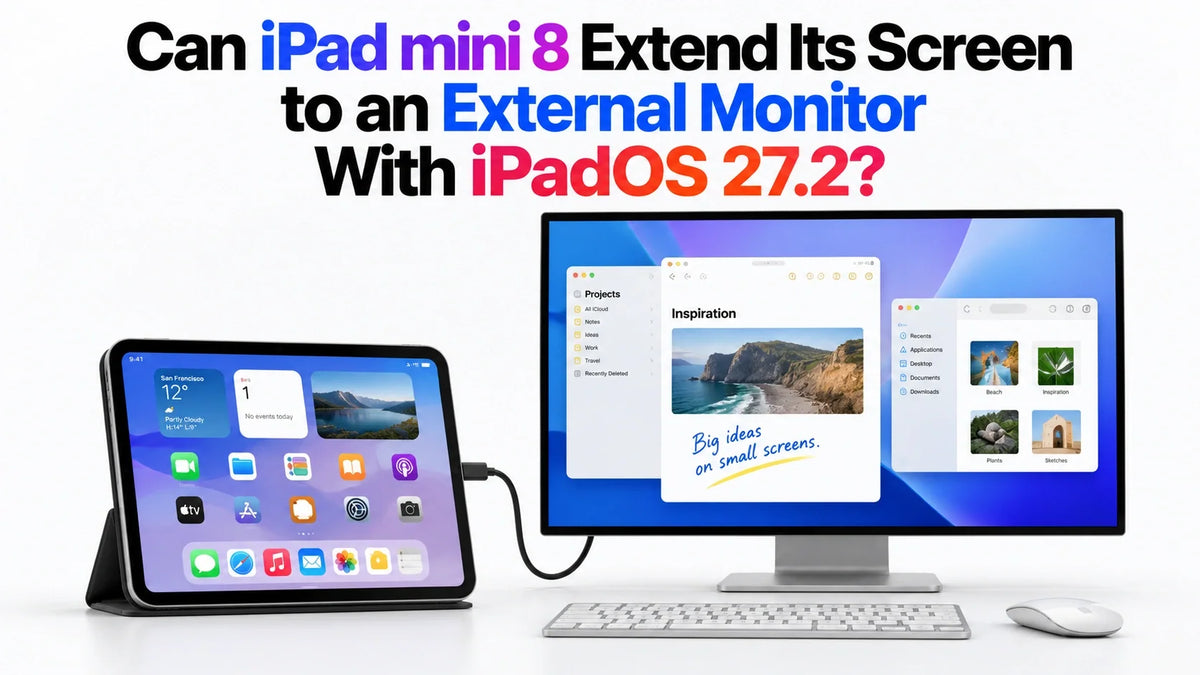
Yes. Apple has confirmed that iPad mini 8, officially called iPad mini (A20 Pro), supports extended display mode with iPadOS 27.2. This lets you use an external monitor as additional workspace for windowed apps, rather than simply enlarging the same screen.
Apple lists support for one external display at up to 4K at 60Hz. You need a compatible video connection, and the software version matters: the announcement specifically ties extended display support to iPadOS 27.2.
What changes with iPadOS 27.2?
In its October 26 announcement, Apple explicitly confirms extended display mode for the new mini. The practical benefit is more room to arrange your work: a document can occupy the monitor while reference material stays on the iPad.
This adds a useful desk role to a small tablet. For the wider hardware changes, see our iPad mini 8 vs iPad mini 7 comparison.
Extended display vs mirroring: what is the difference?
Screen mirroring
The monitor repeats what appears on the iPad. It is useful for demonstrations, but moving to a larger panel does not give you a separate place to put another app.
App-specific video or presentation output
Some apps can show video or slides on the external display while keeping controls on the iPad. That second-screen behavior belongs to the app; it does not establish that the whole system supports an extended workspace.
Extended display mode
The external monitor provides additional workspace. On supported iPads, you can move app windows between displays and arrange different content on each. Think of writing on the monitor while keeping your reading material nearby on the mini.
Apple explains these different output behaviors in its USB-C connection guide. A specification such as “4K output” describes the video signal; it does not, by itself, describe how apps use that screen.
Will iPad mini 7 or mini 6 get extended display support?
Support on the new A20 Pro model does not confirm the same upgrade for older minis. As of October 27, 2026, the new announcement does not establish iPadOS 27.2 extended-workspace support for mini 7 or mini 6. Owners should treat that compatibility as unconfirmed.
iPad mini 7 / A17 Pro: Apple already lists one external display at up to 4K at 60Hz.
iPad mini 6 / A15 Bionic: Apple lists one external display at up to 4K at 30Hz.
Both older models therefore have wired video output, but that is a different capability. Likewise, Stage Manager running on the iPad screen is not proof of external workspace support: Apple's Stage Manager guide separates those compatibility lists. Do not buy an adapter expecting it to unlock an unsupported software feature.
How do you connect iPad mini 8 to an external monitor?
Start with the mini 8's USB-C DisplayPort output. USB-C is the connector; the cable and monitor input must also support video.
- Check the software. Open Settings > General > Software Update and use an iPadOS version that includes the announced 27.2 support.
- Choose the video connection. Use a video-capable USB-C cable with a compatible USB-C monitor, or a suitable USB-C-to-HDMI adapter and HDMI cable.
- Power the monitor and select its input. For a portable display, check whether it needs its own power supply.
- Connect a keyboard and mouse or trackpad. These make typing, resizing and moving windows much easier at a desk.
- Move a window to the monitor. Apple's iPad user guide describes dragging a window by its top edge with the pointer, or using the window's Move to Display command.
For a long session, a compatible USB-C monitor that supplies power, or a video hub with USB-C power delivery, can keep the iPad connected to power while its USB-C port handles the display. Check the hub's video specification as well as its charging specification.
What are the monitor limits, and what if it only mirrors?
Plan around one display and 4K 60Hz
Those are the published mini 8 output limits. A 144Hz monitor or a dock with two HDMI sockets does not increase them. A 4K 60Hz setup also needs that capability throughout the connection, including the adapter and cable.
If the monitor repeats the iPad screen
Check the iPad model and software version first, then inspect the connected display's settings for mirroring or extension controls. Try moving a normal app window rather than judging the mode from video playback alone. If there is no signal at all, check the selected monitor input and test another video-capable cable or adapter.
For everyday work, the useful test is your actual app combination: can you keep the document, browser or spreadsheet you need visible and usable? More display space helps with layout, but the apps still run on iPadOS. If your work depends on Mac software, an extended monitor does not change that requirement.
FAQ
Do I need the 512GB iPad mini 8 for extended display mode?
Apple presents it as a feature of the new iPad mini with iPadOS 27.2, rather than a 512GB-only option. Choose storage for your files and apps; the announcement does not make that capacity a requirement for this feature.
Is AirPlay Screen Mirroring the same setup?
No. AirPlay Screen Mirroring duplicates the iPad screen wirelessly. For the monitor workspace described here, plan around a compatible wired display connection.
Sources: Apple announcement; mini 8 specifications; mini 7 specifications; mini 6 specifications; moving apps between displays; wired display connections.
Related Reading






