
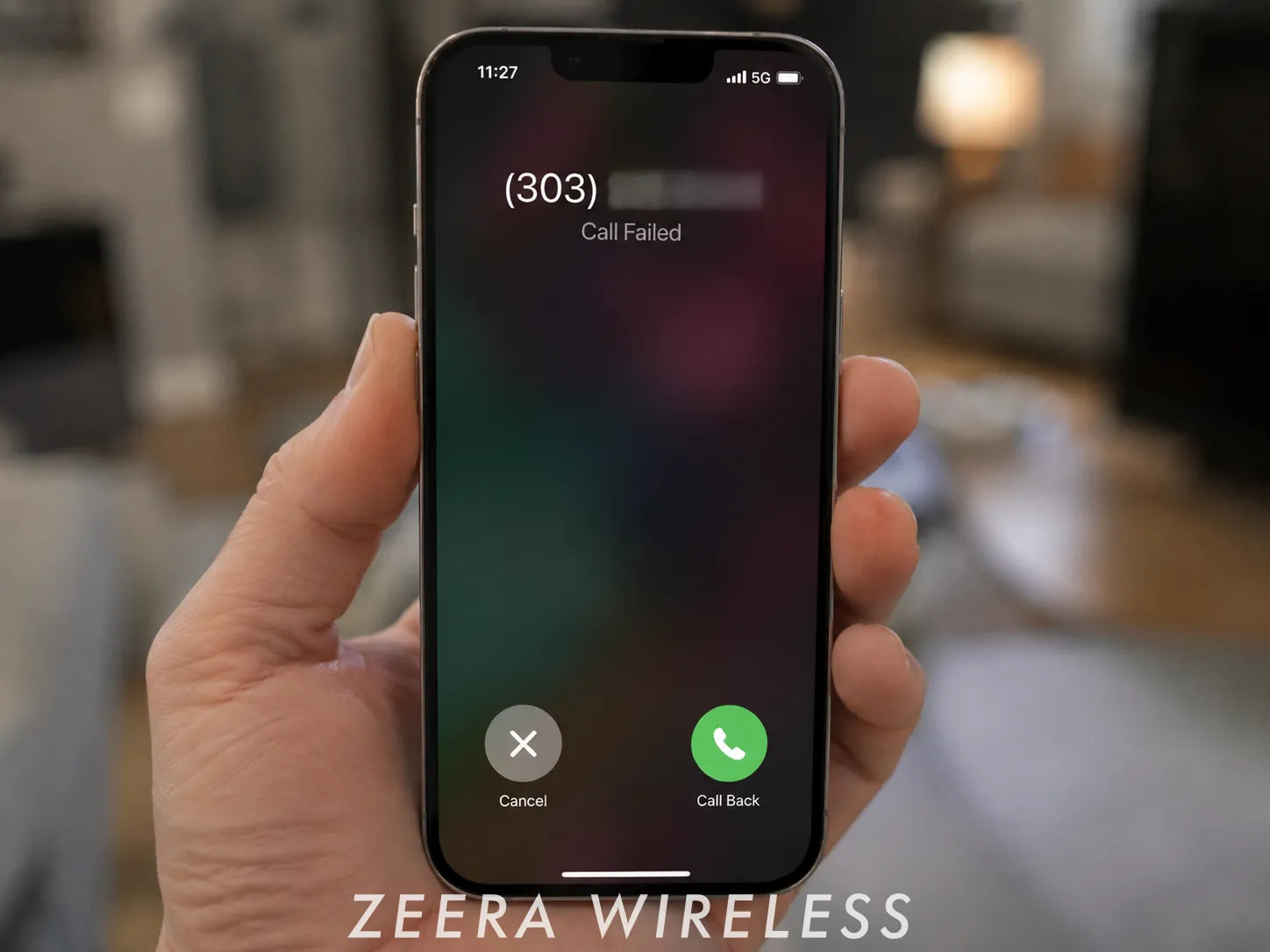
If your iPhone suddenly says “Call Failed” or won't make outgoing calls, the problem may not be the iPhone itself.
A carrier voice issue can stop calls even when 5G, LTE, texting or mobile data still works. Before resetting anything, first find out whether the problem is with your carrier or your phone.

Latest Update: Verizon Voice Outage Has Been Resolved
Verizon experienced a voice-service disruption on August 8, 2026 that prevented some U.S. customers from making or receiving calls. Verizon later confirmed that the issue had been resolved.
If your Verizon iPhone is still showing Call Failed, restart the phone and check Verizon's network status before changing more settings.
Quick Answer: What to Do When iPhone Calls Keep Failing
Try these steps in order:
- Check your carrier, signal and the numbers you're calling.
- Reconnect your iPhone to the cellular network.
- Check carrier settings and iOS updates.
- Check your SIM or eSIM if relevant.
- Reset Network Settings if nothing else works.
If the problem affects several phones on the same carrier, or texting and 5G work while voice calls suddenly fail, check the carrier first.
ZEERA MagSafe Wireless Charging Series
ZEERA MagTri Gen2 Qi2.2 Foldable MagSafe Charger
- 25W Qi2.2
- 3-in-1 fold
- Active cooling
- Travel size
- 3-device ready
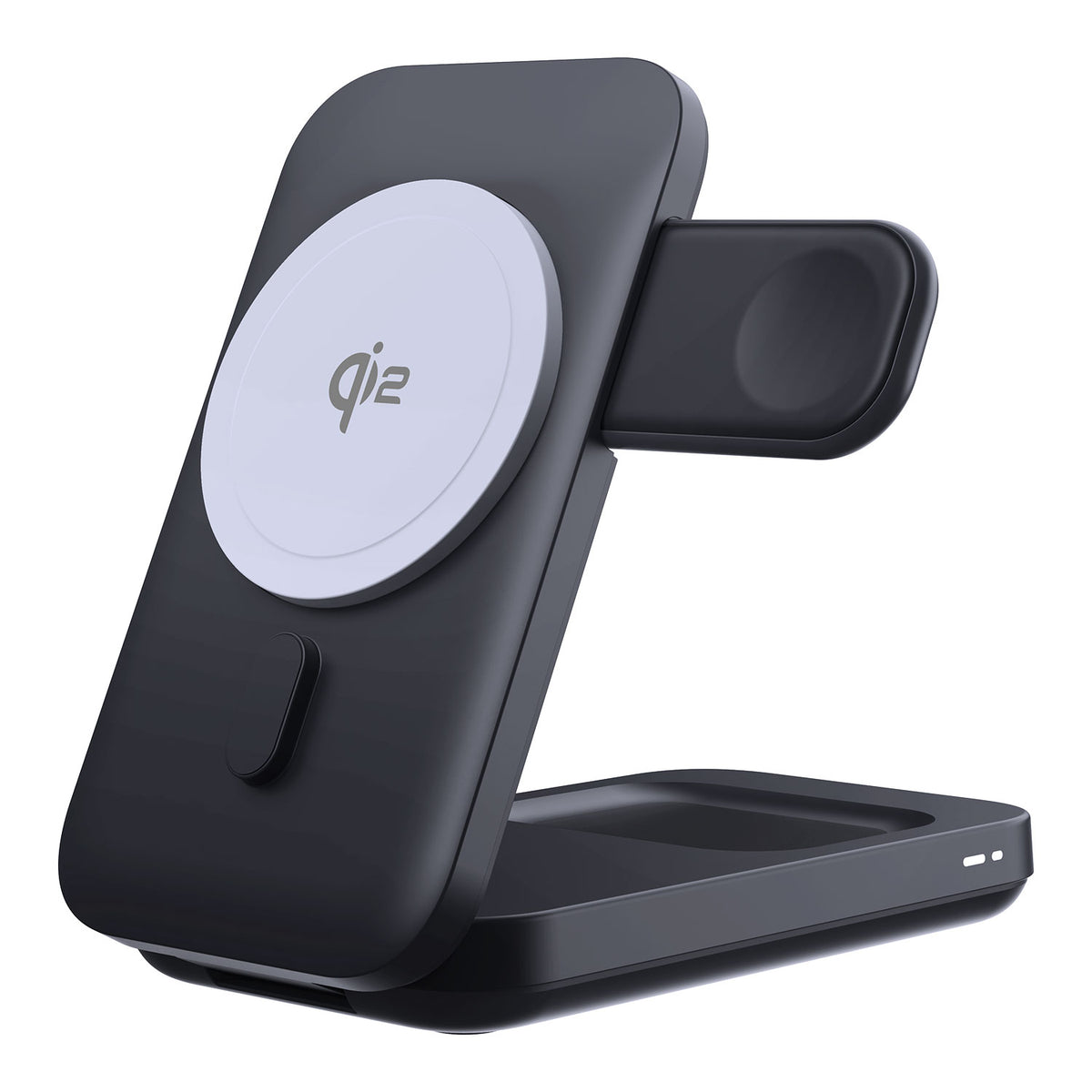
ZEERA MagSion 5-in-1 Dual MagSafe Charger Stand
- Dual MagSafe
- 5-in-1 stand
- Watch charging
- Angle adjust
- Clean setup

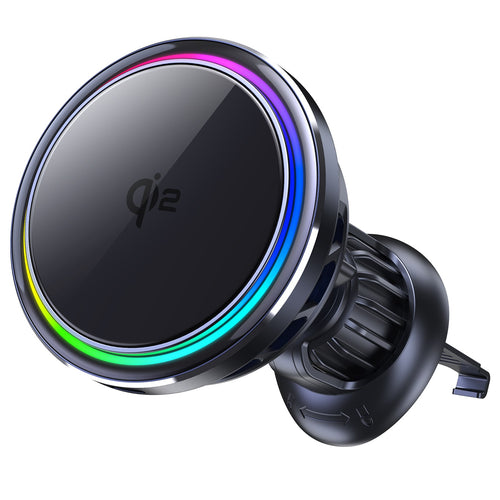
ZEERA SuVolt Gen5 Qi2.2 Active Cooling Car Charger
- 25W Qi2.2
- Active cooling
- Strong magnet
- CarPlay ready
- Heat control
Is It Your iPhone or Your Carrier?
A few quick checks can help narrow down the problem before you change any settings.
| What You See | Check First |
|---|---|
| Calls fail but texts and 5G still work | Carrier voice service |
| Several phones on the same carrier cannot call | Carrier outage |
| SOS or No Service in multiple locations | Carrier or SIM/eSIM |
| Only one number will not connect | That number or call routing |
| Only your iPhone is affected | iPhone connection or settings |
Do not assume strong signal bars mean voice service is working normally. Calling, mobile data and messaging can be affected differently during a carrier problem.
How to Fix iPhone Call Failed
1. Check Your Carrier and Cellular Service
Start by checking your carrier's official network-status page or app. Your carrier can also confirm whether your account has a billing, activation or service restriction that prevents calls.
Then do two quick tests:
- Try calling from another location.
- Call two or three different numbers.
If only one number fails, the problem may be with that number rather than your iPhone. If several phones using the same carrier suddenly cannot make calls, a network issue is more likely.
If cellular coverage is weak, Wi-Fi Calling may also provide an alternative if your carrier supports it. It should not be treated as a guaranteed fix for a carrier-side voice outage.
2. Reconnect Your iPhone to the Cellular Network
Turn Airplane Mode on, wait at least 5 seconds, then turn it off. Apple includes this as a basic step for reconnecting an iPhone to cellular service.
Try another call after the signal returns.
If calls still fail, restart your iPhone and test again. This is especially useful after a carrier outage has just been resolved.
3. Check Carrier Settings and iOS Updates
First go to:
Settings > General > About
Wait a few seconds. If a carrier settings update appears, install it.
Then check:
Settings > General > Software Update
Install an available iOS update if appropriate. Apple recommends keeping both carrier settings and iOS up to date when troubleshooting calling problems.
4. Check Your SIM or eSIM If Relevant
You do not need to change eSIM settings every time you see Call Failed.
Check the cellular line if you recently:
- Activated a new SIM or eSIM.
- Changed carriers.
- Transferred your phone number.
- Started seeing SOS or No Service.
- Found that only one Dual SIM line cannot make calls.
For an eSIM, go to Settings > Cellular, select the affected line, turn it off, wait a few seconds, and turn it back on. Apple recommends this step when troubleshooting an eSIM line that is not connecting correctly.
Do not delete the eSIM as a normal Call Failed fix unless your carrier specifically tells you to do so.
5. Reset Network Settings
If your carrier reports no outage and the previous steps have not worked, reset the iPhone's network settings:
Settings > General > Transfer or Reset iPhone > Reset > Reset Network Settings
This does not erase your photos, apps or messages, but it removes saved network settings including Wi-Fi passwords, preferred networks and some VPN or APN settings.
Reconnect to Wi-Fi afterward and test another call.
Do not factory reset the entire iPhone as a normal Call Failed fix. If calls still fail, contact your carrier first. If the carrier confirms that your line and its network are working normally but only your iPhone remains affected, contact Apple Support.
Ultra-Thin MagSafe Back Plate Series
ZEERA MagSkin Air Ultra-Thin Magnetic Plate
- Only 0.3mm thin
- MagSafe compatible
- Preserves Air feel
- Light back guard
- Case-free carry

ZEERA MagSkin Pro Ultra-Thin Magnetic Back Plate
- Ultra-thin Pro fit
- MagSafe compatible
- Bare-phone feeling
- Camera deco guard
- Minimal daily carry
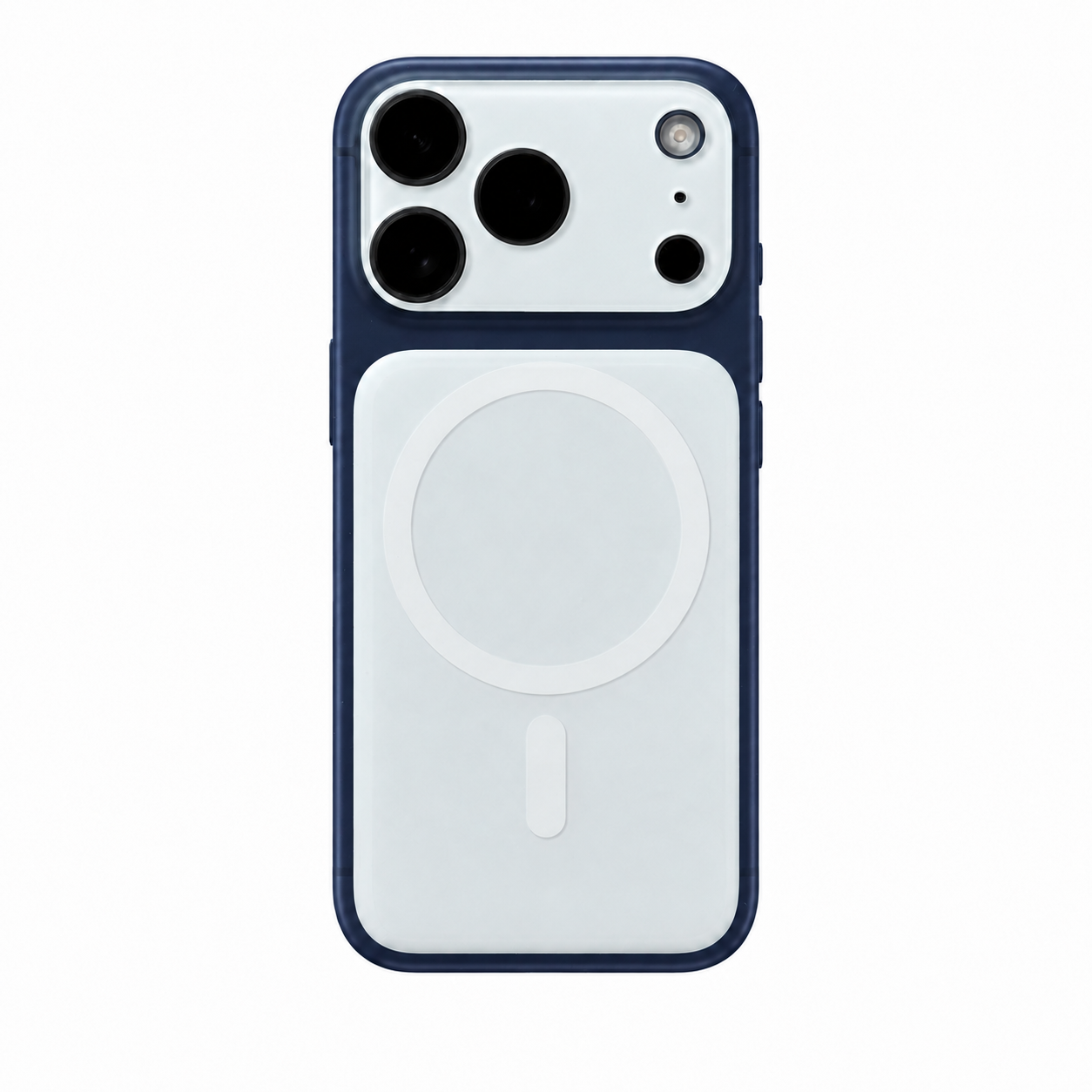
ZEERA AirFlat Lens Cover for iPhone Air
- Makes back flat
- Stops desk wobble
- Protects camera lens
- Slim matching look
- Easy clean design

Still Can't Make Calls?
Contact your carrier if every outgoing call still fails, your iPhone remains in SOS or No Service across different locations, or you recently changed your carrier, SIM, eSIM or phone number.
If the carrier confirms that your account and network are working normally and only your iPhone has the problem, contact Apple Support for further diagnostics.

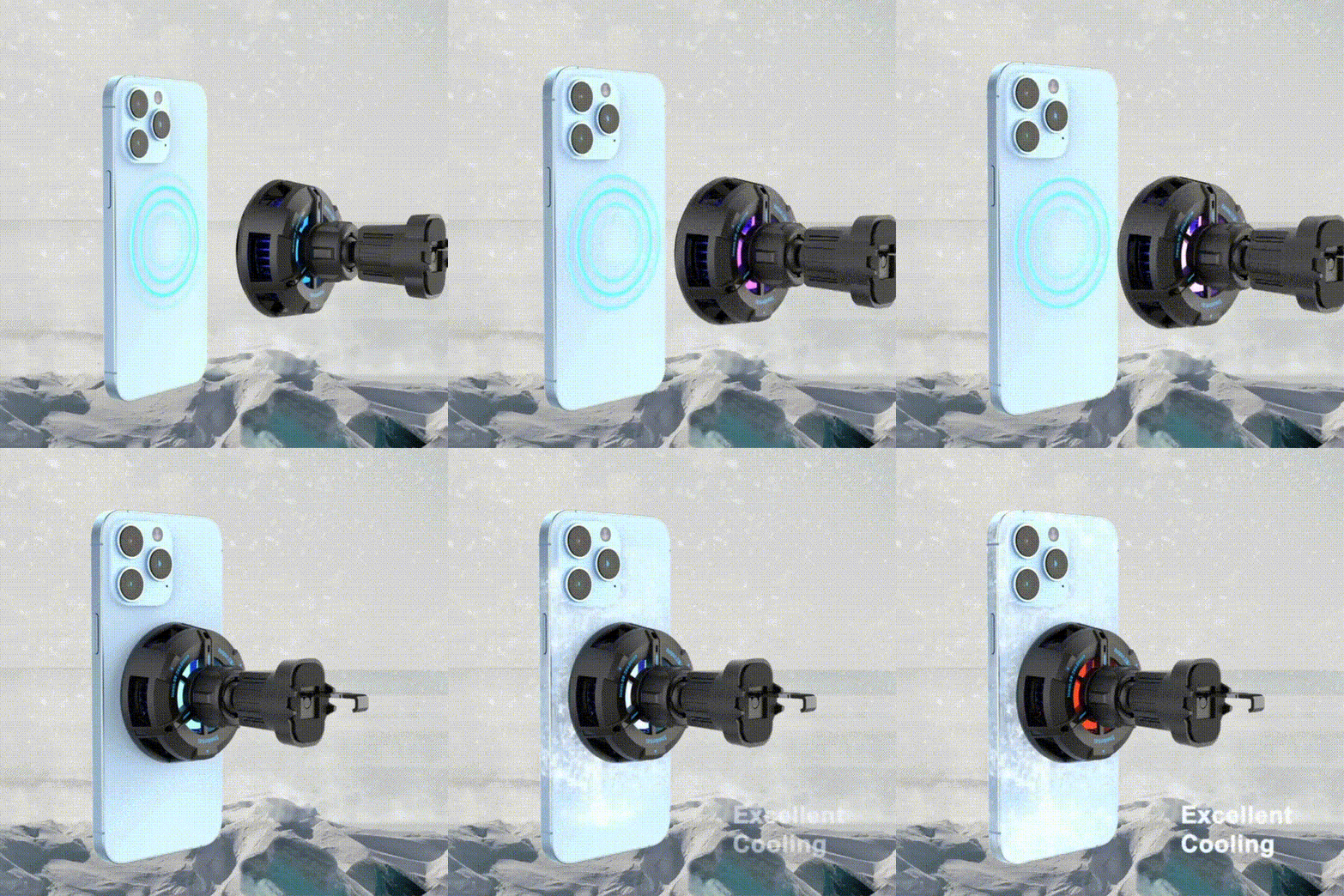
If you frequently use your iPhone for calls, navigation and Wireless CarPlay in the car, keeping it powered without excessive heat can make long drives more convenient. The ZEERA SuVolt Gen5 Qi2.2 Active Cooling MagSafe Car Charger combines up to 25W Qi2.2 wireless charging with active cooling and a strong magnetic mount for everyday in-car use. Pair it with a ZEERA MagSafe case for a stronger magnetic hold and faster alignment—the iPhone snaps into the correct charging position quickly and easily.

FAQ
Does Call Failed Mean Someone Blocked Me?
No. A Call Failed message by itself does not mean someone blocked your number. It usually means the call could not be completed because of a network, carrier or connection problem.
What If I Can Make Calls but Can't Receive Them?
Check Focus, Blocked Contacts, Call Forwarding and Silence Unknown Callers. If those settings are normal but incoming calls still fail, contact your carrier.
Bottom Line
If your iPhone suddenly says Call Failed, start with the carrier rather than resetting the phone.
The most useful troubleshooting order is:
Carrier and signal → Reconnect cellular → Updates → SIM/eSIM if relevant → Reset Network Settings.
If texting and 5G still work while calls suddenly fail, that is another reason to check your carrier's voice service first.









