
Quick Answer
A slow external SSD on Mac mini is usually limited by the slowest part of the connection: the Mac port, cable, enclosure controller, SSD or hub.
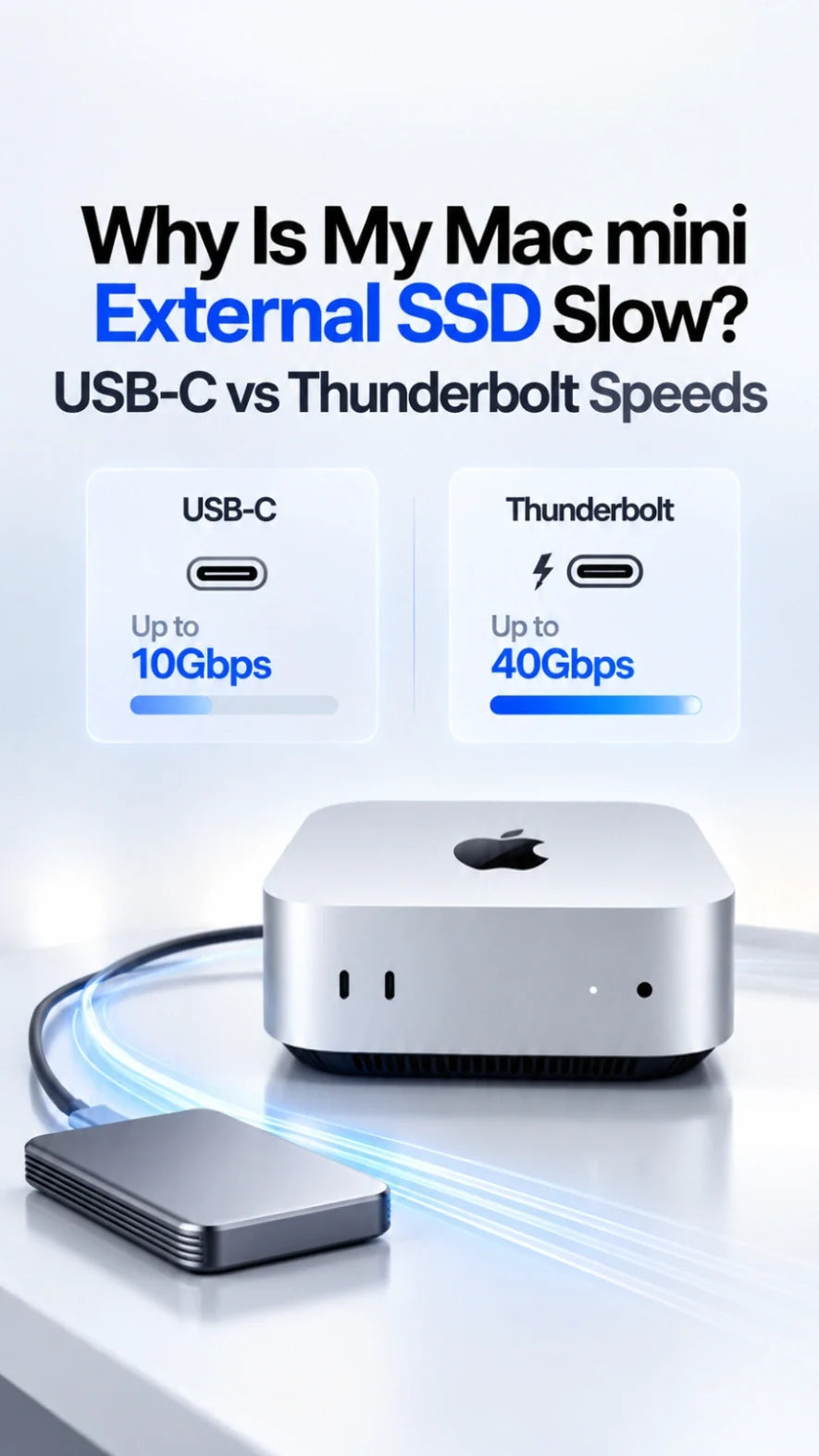
On the 2026 Mac mini, the front USB-C ports top out at 10Gb/s. The M6 rear ports support Thunderbolt 4; the M5 Pro rear ports support Thunderbolt 5.
A USB 10Gb/s enclosure plugged into a Thunderbolt port remains a USB 10Gb/s drive. The USB-C plug alone does not tell you its speed.
Test the SSD directly on a rear port with a verified data cable, check the negotiated connection in System Information, then compare a large-file transfer with a disk benchmark.
Why is my Mac mini external SSD slower than advertised?
Drive packaging often quotes a best-case sequential read rate from a specific test system. Your actual transfer includes the Mac, the port protocol, the enclosure bridge chip, its firmware, the cable and the NAND inside the drive. The lowest ceiling wins.
Example: An NVMe stick advertised at 7,000MB/s inside a USB 10Gb/s enclosure cannot deliver 7,000MB/s to a Mac. Its link is capped at a theoretical 1,250MB/s before protocol overhead.
Another example: A Thunderbolt 5 enclosure on the M6 rear Thunderbolt 4 port negotiates an older compatible mode. Buying a faster enclosure does not change the M6 port specification.
ZEERA's practical recommendation is to diagnose the whole connection path before replacing an SSD. A normal result for one interface can look like a fault if you compare it with the bare NVMe drive's marketing number.
Which Mac mini ports are fastest for an external SSD?
Apple lists two front USB-C ports at up to 10Gb/s on both the Mac mini M6 and M5 Pro. The three rear ports are Thunderbolt 4, up to 40Gb/s, on M6; they are Thunderbolt 5 on M5 Pro. Apple describes the latter as up to 120Gb/s, but that headline includes a video-focused boosted direction. Thunderbolt 5's usual bidirectional link is 80Gb/s; neither number promises an SSD's file-copy rate.
USB 3, up to 10Gb/s. Good for a USB 10Gb/s portable SSD. A Thunderbolt-only enclosure requires a compatible rear Thunderbolt port.
Thunderbolt 4 and USB4, up to 40Gb/s for a compatible device and cable. A regular USB 10Gb/s drive does not become a 40Gb/s drive here.
Thunderbolt 5 for a compatible enclosure and cable; USB4 support is listed up to 40Gb/s. Actual storage throughput depends on the negotiated mode and hardware.
For an M4 or older Mac mini, check the specification for that exact model; do not assume the 2026 M6/M5 Pro port layout applies. A dock, display hub or port extension adds another link to inspect.
USB-C vs Thunderbolt: what speeds should you expect?
Gb/s means gigabits per second; MB/s means megabytes per second. Divide the headline Gb/s number by eight for a theoretical MB/s ceiling. Protocol overhead, controller design, SSD cache, file sizes and heat reduce the result further.
These ranges are diagnostic estimates, not ZEERA test results or guaranteed minimums. USB-IF explains that USB connections fall back to the lowest common capability; Intel describes Thunderbolt 4 and 5 bandwidth separately from storage performance.
Pay special attention to the phrase USB 3.2 Gen 2×2 on a portable SSD. Its 20Gb/s claim does not guarantee 20Gb/s on a Mac. If its fallback mode is 10Gb/s, a result near the USB 10Gb/s range may be normal. Choose a Mac-compatible USB4 or Thunderbolt enclosure when you actually need higher throughput.
How do I find the bottleneck in four steps?
Plug the SSD directly into a compatible rear port. Remove the monitor hub, dock, KVM and case port extension for this test. Retest the front port to see whether the difference follows the port.
Use the cable supplied with the drive or one explicitly rated for its USB4/Thunderbolt mode. A USB-C charging cable can carry data at a much slower rate. A Thunderbolt-only drive also needs a compatible Thunderbolt connection.
Hold Option and choose Apple menu > System Information. Look under USB and Thunderbolt/USB4 for the device, its reported speed and connection path. Labels differ by enclosure; compare the negotiated connection with its specification.
Run a reputable disk benchmark, then copy one large file between a known-fast internal volume and the SSD in both directions. Avoid comparing a folder of tiny files with a sequential benchmark. Record the starting rate and the rate after several minutes.
If the drive is missing entirely, use ZEERA's external SSD detection checklist. If it ejects during a copy, follow our disconnecting and unexpected ejection guide.
Why does an SSD start fast and then slow to a crawl?
A short benchmark may fit inside the SSD's write cache. A long 4K video copy can exhaust that cache and expose the drive's sustained write speed. Small-capacity or nearly full drives can slow further. An enclosure that gets hot may also reduce speed, but do not assume every slowdown is thermal throttling.
Fast at first, slow only on long writes: check the SSD model's sustained-write behavior, available space and enclosure temperature.
Slow in both directions immediately: check the negotiated link speed, cable, port and bridge chip first.
Only tiny files are slow: many file operations and metadata updates may dominate; test one large file for an apples-to-apples comparison.
For a Mac-only working drive, APFS is a sensible default; for regular Mac and Windows sharing, exFAT may be required. Apple documents APFS for SSDs. Do not erase a drive just to chase a benchmark number: formatting deletes its files, and the interface is usually the first variable to check.
Should you buy a Thunderbolt SSD for Mac mini M6 or M5 Pro?
If you mostly store photos, documents, Time Machine backups or occasional projects, a reliable USB 10Gb/s SSD may be the better value. For sustained multicamera video, large sample libraries, virtual machines or scratch disks, a well-matched USB4 or Thunderbolt NVMe enclosure can be worthwhile.
ZEERA's MacForge Gen3 SSD-storage version holds a separate enclosure up to 120 × 60 × 19mm; its top port extensions route the Mac mini's front USB-C ports. For a faster USB4 or Thunderbolt SSD, connect it directly to a compatible rear port and use the storage space only if the full enclosure and cable fit. MacFrost Pro cools the Mac mini, not the SSD controller, and cannot change a USB link's speed.
A fast external SSD adds capacity but does not increase the internal drive's throughput. If you are still choosing a Mac, read our M6 256GB versus 512GB analysis.
Mac mini external SSD speed: quick decision checklist
□ Confirm your Mac mini model and whether the SSD is on a front or rear port.
□ Read the enclosure's protocol, not just the NVMe stick's advertised speed.
□ Test directly with a known-good cable; compare System Information before and after.
□ Compare short and sustained large-file reads and writes.
□ Keep a second copy of important data before firmware changes or reformatting.
FAQ
Why is my 2,000MB/s USB-C SSD only around 900MB/s on Mac mini?
Many 2,000MB/s portable drives rely on USB 3.2 Gen 2×2 at 20Gb/s. If the Mac and drive negotiate USB 10Gb/s instead, a reading around 900MB/s can be normal. Confirm the actual connection in System Information and the drive's fallback modes.
Will a Thunderbolt cable make my USB 10Gb/s SSD faster?
No. A better cable can fix a degraded connection, but it cannot add a faster protocol to a USB 10Gb/s enclosure.
Why is my SSD slower through a monitor or dock?
The monitor's USB hub, dock upstream link and other connected devices may constrain its available bandwidth. Connect the drive directly to the Mac mini to isolate the difference.
Is Thunderbolt 5 twice as fast as Thunderbolt 4 for every SSD?
No. Thunderbolt 5 has a higher link bandwidth, but the SSD, enclosure controller, PCIe implementation, cable and workload determine the measured file speed.
Does MacForge Gen3's top USB-C turn a front port into Thunderbolt?
No. Its extensions bring the Mac mini's front ports to the top for convenient access; the underlying front-port capabilities remain the same.
Related Mac mini guides
- Mac mini M6 external SSD not showing up: 8 things to check
- Mac mini M6 external SSD keeps disconnecting or ejecting
- Mac mini M6 256GB SSD is slower: should you buy 512GB?
- Mac mini M6 and M5 Pro internal SSD upgrade options
- Mac mini M6 desk setup with external storage
- Best Mac mini M6, M5 Pro and M4 accessories









