
Updated July 28, 2026
Some Chevy Trailblazer owners have reported Apple CarPlay getting stuck while connecting, failing to reconnect after a short stop, repeatedly disconnecting, or displaying CarPlay while the audio continues through the iPhone.
Some problems appear after an iPhone update, while others involve wireless pairing, USB connections or the Trailblazer infotainment system. Start with the common fixes below before resetting any major settings.

Quick Answer
Restart the iPhone and completely shut down the Trailblazer first. If Apple CarPlay still does not work, remove the saved connection from both the iPhone and the vehicle, then pair them again.
Next, check Bluetooth, Wi-Fi, Auto-Join, Siri and CarPlay permissions. Test a wired connection to determine whether the problem affects only wireless CarPlay or the entire system.
Ultra-Thin MagSafe Back Plate Series
ZEERA MagSkin Air Ultra-Thin Magnetic Plate
- Only 0.3mm thin
- MagSafe compatible
- Preserves Air feel
- Light back guard
- Case-free carry

ZEERA MagSkin Pro Ultra-Thin Magnetic Back Plate
- Ultra-thin Pro fit
- MagSafe compatible
- Bare-phone feeling
- Camera deco guard
- Minimal daily carry
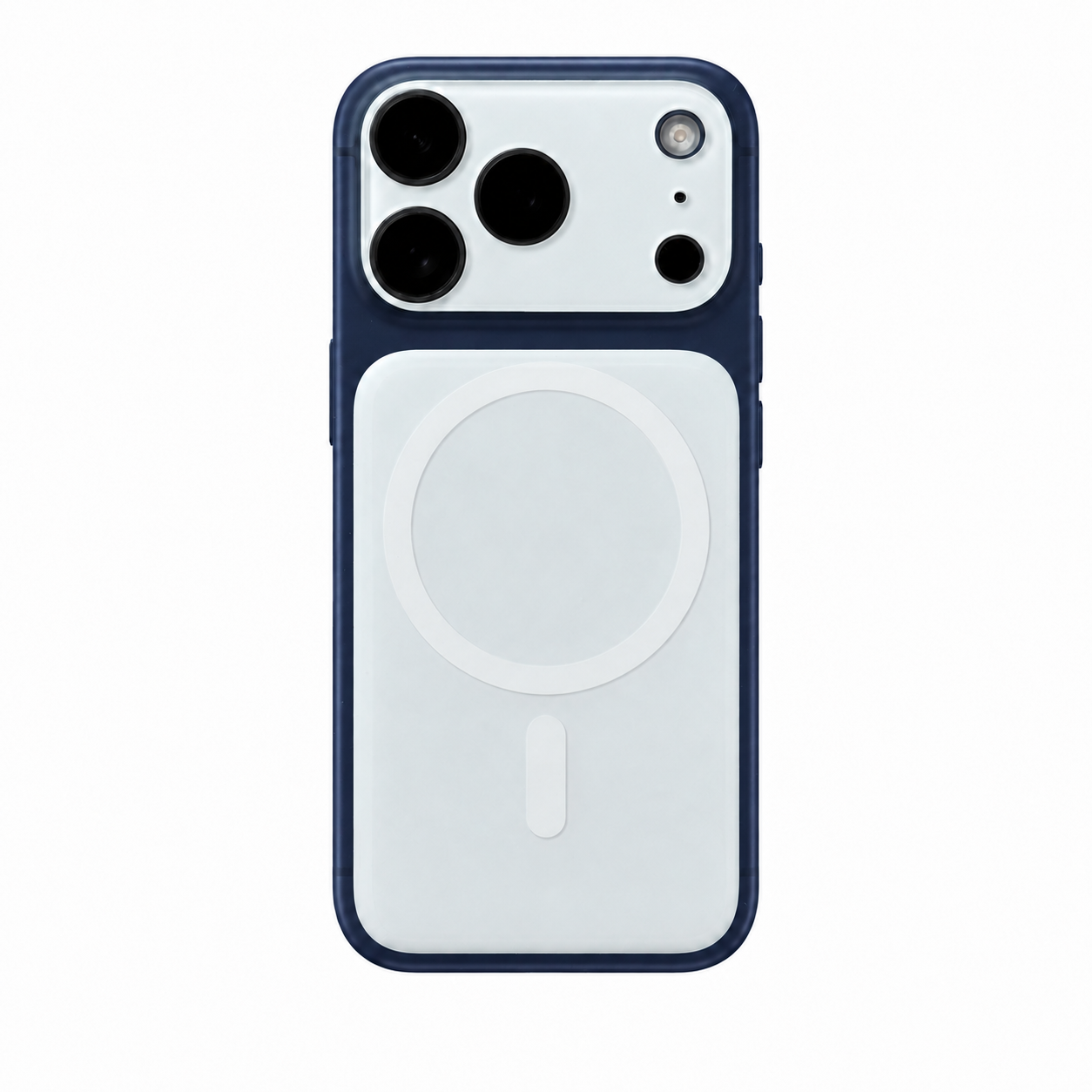
ZEERA AirFlat Lens Cover for iPhone Air
- Makes back flat
- Stops desk wobble
- Protects camera lens
- Slim matching look
- Easy clean design

How to Fix Chevy Trailblazer Apple CarPlay
Try these steps in order and test Apple CarPlay after each one. Stop once your iPhone reconnects normally.
1. Restart the iPhone and Fully Shut Down the Trailblazer
Restart the iPhone. Then turn off the Trailblazer, open and close the driver’s door, and wait until the overhead OnStar light turns off.
Start the vehicle again, wait about 20 seconds, and retry CarPlay. A quick engine restart may not fully shut down the infotainment and wireless connection systems.
2. Check the Required Apple CarPlay Settings
For wireless CarPlay, confirm that:
- Bluetooth is turned on.
- Wi-Fi is turned on.
- Auto-Join is enabled for the CarPlay network.
- Siri is enabled.
- Apple CarPlay is enabled in the Trailblazer’s connection settings.
Also open Settings > Screen Time > Content & Privacy Restrictions > Allowed Apps & Features and make sure CarPlay is allowed.
If the iPhone appears connected but CarPlay does not open, tap the CarPlay icon on the center display and check the iPhone for a permission request.

3. Delete the Old Connection and Pair the iPhone Again
If the settings are correct, remove the saved connection from both the iPhone and the Trailblazer.
- Delete the iPhone from the Trailblazer’s saved phone list.
- Open Settings > Bluetooth on the iPhone.
- Tap the information icon beside the Chevrolet connection.
- Select Forget This Device.
- Open Settings > General > CarPlay.
- Select the Trailblazer and tap Forget This Car.
- Restart the phone and vehicle, then pair them again.
Accept every Bluetooth and CarPlay prompt during setup. Trailblazer owners frequently report that rebuilding the connection restores CarPlay, although the problem may return if a vehicle software issue remains.
4. Connect by USB Once, Then Retry Wireless CarPlay
Connect the iPhone directly to a USB data port using a cable that supports both charging and data. Unlock the iPhone and approve any CarPlay prompts.
After wired CarPlay opens, disconnect the cable and test wireless CarPlay again. Some owners report that establishing CarPlay through USB first can restore the wireless connection.
- USB CarPlay works: focus on Bluetooth, Wi-Fi, Auto-Join and wireless pairing.
- USB CarPlay also fails: try another data cable and USB port.
- The iPhone only charges: the cable or port may not support data.
5. Update the iPhone and Trailblazer Software
On the iPhone, open Settings > General > Software Update.
On supported Trailblazer systems, vehicle updates may appear under Settings > System > Vehicle Software. Menu names vary by model year and infotainment version.
After installing an update, restart both systems. If Chevy Trailblazer Apple CarPlay is still not working, delete the old pairing and reconnect the iPhone again.
6. Reset the Infotainment Settings
Use this step only after restarting, checking the settings, rebuilding the connection and testing USB CarPlay.
Look for an option such as Reset Infotainment Settings, Return to Factory Settings or Erase Settings and Personal Data. The exact menu depends on the Trailblazer model year.
This may remove saved phones, Wi-Fi networks, radio presets and other preferences. Some Trailblazer owners report that resetting the infotainment settings restored CarPlay when normal re-pairing did not work.
Do not disconnect the vehicle battery as a routine CarPlay fix.
7. Test Another iPhone
Before repeating the reset process, connect another compatible iPhone.
- If another iPhone works, focus on the original iPhone’s settings, software and saved pairing.
- If no iPhone works, the problem is more likely related to the Trailblazer’s infotainment system or vehicle software.
Contact Chevrolet or a dealer if wired CarPlay, wireless CarPlay and Bluetooth all fail, or if the center display freezes, turns black or repeatedly restarts.
ZEERA MagSafe Wireless Charging Series
ZEERA MagTri Gen2 Qi2.2 Foldable MagSafe Charger
- 25W Qi2.2
- 3-in-1 fold
- Active cooling
- Travel size
- 3-device ready
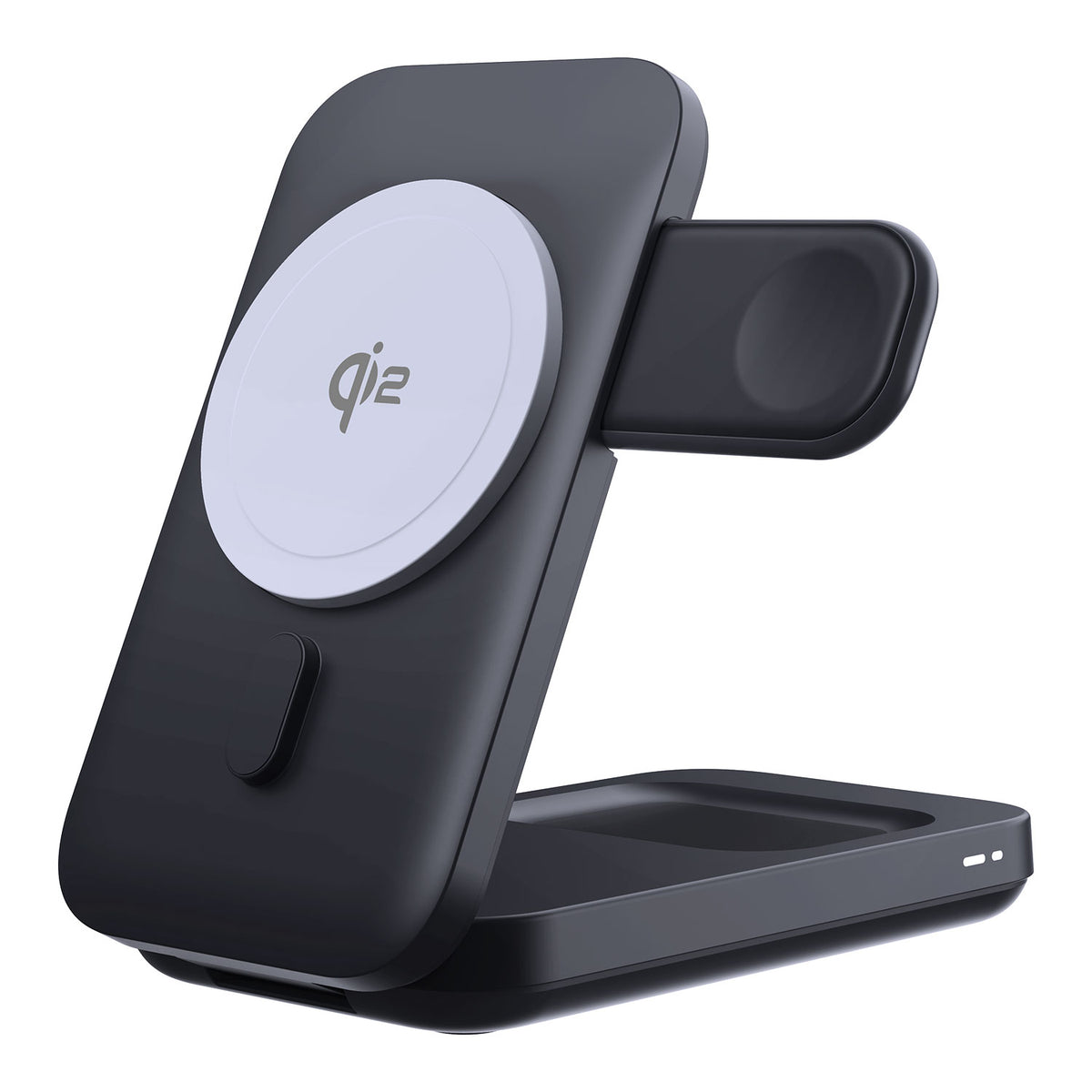
ZEERA MagSion 5-in-1 Dual MagSafe Charger Stand
- Dual MagSafe
- 5-in-1 stand
- Watch charging
- Angle adjust
- Clean setup
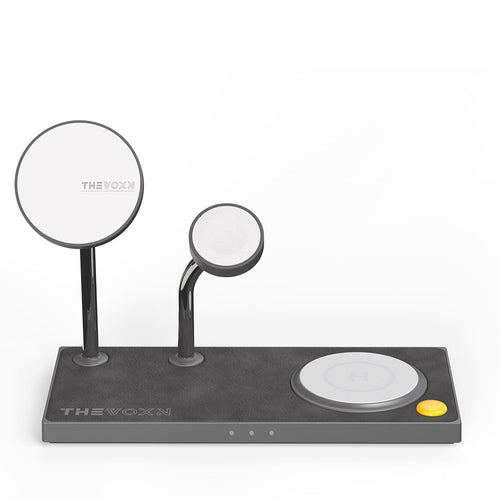
ZEERA SuVolt Gen5 Qi2.2 Active Cooling Car Charger
- 25W Qi2.2
- Active cooling
- Strong magnet
- CarPlay ready
- Heat control
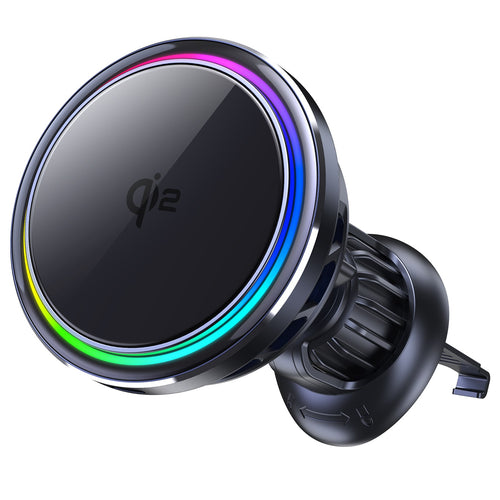
Keep Your iPhone Charged While Using CarPlay
Fixing Apple CarPlay restores the connection, but long drives can still leave your iPhone hot, low on battery or difficult to position for navigation.
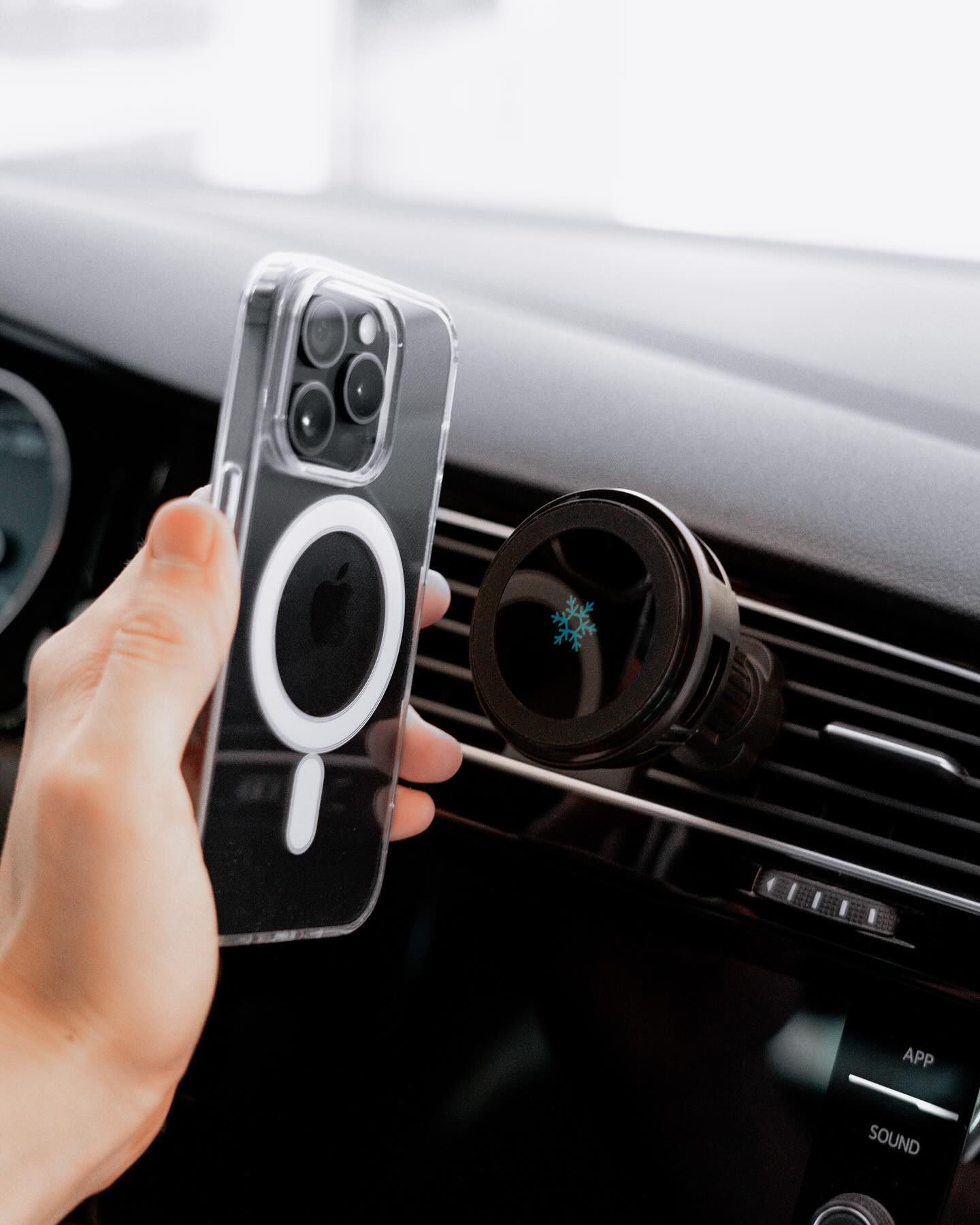
The ZEERA SuVolt Gen5 Qi2.2 25W Car Charger combines magnetic mounting, up to 25W Qi2.2 wireless charging and active cooling to keep a compatible iPhone securely mounted and manage heat while running CarPlay, navigation and music.
For stronger magnetic alignment and a more stable hold on uneven roads, pair it with a compatible ZEERA MagSafe case.

Fix Specific Chevy Trailblazer CarPlay Problems
Use the matching section below if CarPlay still has one specific problem after completing the main troubleshooting steps.
Wireless CarPlay Does Not Work, but USB CarPlay Does
If USB CarPlay works, the iPhone and Trailblazer can still run CarPlay. Check Bluetooth, Wi-Fi and Auto-Join, then delete the wireless pairing from both devices. Connect through USB once, approve any prompts, disconnect the cable and retry wireless CarPlay.
Chevy Trailblazer CarPlay Is Stuck Loading
Tap the CarPlay icon manually and unlock the iPhone to check for a permission prompt. If CarPlay remains stuck on the loading screen, fully shut down the vehicle, restart the iPhone and rebuild the saved connection.
CarPlay Connects, but Audio Plays Through the iPhone
Select Apple CarPlay as the active audio source on the Trailblazer display. Disconnect Bluetooth headphones or other audio devices. If sound still comes from the iPhone, delete the Bluetooth and CarPlay records from both devices and pair them again.
CarPlay Keeps Disconnecting or Fails After a Short Stop
Test CarPlay with a USB cable. If wired CarPlay remains stable, rebuild the wireless pairing and confirm Auto-Join is enabled. If wired CarPlay also disconnects, try another data cable and USB port. For failures after short stops, fully shut down the vehicle and wait for the OnStar light to turn off before restarting.
CarPlay Stopped Working After an iPhone Update
Restart the iPhone and Trailblazer, then check for new CarPlay permission prompts. Delete the old connection, connect once through USB and retry wireless CarPlay. Also check for Chevrolet software updates. The timing may involve the iPhone update, but it does not prove that iOS is the only cause.
CarPlay and Bluetooth Both Stop Working
Fully restart the vehicle and test another iPhone. If no phone can use CarPlay or Bluetooth calling, reset the infotainment settings after the earlier steps fail. Contact Chevrolet if the display also freezes, turns black or repeatedly restarts.


When to Contact Chevrolet or a Dealer
Contact Chevrolet support or a dealer if:
- More than one iPhone cannot connect.
- Wired CarPlay, wireless CarPlay and Bluetooth all fail.
- The infotainment display freezes, turns black or repeatedly restarts.
- CarPlay fails again soon after a complete re-pairing or infotainment reset.
- The vehicle cannot install an available software update.
These symptoms are more likely to involve the Trailblazer’s software or infotainment system than one iPhone setting.
Before contacting Chevrolet, record the Trailblazer model year and trim, iPhone model, iOS version, vehicle software version, exact symptoms and the troubleshooting steps already attempted.
FAQ
Why Won’t My iPhone Connect to My Chevy Trailblazer?
Restart the iPhone and fully shut down the vehicle first. Then check Bluetooth, Wi-Fi, Auto-Join, Siri and CarPlay permissions. If the iPhone still does not connect, delete the saved connection from both devices and pair them again.
Why Does Wired CarPlay Work but Wireless CarPlay Does Not?
This usually points to Bluetooth, Wi-Fi, Auto-Join or the saved wireless pairing. Remove the wireless connection from both devices, connect through USB once, approve any prompts and then retry wireless CarPlay.
How Do I Reset Apple CarPlay in a Chevy Trailblazer?
Delete the iPhone from the Trailblazer’s saved phone list. On the iPhone, select Forget This Device under Bluetooth and Forget This Car under Settings > General > CarPlay.
Restart both systems and pair them again. This resets the CarPlay connection without erasing all infotainment settings.
How Do I Reset the Chevy Trailblazer Infotainment System?
Start with a full vehicle shutdown and wait for the OnStar indicator to turn off before restarting.
If that does not work, look for an option such as Reset Infotainment Settings or Return to Factory Settings. Menu names vary by model year, and the reset may remove saved phones, Wi-Fi networks, radio presets and other preferences.
Some Chevrolet vehicles with Google built-in also support a display reboot using the steering-wheel END CALL button. This method does not apply to every Trailblazer, so check the owner’s manual before using it.
Does Wireless CarPlay Require a Paid OnStar Wi-Fi Plan?
No paid OnStar Wi-Fi plan is listed as a standard requirement for wireless CarPlay. The connection uses the iPhone’s Bluetooth and Wi-Fi together with compatible vehicle settings.
Why Are CarPlay Phone Calls Delayed?
Delete and rebuild the phone connection, then compare wired and wireless calls. If the delay affects both connection methods, returns after re-pairing or occurs with several iPhones, contact a Chevrolet dealer.
Why Are CarPlay Text Notifications Not Showing?
Open Settings > Notifications > Announce Notifications > CarPlay and enable message announcements. Also check Driving Focus, Do Not Disturb and the notification settings for Messages.
Should I Factory-Reset the Infotainment System?
Not as the first step. Restart the devices, check the required settings, rebuild the CarPlay connection, connect through USB and update the software first.
Consider an infotainment reset only when those steps fail, because it may erase saved phones and other vehicle preferences.
Bottom Line
When Chevy Trailblazer Apple CarPlay is not working, begin with a full restart, confirm the required settings and rebuild the connection on both devices.
Connecting through USB once can help restore the CarPlay session and show whether the problem is limited to wireless pairing. If several iPhones fail or the infotainment display also freezes or turns black, contact Chevrolet instead of repeatedly resetting the phone.






