
Quick Answer
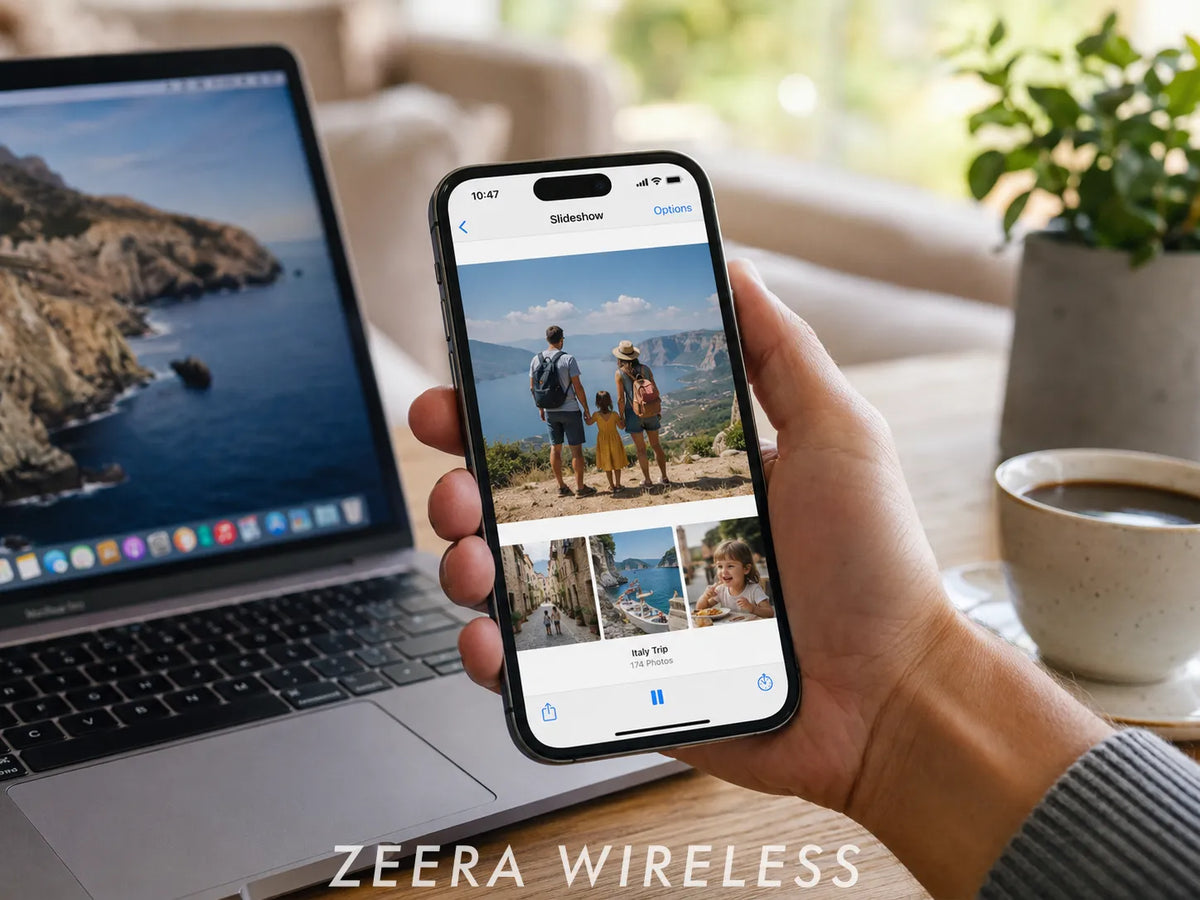
Apple is giving Photos slideshows a major upgrade in iOS 27. Apple has officially announced customizable slideshows with controls for transitions, duration and music, along with the ability to save a slideshow as a video.
Current iOS 27 beta builds show these features in action and also include additional controls such as automatic looping. The core slideshow improvements are official, although Apple could still adjust the interface or exact menu locations before iOS 27 is publicly released.

What’s New With Photos Slideshows in iOS 27?
Slideshows themselves are not new to the iPhone. The Photos app already lets you turn a selection of photos and videos into an automatically formatted presentation with music.
What changes in iOS 27 is how much control you have over the finished slideshow.
Apple has officially announced several expanded slideshow features:
- Custom slideshow transitions
- Adjustable slide duration
- Music controls
- The ability to save a slideshow as a video
Current iOS 27 beta builds also show an auto-loop option that can automatically restart the slideshow when it reaches the end.
Together, these changes make Photos feel less like a simple slideshow player and more like a lightweight slideshow creation tool built directly into the iPhone.
How to Create a Slideshow in iOS 27 Photos
In current iOS 27 beta builds, you can start a slideshow from an album or from a group of selected photos and videos.
- Open the Photos app.
- Open an album or select the photos and videos you want to use.
- Tap the menu button in the upper-right corner.
- Choose Start Slideshow.
Apple’s current iPhone User Guide also documents another slideshow shortcut: select the photos you want, tap the More button, then choose Play as Slideshow.
The exact wording or placement of these controls may change before the final version of iOS 27, but both workflows are designed to quickly turn a group of photos and videos into a slideshow.
Ultra-Thin MagSafe Back Plate Series
ZEERA MagSkin Air Ultra-Thin Magnetic Plate
- Only 0.3mm thin
- MagSafe compatible
- Preserves Air feel
- Light back guard
- Case-free carry

ZEERA MagSkin Pro Ultra-Thin Magnetic Back Plate
- Ultra-thin Pro fit
- MagSafe compatible
- Bare-phone feeling
- Camera deco guard
- Minimal daily carry
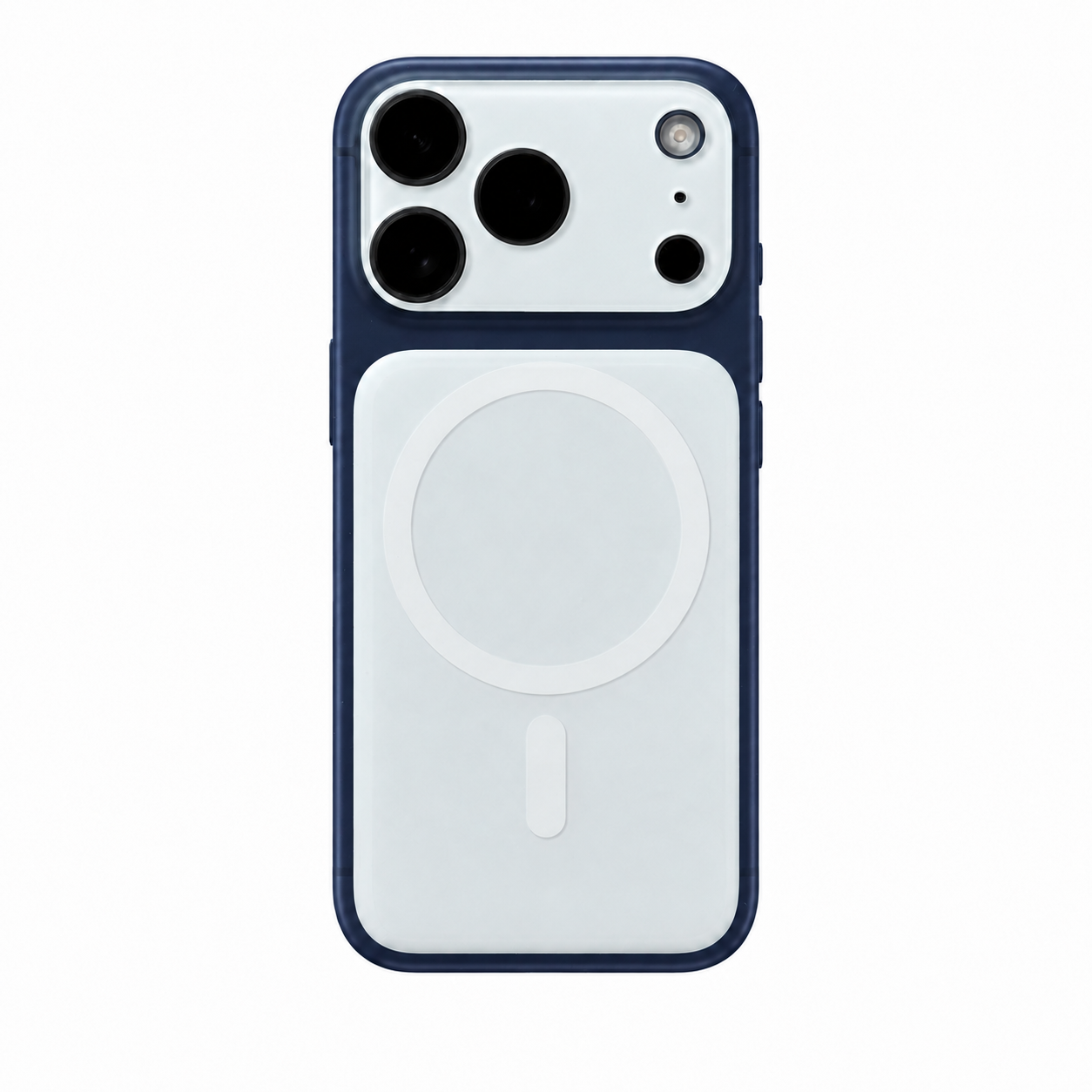
ZEERA AirFlat Lens Cover for iPhone Air
- Makes back flat
- Stops desk wobble
- Protects camera lens
- Slim matching look
- Easy clean design

How to Customize a Slideshow in iOS 27
The biggest improvement in iOS 27 is the ability to customize how the slideshow looks and plays instead of relying almost entirely on automatic settings.
1. Change the Transition Style
iOS 27 lets you choose the transition used as the slideshow moves from one photo or video to the next.
This gives you more control over the overall presentation and makes it easier to match the slideshow style to travel photos, family events, presentations or other types of collections.
2. Adjust the Slide Duration
iOS 27 also lets you adjust slide duration, giving you more control over how quickly photos move through the presentation.
This is especially useful when an automatically generated slideshow moves through images too quickly or too slowly for the content you are showing.
3. Change the Music
Music is also part of the expanded slideshow customization experience.
The Photos app already uses music with slideshows, but iOS 27 brings music controls together with transitions and duration so you can make the presentation feel more intentional.
4. Loop the Slideshow
Current iOS 27 beta builds also include an option to automatically loop a slideshow.
This can be useful if you want a slideshow to keep playing during a birthday, wedding, family gathering, store display or other event without manually restarting it.
Unlike the broader slideshow customization and video export features that Apple has officially announced, the exact implementation of looping is based on the current beta and could still change before release.
A better slideshow starts with better photos and videos. If you use your iPhone as your main camera, the ZEERA SnapLens Magnetic Filter System lets you quickly snap on filters without a bulky case or screw-on mount.
The Creator Kit includes CPL, 1/4 Black Mist, ND32 and UV filters, giving you more control over reflections, highlights, bright light and everyday shooting before your photos and videos go into an iOS 27 slideshow.


Can You Save an iPhone Slideshow as a Video in iOS 27?
Yes. Apple has officially announced that iOS 27 will let you save a slideshow as a video in Photos.
This is one of the most useful changes to the slideshow feature.
Instead of creating a slideshow that only plays inside Photos, you can save the finished presentation as a video that can be kept in your Photos library, replayed later or shared more easily.
For example, you could create a slideshow from vacation photos, adjust the transitions, duration and music, and then save the final result as a video without rebuilding the same presentation in a separate editing app.
Current iOS 27 beta builds show video export working inside the updated slideshow experience. Apple could still adjust the button placement or exact workflow before release, but the ability to save slideshows as videos is an officially announced iOS 27 feature.

What’s Different From Slideshows on Earlier Versions of iOS?
The important difference is not that iOS 27 introduces slideshows for the first time.
Photos already supports slideshows, and Apple’s existing workflow can automatically turn selected photos and videos into a presentation with music.
iOS 27 makes that experience significantly more customizable.
Instead of selecting your photos and largely accepting the presentation Photos creates, you can make more decisions about the transition style, timing and music.
You can then save the finished slideshow as a video.
That is the real upgrade: Apple is turning an existing viewing feature into a much more useful tool for creating and sharing simple photo presentations.
What Could Still Change Before iOS 27 Is Released?
The main slideshow improvements are official. Apple has already announced customizable slideshows and the ability to save slideshows as videos as part of iOS 27.
What could still change is the way those features are presented.
Apple often adjusts menus, buttons and interaction details during the beta cycle, so the final version could move individual controls or slightly change the steps used to reach them.
Beta-specific details such as the current auto-loop control could also be refined before the public release.
The simplest distinction is that the expanded slideshow feature itself is official, while the exact interface currently visible in the iOS 27 beta may still change.
What Else Is Changing in iOS 27 Photos?
Slideshows are only one part of the Photos update. Apple is also introducing other improvements to photo editing, organization and Shared Albums in iOS 27.
Those features are separate from the slideshow workflow, but together they show that Photos is receiving a broader set of upgrades this year.
Bottom Line
iOS 27 gives the iPhone’s existing Photos slideshow feature much more control.
Apple has officially announced customizable slideshows with transition, duration and music controls, along with the ability to save the finished slideshow as a video. Current beta builds show those tools in action and also include practical options such as automatic looping.
The interface may still change before the final release, but the main upgrade is already clear: Photos slideshows are becoming much more useful for creating a presentation instead of simply playing an automatically generated collection of photos.










