
Updated October 3, 2026
Quick Answer
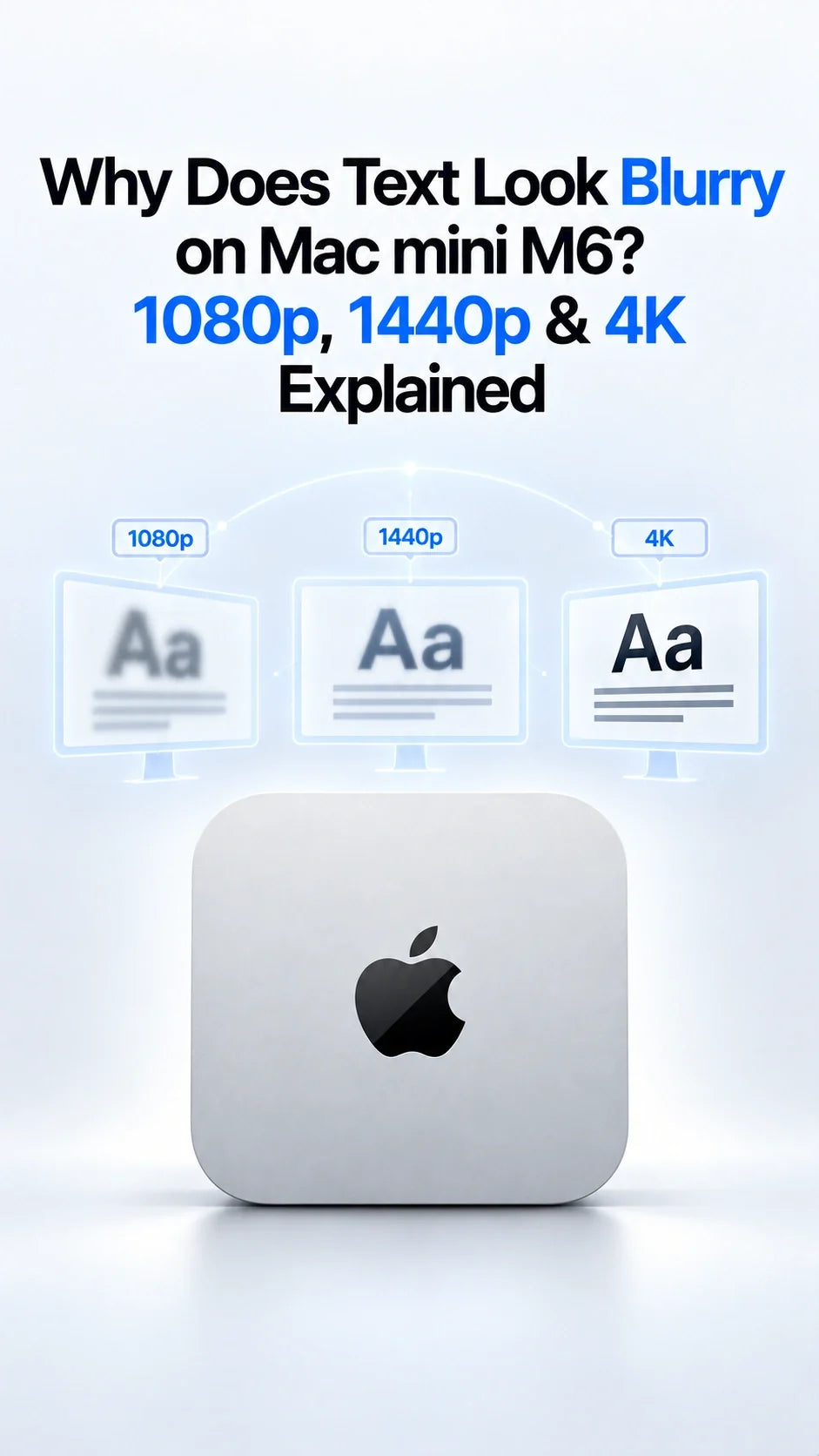
Blurry text on a Mac mini M6 is usually caused by the monitor’s pixel density and macOS scaling—not a weak M6 GPU or a defective Mac.
A 27-inch 1080p display is only about 82 pixels per inch, so fonts naturally look coarse. A 27-inch 1440p monitor is sharper at about 109 PPI, but it normally runs as a non-Retina 1× desktop.
A 27-inch 4K monitor is much clearer with HiDPI enabled. “Looks like 1920 × 1080” uses clean 2× scaling, while “Looks like 2560 × 1440” offers more workspace through fractional downscaling.
For the sharpest 27-inch Mac desktop with 1440p-sized workspace, a 5K display remains the ideal match.
Is the Mac mini M6 Causing the Blurry Text?
In most cases, no. The Mac mini M6 can drive high-resolution external displays, but it cannot add physical pixels to a low-density panel. The same monitor can therefore look very different depending on its size, native resolution and the scaling mode selected in macOS 27.
The fastest way to separate a Mac problem from a monitor problem is to take a screenshot and view it on a known-sharp phone, MacBook or 4K/5K display. If the screenshot looks sharp elsewhere, the app and M6 are rendering correctly; the softness is being introduced by the monitor, scaling or connection path.
Why Pixel Density Matters More Than “1080p vs 4K”
Resolution tells you how many pixels a panel contains. Pixel density, measured in pixels per inch (PPI), tells you how tightly those pixels are packed. Text looks smoother when more physical pixels are available to draw each curve and diagonal.
24-inch 1080p
About 92 PPI
Usable at normal desk distance, but clearly non-Retina.
27-inch 1080p
About 82 PPI
Large pixels make small text and thin UI lines look visibly coarse.
27-inch 1440p
About 109 PPI
A practical 1× desktop, but not Retina-level sharpness.
27-inch 4K
About 163 PPI
Much sharper with HiDPI, though 1440p-sized workspace requires scaling.
32-inch 4K
About 138 PPI
Sharper than 1440p at 27 inches, but less dense than a 27-inch 4K panel.
27-inch 5K
About 218 PPI
Ideal 2× scaling for a sharp desktop that looks like 2560 × 1440.
Panel quality, viewing distance and eyesight still matter, but PPI explains why two monitors showing the same document can make the same font look completely different.
Why Text Looks Blurry on a 1080p Monitor
A 1080p display has 1920 × 1080 physical pixels. At 24 inches, that can be acceptable for general work. At 27 inches or larger, the same pixels are spread across more screen area, so character edges become easier to see.
macOS cannot turn a 27-inch 1080p panel into a Retina display. A third-party HiDPI utility may change how text is rendered, but it cannot create missing physical detail. The most useful settings are therefore simple:
If crisp small text is a priority for coding, spreadsheets or long writing sessions, upgrading the display will make a larger difference than changing the HDMI cable when 1920 × 1080 is already being transmitted correctly.
Why a 1440p Monitor Can Still Look Soft on Mac mini M6
A 27-inch 2560 × 1440 monitor is a useful middle ground. At its native resolution, one image pixel maps to one physical panel pixel, so the picture is not blurry because of conventional stretching. The limitation is that macOS normally treats it as a 1×, non-Retina desktop.
That gives you the comfortable workspace Mac users associate with a 27-inch display, but curves and diagonal strokes are drawn with fewer pixels than on a 4K or 5K screen. Users moving from a Retina MacBook can notice the difference immediately.
A utility such as BetterDisplay can expose additional HiDPI modes on compatible displays. This may improve the appearance of text on some 1440p and ultrawide panels, especially if native 1440p makes the interface too small. However, the sharpest true 2× mode on a 2560 × 1440 panel looks like 1280 × 720, which is too large for many desktop workflows. Intermediate modes are a compromise, not a conversion to 4K.
Why 4K Usually Looks Better—and Why Scaling Still Matters
A 4K monitor has 3840 × 2160 physical pixels. At 27 inches, that is enough density for macOS to use HiDPI rendering and draw text with far more detail than a 1080p or 1440p panel.
Looks like 1920 × 1080
Exact 2× HiDPI
Every logical pixel is rendered with a 2 × 2 block of physical pixels. Text is very sharp, but the interface looks large on a 27-inch screen.
Looks like 2560 × 1440
Scaled HiDPI
macOS renders a larger 5K-style workspace and downsamples it to 4K. You gain room, with a small theoretical loss in pixel-perfect sharpness.
For many users, “Looks like 2560 × 1440” is the best balance on a 27-inch 4K monitor. It normally remains much clearer than native 27-inch 1440p because the 4K panel still has substantially more physical pixels.
The phrase “Looks like” describes the apparent desktop workspace, not necessarily the signal sent to the monitor. A 4K display can still receive a 3840 × 2160 signal while macOS makes windows and text appear similar in size to a lower-resolution desktop.
Best macOS Display Setting for Each Resolution
1080p monitor
Use native 1920 × 1080. Avoid lower stretched modes. A 24-inch panel will generally look better than a 27-inch panel at the same resolution.
27-inch 1440p
Start at native 2560 × 1440. Try an optional HiDPI utility only if the text size or rendering is uncomfortable.
27-inch 4K
Choose 1920 × 1080 for maximum scaling purity or “Looks like 2560 × 1440” for a more useful workspace.
32-inch 4K
Try “Looks like 2560 × 1440” first. The larger panel makes the interface comfortable, though text is less dense than on 27-inch 4K.
27-inch 5K
Use the default 2560 × 1440-looking mode. This is the clean 2× Retina-style match for this size.
4K TV
Use 4K output plus PC mode and 4:4:4 chroma. Turn off overscan and artificial edge enhancement.
How to Fix Blurry Text on Mac mini M6
Use this order. It starts with settings that cost nothing and separates an actual connection problem from the normal limits of a low-PPI monitor.
Apple notes that a cable or adapter that cannot support the intended resolution and refresh rate can leave an external display at a lower mode. That is why a direct connection is a useful test—but buying a premium cable will not make native 27-inch 1080p physically sharper.
HDMI vs USB-C or DisplayPort: Which Looks Sharper?
Neither connection is automatically sharper. HDMI and USB-C/DisplayPort can produce the same clean digital image when they deliver the same native resolution, refresh rate and full-color signal.
A connection becomes relevant when an adapter, hub, KVM or cable limits bandwidth, reports the display incorrectly or causes the Mac to use a lower resolution. TVs can also negotiate a video-oriented YCbCr format instead of an RGB/4:4:4 PC signal, making fine colored text look soft.
If switching from HDMI to USB-C-to-DisplayPort suddenly improves text, do not assume DisplayPort has inherently better pixels. The new path probably changed the available resolution, chroma format, EDID information or monitor input mode.
Should You Buy a 4K or 5K Monitor for Mac mini M6?
For office work, browsing and occasional media, a good 27-inch 1440p monitor can still be a sensible value. Buy it knowing that text will not match a Retina MacBook or Studio Display.
For coding, writing, design, spreadsheets and long daily sessions, 27-inch 4K is the practical upgrade. It gives macOS enough pixels for HiDPI rendering, and “Looks like 2560 × 1440” normally provides a strong balance between workspace and clarity.
Choose 27-inch 5K when you want the cleanest match between comfortable 1440p-sized workspace and exact 2× scaling. A 32-inch 6K panel provides a similarly dense premium experience at a larger size.
Monitor resolution is independent of Mac mini storage performance. If you are configuring the computer as well as the display, see our Mac mini M6 256GB vs 512GB SSD guide. For a complete workstation, our Mac mini M6 desk setup guide covers storage, ports, placement and cable organization.
When Blurry Text May Indicate a Real Problem
For storage-related disconnects that happen when a monitor and SSD share the same dock, use our Mac mini M6 external SSD disconnecting guide before replacing the Mac.
FAQ
Is 1440p bad for Mac mini M6?
No. A 27-inch 1440p monitor is usable and offers a comfortable native workspace. It simply does not have enough pixel density to look like a Retina display.
Why does 1440p look better on Windows than on my Mac?
The two operating systems use different text-rendering and scaling approaches. Monitor settings, viewing distance and font choice also affect the comparison. First confirm that both systems are using the panel’s native 2560 × 1440 resolution.
Does “Looks like 2560 × 1440” make a 4K monitor output 1440p?
Usually no. On a properly configured 4K HiDPI display, it describes the apparent workspace size. macOS renders at a higher internal resolution and scales the result to the panel’s 3840 × 2160 pixels.
Is 27-inch 4K sharp enough for Mac mini M6?
Yes for most users. It is much sharper than 27-inch 1440p. A 27-inch 5K monitor is the cleaner exact-2× choice for 1440p-sized workspace, but 4K offers a strong price-to-clarity balance.
Can an HDMI cable make text blurry?
A digital cable does not gradually soften a correct signal. However, an insufficient cable or adapter can limit resolution or refresh rate, and a TV connection can negotiate chroma subsampling that makes text edges look smeared.
Should I use BetterDisplay on a 1440p monitor?
Try native macOS settings first. BetterDisplay can add useful HiDPI choices for some 1440p and ultrawide monitors, but it cannot give a low-PPI panel the physical sharpness of 4K or 5K.
Does Mac mini M6 need a special monitor?
No. It works with standard compatible HDMI, USB-C and DisplayPort monitors. For the most Mac-like text clarity, prioritize pixel density and useful HiDPI modes rather than brand alone.
Sources and Further Reading
- Apple Support: Change your Mac display’s resolution
- Apple Support: If your external display is dark or low resolution
- BetterDisplay: macOS scaling, HiDPI and LoDPI explained
Related Articles









1 commentaire
Thurstan Hethorn
The real answer is apple has optimised MacOS for certain resolutions and multiples thereof. 1440p, 5k, 6k probably, possibly some other odd ones associated with their laptops.
Sure Apple generally has hidpi high quality screens, but it is more the mismatch and strange things it does to screens they don’t really support 1080p and 4k, those more common particularly in the PC world.