
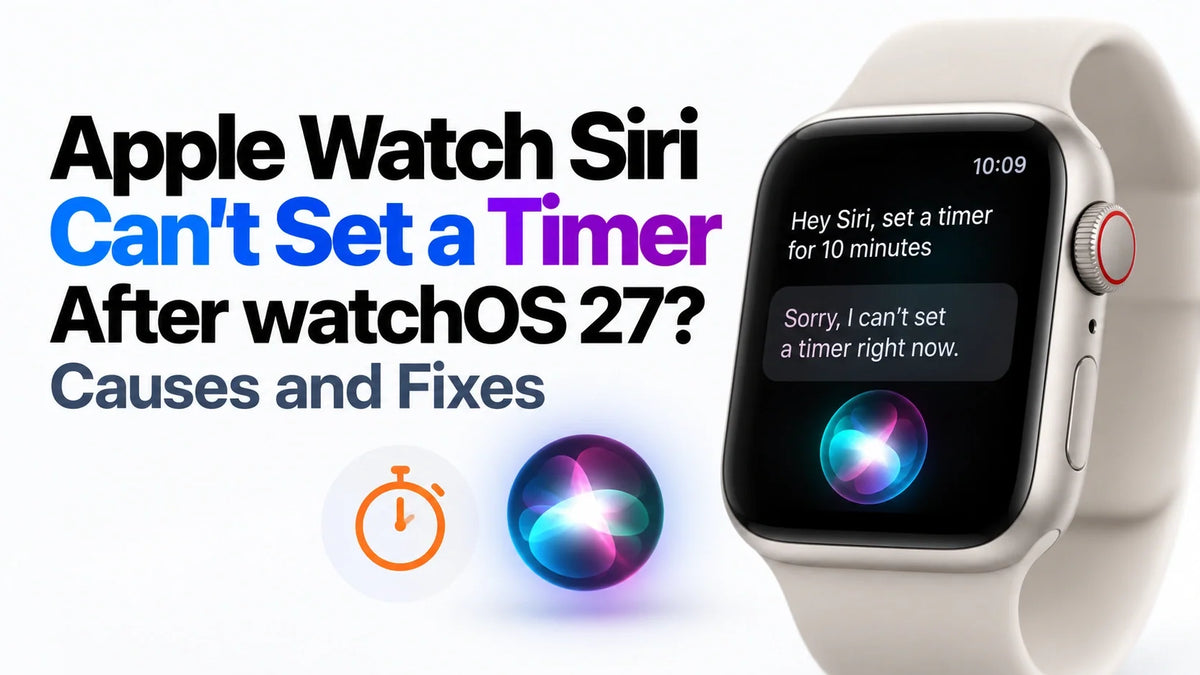
If Apple Watch Siri cannot set a timer after watchOS 27, first open Timers and try a one-minute countdown manually.
If that works, focus on Siri activation, connectivity and the selected Siri version.
Restart the watch and paired iPhone, then retry one simple timer request.
Some users report improvement after switching from Siri AI to Siri Classic on their iPhone.
Use Timers directly while troubleshooting; reports of 27.2 improvements do not establish a universal fix.
What are Apple Watch users reporting after watchOS 27?
In one Reddit report, Siri refused a timer request and displayed a message about a missing Clock app. In another discussion, the poster confirmed that Timers was still installed. A separate thread describes 10–20-second delays, while other owners say the same request works promptly.
These are different symptoms: a rejected request, a delayed response and a missing app need different checks. Apple Watch has a dedicated Timers app, so a Clock-related error alone does not prove that the app is missing.
Why can Siri fail when the Timers app still works?
Siri hears you but rejects the action: If the recognized request is correct and a manual countdown works, the failure points toward Siri’s handling of the timer command. That is a diagnostic clue, not proof of a particular software defect.
Siri does not activate or mishears you: Check the activation setting, spoken language and microphone before treating this as a timer bug.
Siri waits or asks you to try again: Connectivity or a temporary Siri problem may be involved. Compare the same request with the paired iPhone nearby and connected.
Apple confirms that supported Apple Watches use the same Siri version as their paired iPhone. This makes the phone’s Siri configuration relevant even when you are speaking to your wrist. Our iOS 27 Siri AI guide explains the broader changes.
Check whether the timer actually started
After one failed or slow request, open Timers on the watch and inspect the running countdowns before asking again. A late spoken confirmation does not necessarily mean the countdown started late, and repeating the command can create another timer.
Next, start a one-minute timer by tapping a preset. If it starts and alerts normally, the timer function itself is working. If Timers is genuinely absent, look for Apple’s Timers app in the watch’s App Store and restore it. Do this only after checking the app list.
Fix Siri activation, connection and temporary glitches
- Try the Digital Crown. If Press Digital Crown is enabled under Settings → Siri on the watch, hold the Crown and say, “Set a timer for one minute.” If this works while voice activation fails, check the listening option in the same settings.
- Check the connection. Bring the paired iPhone nearby, make sure it has internet access, and check the watch’s connection in Control Center. Retry once. A different result helps isolate a connection-dependent failure.
- Restart both devices normally. Take the watch off its charger, hold the side button, tap the power control and slide to power off. Hold the side button to turn it on again. Restart the paired iPhone too, then retest.
- Check speech input if recognition is wrong. Remove any watch cover that obstructs the microphone. Confirm Siri is enabled on both devices and that its language matches the language you are speaking.
These checks follow Apple’s Siri troubleshooting guidance and restart instructions. Retest after each change so you can identify which one helps.
Try Siri Classic if Siri AI keeps rejecting timers
Some participants in the Reddit discussions say switching back to Siri Classic restored timer commands. This is a practical workaround to test if your problem began with Siri AI.
On the paired iPhone, open Settings → Siri, or Apple Intelligence & Siri, depending on your software. Look for the Siri version selection and choose Siri Classic if offered. Because the watch follows the phone’s Siri version, this change also affects Siri on the iPhone.
Repeat the same one-minute request on the watch. If it works, you have a useful comparison to include in a bug report. If your settings do not offer a version choice, continue with the manual workaround below.
Use a timer without Siri while you troubleshoot
Apple’s Timers guide describes two direct options: tap a preset duration, or scroll to the Add button, set hours, minutes and seconds with the Digital Crown, then tap Start. Pin frequently used durations in Timers for quicker access.
You can also add a Timers complication to a compatible watch face. This gives you a quick route to the app without waiting for Siri to process a request.
Does watchOS 27.2 fix Siri timer problems?
In the delay discussion, a commenter reports improvement with iOS 27.2 beta 3. That is feedback about the paired iPhone software, not confirmation that watchOS 27.2 fixes every timer failure. The two version numbers should not be treated as interchangeable.
Check Settings → General → Software Update on the iPhone and Watch app → My Watch → General → Software Update for the watch. Install available public updates, then repeat the same timer test. You do not need to install beta software solely to investigate this problem.
What to report if Siri still cannot create a timer
Contact Apple Support with the watch model, watchOS version and build, paired iPhone model, iOS version, Siri language and selected Siri version. Include the exact command and error, whether a manual countdown works, and whether Siri Classic changes the result. For beta software, submit the same details through Feedback Assistant.
For model context, see our Apple Watch Series 12 guide and Apple Watch Ultra 4 guide. A timer command failure alone is not a reason to replace a watch that otherwise works.
FAQ
Can I use Type to Siri on the watch instead?
Apple says Type to Siri is currently unavailable with Siri AI on Apple Watch. With other supported Siri configurations, it is an accessibility option. For a quick countdown, opening Timers directly is the simpler fallback.
Why does Siri stay silent even though the timer starts?
Spoken feedback is a separate issue. Check the watch’s Siri response and voice settings. If its voice is still downloading, Apple recommends leaving the watch charging on Wi-Fi to let the download finish.
Should I unpair the watch to fix this?
Save unpairing for a later step with Apple Support. If manual timers work and only Siri fails, test the Siri settings and both devices’ software first.
Related reading
- Siri AI in iOS 27: Is Apple’s New Siri Really Better?
- Apple Watch Series 12: Price, Specs and Battery
- Apple Watch Ultra 4: Price, Specs and Battery
- HomePod mini 2 vs. HomePod mini
- HomePod mini 2: Buying Mistakes to Avoid
- Apple TV 4K 2026 vs. 2022: Remote, Speakers and Siri
Reposting Notice: Please credit Guichang Chen · ZEERA WIRELESS when sharing or republishing this article.






