
Updated: August 27, 2026
Quick Answer
If your U.S. passport-based Digital ID in Apple Wallet suddenly shows as deactivated, the current fix is to remove the inactive Digital ID and add it again.
The issue has received renewed attention with recent iOS 27 beta builds. MacRumors reports that iOS 27 changes some of the information and menus associated with Digital ID, and that these changes and/or a related bug have caused some users' existing Digital IDs to become deactivated. According to the report, Apple says affected users need to remove the card and re-add it.
If you cannot add your Digital ID again, check your iPhone, iOS version, U.S. device region, passport validity, Bluetooth, network connection and identity verification requirements before assuming your physical passport has a problem.

Why Is My U.S. Passport Digital ID Not Working in Apple Wallet?
There are several different Apple Wallet Digital ID problems, and the correct fix depends on what you are seeing.
You may find that:
-
Your Digital ID says “deactivated”
-
Your U.S. passport Digital ID can no longer be presented
-
The Digital ID option is missing from Wallet
-
Your passport photo page will not scan
-
Your iPhone cannot read the passport chip
-
Identity verification will not complete
-
You removed your Digital ID but cannot add it back
If your Digital ID worked before and suddenly became deactivated, start with removing and re-adding it.
If you have never successfully created a Digital ID, jump to the setup requirements and troubleshooting sections below.

Is iOS 27 Beta Causing the Apple Wallet Passport Problem?
Recent reports strongly connect the latest spike in deactivated Digital IDs with iOS 27 beta builds, but it is important not to overstate the cause.
MacRumors reported on August 26 that iOS 27 changes some of the information and menus displayed with the passport-based Digital ID feature. Those changes and/or a related bug have resulted in some users seeing their Digital ID deactivated.
Reports also appeared in the MacRumors iOS 27 Beta 7 discussion, where multiple users said their U.S. passport Digital ID had suddenly been marked “deactivated by Apple.”
This does not mean Apple has removed U.S. passport support from Wallet.
Apple continues to support Digital ID created from information in an eligible U.S. passport. The issue affects the digital credential stored in Wallet, not the validity of the physical passport itself.
How to Fix a Deactivated U.S. Passport Digital ID
If your Digital ID was already working but now shows as deactivated, use this sequence first.
1. Remove the Deactivated Digital ID
Open Apple Wallet and select the affected Digital ID.
Open the card details and remove the deactivated Digital ID from Wallet.
Removing it from Wallet does not cancel or invalidate your physical U.S. passport. Digital ID is derived from passport information, but Apple explicitly states that it is not itself a government-issued passport.
2. Restart Your iPhone
Restart the iPhone after removing the inactive Digital ID.
This gives Wallet and the current iOS session a clean restart before you begin the verification process again.
3. Add Digital ID Again
Open:
Wallet → Add (+) → Driver's License or ID Cards → Digital ID
Then follow Apple's onscreen instructions.
You will need your physical, unexpired U.S. passport to complete setup.
4. Complete Passport and Identity Verification
Apple's setup process includes:
-
Scanning the machine-readable portion of the passport photo page
-
Reading the chip embedded in the passport
-
Taking a selfie
-
Completing identity verification
-
Authenticating with Face ID or Touch ID before submitting the information
Once verification is complete, the new Digital ID can be added to Wallet.
If the new Digital ID becomes deactivated again, the problem may still be related to the current beta rather than your passport.

Carry Your Essential Cards Without a Separate MagSafe Wallet
Digital ID can make everyday identification more convenient, but it does not eliminate the need for every physical card.
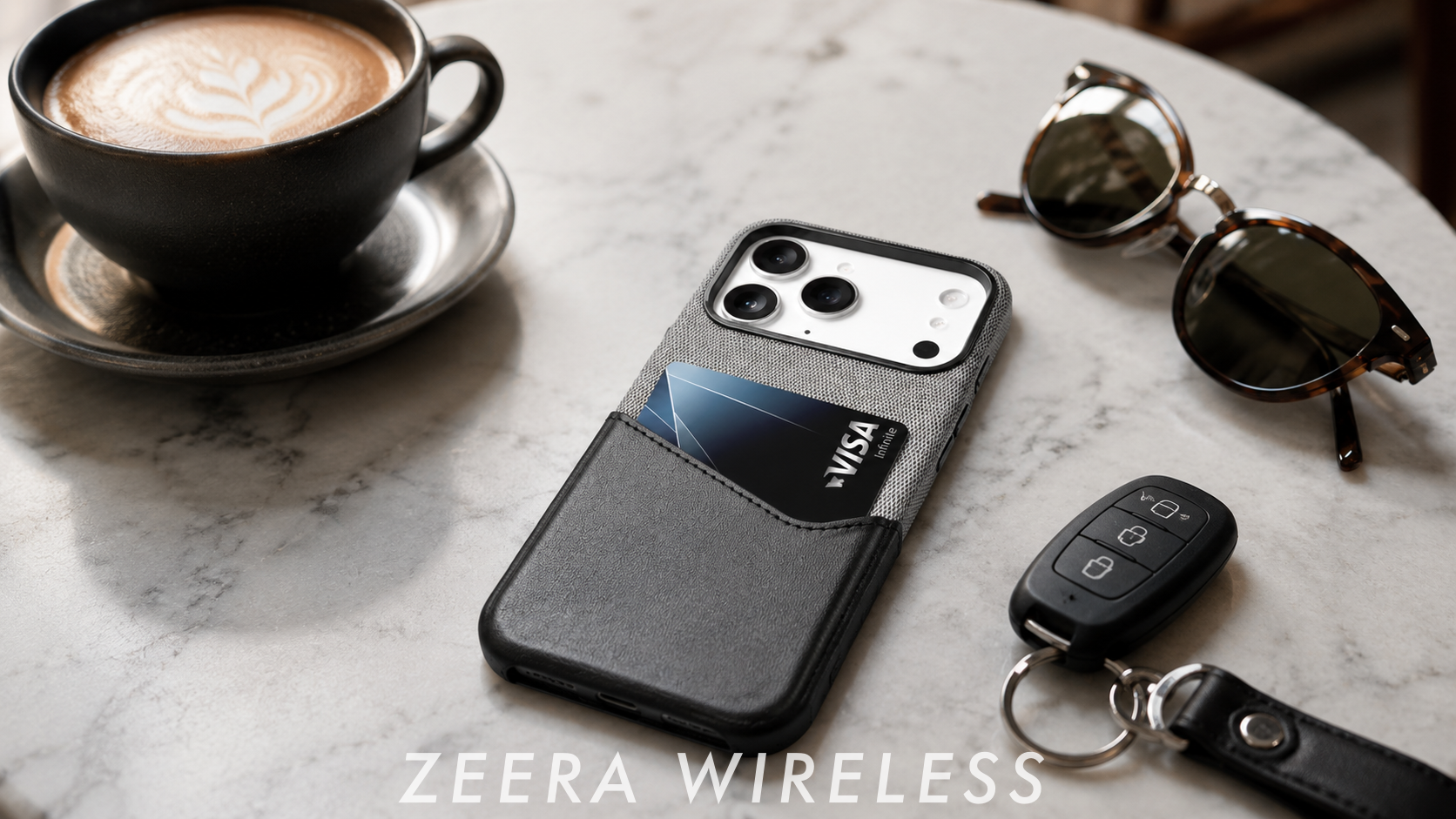
The ZEERA MagWeave Pro MagSafe Case with Built-In Card Holder combines an iPhone case with a built-in card holder, letting you keep up to two essential cards directly with your phone.
Built-In Card Holder
The card storage is integrated into the case itself and holds up to two cards.
That means you do not need to attach a separate magnetic card wallet to the back of your iPhone.
No Extra MagSafe Wallet to Carry
A traditional magnetic wallet is another accessory attached to your phone.
MagWeave Pro places the card holder directly into the case, keeping the phone and everyday cards together in one piece.
MagSafe Compatible
The case remains compatible with MagSafe charging.
Cards should be removed before wireless charging for optimal charging performance and card safety.
Everyday Protection
Raised edges around the screen and camera provide additional protection against everyday bumps and scratches, while the microfiber-lined interior helps protect the back of the iPhone.
Shop ZEERA MagWeave Pro MagSafe Case

Still Can't Add Your U.S. Passport Digital ID?
If removing and re-adding the deactivated Digital ID does not solve the problem, check where the setup stops.
The most common failures happen during the passport scan, passport chip reading, identity verification, or before the Digital ID option appears at all.
Passport Page Won't Scan
Apple first asks your iPhone to scan the machine-readable portion of the passport photo page.
If it does not work:
-
Lay the passport flat
-
Use bright, even lighting
-
Avoid glare on the photo page
-
Keep the machine-readable area fully visible
-
Hold the iPhone steady until the scan finishes
If the photo page scans successfully but setup stops afterward, move on to the passport chip step instead of repeatedly rescanning the page.
Passport Chip Won't Read
After the photo page is scanned, Apple Wallet reads the electronic chip inside the passport.
Follow the onscreen positioning instructions and keep the iPhone steady while the chip is being read.
If the chip cannot be detected, retry the scan carefully. There is no need to keep repeating the photo-page scan if that part already worked.
Identity Verification Fails
After the passport information and chip are verified, Apple asks you to complete identity verification.
If this step fails:
-
Make sure your face is clearly visible
-
Use even lighting
-
Keep the iPhone steady
-
Follow the onscreen instructions carefully
-
Confirm Face ID or Touch ID works normally
-
Use a stable internet connection
If the passport page and chip both worked, focus on the identity verification step rather than starting the entire setup again.
Digital ID Is Missing
If you cannot find Digital ID in Wallet, go to:
Wallet → Add (+) → Driver's License or ID Cards → Digital ID
If the option still does not appear, check that you have:
-
A supported iPhone
-
A compatible iOS version
-
Device region set to United States
-
An eligible, unexpired U.S. passport
-
Bluetooth enabled
-
An internet connection
-
Two-factor authentication enabled on your Apple Account
If Digital ID disappeared after installing an iOS 27 beta, restart the iPhone and check for a newer software build.
iOS 27 has not removed U.S. passport-based Digital ID support. The current issue affects some existing Digital IDs becoming deactivated rather than the feature being discontinued.


Before You Travel
A U.S. passport-based Digital ID can be presented at supported TSA checkpoints for identity verification before domestic flights in the United States.
On an iPhone with Face ID, you can present it by double-clicking the side button, selecting Digital ID and holding the top of the iPhone near the identity reader.
Support varies by checkpoint, so check that your Digital ID still works before leaving for the airport, especially if you are running an iOS 27 beta.
Most importantly, Digital ID does not replace your physical passport.
You still need the physical passport for:
-
International travel
-
Border crossings
-
Situations that specifically require a passport
Apple's passport-based Digital ID currently uses an eligible U.S. passport. Other government IDs supported in Apple Wallet, such as Japan's My Number Card, use separate identity systems.
iPhone 18 Pro Max MagSafe Charger & Stand
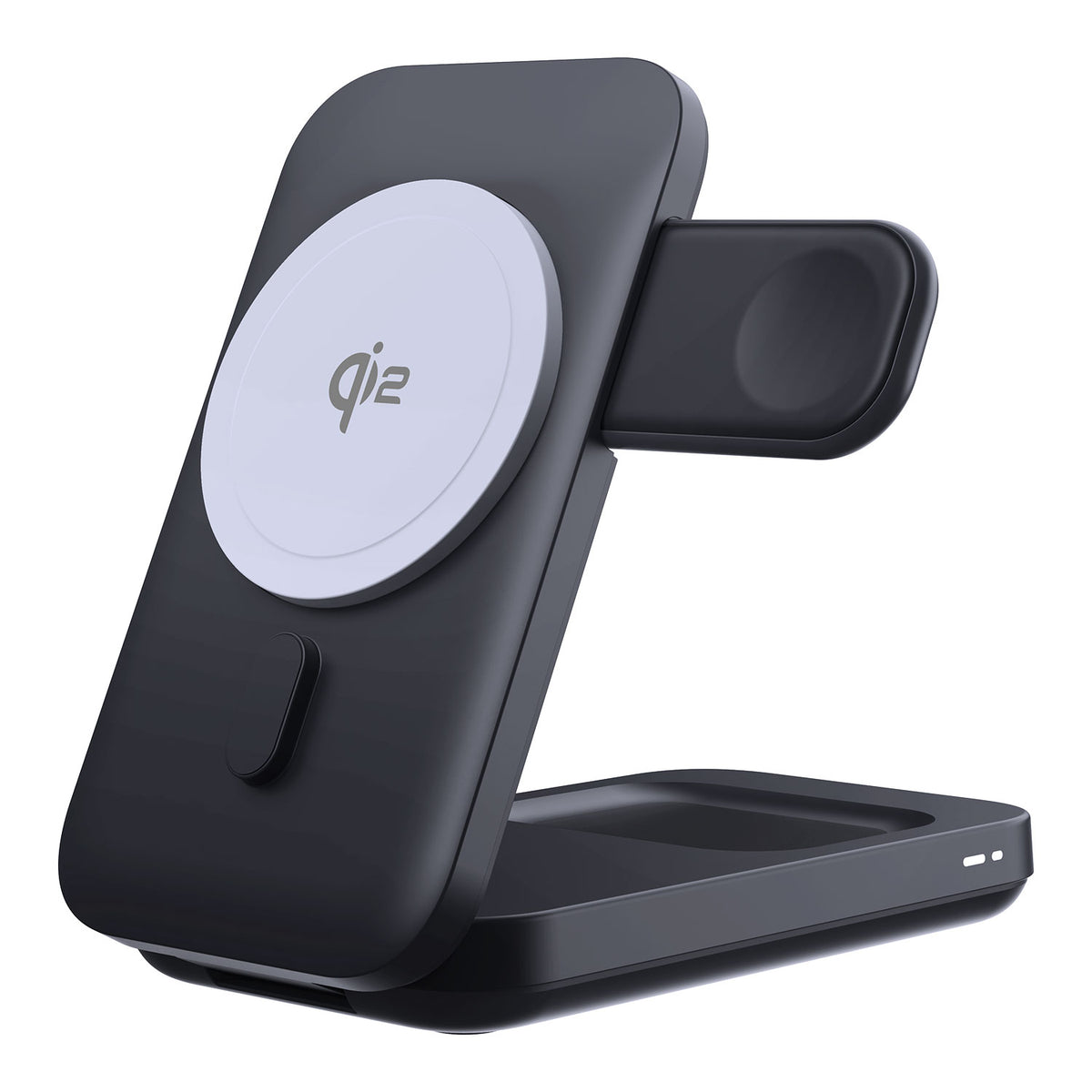
ZEERA MagTri Gen2 Qi2.2 Foldable MagSafe Charger
- 25W Qi2.2
- 3-in-1 fold
- Active cooling
- Travel size
- 3-device ready
ZEERA MagSion 5-in-1 Dual MagSafe Charger Stand
- Dual MagSafe
- 5-in-1 stand
- Watch charging
- Angle adjust
- Clean setup

ZEERA SuVolt Gen5 Qi2.2 Active Cooling Car Charger
- 25W Qi2.2
- Active cooling
- Strong magnet
- CarPlay ready
- Heat control

FAQ
Why did my U.S. Passport Digital ID stop working in Apple Wallet?
Some users running recent iOS 27 beta versions have reported existing passport-based Digital IDs becoming deactivated. If yours is affected, remove the deactivated Digital ID and add it again.
How do I fix a deactivated Digital ID?
Remove it from Apple Wallet, restart your iPhone, then go to:
Wallet → Add (+) → Driver's License or ID Cards → Digital ID
Complete the passport scan, chip reading and identity verification again.
Why is Digital ID missing from Apple Wallet?
Check your iPhone compatibility, iOS version, U.S. device region, passport validity, Bluetooth, internet connection and Apple Account two-factor authentication.
Can I use Digital ID at TSA?
Yes, at supported TSA checkpoints for identity verification before domestic U.S. flights. Availability varies by location.
Does Digital ID replace my physical passport?
No. You still need your physical passport for international travel, border crossings and other situations that specifically require a passport.
Can I add a non-U.S. passport to Apple Wallet?
Not through Apple's current passport-based Digital ID system. Other countries may support different forms of government ID in Apple Wallet.
Related Reading
Unable to Check for Update on iPhone? How to Fix the Error in iOS 27
Having trouble installing the latest iOS build? This guide covers update-server errors, Wi-Fi problems, VPN interference, beta settings and other common causes.
Read the iOS 27 Update Troubleshooting Guide
iOS 27 Battery Drain and Overheating: Why Your iPhone Gets Hot and How to Fix It
If your problems started after installing iOS 27, battery drain and extra heat are two other common issues worth checking.
Read the iOS 27 Battery and Overheating Guide
iPhone Won't Turn On After Battery Drains? Fix USB-C Charging Issues
If an iPhone stays unresponsive after reaching zero battery, this guide covers the most useful charging and restart steps.
Read the iPhone Charging Troubleshooting Guide
How to Fix iPhone Overheating While Charging
For persistent heat during wired or MagSafe charging, this guide explains the most common causes and practical ways to reduce charging temperature.
Read the iPhone Overheating Guide
Bottom Line
If your U.S. passport Digital ID is deactivated in Apple Wallet, remove it and add it again.
If setup still fails, identify where it stops:
Passport scan → passport chip → identity verification → Digital ID availability
Fix that specific step instead of repeatedly restarting the entire setup.
If you are traveling soon, check that Digital ID works before leaving — and remember that it does not replace your physical U.S. passport for international travel or border crossings.









