
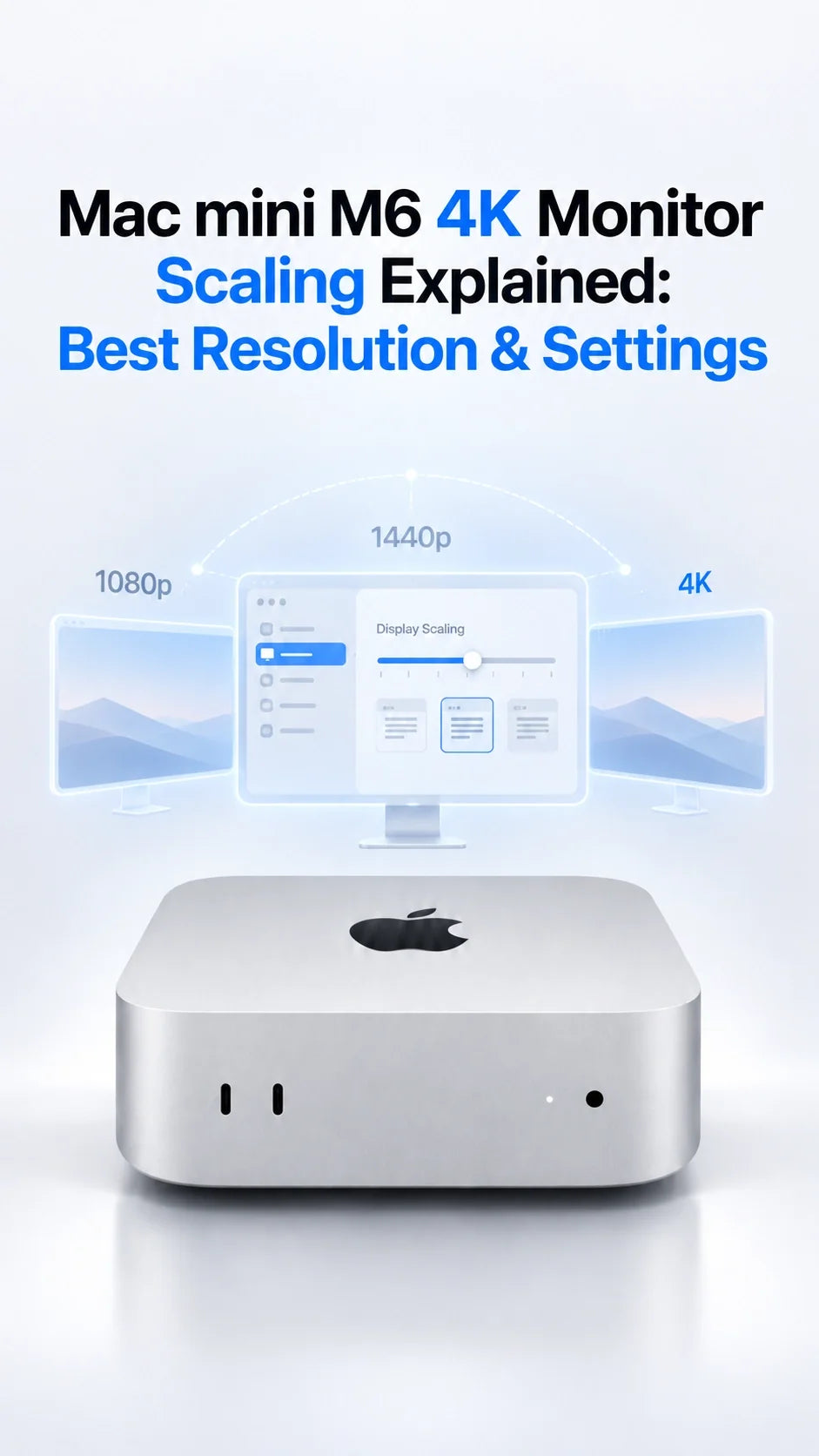
For a Mac mini M6 with a 4K monitor, start at System Settings → Displays → Default.
For maximum text clarity, try Looks like 1920 × 1080: 4K maps neatly to a 2× desktop.
For more room on a 27–32-inch screen, try Looks like 2560 × 1440 and judge text at your normal viewing distance.
Keep the monitor at its native 3840 × 2160 signal and select a supported refresh rate; the “Looks like” figure describes workspace, not necessarily the output signal.
If the display reports 1080p or 30Hz, check the cable, adapter, input mode and direct connection before changing more scaling options.
What does “Looks like” mean on a 4K Mac monitor?
A 4K UHD panel has 3840 × 2160 physical pixels. macOS can draw a larger or smaller desktop within those pixels. Thus “Looks like 1920 × 1080” tells you about the apparent space for windows and menus; it is not a command to replace your 4K panel with a 1080p one.
Why 1920 × 1080 looks especially crisp
Each apparent desktop pixel corresponds to a 2 × 2 group of physical pixels. This clean 2× relationship gives 4K its most straightforward HiDPI rendering. The tradeoff is larger interface elements and less workspace.
Why 2560 × 1440 gives you more room
macOS renders a high-resolution desktop and scales it to the 4K panel. It does not turn the panel into a 1440p monitor, but the final downscaling is less direct than 2×. Text can look a little softer, especially close to a 27-inch screen; many people still prefer the extra space.
ZEERA’s practical assessment: begin with Apple’s default, then compare the two sizes in the same document or browser page at your usual desk distance. There is no universal best setting for every 4K monitor, eyesight and workload. For the separate question of why text can look blurry even after setup, see our Mac mini M6 blurry text guide.
Which 4K scaling setting should you choose for 27-inch and 32-inch displays?
27-inch 4K: 1920 × 1080 for comfort
A strong first choice for reading, email and long writing sessions. If the interface feels oversized, move one step toward More Space; 2560 × 1440 is a common productivity choice if text remains comfortable to you.
32-inch 4K: try 2560 × 1440 first
The larger physical screen often makes a 1440p-sized desktop easier to use for two windows side by side. Move toward Larger Text if you sit farther away or find menus tiring to read.
3840 × 2160 “Looks like”: use selectively
An unscaled-size workspace exposes a lot of room, but macOS controls can become tiny on a typical desk monitor. It may suit specialized previews or a very large display, not routine reading for most users.
These are starting points, not measurements from a ZEERA panel test. A 27-inch 5K monitor gives a different compromise: 2560 × 1440 workspace with a direct 2× pixel relationship. The Mac mini M6 supports 5K displays, but a new monitor is not necessary just to try the settings above.
How do you change Mac mini M6 resolution and scaling in macOS?
- Open Apple menu → System Settings → Displays.
- Select your external 4K monitor if more than one display appears.
- Start with Default, then select a thumbnail toward Larger Text or More Space. Hover over a thumbnail to check the listed size.
- To see precise choices, Control-click the thumbnails and choose Show List. If needed, use Show all resolutions; availability varies by display.
- Check the Refresh Rate control separately. Compare text, window size and scrolling before keeping a choice.
Apple notes that scaled modes can affect performance. The impact depends on the mode and workload; do not assume a particular scaling choice halves M6 performance. If a change produces a black screen, wait about 15 seconds or press Esc to revert, as Apple advises.
For the exact interface steps, see Apple’s resolution guide. Mac mini owners using two or three screens should adjust each display independently.
Should you use HDMI or USB-C/Thunderbolt for a 4K monitor?
Both the rear HDMI and rear Thunderbolt 4 ports on the M6 Mac mini support video. The two front USB-C ports are USB 3 and do not output video. Use the monitor’s supported cable and input, ideally connect it directly while diagnosing a resolution problem, and verify the monitor’s own input or high-bandwidth setting.
If macOS only offers 1080p or 30Hz
Try a direct HDMI or USB-C/DisplayPort connection with a cable rated for the target mode. Bypass the hub or adapter temporarily; select the correct monitor input; check whether the monitor enables 4K at higher refresh rates on that port. Do not buy a new Mac mini before isolating the signal path.
Apple lists up to 4K at 165Hz with one display for the M6, with different maximum combinations for two or three displays. A particular monitor, cable, adapter and input must also support the selected refresh rate. See our dual and triple monitor support guide for multi-display combinations.
Why does a 4K monitor still look blurry or show the wrong size?
Text is too small
Move toward Larger Text instead of increasing a browser’s zoom as the only fix. Browser zoom helps web pages; display scaling changes the whole macOS interface.
Text looks soft at 2560 × 1440
Compare the same text at 1920 × 1080. If it becomes distinctly clearer, you are seeing the tradeoff of the scaling choice. If both modes look poor, inspect the monitor’s native 4K signal, picture sharpness processing, cable and input settings.
Edges are cropped on a 4K TV
Set the TV input to its PC or 1:1 pixel mode and disable overscan or artificial sharpness where available. Check macOS display options for underscan only when the TV is cutting off the desktop.
4K is available but 120Hz or higher is missing
Scaling is not the same setting as refresh rate. Verify the monitor’s advertised mode on that exact input and cable, then test without a dock. With multiple displays, the M6’s supported combinations matter.
If your monitor goes blank or fails to wake after changing display modes, follow our separate Mac mini M6 sleep and wake troubleshooting guide.
Best Mac mini M6 4K settings: a 60-second checklist
- Signal: confirm the monitor is receiving its native 3840 × 2160 mode.
- Scaling: start at Default; compare Looks like 1920 × 1080 and 2560 × 1440.
- Refresh: select the highest stable rate supported by this monitor and connection.
- Clarity: evaluate real text at your actual seating distance, not only a screenshot.
- Connection: use a rear HDMI or Thunderbolt port and bypass adapters if a mode is missing.
If you are building a two-screen workspace, our Mac mini M6 desk setup guide covers placement, cable routing and external storage.
FAQ
Is “Looks like 2560 × 1440” actually 1440p output?
Usually it describes the effective desktop size, while the 4K display still receives a 4K signal. Confirm the actual input resolution in the monitor’s on-screen information menu; cables and display settings can change the negotiated signal.
Does 4K 1920 × 1080 scaling waste half the resolution?
No. The interface is larger, but the panel still has four times the physical pixels of a 1080p display, allowing sharper edges through 2× rendering.
Does the Mac mini M6 need a 5K monitor for sharp text?
No. A 4K display at a comfortable HiDPI size can look clear. A 27-inch 5K panel is useful if you specifically want a 2560 × 1440-sized workspace with a direct 2× pixel relationship.
Can I set different scaling on two 4K monitors?
Yes. Select each monitor separately in Displays settings. The options and refresh rates may differ by screen and connection.
Will a cooler fix blurry text or missing refresh rates?
No. Those are display, scaling or signal-path issues. An active cooler is intended for sustained compute workloads, not monitor image quality.
Related guides
- Why Does Text Look Blurry on Mac mini M6? 1080p, 1440p & 4K Explained
- Mac mini M6 Monitor Support: Dual, Triple & 4K Displays
- Mac mini M6 Monitor Not Waking After Sleep? 9 Fixes
- Mac mini M6 Desk Setup: Build a Mini Mac Pro
- Best Mac mini M6 & M5 Pro Accessories
- Mac mini Overheating Fixes and Cooling Guide
- Mac mini M6 External SSD Not Showing Up?
Sources: Apple: M6 Mac mini display limits; Apple: change display resolution; Apple: connect displays to Mac mini.









