
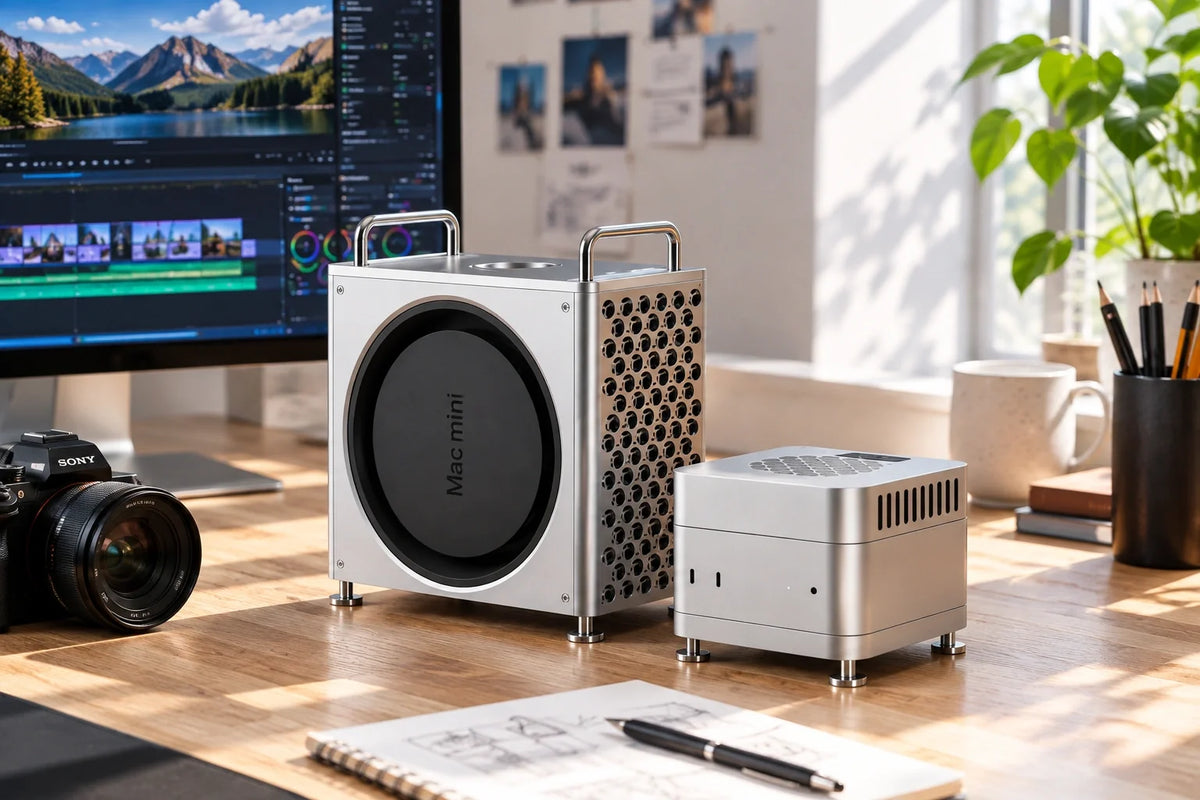
Quick Answer: Yes, a Mac mini can be an excellent Plex or Jellyfin server for 24/7 home streaming. Simple Direct Play usually creates a light workload, but 4K transcoding, HDR-to-SDR conversion, subtitle burn-in, library scans, and several viewers at once can create sustained heat. If your Mac mini lives in a TV cabinet, media rack, or warm room, an active cooler such as ZEERA MacFrost Pro adds extra cooling support for long-running media-server tasks.
A Mac mini is small, quiet, power-efficient, and easy to place beside a TV, NAS, router, or external drive enclosure. That makes it a popular choice for Plex, Jellyfin, Emby, and Infuse-based home media libraries.
But a media server is different from a desktop Mac used for a few hours each day. It may stay online all year, scan large libraries overnight, serve multiple devices, and occasionally work much harder than its compact footprint suggests.
Is Mac mini good for a Plex server?
For many homes, yes. A Mac mini works especially well when you want a polished macOS setup, reliable wired networking, external storage flexibility, and access to Apple’s media hardware acceleration.
It can sit behind a TV, connect to Ethernet, attach to a NAS or USB-C/Thunderbolt storage, and stream to Apple TV, smart TVs, phones, tablets, browsers, or other playback devices.
The important distinction is not simply “Plex running” versus “Plex not running.” It is whether your media can play directly or whether the Mac mini must convert it in real time.
One or more compatible devices use Direct Play. The server mainly reads files and sends them across the network.
The server transcodes 4K video, changes HDR to SDR, burns in subtitles, converts audio, or serves several different device profiles.
Can a Mac mini run Plex or Jellyfin 24/7?
Yes—provided the installation is sensible. Use stable power, wired Ethernet where possible, dependable storage, current software, and enough open space around the Mac mini.
A 24/7 Mac mini does not need to be cold to be healthy. Apple silicon systems are designed to manage their own temperatures and fan behavior. The more useful goal is to avoid adding unnecessary heat stress during sustained media-server work.
That matters most when the Mac mini is placed in a cabinet, near an AV receiver, above a warm NAS, beside several external drives, or in a room that is already hot in summer.
Practical rule: If your server mostly uses Direct Play in an open, cool area, extra cooling may be optional. If it regularly transcodes media or stays in a warm entertainment cabinet, active cooling becomes much more relevant.
Why does Plex make a Mac mini hot?
Playing a movie does not automatically mean high heat. If a client device supports the original video, audio, and subtitle format, Plex or Jellyfin may simply deliver the original file.
This is commonly called Direct Play. It is usually the easiest scenario for a media server because there is little or no real-time video conversion.
Heat rises when the server has to make a new version of the media for a particular device or connection. That process is called transcoding.
Common Plex and Jellyfin tasks that create more heat
- 4K video transcoding
- Several people watching at the same time
- Converting HDR video to SDR for a non-HDR display
- Burning image-based subtitles into video
- Changing audio formats for a TV, browser, or mobile device
- Serving different resolutions to different viewers
- Scanning a large library after adding new media
- Creating thumbnails, preview images, and metadata
The demanding scenario is usually not one Apple TV playing a compatible file. It is a combination such as multiple viewers, 4K conversion, subtitles, and a warm room—all while the Mac mini sits inside an entertainment unit.
Direct Play vs transcoding: why the difference matters
| Media-server activity | Typical load on Mac mini | Why it matters for cooling |
|---|---|---|
| Direct Play to Apple TV or a compatible smart TV | Usually light | Mostly a storage and network task. Heat can remain modest if the room and enclosure are well ventilated. |
| Direct Stream or audio conversion | Light to moderate | Often manageable, but workload depends on the source file and client compatibility. |
| 1080p transcoding | Moderate | Can become sustained when several streams are active or additional background tasks run. |
| 4K transcoding, HDR conversion, or subtitle burn-in | Moderate to high | More likely to create a long, concentrated workload and raise internal temperature. |
| Library scans and thumbnail generation | Variable | Often happens after adding media or overnight, when the Mac may otherwise be left unattended. |
This is why there is no honest single answer to “How many Plex streams can a Mac mini handle?” The result depends on source codec, resolution, bitrate, subtitles, audio format, client device, hardware acceleration settings, storage speed, network conditions, and whether the stream needs conversion at all.
For a more reliable setup, design around Direct Play first. Treat real-time transcoding as the heavier exception that needs headroom.
Can Mac mini transcode 4K video?
A modern Apple-silicon Mac mini can be capable of 4K media work, but the exact result is workload-specific. “4K” alone does not describe the full job.
A compatible 4K HEVC file sent directly to an Apple TV is very different from converting that file for a remote phone connection while applying subtitles and HDR-to-SDR tone mapping.
Before buying hardware based on stream-count claims, test a few files that resemble your real library. Use the same clients, subtitle types, remote-access settings, and playback quality that your household actually uses.
Do these checks before blaming temperature
- Confirm whether the stream is Direct Play, Direct Stream, or transcoding.
- Check whether image-based subtitles trigger subtitle burn-in.
- Check remote streaming quality limits and internet upload speed.
- Confirm that hardware acceleration is enabled and correctly configured for your media-server software.
- Watch Activity Monitor during the exact playback scenario that causes trouble.
- Make sure external drives and network connections are not the real bottleneck.
Cooling can support sustained workloads, but it cannot replace compatible media formats, correctly configured hardware acceleration, enough storage throughput, or a stable Ethernet connection.
Why Plex and Jellyfin users are strong candidates for active cooling
Media-server users tend to have a higher cooling need than ordinary office users because their Mac mini is often always on and sometimes carries long, repeatable workloads.
They may connect the Mac mini to a TV, home theater receiver, NAS, external SSDs or HDDs, a wired router, Apple TV, and other streaming devices. This makes the system part of the home infrastructure rather than just a personal computer.
Plex, Jellyfin, Emby, backups, downloads, and file syncing may run day and night.
A normally quiet server can suddenly work harder when several users stream incompatible media.
TV cabinets and media racks often hold heat, especially near receivers, game consoles, and storage devices.
Users care about smooth playback, predictable behavior, and keeping the server available when family members need it.
For this audience, an active cooler should not be positioned as a magic performance upgrade. Its value is extra thermal support for a compact computer that may work continuously in a less-than-ideal environment.
Mac mini for Plex server cooling: placement matters first
Before adding any cooler, improve the space around the Mac mini. Good placement is free, quiet, and often the biggest improvement you can make.
Better placement for a home media server
- Leave open space around the Mac mini instead of pressing it against the back wall of a cabinet.
- Keep it away from the hottest part of an AV receiver, console, or amplifier.
- Avoid stacking external drives directly on top of the Mac mini.
- Use wired Ethernet when possible for more dependable large-file streaming.
- Keep cables organized so they do not block airflow or make maintenance difficult.
- Clean dust from the media cabinet and nearby vents on a sensible schedule.
- Consider leaving cabinet doors open during a demanding test to compare airflow.
If playback becomes smoother or the Mac stays quieter with the cabinet open, the enclosure is likely part of the problem. That is useful information before adjusting Plex settings or purchasing more hardware.
Should you use a Mac mini or NAS for Plex?
A NAS and a Mac mini can both be good Plex servers. The better choice depends on what you value most.
A NAS is often attractive when storage capacity, drive bays, RAID options, and low-power file serving are the priorities. A Mac mini is attractive when you prefer macOS, broader desktop software flexibility, fast external storage options, and a capable compact computer for more than media serving.
| If your priority is... | A Mac mini may fit better when... | A NAS may fit better when... |
|---|---|---|
| Media-server flexibility | You want a full macOS computer for Plex, Jellyfin, automation, downloads, and other apps. | You prefer an appliance-style system focused mainly on storage and server packages. |
| Storage expansion | You are comfortable using external Thunderbolt, USB-C, or network storage. | You want internal drive bays and storage management in one chassis. |
| Living-room setup | You want a compact machine that can also connect to a display or TV when needed. | You want the server to live out of sight in a utility area. |
| Sustained transcodes | You have tested your real media library and can provide good ventilation and cooling support. | You choose a NAS with the right processor and hardware-acceleration capability for your expected workload. |
Many households use both: a NAS for storage and a Mac mini as the Plex or Jellyfin server. This separates storage capacity from the media-server software environment.
How to reduce Mac mini heat while transcoding
Start with the settings and workflow that reduce unnecessary conversion. This benefits both playback reliability and long-term efficiency.
1. Prefer compatible formats for your main playback devices
If most viewing happens on Apple TV or one smart-TV platform, build your library around formats those devices can play directly whenever practical. Fewer conversions mean less server work.
2. Use wired Ethernet for the server
Ethernet will not eliminate transcoding, but it helps avoid network-related quality changes and buffering that can complicate diagnosis. A stable wired link is especially useful for large 4K files.
3. Schedule library-heavy work thoughtfully
Library scans, metadata refreshes, preview thumbnails, backup jobs, and large file transfers can overlap with evening viewing. Schedule non-urgent tasks for quieter hours where possible.
4. Check subtitle behavior
Subtitles are not all equal. Some subtitle formats may require burn-in on certain clients, turning an otherwise simple stream into a heavier video-processing task.
5. Give the Mac mini room to breathe
An open shelf is easier to manage than a sealed TV cabinet. If enclosed placement is unavoidable, pay closer attention to ambient heat and use an active-cooling solution when your workload justifies it.
6. Monitor the real workload, not just the case temperature
A warm enclosure does not automatically mean a problem. Look for playback buffering, repeated quality changes, persistent fan noise, high CPU or media-engine activity, and whether the issue appears only during specific types of transcoding.
Who should consider MacFrost Pro for a Plex server?
MacFrost Pro makes the most sense for users who see their Mac mini as permanent home infrastructure rather than an occasional desktop.
- You run Plex, Jellyfin, or Emby for many hours each day.
- Your Mac mini stays online 24/7 as a media server, download machine, backup host, or remote-access computer.
- You transcode 4K video, convert HDR, or use subtitles that require burn-in.
- More than one person may stream at the same time.
- Your Mac mini is located near a TV, AV receiver, NAS, external-drive array, or inside a media cabinet.
- You want extra thermal support during long workloads without making unsupported promises about stream counts or throttling.
It is less essential for a Mac mini that only runs one compatible Direct Play stream on an open desk in a cool room. In that situation, improving placement and keeping the system clean may be all you need.
Bottom line: build for the workload you actually have
A Mac mini can be a strong Plex or Jellyfin server, especially for a home built around Apple TV, wired networking, and external or NAS-based storage.
Direct Play is generally light. The heat-sensitive moments are real-time conversion tasks: 4K transcoding, HDR-to-SDR processing, subtitles, multiple users, and background library work.
If your Mac mini runs these jobs for long periods or lives in a warm media cabinet, ZEERA MacFrost Pro provides additional active cooling support for the setup. It is not a replacement for good Plex settings, storage, networking, or ventilation—but it is a practical addition for a compact server that works all day.
FAQ
Can a Mac mini run Plex 24/7?
Yes. A Mac mini can run Plex or Jellyfin 24/7 when it has stable power, dependable storage, a good network connection, current software, and sensible ventilation.
Does Plex make a Mac mini hot?
Direct Play may create only a light workload. Heat is more likely during 4K transcoding, HDR conversion, subtitle burn-in, multiple streams, and library maintenance tasks.
How many Plex streams can a Mac mini handle?
There is no single reliable number. It depends on whether streams use Direct Play or transcoding, plus codec, bitrate, resolution, subtitles, client devices, storage, networking, and media-server settings.
Can a Mac mini transcode 4K video?
A modern Apple-silicon Mac mini can handle some 4K media-server workloads, but results vary significantly by file format and playback requirements. Test with the same media and devices your household uses.
Do I need a cooler for a Mac mini Plex server?
Not always. A cooler is most useful for a Mac mini that runs 24/7, transcodes often, serves several users, or sits in a warmer, more enclosed media setup.
Is Mac mini better than a NAS for Plex?
A Mac mini offers macOS flexibility and a compact full-computer environment. A NAS can be better for internal drive capacity and appliance-style storage management. Many home setups use a NAS for storage and a Mac mini for Plex or Jellyfin.






