
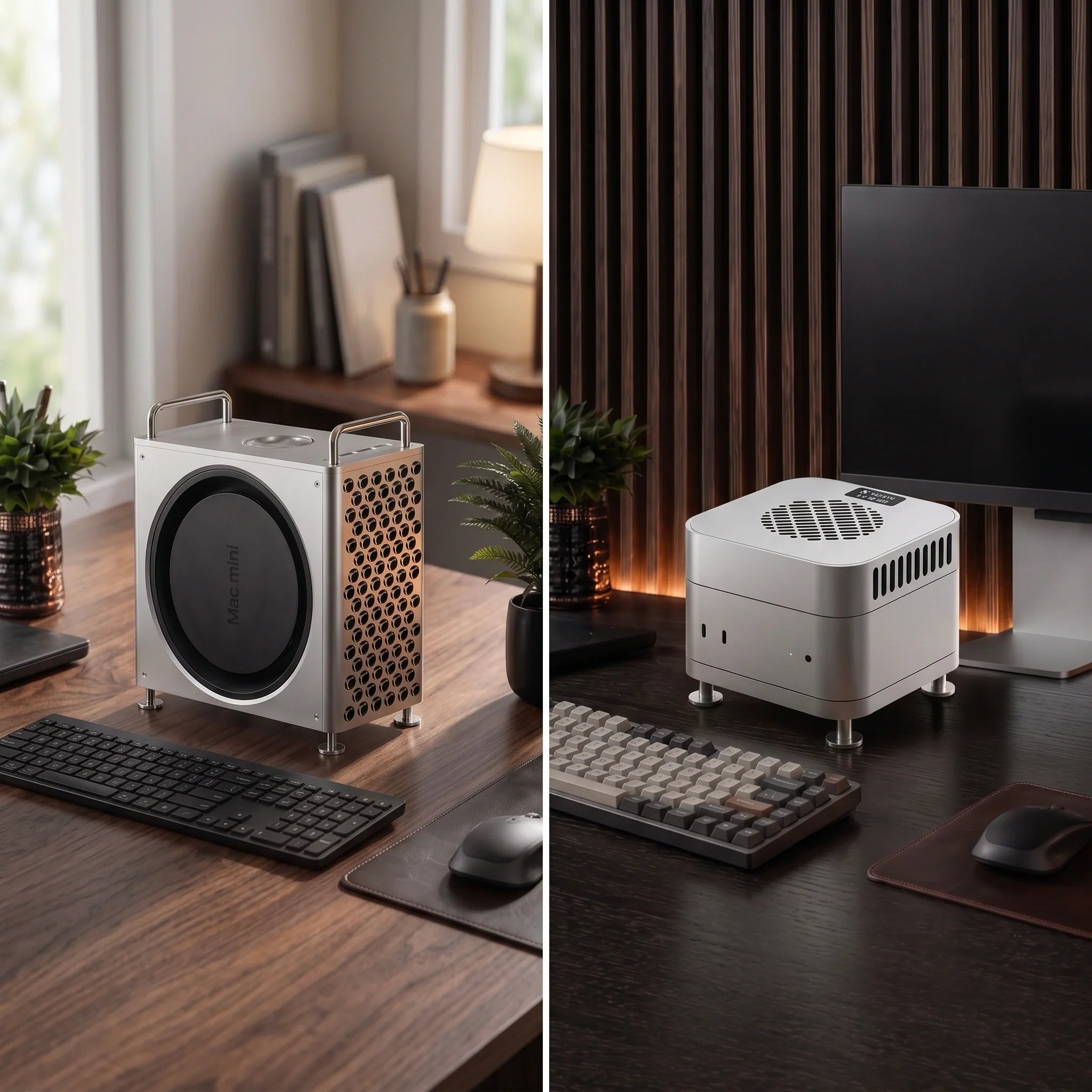
Quick Answer: A Mac mini is an excellent Plex, Jellyfin or Emby server because Apple silicon delivers strong media-engine performance with low idle power. For the simplest setup, install the native macOS server app, store the server database and transcode cache on the internal SSD, keep the media library on a large external drive or NAS, reserve the Mac mini's local IP address and enable hardware transcoding.
Choose Plex for the easiest client experience, Jellyfin for a free and open-source server, or Emby for a middle ground with detailed server controls. Direct Play should be your first goal; transcoding is the fallback when a client, subtitle format, bitrate or connection cannot play the original file.
Can you turn a Mac mini into a home media server for movies, TV shows, music and family videos? Yes. A Mac mini can run quietly in the background, connect to external storage and stream to Apple TV, iPhone, iPad, smart TVs, web browsers and many other clients.
The harder question is not whether it works. It is how to configure the Mac mini so the library remains available after a restart, remote playback is secure, 4K video does not buffer and long transcoding sessions do not create unnecessary heat.
This guide explains how to set up Plex, Jellyfin or Emby on a Mac mini, including storage, media folders, hardware transcoding, VideoToolbox, remote access and reliable 24/7 operation.
Is a Mac mini Good for Plex, Jellyfin and Emby?
Yes. Apple silicon Mac mini models are especially well suited to a personal media server because their dedicated media engines can decode and encode common formats without placing the entire workload on the CPU.
That matters when a remote client asks the server to convert a high-bitrate 4K HEVC file into a smaller H.264 or HEVC stream. It also helps when HDR video must be tone-mapped for an SDR display.
A Mac mini also gives you full macOS access. You can attach USB or Thunderbolt storage, mount a NAS share, run download and backup tools, use Screen Sharing and manage everything from a familiar desktop.
An entry-level Apple silicon Mac mini is enough for a household that mainly uses Direct Play and occasionally transcodes one or two streams. More memory and faster storage become useful when the same machine also runs photo indexing, automation, file syncing, virtual machines or local AI workloads.
Important: Do not choose a server only by counting advertised 4K transcodes. Codec, bit depth, HDR tone mapping, subtitles, audio conversion, client support and source bitrate can make two apparently similar streams place very different loads on the Mac mini.
Plex vs Jellyfin vs Emby on Mac mini: Which Should You Choose?
| Platform | Best For | Main Advantage | Main Tradeoff |
|---|---|---|---|
| Plex | People who want easy setup and broad client support | Polished apps, simple discovery and convenient sharing | Hardware transcoding requires Plex Pass; remote personal-media playback is subject to current Plex Pass or Remote Watch Pass rules |
| Jellyfin | People who want a free, open-source and self-hosted media server | No subscription for server features or hardware acceleration | Remote access and some client experiences require more manual work |
| Emby | People who want detailed administration with a commercial ecosystem | Strong library, user and conversion controls | Hardware-accelerated transcoding and other features require Emby Premiere |
If your family expects a Netflix-like experience with minimal explanation, Plex is usually the easiest starting point.
If you want the server to stay fully under your control and do not want a subscription for hardware transcoding, Jellyfin is the strongest choice.
If you like Jellyfin's server-style controls but prefer a more commercial app ecosystem, Emby sits between the two.
What You Need Before Setting Up a Mac mini Media Server
Prepare the hardware and folder structure before installing the server software. This prevents broken library paths and makes later migration or backup much easier.
- A Mac mini: Apple silicon is recommended for efficiency and modern media-engine support.
- Wired Ethernet: Use Ethernet for the server whenever possible, even if playback devices remain on Wi-Fi.
- Media storage: Use a large external SSD, hard drive, DAS or NAS share.
- Internal free space: Leave space for the server database, artwork, logs and temporary transcode files.
- A fixed local address: Create a DHCP reservation for the Mac mini in the router.
- A normal user account: Create a separate non-admin playback account inside Plex, Jellyfin or Emby instead of sharing the server administrator login.
Recommended Storage Layout
| Data | Recommended Location | Why |
|---|---|---|
| Server app, database and metadata | Mac mini internal SSD | Fast artwork loading, searches and library scans |
| Transcode cache | Internal SSD or a dedicated fast external SSD | Reduces temporary-segment I/O bottlenecks |
| Movies and TV shows | External HDD, SSD, DAS or NAS | Provides scalable capacity without paying for a large internal Apple SSD |
| Server configuration backup | A second disk or separate backup destination | Protects watch history, posters, users and settings |
For a Mac-only directly attached drive, APFS is the simplest modern choice. If a disk must also be written by Windows, a cross-platform format may be necessary, but it is less ideal for a write-heavy always-on database.
Keep the server database on the internal Mac mini SSD even when the movies live elsewhere. Media files are large but mostly sequential. The database contains many small files and benefits more from low latency.
If your library is on a NAS, mount the SMB share before the media server starts. A server cannot scan a volume that has not mounted after a reboot.
How Should You Organize Media Folders?
Good file names are one of the most important parts of a Plex, Jellyfin or Emby setup. They help the metadata scanner distinguish remakes, identify episodes and download the correct artwork.
Use separate top-level folders for movies, TV shows, music and home videos.
Media/Movies/Movie Name (2026)/Movie Name (2026).mkv Media/TV Shows/Show Name (2026)/Season 01/Show Name - S01E01.mkvDo not place movies and episodic TV inside the same library folder. Avoid vague filenames such as episode1-final.mkv or newmovie.mp4.
Keep extras, alternate editions and bonus content inside the relevant movie or show folder. If you use multiple versions, label resolution or edition consistently.
How to Set Up Plex Media Server on a Mac mini
Plex is the most beginner-friendly option for many households. Its account system helps clients discover the server, while official apps are available across common TVs, phones and streaming devices.
- Download the current macOS version of Plex Media Server from Plex.
- Move Plex Media Server into the Applications folder and launch it.
- Open the Plex menu-bar icon, then select the option to open Plex in a browser. The local server interface normally uses localhost:32400/web.
- Sign in to your Plex account, name the Mac mini server and claim it when prompted.
- Select Add Library, choose Movies, TV Shows, Music, Photos or Other Videos, and point Plex to the matching folder.
- Set the preferred metadata language and allow the first library scan to finish.
- Install a Plex client on Apple TV, iPhone, iPad, smart TV or another device and confirm local playback.
Best Plex Settings for a Mac mini
Open Settings > Server > Transcoder. If you have Plex Pass, enable hardware acceleration and hardware encoding. Plex identifies hardware-transcoded playback in its activity dashboard.
Plex's official documentation classifies hardware-accelerated streaming as a premium Plex Pass feature. Check the current Plex hardware-transcoding requirements before relying on it.
Choose a transcode temporary directory on a fast disk with enough free space. Do not place it on a slow network share unless you have tested the I/O path.
In each client, set local video quality to Original or Maximum when the network and display support the file. This encourages Direct Play and avoids unnecessary conversion.
For remote streaming, start conservatively. A 4K source may require much more upload bandwidth than a 1080p version, even if the Mac mini can transcode it.
Plex remote-playback note: Plex now separates Plex Pass and Remote Watch Pass access. The server owner or remote viewer may need an eligible subscription for remote personal-media playback. Confirm the latest terms on the official Plex plans page before sharing a library.
How to Set Up Jellyfin Server on a Mac mini
Jellyfin is a free and open-source alternative to Plex and Emby. It does not require a vendor account to run your server, and hardware acceleration is not locked behind a subscription.
- Download the current macOS DMG from the Jellyfin downloads page. Choose the correct Apple silicon or Intel build.
- Drag Jellyfin into Applications and launch it.
- Click the Jellyfin icon in the macOS menu bar and select Launch.
- Open http://localhost:8096 if the setup page does not appear automatically.
- Create a strong administrator account and password.
- Add separate libraries for movies, TV shows, music and other content.
- Select the preferred metadata language and country.
- Create a non-admin user for normal playback and restrict libraries when needed.
The official Jellyfin macOS installation guide uses a native app placed in Applications. This is usually simpler than running Docker on a Mac mini and gives the server a direct path to macOS media frameworks.
How to Enable VideoToolbox in Jellyfin
Open Dashboard > Playback > Transcoding and select VideoToolbox as the hardware-acceleration method.
Enable only the codecs supported by your Mac. Apple silicon systems are the safest choice for modern H.264 and HEVC workflows. Starting with the M3 family, Apple silicon also includes hardware-accelerated AV1 decoding, although the complete playback pipeline still depends on the source and output format.
If you need HDR-to-SDR conversion, test VideoToolbox tone mapping and Metal tone mapping with your actual files. Jellyfin explains that VideoToolbox Native generally uses less power, while Metal offers more tuning and can act as a fallback for some Dolby Vision content.
Jellyfin's official Apple hardware-acceleration guide says native Apple silicon support requires a current Jellyfin server and Jellyfin FFmpeg build. Do not replace the included FFmpeg with an arbitrary download.
How to Verify Jellyfin Hardware Transcoding
- Play a video in the Jellyfin web client.
- Select a lower bitrate or resolution to force transcoding.
- Open the Jellyfin dashboard and confirm the session says Transcoding.
- Open macOS Activity Monitor and search for ffmpeg.
- If FFmpeg is not consuming several hundred percent CPU, VideoToolbox is likely handling the media-engine work.
Low GPU readings in macOS do not automatically mean acceleration has failed. Dedicated video engines may not appear as ordinary GPU usage.
How to Set Up Emby Server on a Mac mini
Emby combines a traditional self-hosted server dashboard with polished apps and commercial premium features.
- Download the correct Intel or ARM64 package from the official Emby Server for macOS page.
- Move Emby Server into Applications. Emby notes that this is necessary for correct macOS Gatekeeper behavior.
- Launch Emby Server from Applications.
- Open http://localhost:8096 in a browser.
- Complete the setup wizard, create the administrator account and add media folders.
- Install the Emby client on your playback devices and test a local stream.
Best Emby Transcoding Settings for Mac mini
Open the server dashboard and review the Transcoding settings. Use the Apple hardware-acceleration option presented by your installed Emby build, or Auto when it correctly selects the Mac mini's media hardware.
Place the temporary transcoding path on the internal SSD or a fast external SSD. Then force a lower-quality stream and check the Emby dashboard and logs to confirm that hardware decoding and encoding are active.
Emby lists hardware-accelerated transcoding as an Emby Premiere feature. A free server can still be useful, but include the license cost when comparing it with Plex and Jellyfin.
If PGS or DVD subtitles force subtitle burn-in, CPU usage can remain high even when hardware acceleration is enabled. Emby recommends text-based subtitles such as SRT when possible, or a client that can Direct Play the original subtitle format.
What Is Direct Play, Direct Stream and Transcoding?
Direct Play sends the original file to the client without changing the video, audio or container. It produces the lowest server load and usually the best image quality.
Direct Stream repackages compatible video and audio into a different container. It uses more work than Direct Play but far less than a full video transcode.
Transcoding converts video, audio, subtitles, resolution or bitrate in real time. It is necessary when the client cannot play the source format or when the connection is too slow for the original bitrate.
The best Mac mini Plex, Jellyfin or Emby configuration is not the one that transcodes everything. It is the one that Direct Plays most content and has enough transcoding capacity for exceptions.
Why Is My Mac mini Transcoding a File That Should Direct Play?
- The TV app does not support the video codec, profile or bit depth.
- The audio track is unsupported and must be converted.
- The subtitle format requires burn-in.
- The remote-quality limit is lower than the original bitrate.
- The connection cannot sustain the source bitrate.
- The browser client supports fewer formats than a native TV or mobile app.
Check the playback dashboard before changing server hardware. It normally tells you whether the session is Direct Play, Direct Stream or Transcode and may show the reason.
How to Configure Remote Access Safely
Finish the local setup before enabling access from outside your home. If local playback is unreliable, remote streaming adds more variables and makes troubleshooting harder.
Plex Remote Access
Open Settings > Remote Access and follow Plex's guided setup. Plex normally uses TCP port 32400 when a manual mapping is required.
Confirm the current Plex subscription requirements for the server owner and remote viewers. Test with a phone on cellular data instead of testing only from the home Wi-Fi network.
Jellyfin Remote Access
Jellyfin gives you more control, but you are responsible for providing a secure route. Its setup wizard recommends allowing remote access when needed while warning that automatic port mapping depends on UPnP and should remain disabled unless specifically required.
For beginners, a trusted private VPN is safer than exposing an unencrypted server port directly. Advanced users can configure a domain, HTTPS and a properly maintained reverse proxy.
Emby Remote Access
Enable Allow remote connections to this Emby Server in the Network settings. The default local web port is 8096, while 8920 is commonly used for secure connections.
Emby recommends reserving the server's local IP address. If automatic discovery fails, review the official Emby connectivity guide for port mapping, double NAT and CGNAT troubleshooting.
Security rule: Never expose the administrator account for everyday use. Use unique passwords, install server updates promptly and avoid publishing a plain HTTP dashboard to the internet.
How to Keep a Mac mini Media Server Running 24/7
A Mac mini can operate as an always-on Plex, Jellyfin or Emby server, but macOS and the storage path must be configured so the service returns after sleep, logout or restart.
- In macOS System Settings, enable the option that prevents automatic sleep when the display is off. The exact label can vary by macOS version.
- Enable Wake for network access when available.
- Add the media server application to Login Items or enable its own launch-at-login option.
- Use a router DHCP reservation so the Mac mini keeps the same local IP address.
- Make sure external disks and NAS shares mount before the server scans the library.
- Connect the Mac mini and storage to a UPS if short power interruptions are common.
- Schedule updates and restarts when nobody is streaming.
- Back up the server database and configuration in addition to backing up the media files.
If FileVault is enabled, remember that a complete reboot may require local authentication before all user-level services and network shares become available. That is a normal security tradeoff, not a reason to disable disk encryption without considering the risks.
Does a Mac mini Media Server Need Extra Cooling?
Not every Mac mini needs an external cooler. A server that mostly Direct Plays one stream can remain lightly loaded for long periods.
Heat rises when the Mac mini performs several 4K transcodes, HDR tone mapping, subtitle burn-in, thumbnail generation, library analysis or other server tasks at the same time.
Room temperature and placement matter too. Avoid closed cabinets, soft surfaces and stacks of warm external drives that restrict the Mac mini's airflow.
Use Activity Monitor and the server dashboard to identify the cause before buying hardware. If the machine remains under sustained load for hours, active cooling can provide additional thermal headroom and make the setup easier to monitor.
Why Does Plex, Jellyfin or Emby Keep Buffering?
| Symptom | Likely Cause | What to Check |
|---|---|---|
| 4K video buffers only on one TV | Client codec, audio or subtitle limitation | Playback reason, native app support and subtitle selection |
| Remote video drops to low quality | Limited home upload speed or remote-quality setting | Real upload speed, bitrate limit and relay status |
| CPU usage stays very high | Software transcoding or subtitle burn-in | Hardware-acceleration status, source codec and subtitle format |
| Library disappears after restart | External disk or NAS share did not mount | Volume name, mount order and folder permissions |
| Clients cannot find the server | Mac mini IP changed or firewall blocks the app | DHCP reservation, macOS firewall and local server address |
| Transcode starts quickly, then stalls | Cache disk is full or too slow | Free space and transcode temporary-directory location |
Test one layer at a time. Start with a local wired client, disable subtitles, select a compatible audio track and choose Original quality. Then add remote access, HDR tone mapping and other variables.
Best Mac mini Configuration for Different Media Server Users
One or Two Local 4K Streams
Use an entry-level Apple silicon Mac mini, wired Ethernet and external media storage. Optimize clients for Direct Play. Extra memory is rarely the first bottleneck for this workload.
Family Server With Remote Users
Prioritize internet upload speed, hardware transcoding and separate user accounts. Plex offers the simplest discovery, while Jellyfin and Emby give you more control over your own remote-access architecture.
Large 4K HDR Library
Use a fast internal transcode cache, modern clients, wired networking and enough storage throughput. Keep compatible 1080p versions of demanding titles if several remote users often watch at lower bitrates.
Mac mini as Media Server, NAS and Automation Host
Choose more memory and leave more internal SSD headroom. Media streaming may be efficient, but file syncing, photo analysis, downloads, backups and containers can compete for CPU, memory and disk I/O.
Final Recommended Setup
For most households, the most reliable Mac mini media server uses Ethernet, keeps the server database and transcode cache on the internal SSD, stores media on a separately backed-up external drive or NAS and gives the Mac mini a reserved local IP address.
Choose Plex when convenience and client support matter most. Choose Jellyfin when free, open-source self-hosting is the priority. Choose Emby when you want detailed administration and are comfortable with an optional Premiere license.
Whichever platform you choose, optimize for Direct Play first. Then enable hardware transcoding, test the exact 4K HDR and subtitle formats in your library, and configure secure remote access only after local streaming works correctly.
Frequently Asked Questions
Can a Mac mini run Plex, Jellyfin or Emby 24/7?
Yes. Configure macOS to avoid automatic system sleep, launch the server at login, reserve its local IP address and ensure media storage mounts after a restart. A UPS and regular configuration backups improve reliability.
Which is best on Mac mini: Plex, Jellyfin or Emby?
Plex is usually easiest for families and mixed client devices. Jellyfin is best for free, open-source self-hosting. Emby is a middle option with strong management controls and paid premium features.
Can a Mac mini transcode 4K video?
Apple silicon Mac mini models can hardware-transcode supported formats, but the result depends on codec, bitrate, HDR tone mapping, subtitles and the number of simultaneous streams. Test your actual library instead of relying on a single stream-count claim.
Does Plex hardware transcoding work on Apple silicon?
Yes, supported Apple silicon Mac mini models can use hardware-accelerated streaming in Plex. Plex requires an active Plex Pass for this server feature.
Is Jellyfin hardware acceleration free on Mac mini?
Yes. Jellyfin supports macOS VideoToolbox hardware acceleration without a subscription. Use the current native Apple silicon build and included Jellyfin FFmpeg package.
Should media files be stored on the Mac mini internal SSD?
Not necessarily. Keep the server database and transcode cache on the internal SSD, but store a large library on an external SSD, HDD, DAS or NAS. Back up both the server configuration and irreplaceable media.
Why does 4K video buffer even when the Mac mini is powerful?
The bottleneck may be Wi-Fi, internet upload speed, storage throughput, unsupported subtitles or client codec support. Check the server dashboard to see whether the stream is Direct Play or Transcode and why.
Do I need a Mac mini cooler for Plex or Jellyfin?
Not for light Direct Play use. Consider extra cooling when the Mac mini regularly performs concurrent 4K transcodes, HDR tone mapping, library analysis or other sustained workloads in a warm or restricted space.
Related Mac mini Guides
- Is Mac mini Good for Plex? A 24/7 Media Server Cooling Guide
- Can a Mac mini Run 24/7? Server Reliability and Desk Setup Guide
- Do You Need a Mac mini Case? Aluminum, SSD and Cooling Options
- M6 Mac mini vs M1: Should You Upgrade Your Server?
- Mac mini and Mac Studio Shortage: Upgrade or Wait?
- Apple Mac Roadmap: Mac mini and Mac Studio Update
- Mac Neo vs Mac mini: Which Desktop Fits Your Workflow?






