
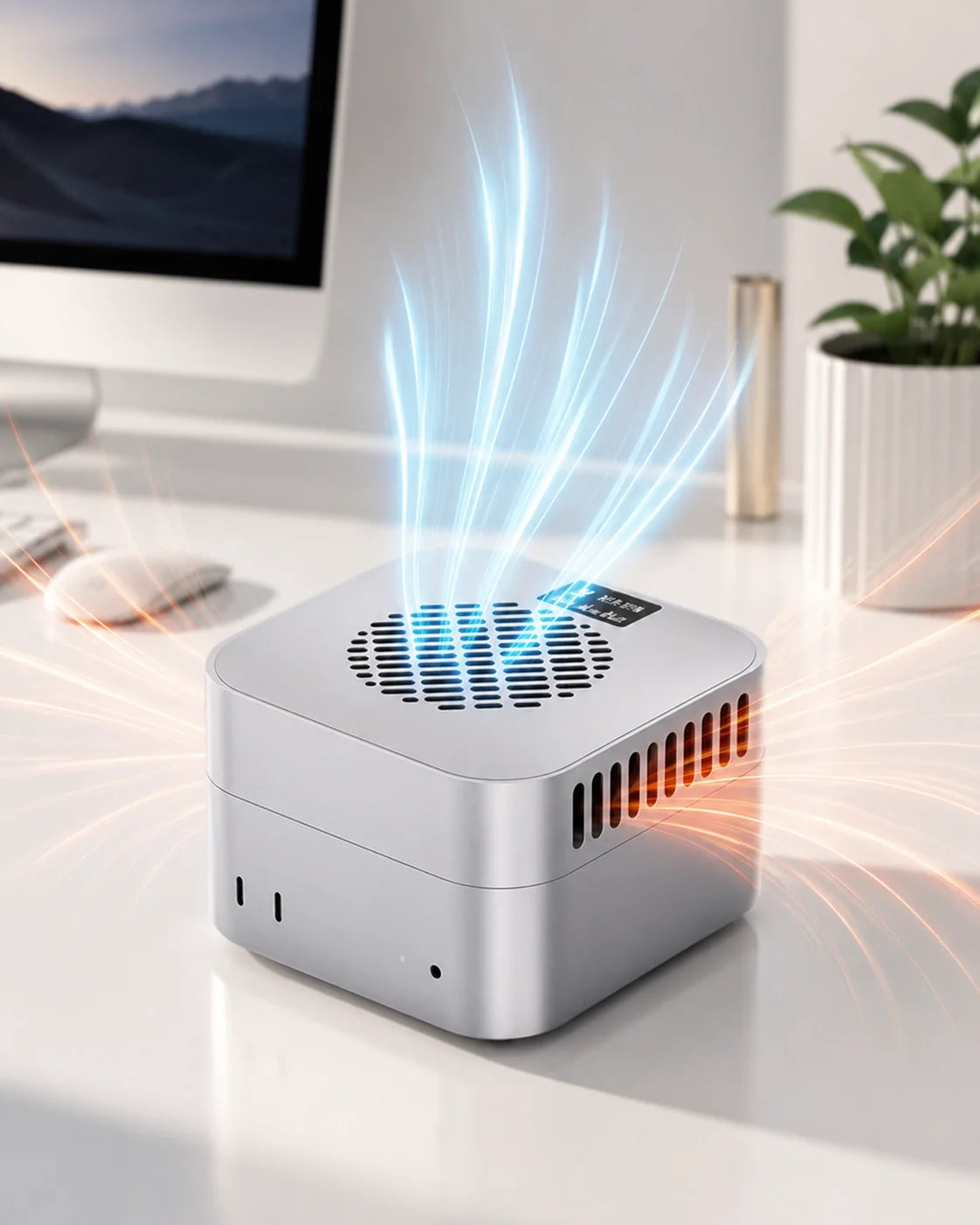
Yes, a Mac mini can run 24/7 as a Plex server, file server, media center, backup host or remote workstation.
For reliable always-on operation, keep its ventilation clear, use a wired network when possible, protect it with a UPS, maintain separate backups and test automatic recovery after a power failure.
Normal office or direct-play server use rarely needs extra cooling. Sustained Plex transcoding, video processing, local AI and other continuous workloads may justify additional thermal headroom.
For compact Mac mini M6, M5 Pro and M4 models, choose ZEERA MacForge Gen3 when desktop appearance and organization come first, or ZEERA MacFrost Pro when active cooling is the priority.
A Mac mini is easy to leave on and easy to forget. That is exactly why it has become a popular small home server.
It can run Plex in the living room, synchronize files overnight, receive remote connections, automate a smart home, host downloads or keep a shared media library available to everyone in the house.
But an always-on Mac mini should not be treated like an ordinary desktop that happens to stay awake. A 24/7 computer needs a plan for heat, power cuts, failed storage, network interruptions and unattended restarts.
It may also sit in the most visible part of your home. Reliability matters, but so do cable control, noise and the way the setup looks on a desk or media cabinet.
Can You Leave a Mac mini On All the Time?
Yes. macOS includes Energy settings intended for computers that remain available as servers.
Depending on the Mac and macOS version, these settings can include Low Power Mode, preventing automatic sleep, waking for network access and starting again after power is restored.
That does not mean every Mac mini 24/7 setup will be equally reliable.
The Mac can protect itself against unsafe internal temperatures. However, it cannot prevent a blocked vent, a failing external drive, a cheap hub, a damaged cable, a frozen service or a power outage from interrupting your server.
The better question is not simply, “Can a Mac mini run continuously?” It is, “Can the entire system recover safely when something goes wrong?”
Who Needs an Always-On Mac mini Setup?
This guide is most useful for owners who plan to keep their Mac mini for five years or longer.
It is also relevant if you bought a higher-memory or higher-storage configuration and want to reduce avoidable wear around a relatively expensive computer.
Typical always-on Mac mini uses include:
- A Mac mini Plex server or Jellyfin media server
- A family file server for documents, photos and shared folders
- A Time Machine destination or backup-management host
- A Home Assistant, Homebridge or home-automation computer
- A download station that continues working overnight
- A remote Mac for work, development or personal cloud access
- A media center connected to a television or home-theater system
- A machine running file synchronization, monitoring or scheduled scripts
These uses do not create the same amount of heat.
A Mac mini serving a direct-play video may remain lightly loaded. The same Mac can work much harder when Plex converts a high-resolution file into a format supported by a remote client.
Backup indexing, photo analysis, media scanning and cloud synchronization can also overlap. A server that looks idle from across the room may still be processing data in the background.
What Usually Makes a 24/7 Mac mini Unstable?
Long operating hours are only one part of the problem.
Most interruptions come from the environment around the Mac or from a service that was never configured to recover automatically.
| Risk | What the user notices | First response |
|---|---|---|
| Restricted airflow | Persistent heat, louder fan or slower sustained work | Move the Mac to a hard, open surface and clear the vents |
| Power interruption | The server is offline or storage was disconnected abruptly | Add a compatible UPS and configure safe shutdown and restart |
| Unreliable external storage | Missing files, disconnect messages or failed media scans | Check the enclosure, cable, power source and backup status |
| Wi-Fi congestion | Buffering, slow file transfers or inconsistent remote access | Use Ethernet for the server and verify the router path |
| Background process | The Mac is hot even when no one is using it | Sort Activity Monitor by CPU and identify the active process |
| Service fails after reboot | The Mac is online, but Plex or another service is unavailable | Test startup, login and service-launch behavior before relying on it |
| No independent backup | A drive failure becomes permanent data loss | Keep at least one separate backup, preferably with another off-site copy |
Step 1: Give the Mac mini a Better Physical Location
Start with placement before buying a Mac mini cooler or stand.
Use a hard, stable surface. Avoid thick fabric, soft desk mats, loose papers and accessory plates that cover the lower ventilation area.
Do not push the Mac mini tightly against a wall or place it in a closed cabinet with other heat-producing equipment.
A media cabinet can be especially difficult. The Mac, router, game console, AV receiver and external drives may all warm the same small pocket of air.
Moving the Mac into open room air can help more than adding a fan inside an already-hot cabinet.
Keep It Away From Direct Sunlight
A sunny desk may look good in a photograph, but direct solar heat can raise the starting temperature of the enclosure before the workload begins.
Apple lists a 10° to 35°C operating environment for current Mac mini models. Staying within that range does not guarantee identical performance at every room temperature.
A Mac working in a 32°C room has less thermal headroom than the same machine working in a 22°C room.
Leave the Original Cooling Path Open
The compact Mac mini design uses separate intake and exhaust areas around its lower assembly.
An accessory should preserve that airflow. More fan speed is not automatically better if warm exhaust is pushed back toward the intake.
For the same reason, do not stack drives, hubs or decorative objects directly over a vented area unless the product was designed with the Mac's airflow in mind.
Step 2: Understand Whether Your Workload Is Actually Heavy
A warm aluminum surface is not, by itself, evidence that a Mac mini is overheating.
The enclosure helps move and spread heat. That can make the exterior feel warm while the computer continues to operate normally.
Look for behavior, not touch alone.
- Does the same export become slower near the end?
- Does Plex buffer only when it is transcoding?
- Does the fan remain loud after the workload has stopped?
- Is the Mac hot at idle while Activity Monitor shows unexpected CPU usage?
- Does the computer shut down, restart or report a hardware fault?
If the Mac is warm but the service is stable, the fan is controlled and performance remains consistent, extra cooling may not solve a real problem.
Direct Play and Transcoding Are Very Different
A Mac mini Plex server can simply send a compatible file to a client. This is called Direct Play and usually requires much less processing.
Transcoding converts video or audio while it is being streamed. Resolution changes, unsupported codecs, subtitles, HDR conversion and limited remote bandwidth can all increase transcoding demand.
Multiple simultaneous transcodes create a much more sustained workload than one local Direct Play stream.
Plex also offers hardware-accelerated streaming for supported configurations. The practical result still depends on the server model, media format, client and Plex settings.
Run the same real task for 30 to 60 minutes. Compare completion time, stream stability, fan behavior and CPU use from the beginning to the end.
This is more useful than judging the system from one temperature number or a five-minute benchmark.
Step 3: Choose the Right Level of Mac mini Cooling
The best Mac mini cooling setup is the quietest solution that keeps the real workload stable.
Use the following order.
- Clear the vents and move the Mac onto a hard surface.
- Lower the room temperature or move the Mac out of an enclosure.
- Check Activity Monitor for an unexpected process.
- Restart the Mac and install appropriate macOS and app updates.
- Raise the computer with a properly ventilated stand if clearance is limited.
- Add active cooling only when a repeatable sustained workload benefits from it.
When a Passive Stand Is Enough
A raised Mac mini stand improves clearance around the bottom of the computer.
It is a sensible choice for file serving, home automation, light Plex Direct Play and general 24/7 availability when the Mac's internal cooling is not struggling.
A passive stand adds no fan noise and consumes no extra power.
When Active Cooling Makes More Sense
An active Mac mini cooler is more relevant when the machine remains under CPU, GPU or media-engine load for long periods.
Examples include repeated 4K or 8K exports, several Plex transcodes, local AI generation, 3D rendering, large code builds and demanding automated processing.
Active cooling should create measurable benefit. If it makes the setup louder but does not improve consistency, reduce the cooling level or return to passive airflow.
Do Not Ignore Condensation With Thermoelectric Cooling
A thermoelectric cooler can lower a surface below the surrounding air temperature.
In a very humid room, any sufficiently cold surface can reach the dew point and collect moisture.
Use the lowest effective mode, install the supplied thermal interface correctly and stop the cooler if moisture appears. Maximum power is not the correct default for a lightly loaded server.
Step 4: Protect the Mac mini From Power Failure
A reliable 24/7 computer needs more than a surge protector.
A compatible uninterruptible power supply gives the Mac time to continue through a short outage or shut down safely during a longer one.
macOS includes UPS options for supported devices. You can define shutdown behavior based on remaining battery, elapsed time or the length of the outage.
Size the UPS for the complete critical path, not only the Mac mini.
- Mac mini
- External drive or powered storage enclosure
- Router
- Network switch, if required
- Any hub whose loss would disconnect essential storage
If the Mac stays on but the router turns off, remote access still disappears.
If the Mac stays on but a separately powered media drive loses power, Plex may remain reachable while the library itself goes offline.
Configure Recovery After Power Returns
In System Settings, open Energy and look for the option to start after a power failure or when power is connected.
The exact wording and availability can vary by model and macOS version.
After enabling it, perform a controlled test. Confirm that the Mac starts, the required user session is available, essential drives mount and your server apps launch.
Do not wait for a real outage to discover that the computer boots but Plex, file sharing or remote access does not.
Step 5: Set macOS for an Always-On Mac mini
Open System Settings > Energy on a current desktop Mac.
The most useful server settings may include:
- Prevent automatic sleeping when the display is off: useful when the Mac must keep a service running continuously.
- Wake for network access: useful when the Mac may sleep but still needs to provide shared resources on demand.
- Start up after a power failure: useful for recovering unattended operation.
- Low Power Mode: useful for an always-on server whose light workload does not need maximum performance.
- UPS Options: useful for defining a controlled shutdown during a longer outage.
You do not need to disable sleep for every server.
A home-automation controller or remote workstation may need immediate availability. A lightly used file share may be able to sleep and wake for network access.
Choose the behavior around the service, then test it from a second device.
Be Careful With Automatic Login
Some users enable automatic login so server apps open after a restart.
That choice has security consequences. Apple notes that automatic login is unavailable in some situations, including when FileVault is enabled.
Do not disable encryption only to make a setup more convenient without understanding the tradeoff.
Instead, test which services can launch before login, which require an unlocked user session and how you will recover if the Mac restarts while you are away.
Step 6: Build Reliable Storage, Not Just More Storage
Many Mac mini home-server failures are actually storage failures.
The computer may remain healthy while a loose USB-C cable, overheating SSD enclosure, insufficient hub power or aging hard drive interrupts the service.
Use a Stable Connection
Connect important storage directly to the Mac or to a proven powered dock.
Avoid hanging several high-draw drives from an unpowered hub.
Keep cable runs short and strain-free. A connector that is pulled sideways by a heavy cable can create intermittent disconnects that are difficult to diagnose.
Keep Active Drives Ventilated
An SSD used for downloads, Plex metadata or temporary transcodes can stay busy for hours.
Do not hide a hot enclosure underneath the Mac mini or seal it inside a cable box.
Give each active device room to release heat. If the enclosure has its own vents or fan, keep them unobstructed.
A Server Is Not Automatically a Backup
One copy of a file on a Mac mini server is still one copy.
A RAID array may improve availability after a drive failure, but it does not protect against accidental deletion, corruption, theft, fire or every hardware fault.
Keep an independent backup and verify that it can be restored.
For irreplaceable files, use multiple copies with at least one copy physically separate from the Mac mini setup.
Step 7: Prefer Ethernet for a Mac mini Home Server
Wi-Fi is convenient, but an always-on server is usually easier to troubleshoot over Ethernet.
A wired connection can reduce variability caused by distance, walls, interference and crowded wireless channels.
This matters when several people stream from the Mac, move large backup files or connect remotely.
Ethernet does not make the internet connection itself faster than your service plan. It improves the local link between the Mac mini and network.
If the Mac must use Wi-Fi, keep it away from metal obstructions and test signal quality after installing any enclosure or rearranging the desk.
Give the Server a Predictable Address
Reserve a local IP address for the Mac mini in your router when reliable discovery matters.
This makes local administration, media clients and automation easier to reconnect after a reboot.
For access from outside the home, use a secure remote-access method. Avoid exposing services to the public internet without authentication, updates and a clear understanding of the risk.
Step 8: Make Every Service Recoverable
A 24/7 Mac mini is not reliable merely because macOS is still running.
Plex, synchronization software, download tools, remote-access software and automation services must each recover after a restart or application crash.
Create a short recovery test:
- Restart the Mac normally.
- Wait without touching the keyboard.
- Connect from another device.
- Confirm the server app is reachable.
- Confirm the media or data drive is mounted.
- Open one real file or play one real stream.
- Check that scheduled tasks still have permission to run.
Repeat the test after major macOS, server-app or storage changes.
A dashboard that says “online” is useful, but a real end-to-end test is better.
Step 9: Monitor the Right Signals
Monitoring should help you notice change, not make you anxious about every sensor fluctuation.
Track a small set of useful signals:
- Whether the Mac responds on the network
- Whether the essential service is reachable
- Available space on internal and external storage
- Unexpected external-drive disconnects
- Unusual CPU activity while the server should be idle
- Repeated crashes, restarts or shutdowns
- Backup completion and restore-test results
A single temperature reading without workload and room-temperature context is easy to misread.
Compare the Mac against its own normal pattern. A sudden change in fan behavior, idle load, transfer speed or service availability is more actionable than a warm top panel.
Step 10: Keep the Desk Clean Without Trapping Heat
Desktop aesthetics and server reliability do not have to conflict.
The goal is to make cables, drives and ventilation intentional.
- Route power and data cables separately where practical.
- Label the UPS, router and storage power leads.
- Use reusable ties instead of compressing every cable into one tight bundle.
- Leave enough slack to service a drive without pulling another connector loose.
- Keep the Mac and active storage visible enough to inspect.
- Choose one material and color language for the visible setup.
A completely hidden Mac mini may look minimal, but it is harder to inspect and easier to overheat in a closed space.
A well-designed Mac mini desk setup treats the computer as part of the architecture rather than something to bury.
MacForge or MacFrost: Which Is Better for 24/7 Use?
Choose based on the problem you actually need to solve.
| Priority | Better fit | Why |
|---|---|---|
| Mac Pro-inspired desk aesthetics | MacForge Gen3 | Full CNC aluminum enclosure with a larger visual presence |
| Passive, fan-free accessory | MacForge Gen3 | Uses open airflow and aluminum thermal diffusion without an added fan |
| External SSD organization | MacForge Gen3 SSD version | Provides a dedicated area for a compatible SSD enclosure |
| Extra thermal headroom | MacFrost Pro | Adds direct-contact thermoelectric cooling above the Mac |
| Long transcoding, rendering or AI tasks | MacFrost Pro | Adjustable 7W, 20W and 30W modes match different sustained loads |
| Quiet living-room server | Passive setup or MacFrost at the lowest effective mode | Higher active-cooling modes are noticeably louder |
Neither product replaces a UPS, a backup plan, software monitoring or correct placement.
MacForge supports a refined desk and passive airflow. MacFrost targets sustained thermal load. They solve different parts of the 24/7 Mac mini problem.
Mac mini M1, M2, M4, M5 and M6: What Changes?
The reliability principles are the same across Apple silicon generations.
Every model benefits from open ventilation, stable power, reliable storage, a tested backup and a recovery plan.
The important physical difference is chassis size.
Mac mini M1, M2 and M2 Pro use the earlier, larger enclosure. Accessories fitted to the newer 127 × 127 mm body should not be assumed to fit them.
Current ZEERA MacForge Gen3 and MacFrost Pro product listings cover supported compact Mac mini M4, M5 Pro and M6 models. Always confirm the exact model on the live product page before buying.
An M1 or M2 Mac mini can still be an excellent always-on home server. Use a stand and cooling accessories made for its dimensions, and do not block its ventilation with a product designed for a different generation.
Should a Mac mini Server Use Low Power Mode?
Low Power Mode can be a good choice for a lightly loaded server that stays on all day.
Apple describes it as a way to reduce energy use for always-on computers, including servers, and to reduce fan noise.
It may be suitable for file sharing, home automation, downloads and light media serving.
It may be less suitable when the server must complete demanding work as quickly as possible.
Test the real workload in both modes. If Plex begins transcoding slowly, an automation misses its timing or a job takes materially longer, Automatic mode may be the better balance.
How Often Should You Restart a 24/7 Mac mini?
There is no universal schedule that makes every Mac more reliable.
A weekly forced restart is not a substitute for fixing a memory leak or failing service. Never restarting can also leave an important update waiting indefinitely.
A practical approach is to restart after appropriate system updates, after changing drivers or server software, or when troubleshooting a service that is behaving abnormally.
For an unattended server, the restart itself is less important than proving that the complete service returns afterward.
A Simple Maintenance Schedule for Long-Term Use
Every Week
- Confirm the server is reachable from another device.
- Check available storage space.
- Review backup completion.
Every Month
- Inspect cables and external-drive connections.
- Check the desk, stand and visible vents for dust buildup.
- Review unusual CPU activity and recent application crashes.
- Install appropriate security and server-app updates.
Every Three to Six Months
- Test a real file restore from backup.
- Test startup and service recovery.
- Check UPS status and follow the UPS manufacturer's battery-test guidance.
- Review whether storage capacity and backup retention still meet your needs.
Clean only with the Mac shut down and disconnected as appropriate.
Remove loose surface dust around the setup. Do not insert tools into the Mac mini's vents.
24/7 Mac mini Reliability Checklist
Use this checklist before calling the setup finished:
- The Mac mini sits on a hard, stable and ventilated surface.
- The bottom airflow path is not blocked by a mat, hub or stand.
- The computer is away from direct sunlight and trapped cabinet heat.
- Ethernet is connected, or Wi-Fi stability has been tested.
- Important storage uses reliable cables and adequate power.
- The Mac, storage and network equipment have suitable power protection.
- UPS shutdown behavior is configured and tested where supported.
- Restart-after-power-failure behavior is enabled if needed.
- Plex, file sharing or automation services recover after a restart.
- At least one independent backup exists.
- A restore test has been completed.
- Remote access is secured and software is kept current.
- Active cooling is used only when the workload justifies it.
- The visible setup remains easy to inspect and maintain.
Final Verdict: Reliability First, Then Cooling and Design
A Mac mini M1, M2, M4, M5 Pro or M6 can be a capable 24/7 home server, Plex server, media center or remote workstation.
The foundation is not an accessory. It is clear airflow, stable power, reliable storage, a wired network, tested backups and automatic recovery.
For light always-on services, the built-in cooling system and a well-ventilated placement may be all you need.
For sustained high-load operation, active cooling can provide additional thermal headroom. For a Mac mini that is always visible, a well-designed CNC aluminum enclosure can bring the server into the visual language of the desk.
Choose MacFrost Pro when cooling is the main problem. Choose MacForge Gen3 when appearance, organization and passive airflow matter most.
The best 24/7 Mac mini setup is not the coldest or the most complicated. It is the one that stays available, protects the data and still looks like it belongs in your home.
Mac mini 24/7 FAQ
Is it safe to run a Mac mini 24 hours a day?
Yes. A Mac mini can be used as an always-on computer or server. Keep its vents clear, stay within the specified operating environment, protect it from power interruptions and monitor the services and storage connected to it.
Will leaving a Mac mini on all the time damage it?
Continuous operation does not automatically damage a Mac mini. Heat, dust, unstable power, failed storage and neglected software can increase risk. No stand or cooler can guarantee a particular lifespan, so focus on reducing avoidable stress and maintaining backups.
Does a Mac mini home server need to stay awake?
Not always. Some services need continuous availability, while lighter file-sharing uses may work with Wake for network access. Test the required service from another device after the Mac has been idle.
Is a Mac mini good for a Plex server?
Yes. A Mac mini can be a compact and efficient Plex server. Direct Play is relatively light, while simultaneous transcoding, subtitle processing and HDR conversion can create much heavier sustained loads.
Does a Mac mini Plex server need active cooling?
Not for every setup. A direct-play server in a cool, open room may not benefit from extra cooling. Active cooling is more relevant when repeated or simultaneous transcodes create long CPU, GPU or media-engine loads.
Should I use Ethernet or Wi-Fi for a Mac mini server?
Ethernet is generally the more predictable choice for large transfers, backups, multiple media streams and remote access. Wi-Fi can work, but it adds variables such as distance, interference and channel congestion.
Should I connect a Mac mini to a UPS?
Yes, if service availability or stored data matters. A compatible UPS can keep the system running through a short outage or allow macOS to shut down safely during a longer one. Protect the required storage and network equipment as well.
Should I enable Low Power Mode on an always-on Mac mini?
It can be useful for light server tasks because Apple describes it as reducing energy use for always-on computers. Test it with your real workload and switch back to Automatic if performance or response time is affected.
Is MacForge Gen3 compatible with Mac mini M1 or M2?
No. The current MacForge Gen3 is designed for supported compact Mac mini M6, M5 Pro and M4 models. The M1 and M2 generations use the earlier, larger chassis and require correctly sized accessories.
Is MacFrost Pro compatible with Mac mini M1 or M2?
MacFrost Pro is designed around the 127 × 127 mm footprint of supported Mac mini M6, M5 Pro and M4 models. It is not a fitted Mac mini M1 or M2 cooling solution.
Sources
- Apple Support: Change Energy settings on a Mac desktop computer
- Apple Support: Set when your Mac shuts down while using a UPS
- Apple Support: Set sleep and wake settings for your Mac
- Apple Support: How to log in automatically to a Mac user account
- Plex Support: Using hardware-accelerated streaming
- Plex Support: Transcoding media






